

 Español
 Català
 Deutsch
 Français
 Português
 Italiano
 Nederlands
 Polski
When the button appears and what to look at before pressing it
The Send button sits in the Scrive Connector send dialog and has no visibility condition: it is always shown, in Odoo 17, 18, 19 and 20. What follows is what its code does in Odoo 20.
Enviar in Spanish, Senden in German, Envoyer in French, Invia in Italian and Send in Portuguese.Before pressing it, look at these fields in the dialog:
Scrive Account: the account, and therefore the Scrive user, the request is sent with. Its defaults are what filled this dialog in.Sender Role:Viewer (does not sign)only follows the document;Signing partymeans your company signs it too. The default isViewer (does not sign).Auto-remind After (days): Scrive reminds the parties that have not signed after this many days. It defaults to 0, which sends no automatic reminder, and it must fall before the document expires.Confirmation Message, in theMessagesgroup: optional text; if you leave it empty, Scrive's default is used.

What Send does, step by step
This is the real order in the code. The first steps, up to the validation of the parties, can stop the send before anything is created.
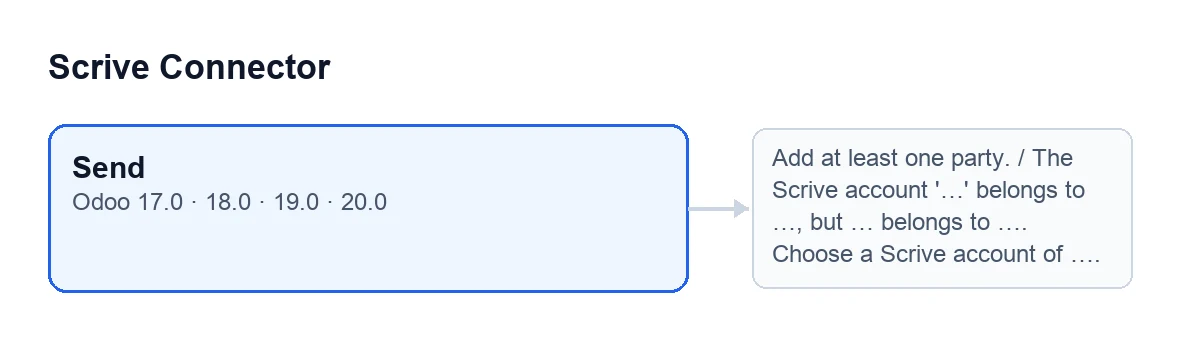
- It checks there are parties. If the list of parties is empty, it stops with
Add at least one party.and nothing is saved. - It checks the account's company. If both the dialog and the Scrive account have a company and they differ, it stops with the message in the table below, before creating anything. If the dialog or the account has no company, this check does nothing.
- It validates the parties with Scrive's rules, on in-memory copies and while the dialog is still open, taking the sender role into account. The code gives a missing e-mail and a mobile without country prefix as examples: they are reported in the dialog, before the PDF is rendered and the document is created, so you can fix them.
- It attaches the rendered PDF to the source record. Only now does the file become part of the record; if you close the dialog instead of sending, nothing is left behind.
- It decides which file is sent. If there is no template, the dialog stored a signature preview with parties and the parties have not changed since, the file from that preview is sent, byte for byte. Otherwise the document itself composes the signature page when it is sent. Whichever file is used, it is flagged as the connector's own, so the send may rewrite it with the signature page in place.
- It creates the Scrive document from what is in the dialog: the account, the template if there is one, the title, the source record, the days to sign and to remind, the language, the sender role, the invitation and confirmation messages, and the parties with their details (contact, role, signing order, delivery and authentication methods, signature position and custom fields).
- It sends it. Before touching anything, the FlexigoTech Cloud service is checked: without it nothing can be sent. If Scrive returns an error while sending, the dialog still carries on to the end and opens the form of the Scrive document just created (or the first signing link).
- It takes you to the next screen. The section below explains where.
What happens at the end
If a party has link delivery and already has a signing link, the dialog opens the signing link of the first such party in a new window. In any other case it opens the form of the Scrive document just created, in the same window.
Messages that can stop Send
| Message | When it appears | What to do |
|---|---|---|
Add at least one party. | On pressing Send with the list of parties empty. | Add at least one party and press again. |
The Scrive account '…' belongs to …, but … belongs to …. Choose a Scrive account of …. | On pressing Send, when the account's company differs from the dialog's. If the dialog has no document name, the message says this document. | In Scrive Account, choose an account of the company the message names. |
Without a FlexigoTech Cloud subscription
Without a subscription, or with the service suspended, what the subscription provides stops; your data stays in your Odoo. The connection goes through FlexigoTech Cloud, which stores the credentials encrypted, watches the synchronisation and emails you if it fails.
How FlexigoTech can help
Scrive Connector is published for Odoo 17, 18, 19 and 20. It is a one-off payment per Odoo version (see each version's price on its listing) and needs a FlexigoTech Cloud subscription: Connector plan, €49 per month or €490 per year excluding VAT, up to 3 accounts on the platform. There is more on the module page. FlexigoTech also implements Odoo 17, 18, 19 and 20 and builds custom connectors and integrations.
Keep reading
Checked in the connector's source code (version 20.0) and the linked sources
Sources
- Module source code: flexigobe_scrive_connector 20.0 (21b3b940): wizard/scrive_send_wizard_views.xml
- Module source code: flexigobe_scrive_connector 20.0 (21b3b940): wizard/scrive_send_wizard.py
- apps.odoo.com/apps/modules/20.0/flexigobe_scrive_connector
- flexigotech.com/en/services.html
- flexigotech.com/precios.html