

 Español
 Català
 Deutsch
 Français
 Português
 Italiano
 Nederlands
 Polski
Where it appears and what it says
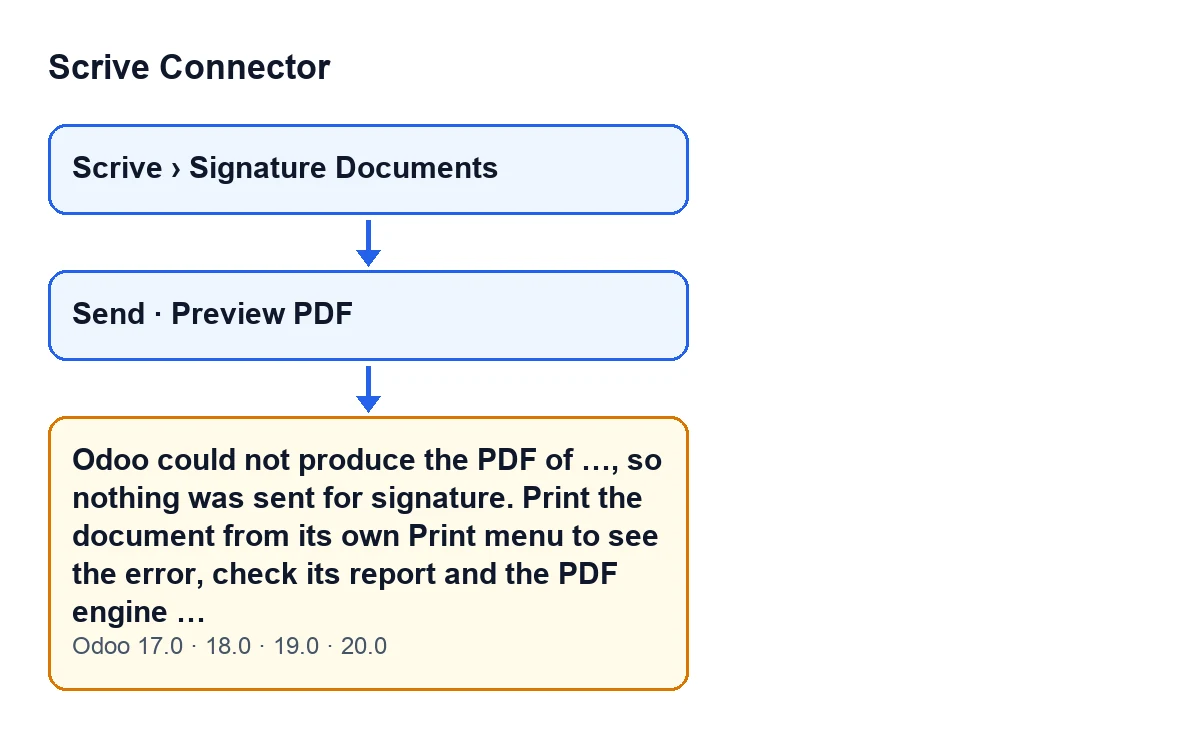
The message appears on the send-for-signature screen. It can come up when you press Send and also when you press Preview PDF: both buttons are always visible and both reach the same point in the module, the one that generates the PDF. The full text is:
Odoo could not produce the PDF of …, so nothing was sent for signature. Print the document from its own Print menu to see the error, check its report and the PDF engine (wkhtmltopdf) of this server, then send it again. Details: …
The ellipses are values: the name of the document and, at the end, the detail of the error. If the document has no display name, the message shows the internal name of its type instead.

What the message does not tell you
It comes from two buttons, not only from sending
If you press Send, the module generates the PDF before the first call to Scrive. If you press Preview PDF, that button reaches the same method. So the warning can appear without you having attempted the real send: if you get it on the preview, the fault is in generating the PDF, which is the step both buttons share.
The exact condition: a generation failure that is not already a clear sentence
The module asks the document for its PDF. If the document itself answers with a message that already explains the problem (the code gives an unsupported model or a missing report as examples), that message is shown as it is, without being wrapped. Any other failure, whatever the report engine raises, is replaced by this message. In other words, this warning is the module's way of turning a technical error into a single sentence.
When you see it, nothing has been sent
The PDF is generated before the first call to the Scrive API, and the error stops the action. That is why the text says nothing was sent for signature: there is no half-finished send to untangle, only a PDF that could not be produced.
«Details» carries the original error
The last part of the message contains what the engine answered. The code has one case in mind: when wkhtmltopdf times out or dies, it returns an empty file and the PDF library answers Cannot read an empty file. Before this message existed, that failure reached the sender as a raw technical error with nothing recorded. If you read that sentence in Details, it is the case the code describes; any other text is whatever the engine returned in a different failure.
Every failure is logged on the server
Besides showing you the message, the module writes the failure to the server log, with the type and the identifier of the document. Whoever administers the server can look there for the full trace, which is longer than the Details line.
Printing the document is the test
The message itself points the way:
- Open the document and, from its own
Printmenu, print the report. There you will see the error exactly as Odoo gives it. - Check that document's report and the PDF engine (wkhtmltopdf) of the server, which is what the message asks for.
- Once the document prints properly, send it again with
Send.
If printing works but sending still fails, compare the text in Details with what you saw when printing: the message sends you to the print menu precisely so you can see the error by another route.
Where signature documents live
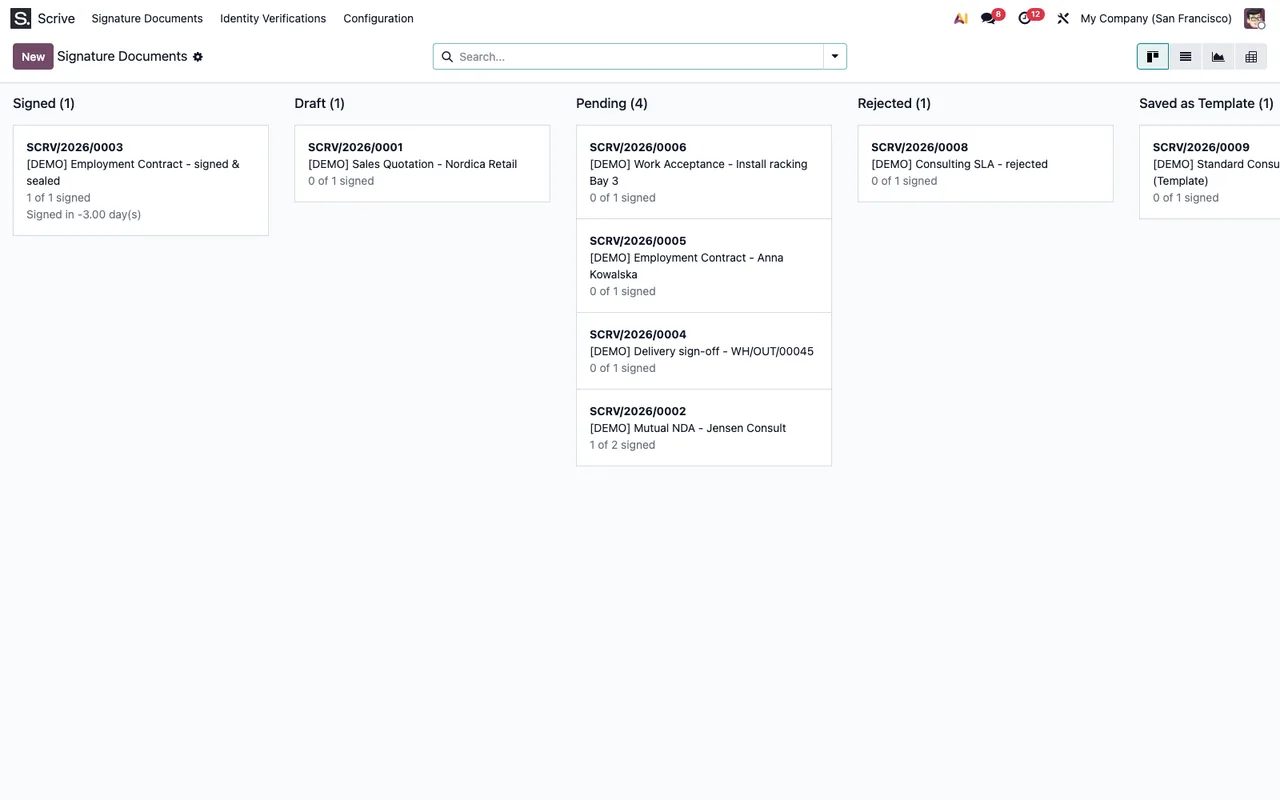
Signature documents open from the Scrive › Signature Documents menu. The Scrive segment asks for the User permission: without it, you do not see that segment.
Versions and cost
The message is in the published code of branches 17, 18, 19 and 20, and the module is published on Odoo Apps for those four versions. It is a one-off payment per version and needs the FlexigoTech Cloud subscription: the Connector plan costs €49 a month or €490 a year, excluding VAT. You will find the listing on Odoo Apps and the module page on flexigotech.com.
How FlexigoTech can help
If the report does not print properly or the server does not generate PDFs, FlexigoTech implements Odoo 17, 18, 19 and 20 and builds custom connectors and integrations. To see what the button does before sending and which other errors it can give, read what the Send button does.
Keep reading
Checked in the connector's source code (version 20.0) and the linked sources
Sources
- Module source code: flexigobe_scrive_connector 20.0 (21b3b940): models/scrive_document.py
- Module source code: flexigobe_scrive_connector 20.0 (21b3b940): wizard/scrive_send_wizard_views.xml
- apps.odoo.com/apps/modules/20.0/flexigobe_scrive_connector
- flexigotech.com/precios.html
- flexigotech.com/en/services.html
- Module source code: flexigobe_scrive_connector 20.0 (21b3b940): __manifest__.py
- Module source code: flexigobe_scrive_connector 20.0 (21b3b940): wizard/scrive_send_wizard.py