

 Español
 Català
 Deutsch
 Français
 Português
 Italiano
 Nederlands
 Polski
The case: a validated picking and tracking to update
Example Illustrative case: the company and its figures are made up to explain the flow.
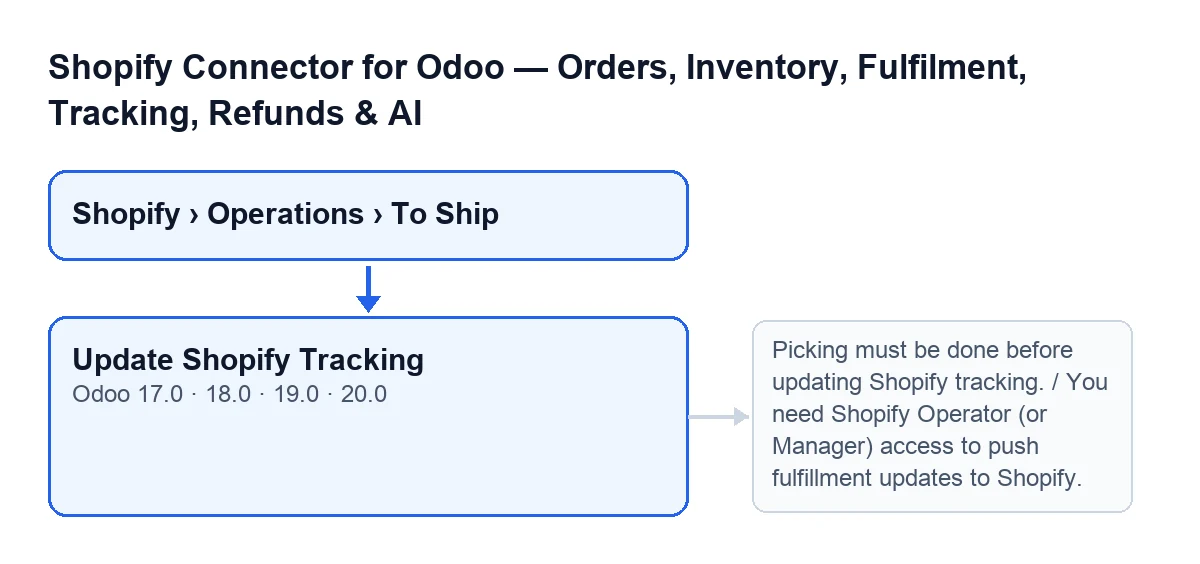
Tienda Aurora, an invented company, sells on Shopify and prepares its shipments from Odoo. Lucía, in the warehouse, has the Viewer permission and has already validated the picking of an order; she wants Shopify to reflect the tracking of that shipment. She opens Shopify › Operations › To Ship, goes into the picking and looks for the Update Shopify Tracking button. What follows is what Lucía sees, what the module checks and what changes on the picking.

When the button appears
The forms of Shopify pickings open from Shopify › Operations › To Ship. Without the Viewer permission you do not see the Shopify section or the Operations section of the menu. The Update Shopify Tracking button is on the To Ship screen in Odoo 17, 18, 19 and 20.
The button is hidden if any of these conditions holds, so you only see it when none of them does:
- The picking does not belong to a Shopify order. The
Is Shopify Orderfield does not show in any view: you do not tick it yourself. - The picking is not in the
Donestate. - The picking has no value in
Shopify Fulfillment.
The condition is the same in Odoo 17, 18, 19 and 20. That is why Lucía sees the button: her picking is a Shopify one, it is Done and it has a fulfilment.
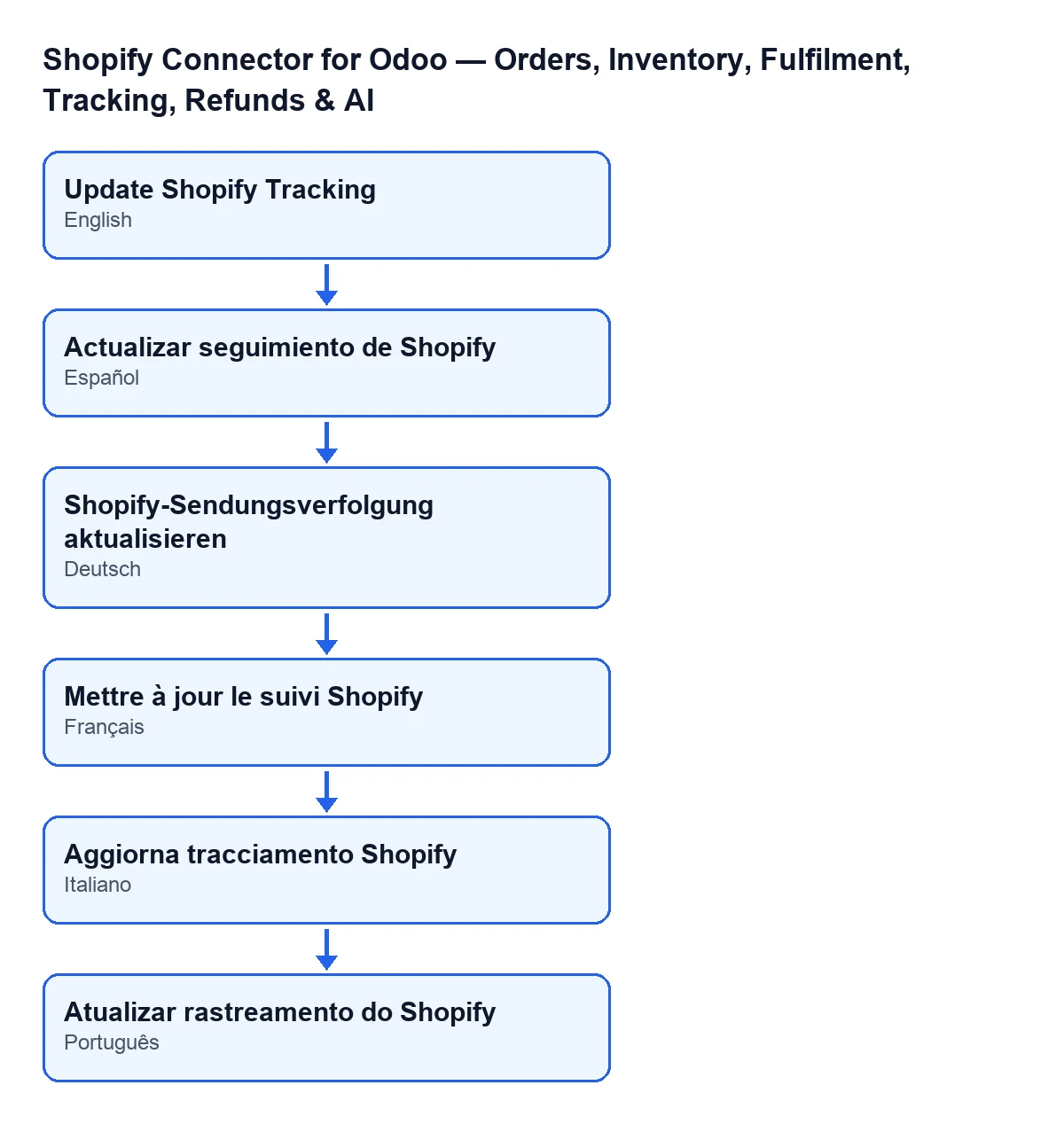
Update Shopify Tracking; in Spanish, Actualizar seguimiento de Shopify; in German, Shopify-Sendungsverfolgung aktualisieren; in French, Mettre à jour le suivi Shopify; in Italian, Aggiorna tracciamento Shopify; in Portuguese, Atualizar rastreamento do Shopify.What the module does when you press it, in order
- It checks your permission before doing anything else. If the call is made as superuser, this check is skipped. If you do not have the access the message asks for,
You need Shopify Operator (or Manager) access to push fulfillment updates to Shopify., the action stops here. - For each picking, it checks that it is
Done. If it is not, it stops with the messagePicking must be done before updating Shopify tracking. - It checks that the picking has a
Shopify Fulfillment. If it has none, the action stops. - It calls the Shopify connection and collects its result.
- With that result, it writes to the picking the data described in the next section.
- It posts a note on the picking reading
Shopify tracking updated for picking … (fulfillment …)., with the picking name and the fulfilment in place of the dots.
The order matters when something fails: the permission is checked before anything else, and the state and the fulfilment are checked before Shopify is called.
What changes on the picking
If the call succeeds, the module saves on the picking:
- The fulfilment status returned by Shopify. If the response carries no status, the picking keeps the one it already had.
- The date and time of the last tracking synchronisation.
- The request that was sent and the response that was received.
It also clears the previous fulfilment error, if there was one, and posts the note from the last step.
If the action stops because of the permission, the state or a missing fulfilment, it ends there and nothing it was about to change on that picking is saved: no synchronisation date, no request, no response, no note.
Messages from this button and what to do
| Message | When it appears | What to do |
|---|---|---|
Picking must be done before updating Shopify tracking. | When you press the button, the state check finds the picking is not Done. | Validate the picking until it is Done and try again. |
You need Shopify Operator (or Manager) access to push fulfillment updates to Shopify. | When you press the button, your user does not have the access the message asks for and the call is not a superuser one. | Ask for the access the message names and press the button again. |
The button only shows when the picking is Done and has a Shopify Fulfillment, but the code checks both again before going on.
What happens to Lucía
If Lucía does not have the access the message asks for, pressing the button gives her that message and the picking does not change. Once someone grants her that access and she presses the button again, the action reaches Shopify and, if the call succeeds, the picking ends up with the fulfilment status, the date of the last synchronisation and the posted note.
What to check afterwards
After a successful press, open the same picking and look at the note that has been posted: it carries the picking name and the fulfilment. If one of the messages in the table appeared instead, the picking stays as it was, and you can fix the cause (the access or the state) and press again.
What the case teaches
- When you press the button, the module checks your permission before doing anything else.
- The button works on a fulfilment that already exists on the picking. Without a
Shopify Fulfillmentit is not even shown. - If the action stops because of the permission, the state or a missing fulfilment, nothing it was about to change on that picking is saved.
- After a success, the note and the last synchronisation date leave a record on the picking itself.
Versions, price and help with the implementation
The module is published on the Odoo Apps listing for Odoo 17, 18, 19 and 20 and is a one-off payment per version. It also needs the FlexigoTech Cloud subscription, Connector plan: €49 a month or €490 a year, excluding VAT, with up to 3 accounts of the platform. The connection goes through FlexigoTech Cloud, which stores the credentials encrypted and emails you if synchronisation fails. Without a subscription, or with the service suspended, what the subscription provides stops; your data stays in your Odoo. There is more detail on the module page.
FlexigoTech implements Odoo 17, 18, 19 and 20 and builds custom connectors and integrations. If you want to review which users should have access to the Shopify actions in your warehouse, that can be done during the implementation.
Keep reading
Checked in the connector's source code (version 20.0) and the linked sources
Sources
- Module source code: flexigobe_shopify_seller_connector 20.0 (d7e627b4): views/stock_picking_views.xml
- Module source code: flexigobe_shopify_seller_connector 20.0 (d7e627b4): models/stock_picking.py
- apps.odoo.com/apps/modules/20.0/flexigobe_shopify_seller_connector
- flexigotech.com/precios.html
- flexigotech.com/en/services.html