

 Español
 Català
 Deutsch
 Français
 Português
 Italiano
 Nederlands
 Polski
When exactly it appears
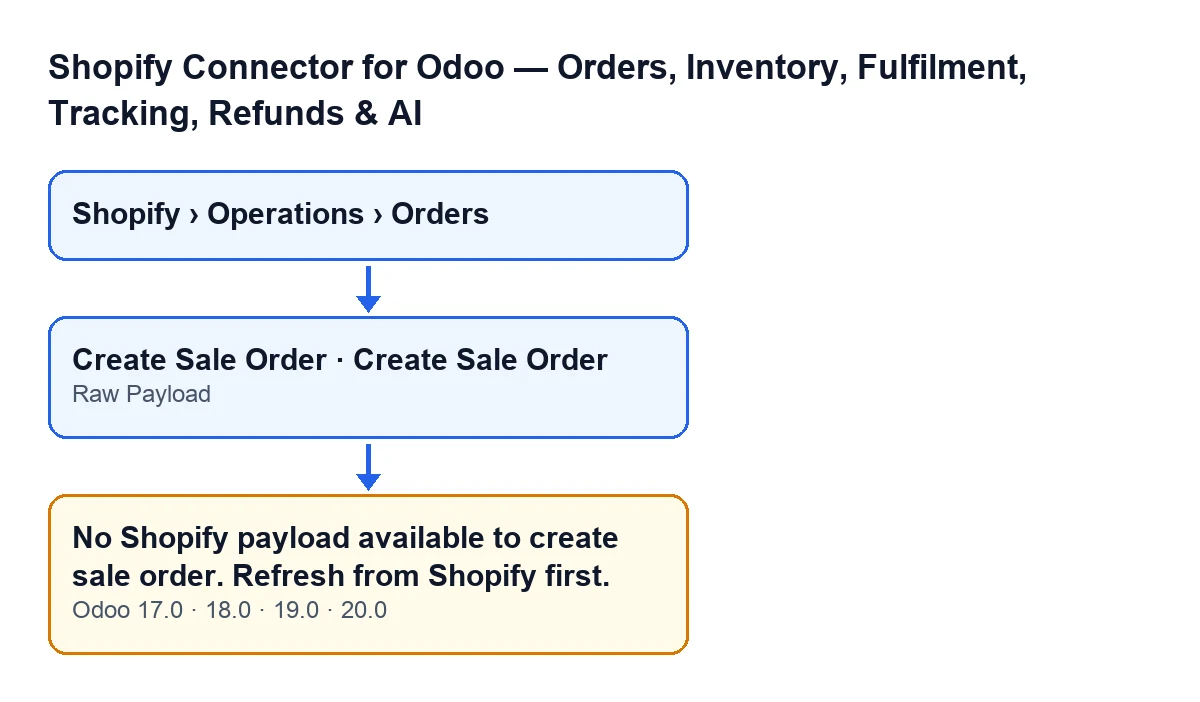
The message appears when you press the Create Sale Order button on the form of a Shopify order. You reach that form from the menu Shopify › Operations › Orders. Each part of the menu needs the Viewer permission: without it, you do not see that part. That permission is for seeing the menu; the button itself is for Shopify Managers, and the method checks this before it looks at the order's content.
The button is visible while the order's Sale Order field is empty, and it is hidden once the order has one. When you press it, Odoo asks for confirmation with this text: It is created as a quotation that the connector never confirms: check first that this order was not shipped already. Create it?. If you accept and your user is a Shopify Manager, the method checks whether the Raw Payload field is empty. If it is, it raises the message and the action stops.

What the checked field is
Raw Payload is a Json field on the Shopify order. You see it on the Fulfilment Funnel form, in the Technical tab. On screen it has no label, only its content shows, and only users with system administration permission can see it, read-only.
You do not write it yourself: the module's code fills it, and both the Create Sale Orders button and Create Sale Order itself reach that code. To see what the first one does, read what the Create Sale Orders button does.
A case to see it in action
Example Illustrative case: the company and its figures are made up to explain the flow.
Tienda Ejemplo is an invented company that sells on Shopify and manages its orders in Odoo. Laura, a Shopify Manager, looks after orders: she opens Shopify › Operations › Orders and goes into one that has no sales order. She sees the Create Sale Order button and presses it. She reads the confirmation: it is created as a quotation that the connector never confirms, and she should first check that the order was not shipped already. Laura checks, accepts, and Odoo answers with No Shopify payload available to create sale order. Refresh from Shopify first..
Her user does not have system administration permission, so she cannot see the Raw Payload field. She asks someone who has it to open the Technical tab of the Fulfilment Funnel form, and that person confirms there is no content. That fits the code: with the field empty, the method stops. Laura refreshes the order from Shopify, as the message asks, and presses the button again.
What the case teaches:
- The message is about the stored content of the Shopify order, not about the sales order you wanted to create.
- Checking the cause means seeing the
Raw Payloadfield, and that depends on one specific permission. - The warning in the confirmation matters: the sales order is created as a quotation that the connector never confirms.
What the method does, in order
In Odoo 20.0, when you press Create Sale Order, the method does this:
- If the order already has a
Sale Order, the method opens it and finishes. There is no error. - If your user is not a Shopify Manager, the method stops.
- If
Raw Payloadis empty, it raises the messageNo Shopify payload available to create sale order. Refresh from Shopify first.and stops. - If there is content, it removes the order's hold flag and marks the order as created by hand.
- It processes the stored content again with the by-hand option and re-reads the order.
- If the order now has a
Sale Order, it opens it; if not, it finishes without opening any order.
Because the hold flag and the by-hand mark are written after the check, when the error appears nothing is saved and the order stays as it was.
How to resolve it
- Check that the order still has no
Sale Order. If it has one, the button is not shown. - Check that your user is a Shopify Manager: the button is for managers and, if you are not one, the method stops before it looks at the content.
- If you have system administration permission, open the
Technicaltab of theFulfilment Funnelform and see whether there is any content. If you do not, ask someone who does to look. - Refresh the order from Shopify, as the message itself says.
- Press
Create Sale Orderagain, read the confirmation once more and accept only if the order was not shipped already. - If the sales order is created, Odoo opens it; if nothing opens, check the order's
Sale Orderfield.
Do not try to type the content in by hand: the field is read-only and the module's code writes it.
Which versions have it
The message is in the published code of all four branches: Odoo 17, 18, 19 and 20. The Create Sale Order button has the same view condition in all four: it is hidden when the order has a Sale Order. The module is published on Odoo Apps for those four versions.
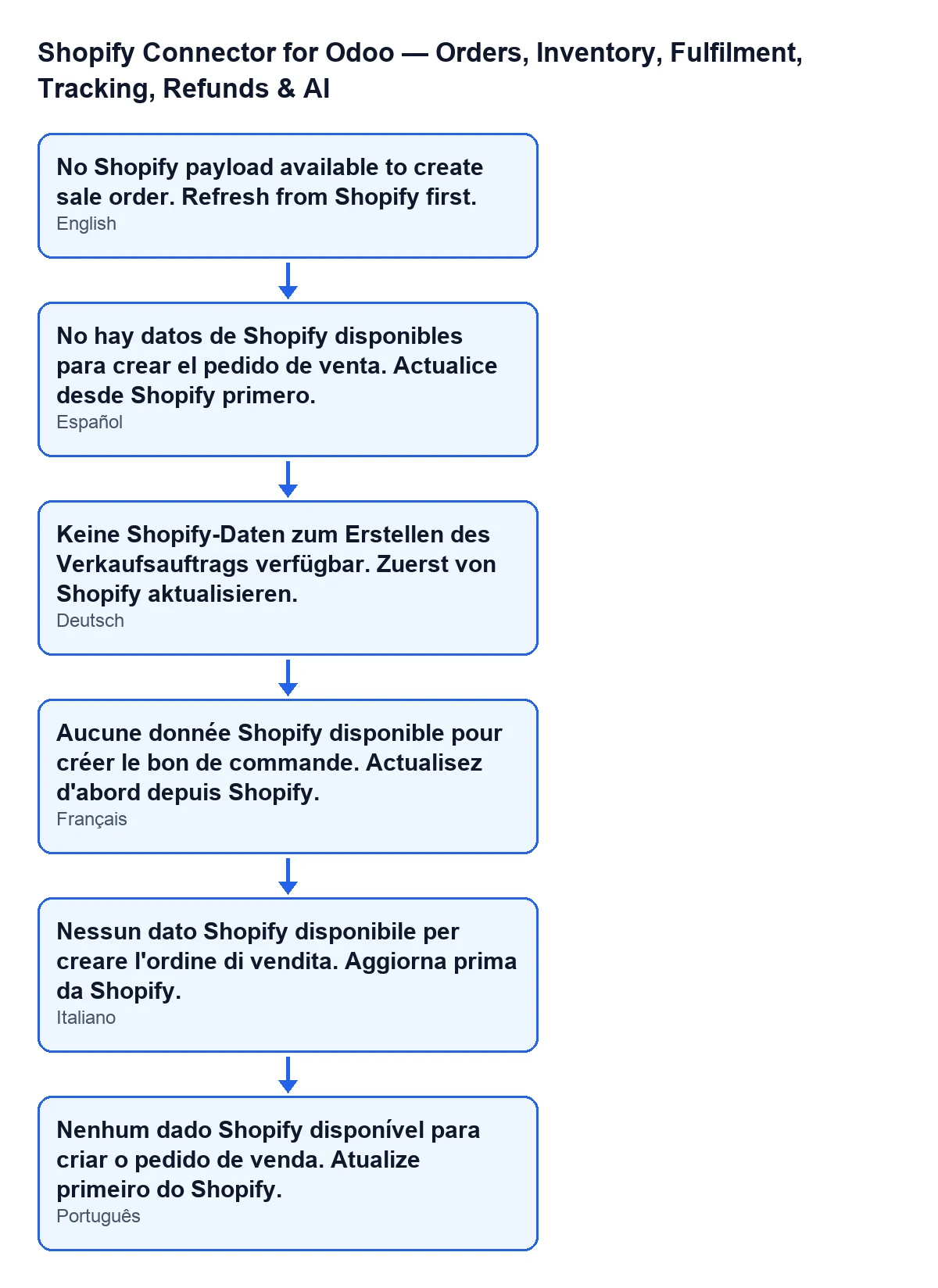
With Odoo in Spanish, the message reads No hay datos de Shopify disponibles para crear el pedido de venta. Actualice desde Shopify primero.. The diagram below shows the same text in other languages.
If you need help with the implementation
If you want to review how your shop and your Odoo are connected, FlexigoTech implements Odoo 17, 18, 19 and 20 and builds custom connectors and integrations. You will find more on the Odoo Apps listing and on the module page.
Keep reading
Checked in the connector's source code (version 20.0) and the linked sources
Sources
- Module source code: flexigobe_shopify_seller_connector 20.0 (d7e627b4): models/shopify_order.py
- Module source code: flexigobe_shopify_seller_connector 20.0 (d7e627b4): views/shopify_order_views.xml
- apps.odoo.com/apps/modules/20.0/flexigobe_shopify_seller_connector
- flexigotech.com/en/services.html