

 Español
 Català
 Deutsch
 Français
 Português
 Italiano
 Nederlands
 Polski
What the notice means
Is it an error?
No. It is a success notice that does not stay fixed on screen and does not block the action. It confirms that a Shopify location is now the primary location of its instance.
What does the text say, and what is each gap?
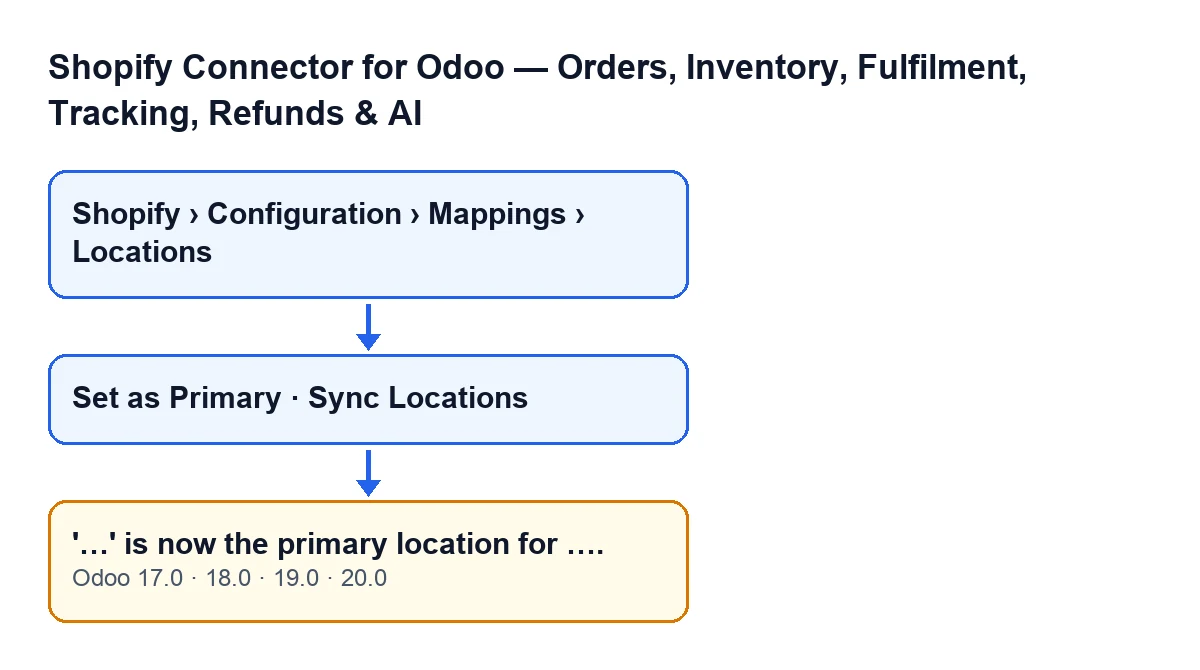
The text is '…' is now the primary location for ….. The first gap is the name of the location and the second is the domain of the Shopify shop of the instance it belongs to. The title of the notice is Primary Location Set.
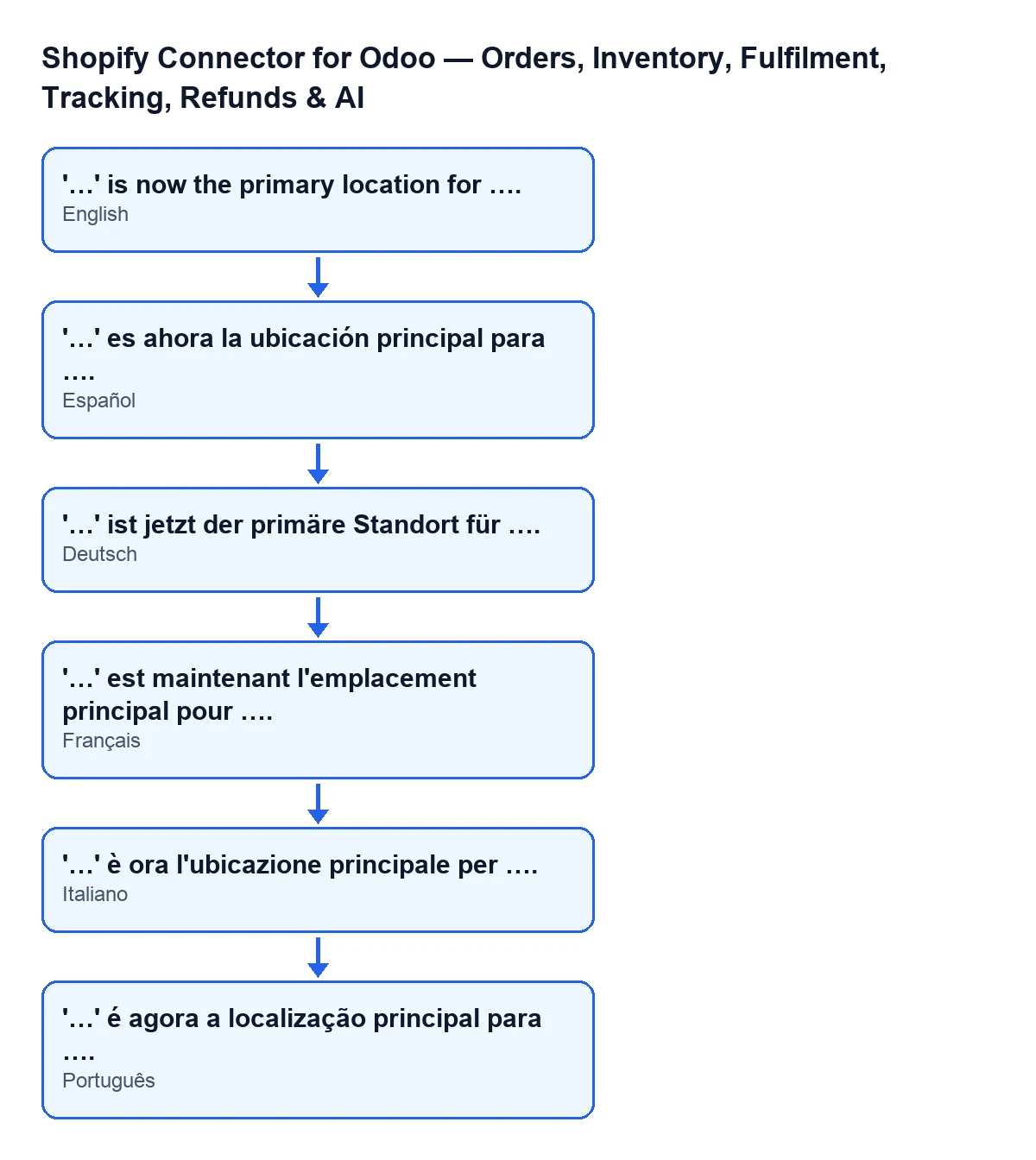
'…' es ahora la ubicación principal para ….; in German, '…' ist jetzt der primäre Standort für ….; in French, '…' est maintenant l'emplacement principal pour ….; in Italian, '…' è ora l'ubicazione principale per ….; in Portuguese, '…' é agora a localização principal para ….When exactly does it appear?
When the action that sets the location as primary runs to the end. The notice is the last thing the code does: it appears after the flags on the locations have been changed and the location has been saved on the instance. You reach it from two buttons, explained below.
Do I need to do anything when I see it?
No. The notice only confirms that the action has finished. What is worth doing is reading the first gap: if the name is the location you wanted, the action has done what you expected.

What Odoo does before showing it
In what order does the code act?
First it clears the Is Primary flag on the other locations of the same instance. Then it sets the flag on the location you are working on. Next it saves that location on the instance and, last of all, returns the notice. Locations belonging to other instances are not touched.
What is saved on the instance?
The instance stores that location as its default location: its Shopify identifier and its name. This happens before the notice is shown, so the name in the first gap is the one that has been saved.
What happens to the location that was primary before?
It loses the Is Primary flag, because the code clears it on all the other locations of the instance before setting it on the new one.
How to get there and what to do
Where is the button, and when is it visible?
Location records open from Shopify › Configuration › Mappings › Locations. To see the Configuration part of the menu you need the Operator permission, and for the Shopify part you need Viewer. The Set as Primary button is on the location record and is hidden when the location is already primary; with the default values it is visible. The condition is the same in Odoo 17, 18, 19 and 20.
Can I click the button on the location that is already primary?
No, because the button is not shown on it. If you want to see the notice again for that location, you would first have to make another location primary and then set the one you want again.
What if I see it after clicking Sync Locations?
The Sync Locations button is on the Shopify instance view and is always visible, in Odoo 17, 18, 19 and 20. Its method reaches the same method that sets the primary location, which raises the notice if its condition is met. That is why the notice can also appear from this button.
What if the location it names is not the one I wanted?
Open the location you do want in Shopify › Configuration › Mappings › Locations and click Set as Primary. You will see a new notice with its name, and the previous one will lose the flag. To check that it has been applied, reopen the record: the button no longer appears, because it is hidden on the primary location.
Which versions is it in, and what does it need?
The notice is in the published code for Odoo 17, 18, 19 and 20, and the module is published on Odoo Apps for those four versions. It is a one-off payment per version and needs the FlexigoTech Cloud subscription: the Connector plan costs €49/month or €490/year excluding VAT. The connection goes through FlexigoTech Cloud, which stores the credentials encrypted and emails you if synchronisation fails. You can see the Odoo Apps listing or the module page.
If you are setting up the connection
If you are implementing Odoo and want to review how to connect your shop, FlexigoTech implements Odoo 17, 18, 19 and 20 and builds custom connectors and integrations. And if you are looking at another button in the module, there is the article on the stock button.
Keep reading
Checked in the connector's source code (version 20.0) and the linked sources
Sources
- Module source code: flexigobe_shopify_seller_connector 20.0 (d7e627b4): models/shopify_location.py
- Module source code: flexigobe_shopify_seller_connector 20.0 (d7e627b4): views/shopify_location_views.xml
- Module source code: flexigobe_shopify_seller_connector 20.0 (d7e627b4): views/shopify_instance_views.xml
- apps.odoo.com/apps/modules/20.0/flexigobe_shopify_seller_connector
- flexigotech.com/precios.html
- flexigotech.com/en/services.html