

 Español
 Català
 Deutsch
 Français
 Português
 Italiano
 Nederlands
 Polski
Where the carrier mapping opens
The module is published on Odoo Apps for 17.0, 18.0, 19.0 and 20.0. The records open from the menu Shopify › Configuration › Mappings › Carriers. The Configuration step requires the Operator permission and the Shopify step requires Viewer: if you lack either, you do not see that step of the menu.
The form is called Shopify Carrier Mappings. Among its groups are Mapping, Odoo Carrier and Usage, and it has a Carrier Mappings tab with a table that repeats several of the fields.
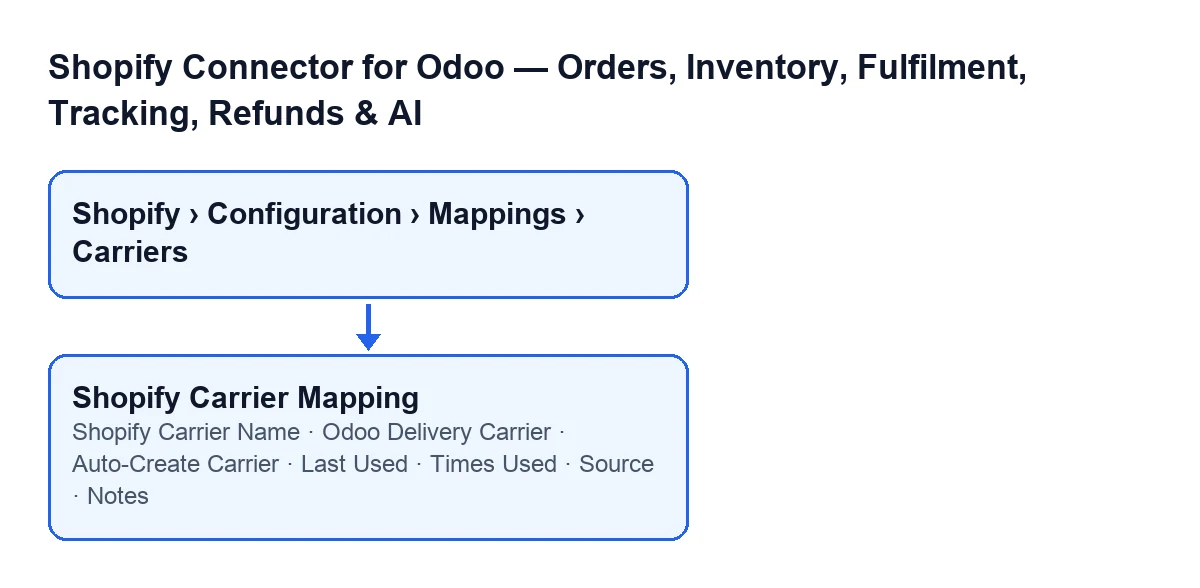

Comparison: the fields you decide
These four fields appear on the form and also in the table on the Carrier Mappings tab.
| Field | Where | What its help says | What to enter |
|---|---|---|---|
Shopify Carrier Name | Mapping group | «Exact carrier name as it appears in Shopify shipping lines (case-insensitive match).» | The name as Shopify writes it in its shipping lines. Upper and lower case do not matter. |
Odoo Delivery Carrier | Odoo Carrier group | «Odoo delivery carrier to assign when this Shopify carrier name is found on an order.» | The Odoo carrier you want to see on orders that carry that name. |
Auto-Create Carrier | Odoo Carrier group | «If no carrier is mapped, automatically create a new Odoo delivery carrier with this name.» | Unticked by default. Tick it only if you want Odoo to create the carrier when none is mapped. |
Notes | Odoo Carrier group | «Optional notes about this mapping.» | Whatever you want to remember about that mapping. It is optional. |
The name has to match the one in Shopify
The help asks for the exact name as it appears in Shopify shipping lines, and says the match is case-insensitive. In practice: copy the name from Shopify rather than typing it from memory, and do not worry about capitals.
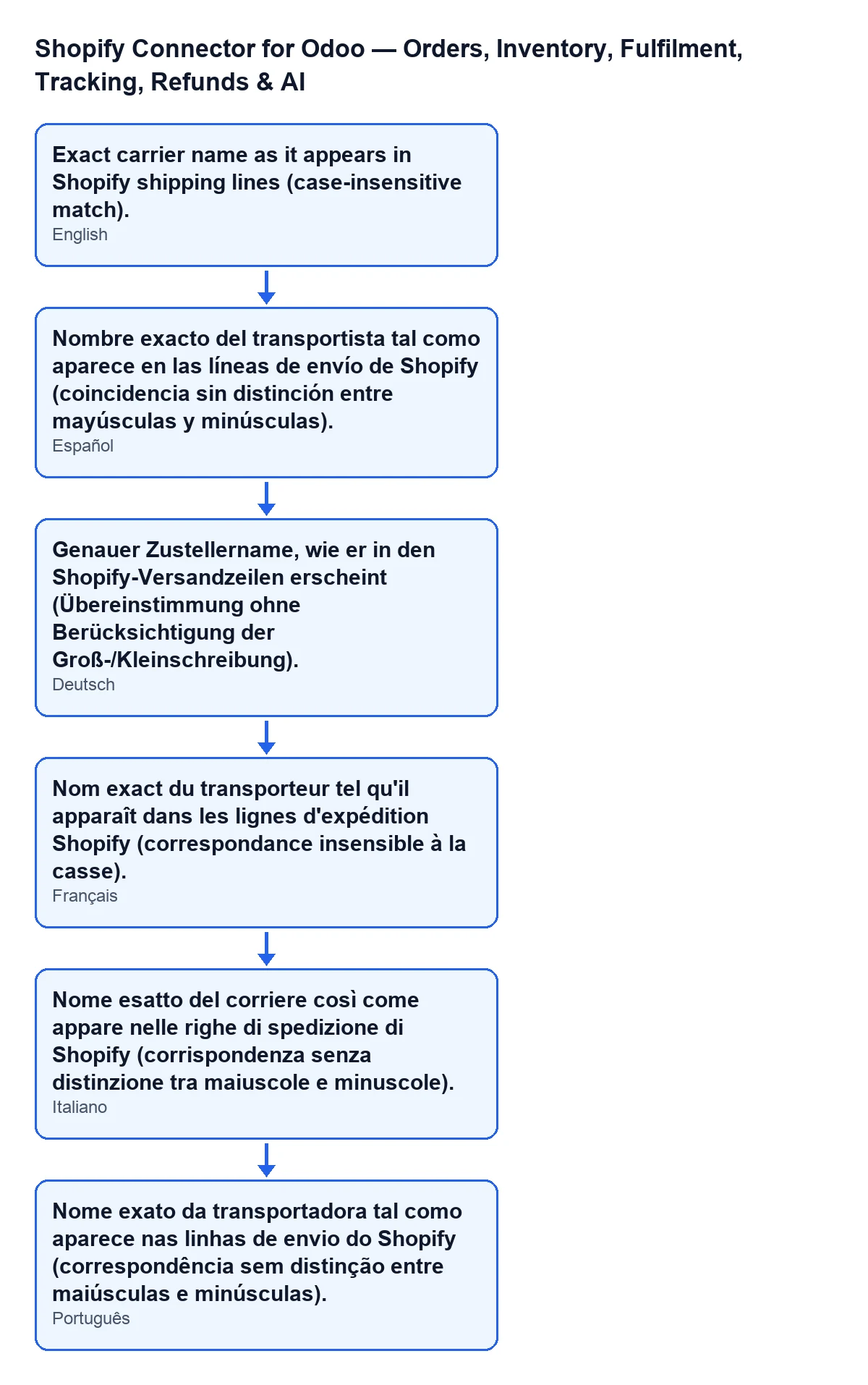
With Odoo in English, the help of the Shopify Carrier Name field reads «Exact carrier name as it appears in Shopify shipping lines (case-insensitive match).». The module ships the same help translated into other languages, as the diagram shows.
Odoo carrier and the auto-create checkbox
Odoo Delivery Carrier is the destination: the carrier that will be assigned when that Shopify name appears on an order. The Auto-Create Carrier checkbox comes into play when no carrier is mapped: it creates a new one with that name. If you prefer to decide which carriers exist in Odoo, choose the carrier in each mapping and leave the checkbox as it comes, unticked.
Comparison: the fields you only read
These three fields are read-only. Last Used and Source also appear in the table on the Carrier Mappings tab; Times Used is on the form and in the Usage group.
| Field | Where | What its help says | Who writes it |
|---|---|---|---|
Last Used | Usage group and the table on the Carrier Mappings tab | «Last time this mapping was resolved during an order sync.» | The module code, not the user. |
Times Used | The form and the Usage group, where it is labelled Order Count | «Number of times this carrier name has been matched during order syncs.» | The module code, not the user. Zero by default. |
Source | Mapping group and the table on the Carrier Mappings tab | «Source of discovery: 'order_payload', 'delivery_profile', or 'manual'.» | Read-only. Its default value in the code is manual. |
How the counters move
The module code fills Last Used and Times Used when the mapping is resolved. That happens from the Create Sale Orders and Create Sale Order buttons. The module code can also clear both counters.
How to create a new mapping
- Open the menu
Shopify › Configuration › Mappings › Carriers. - In the
Mappinggroup, fill inShopify Carrier Namewith the name copied from the Shopify shipping lines. - In the
Odoo Carriergroup, choose theOdoo Delivery Carrieryou want to assign. - Leave
Auto-Create Carrierunticked if you prefer to decide which carriers exist; tick it if you want a new one created with that name when none is mapped. - Jot down in
Noteswhatever you want to remember about that mapping.
If you already have several mappings, the table on the Carrier Mappings tab shows at a glance the fields it repeats, including Last Used and Source.
What to check after creating orders
Open the mapping for your carrier and look at Last Used and Times Used. If the mapping was resolved during the order sync, those fields show it.
Cost and help
The module is a one-off payment per Odoo version and needs the FlexigoTech Cloud subscription (Connector plan): €49/month or €490/year excluding VAT. The connection goes through FlexigoTech Cloud, which stores the credentials encrypted, monitors the sync and emails you if it fails. You can find the listing on Odoo Apps and the module page.
If you are implementing Odoo and want to go through your carrier list and how it is assigned, FlexigoTech implements Odoo 17, 18, 19 and 20 and builds custom connectors and integrations.
Keep reading
Checked in the connector's source code (version 20.0) and the linked sources
Sources
- Module source code: flexigobe_shopify_seller_connector 20.0 (d7e627b4): models/shopify_carrier_mapping.py
- apps.odoo.com/apps/modules/20.0/flexigobe_shopify_seller_connector
- flexigotech.com/en/services.html
- flexigotech.com/precios.html