

 Español
 Català
 Deutsch
 Français
 Português
 Italiano
 Nederlands
 Polski
What the dialog brings and how to read it
The send-for-signature dialog gathers on one form the details of sending the PDF of an Odoo record. Each field covered here comes with a help text that explains what it is for. The texts and defaults are those of the code published for Odoo 20.
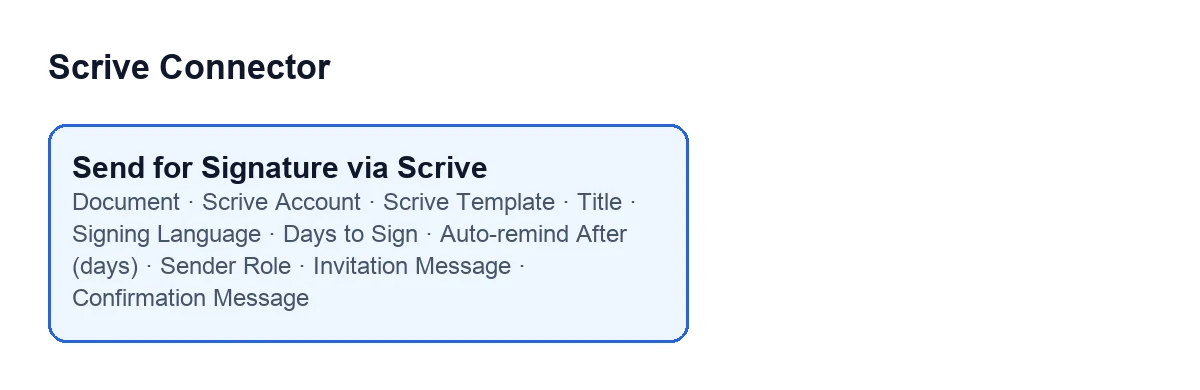
The help text of Scrive Account says that its defaults filled this dialog in. That is why it arrives with data already in place: it is worth checking it before sending rather than taking it as correct.

Comparison of the fields that set up the request
| Field | What its help says | What to enter |
|---|---|---|
Document | “The Odoo record whose PDF is about to be sent for signature.” | Nothing to fill in: it is read-only and on screen it has no label, only its content is shown |
Scrive Account | “Scrive account (and therefore Scrive user) the request is sent with. Its defaults filled this dialog in.” | The account, and therefore the Scrive user, you want the request to go out with |
Title | “Name of the document on Scrive: what the signing parties read in the invitation e-mail and on the signing page.” | A name the signer will understand, since they read it in the invitation and on the signing page |
Signing Language | “Language of Scrive's invitation e-mails, signing page and reminders. It does not translate the PDF itself.” | The language of the signing parties (English by default); bear in mind that the PDF is not translated |
Days to Sign | “The request expires this many days after it is sent (1-365). An expired document can still be prolonged from Odoo.” | A deadline between 1 and 365 days that fits your process (90 by default) |
Auto-remind After (days) | “Scrive reminds the parties that have not signed after this many days. 0 sends no automatic reminder; it must fall before the document expires.” | 0 for no reminder (the default); if you want one, a value lower than Days to Sign |
Sender Role | “Your own role on this document: 'Viewer' only follows it, 'Signing party' means your company signs it too.” | Signing party if your company signs too; Viewer (does not sign) if you only want to follow the document (the default) |
Comparison of the optional fields
These three fields are optional according to their help. The two message fields sit in the Messages group of the form.
| Field | What its help says | What to enter |
|---|---|---|
Scrive Template | “Optional: start from a Scrive template (its placed fields and settings are kept; the rendered PDF replaces the template file).” | A template if you want to keep its placed fields and settings; the PDF Odoo produces replaces the template file |
Invitation Message | “Optional custom invitation text. Empty uses the Scrive default.” | Leave it empty to use Scrive's text; write it only if you want your own |
Confirmation Message | “Optional custom confirmation text. Empty uses the Scrive default.” | The same: empty for Scrive's text, filled in for your own |
What to check before sending
Because the dialog arrives with the account's defaults, here is a short list of what is worth looking at, field by field:
Title: it is what the signing parties read in the invitation e-mail and on the signing page, so it deserves a clear name.Signing Language: it affects the invitation e-mails, the signing page and the reminders, not the PDF.Days to SignandAuto-remind After (days): the reminder must fall before the document expires.Sender Role: it decides whether your company only follows the document or signs it too.
Combinations worth checking
Reminder and expiry
The help of Auto-remind After (days) says the reminder must fall before the document expires. If you change Days to Sign, check the reminder too. The day range has its own article: what happens with days outside the range.
If a document expires, the help of Days to Sign says it can still be prolonged from Odoo.
Signing language and the PDF
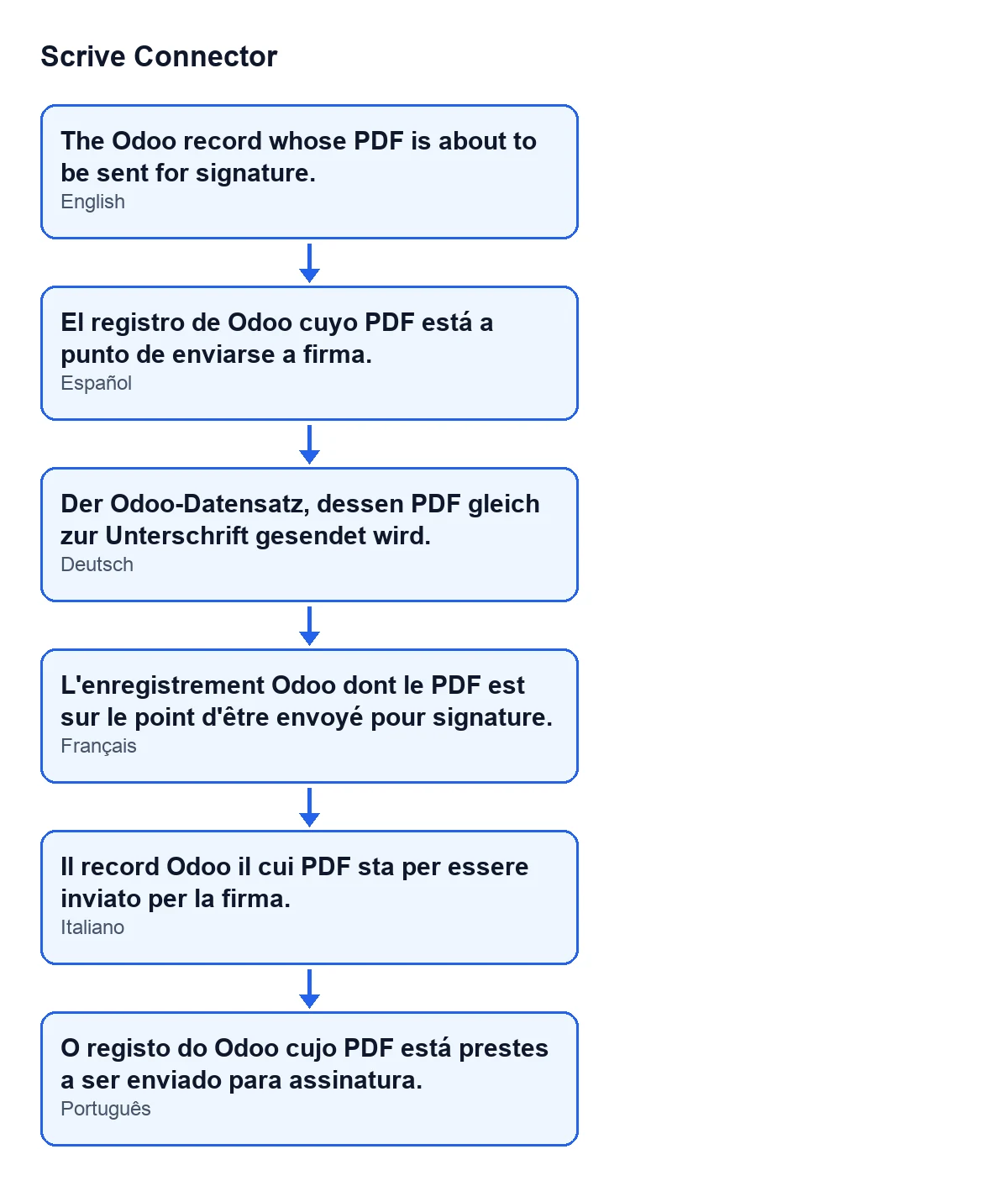
Signing Language changes the invitation e-mails, the signing page and the reminders, but not the PDF. The help of the Document field is also translated: with Odoo in Spanish it reads “El registro de Odoo cuyo PDF está a punto de enviarse a firma.”.
Sender role
If your company also has to sign, change Sender Role to Signing party: with the default, Viewer (does not sign), you only follow the document. The Send button has its own article: what it does step by step.
What it costs and how FlexigoTech helps
Scrive Connector is a one-off payment per version and is published for Odoo 17, 18, 19 and 20. It needs the FlexigoTech Cloud subscription, Connector plan: €49/month or €490/year excluding VAT. You will find the Odoo Apps listing and the module page.
If you are implementing Odoo and want the language, deadlines and role agreed before anyone sends anything, FlexigoTech implements Odoo 17, 18, 19 and 20 and builds custom connectors and integrations.
Keep reading
Checked in the connector's source code (version 20.0) and the linked sources
Sources
- Module source code: flexigobe_scrive_connector 20.0 (21b3b940): wizard/scrive_send_wizard.py
- apps.odoo.com/apps/modules/20.0/flexigobe_scrive_connector
- flexigotech.com/precios.html
- flexigotech.com/en/services.html