

 Español
 Català
 Deutsch
 Français
 Português
 Italiano
 Nederlands
 Polski
When this message appears
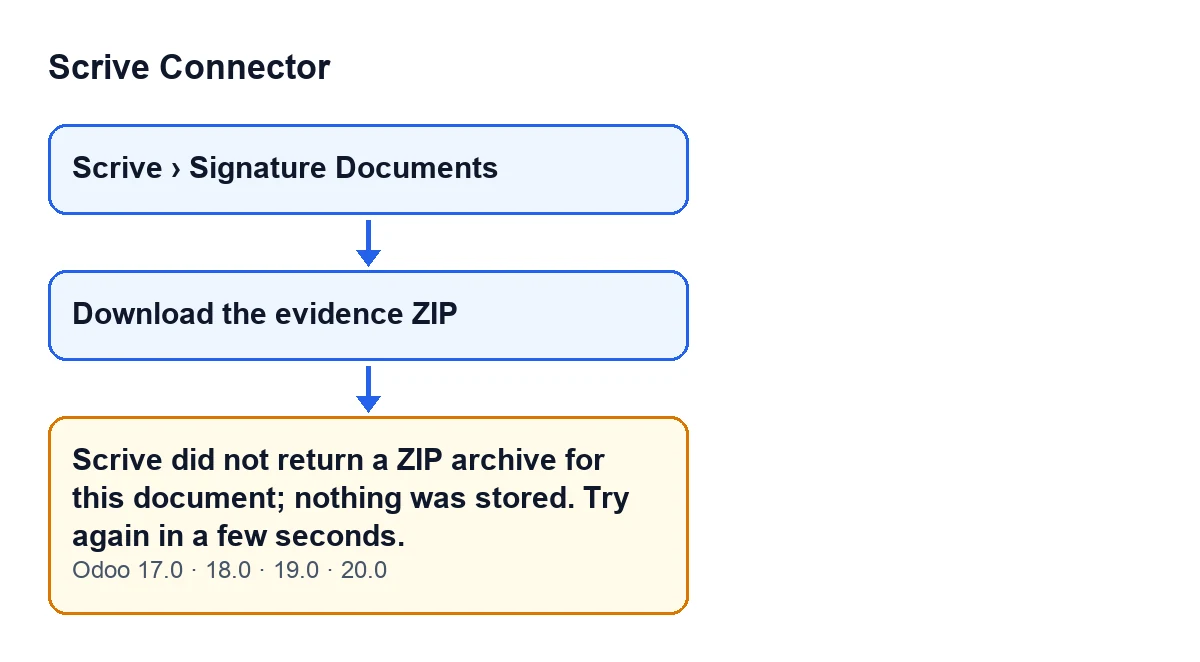
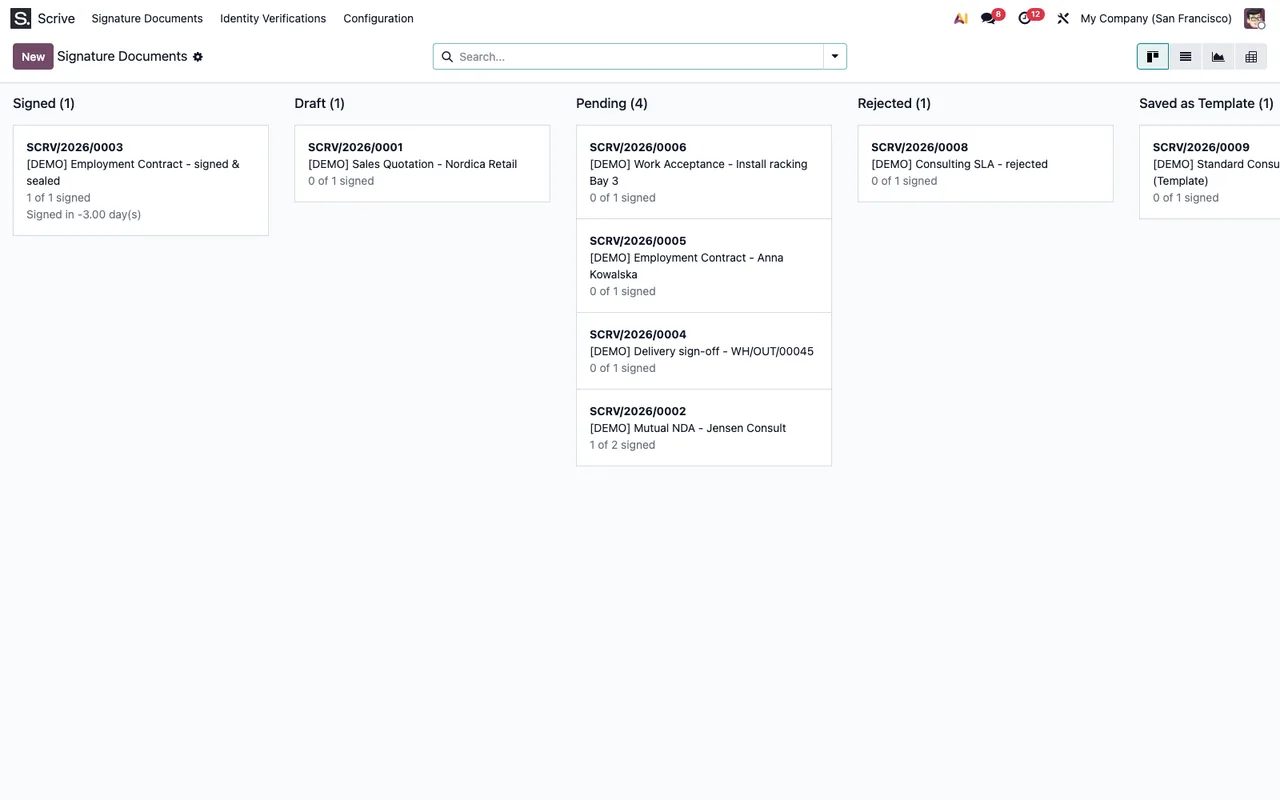
It appears when you press the Download the evidence ZIP button on a signature document. Those documents open from the Scrive › Signature Documents menu. The Scrive level asks for the User permission: if you do not have it, you do not see that part of the menu.
The button is not always visible. It only shows when the document is closed, according to its State field; with the default values, a new document does not show it. That condition is the same in Odoo 17, 18, 19 and 20. So this message can only reach you from a closed document.

What the module checks and what it means
When you press the button, the module asks Scrive for the document's full evidence ZIP, which according to the code gathers the signed PDF, the evidence log and the files. When the response arrives, the module checks two things: that it is not empty and that it starts with PK. If either check fails, the action stops with this message.
In practice it means that what came back is not usable as a ZIP archive. The code does not tell an empty response apart from one that does not start with PK, and the message gives no further cause. That is why the only thing it suggests is to try again after a few seconds.
The order of events matters here: the module stores the ZIP after that check. If the message appears, nothing new has been stored, and an evidence attachment left by an earlier download is not modified by that attempt.
The message text is in the published code of all four branches: 17, 18, 19 and 20.
Checklist before you press the button
- Open the document from
Scrive › Signature Documents. If you cannot see theDownload the evidence ZIPbutton, the document is not closed and there is nothing to download yet.
- Confirm that the document was already sent to Scrive. The action checks this before asking for the ZIP; if you have not sent it yet, go through how a document is sent to Scrive, step by step.
- If you have just received the last signature, leave a moment before downloading. The module's code allows for Scrive answering, right after the last signature, that the package is not ready yet (codes 409 and 503), and it retries the download before giving up.
- Keep in mind that this retry is a separate matter: this message appears when a response arrives that is empty or does not start with
PK.
Checklist when the message appears
- Read the whole notice: it says nothing was stored and that you should try again in a few seconds.
- Wait a few seconds and press
Download the evidence ZIPagain. That is what the message itself says to do.
- Do not look for a new attachment after the failure: the action stopped before storing anything.
- If you had downloaded the ZIP before, do not write that attachment off: this attempt has not touched it.
- If it keeps appearing after several attempts, note the document and the time for whoever has to look into it.
- If you see a different notice instead of this text, it is another message from the action: read it as it stands, because it has a different cause.
Checklist after a successful download
When the response is a valid ZIP, the module stores it as an attachment with a name ending in - evidence.zip and starts the download in the browser. If the document already had an evidence attachment, the module rewrites that same attachment (content and name) instead of creating another.
- Check that the browser downloads a file whose name ends in
- evidence.zip.
- Open it and verify that it is the package for the document you wanted.
- If you download again later, expect the existing attachment to be rewritten, not a duplicate to appear.
Cost and help
Scrive Connector is a one-off purchase per Odoo version, published for 17, 18, 19 and 20 (see the Odoo Apps listing or the module page). It also needs a FlexigoTech Cloud subscription, Connector plan: €49 per month or €490 per year, excluding VAT, with up to 3 accounts on the platform. The connection goes through FlexigoTech Cloud, which stores the credentials encrypted, watches the synchronisation and emails you if it fails. Without a subscription, or with the service suspended, whatever the subscription provides stops; your data stays in your Odoo.
If you are implementing Odoo and want to review the whole signing flow, or you need a bespoke integration, FlexigoTech implements Odoo 17, 18, 19 and 20 and builds connectors and integrations.
Keep reading
Checked in the connector's source code (version 20.0) and the linked sources
Sources
- Module source code: flexigobe_scrive_connector 20.0 (21b3b940): models/scrive_document.py
- Module source code: flexigobe_scrive_connector 20.0 (21b3b940): views/scrive_document_views.xml
- apps.odoo.com/apps/modules/20.0/flexigobe_scrive_connector
- flexigotech.com/precios.html
- flexigotech.com/en/services.html
- Module source code: flexigobe_scrive_connector 20.0 (21b3b940): wizard/scrive_send_wizard.py