

 Español
 Català
 Deutsch
 Français
 Português
 Italiano
 Nederlands
 Polski
When this message appears, according to the code
Scrive Connector checks the signing stage of each party at the moment you save. If the value is below 1, the record is not saved and Odoo shows the message. It is an error that stops the action: nothing you were about to change is saved.
There is a single condition: the stage is lower than 1. Because the field is a whole number, zero or any negative number triggers it; 1 and higher numbers pass. The module carries this check in the published code for Odoo 17, 18, 19 and 20.
The Signing Stage field is shown in the Parties tab, inside the Parties table. Its default value in the code is 1.
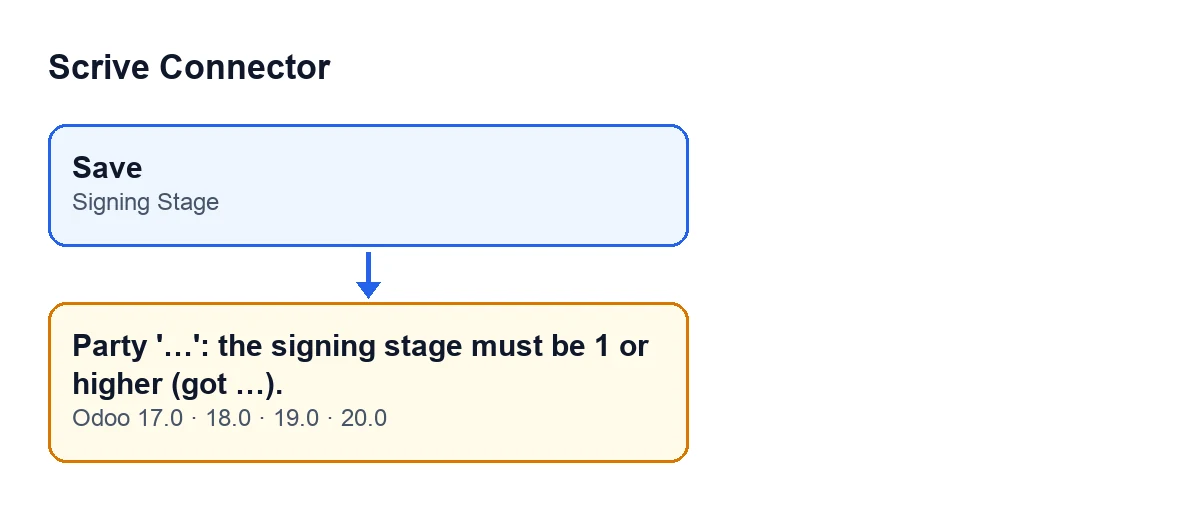

How to read the message
The message has three parts, and each one gives you a clue:
Party '…': the name of the party that breaks the rule. If that party has no name, you will seeUnnamed partyinstead.the signing stage must be 1 or higher: the rule that was broken.(got …): the value theSigning Stagefield had when you tried to save.
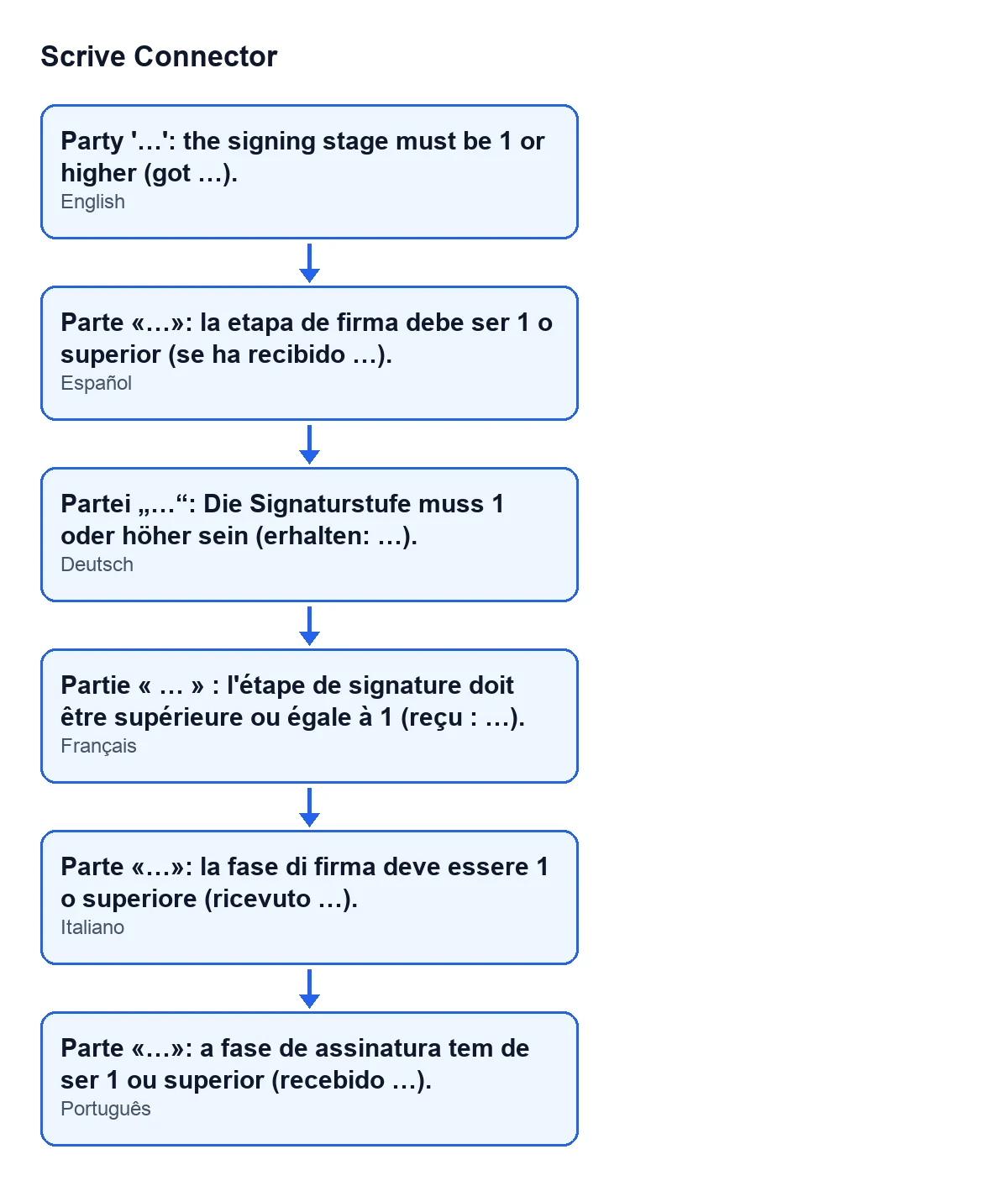
The comment in the code itself explains where the check comes from: a stage of 0 used to be quietly turned into 1 when the signing data was built, and a negative stage was sent to Scrive as it was.
What happens with each value on saving
Value of Signing Stage | What happens on saving |
|---|---|
| Zero | The record is not saved and the message says got 0. |
| A negative number | The record is not saved and the message shows that number after got. |
| 1 or a higher number | It passes this check. |
How to fix it, step by step
- Read the whole message. The name between the quotes tells you which party is failing (or
Unnamed partyif it has no name), and the number aftergottells you what value was there. - Go to the
Partiestab and find, in thePartiestable, the party the message names and itsSigning Stagefield. - Replace the value with 1 or a higher number. Which number to use depends on the signing order you want; the field's help text is quoted below.
- Check the other parties in the table. The check goes through the parties and stops at the first one that fails, so if several have a value below 1, the message names one and the others may show up afterwards.
- Save again. If the message comes back, look at the value after
got …and correct it on the party that is named.
Which number to put on each party
The help text of the Signing Stage field reads: «Parties are invited in ascending stage order; stage 2 is invited once every stage-1 party has signed.»
Two ideas follow from it:
- Stage 1 is the field's default value and the minimum the module accepts.
- If a party has to wait for the stage-1 parties to sign, give it stage 2: according to the help text, it is invited once every stage-1 party has signed.
If all you want is to get past the error and you have no order in mind, leave the default value, 1.
What to check after saving
- That the record saves without the message appearing.
- That in the
Partiestable every party has aSigning Stageof 1 or higher. - That the order of the stages matches the order in which you want each party to be invited, according to the field's help text.
If you also want to review how a document is sent for signing, there is an article on what the «Send» button of Scrive Connector does.
Cost, and help with Scrive Connector
Scrive Connector is a one-off purchase per Odoo version (published for 17, 18, 19 and 20) and needs a FlexigoTech Cloud subscription, Connector plan: €49 per month or €490 per year, excluding VAT. The connection goes through FlexigoTech Cloud, which stores the credentials encrypted, monitors synchronisation and emails you if it fails. You can see the listing on Odoo Apps or the module page on flexigotech.com.
FlexigoTech implements Odoo 17, 18, 19 and 20 and builds custom connectors and integrations.
Last updated: November 2026.
Keep reading
Checked in the connector's source code (version 20.0) and the linked sources
Sources
- Module source code: flexigobe_scrive_connector 20.0 (21b3b940): models/scrive_party.py
- apps.odoo.com/apps/modules/20.0/flexigobe_scrive_connector
- flexigotech.com/precios.html
- flexigotech.com/en/services.html
- Module source code: flexigobe_scrive_connector 20.0 (21b3b940): wizard/scrive_send_wizard.py