

 Español
 Català
 Deutsch
 Français
 Português
 Italiano
 Nederlands
 Polski
The fields are on the Signature Documents form, which you open from the menu Scrive › Signature Documents. The Scrive entry asks for the User permission: without it, you do not see that part of the menu. The module is published on Odoo Apps for Odoo 17, 18, 19 and 20.
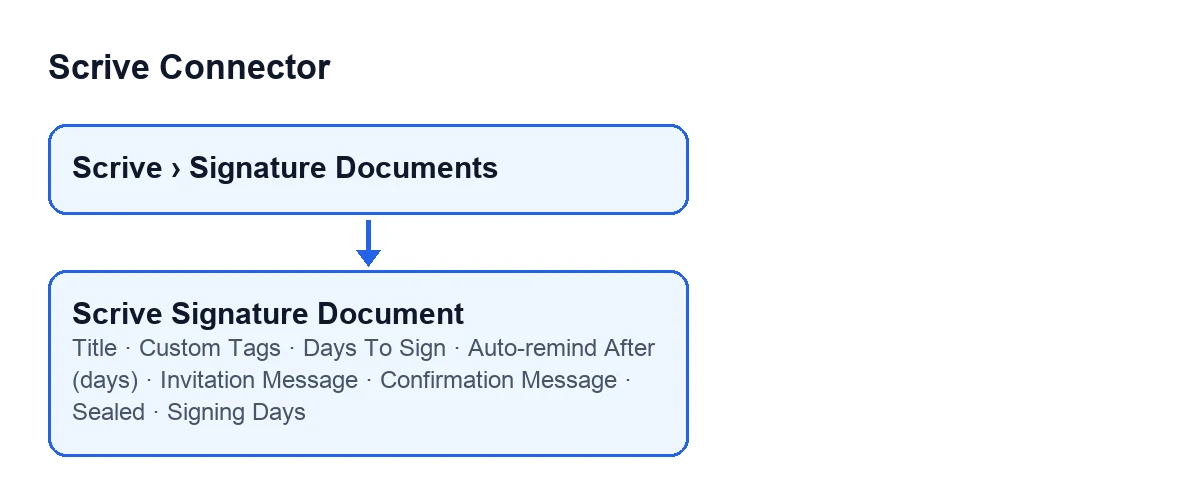
Document details: title and tags
Where is each field and which ones will I fill in?
On the Signature Documents form you have Title, Custom Tags, Days To Sign and Auto-remind After (days). On the Messages tab you have Invitation Message and Confirmation Message. You will also see Sealed, which only shows when the document is in a particular state, and Signing Days, which appears in the list and in the kanban view.
What does Title mean and what should I enter?
Its help says: “Document title shown to the signing parties.”. As well as on the form, it appears in the Signature Documents list. Because the signing parties see it, it is worth writing a title they will recognise at a glance rather than an internal reference only your team understands.
What are Custom Tags for?
The help says: “Free-text Scrive document tags for your own filtering/BI, distinct from the mandatory System Partner tags this connector always sends. Format: 'name:value' pairs separated by commas, e.g. department:sales,priority:high.”. In other words, they are yours: you choose them to filter or analyse your documents, and the mandatory System Partner tags are not something you write. If you use them, follow the format in the help: name:value pairs separated by commas, such as department:sales,priority:high. Agree the names beforehand so that every document can be filtered the same way.

Deadlines: expiry, reminder and duration
What is Days To Sign and how many days should I set?
The help says: “Expiry in days (1-365).”. The default value in the code is 90. If that deadline suits your process, leave it; if not, change it within the range given in the help.
How do I turn on Auto-remind After (days)?
Its help says: “Automatically remind unsigned parties after this many days. 0 disables it.”. The default is 0, so on a new document the reminder is switched off. To turn it on, enter a number of days other than 0. Pick a figure lower than Days To Sign, since the reminder is for parties who have not yet signed.
What does Signing Days show?
You see it in the Signature Documents list and in the kanban view, where the label is Signing Duration (days). Its help describes it as the calendar days between the request being sent to Scrive and every party signing, a turnaround-time metric for reporting. The help presents it as a reporting metric, so use it to compare how long your documents take to be signed.
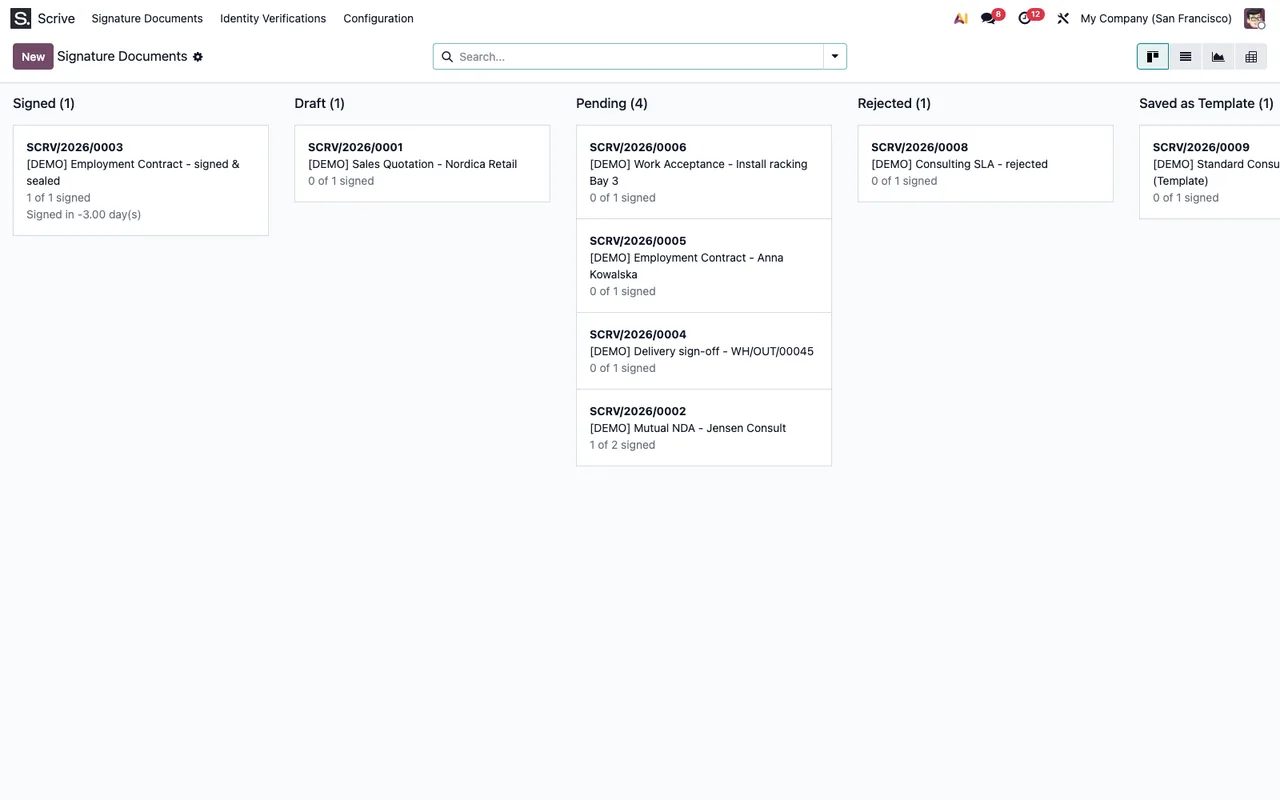
Signature Documents with demonstration data; the last column is cut off.Messages and the seal
Do I have to write Invitation Message and Confirmation Message?
No. They are on the Messages tab of the form. The help for the first says: “Optional custom invitation text. Empty uses the Scrive default.”. The help for the second says: “Optional custom confirmation text. Empty uses the Scrive default.”. If you have no wording of your own, leave them empty and the Scrive default is used; fill them in only when you want the invitation or the confirmation to carry your own text.
When do I see Sealed, and can I tick it myself?
On a new document, in draft, you do not see it: the field is hidden until the document is in the closed state. It is read-only and the module fills it in, not the user. Its help says: “Scrive has applied the digital seal to the signed document.”. So there is nothing to enter: look at it once the document is closed.
What you need and how FlexigoTech helps
Once the fields are filled in, the next step is sending; the article on the Send button covers it. The module is a one-off payment per Odoo version and also needs a FlexigoTech Cloud subscription, Connector plan: €49 a month or €490 a year, excluding VAT, with up to 3 accounts on the platform. The connection goes through FlexigoTech Cloud, which stores the credentials encrypted, monitors synchronisation and emails you if it fails. You can find the listing on Odoo Apps and the module page with the purchase option.
If you are implementing Odoo and want to decide with us which titles, tags and deadlines to use, FlexigoTech implements Odoo 17, 18, 19 and 20 and builds custom connectors and integrations.
Keep reading
Checked in the connector's source code (version 20.0) and the linked sources
Sources
- Module source code: flexigobe_scrive_connector 20.0 (21b3b940): models/scrive_document.py
- apps.odoo.com/apps/modules/20.0/flexigobe_scrive_connector
- flexigotech.com/precios.html
- flexigotech.com/en/services.html