

 Español
 Català
 Deutsch
 Français
 Português
 Italiano
 Nederlands
 Polski
Where the button is and when it appears
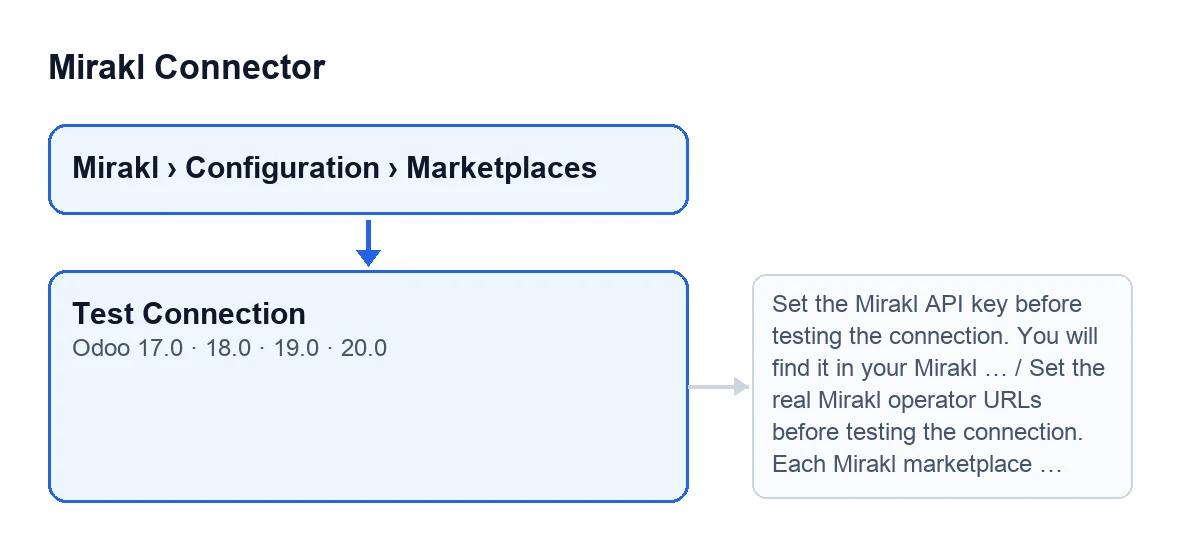
Open Mirakl › Configuration › Marketplaces and go into your marketplace record, on the Mirakl Instances screen. The Test Connection button is always visible, with no condition, in Odoo 17, 18, 19 and 20. In Odoo 20.0, pressing the button does the following.
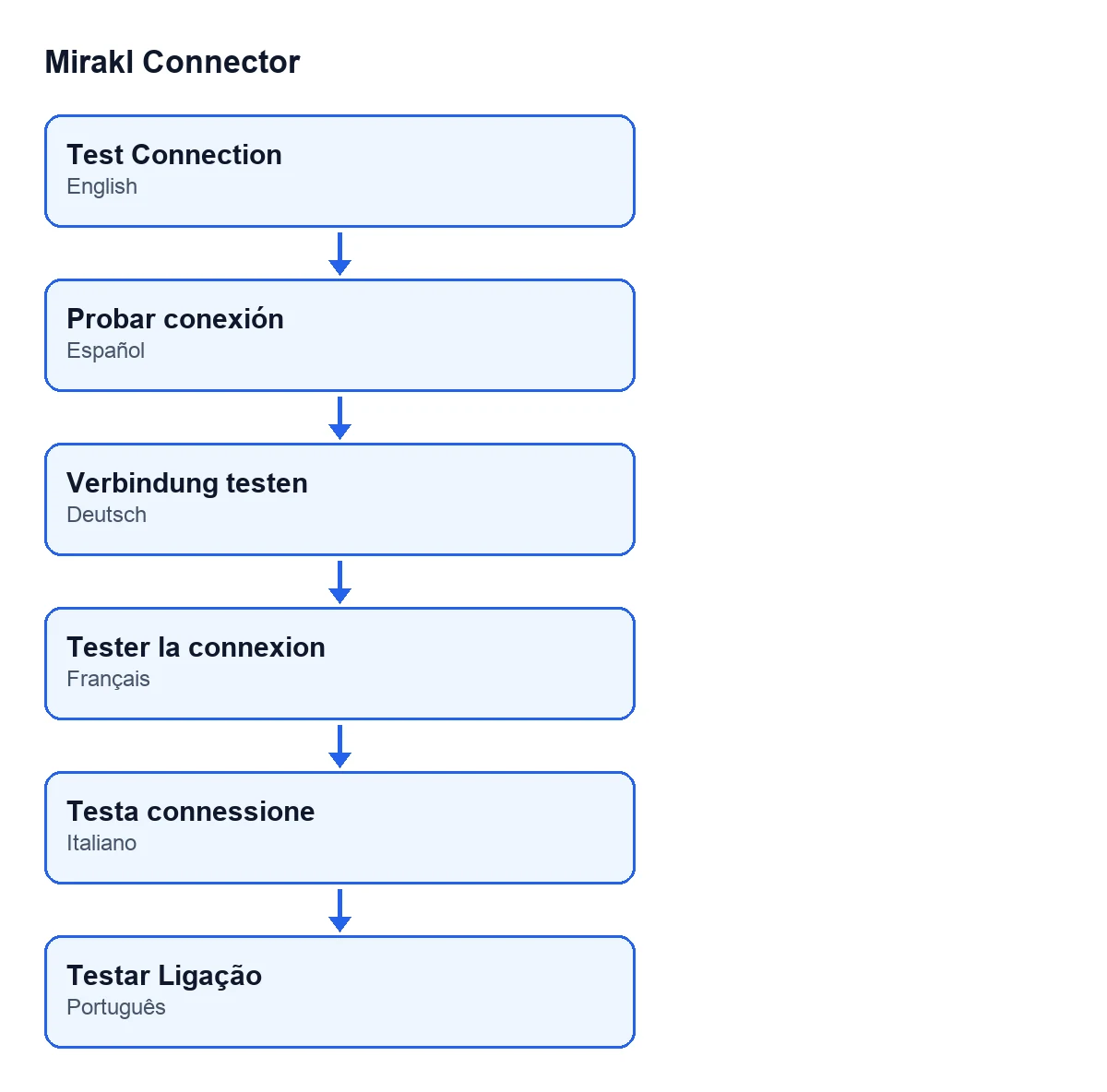
With Odoo in English the button is called Test Connection; in Spanish, Probar conexión; in German, Verbindung testen; in French, Tester la connexion; in Italian, Testa connessione; in Portuguese, Testar Ligação.

What it does when you press it, step by step
The test works in phases: it first checks your configuration and only then calls Mirakl.
- Press
Test Connectionon the marketplace record. Have the API key and the two real operator URLs (Base Url and Api Base Url) to hand. - The module checks the configuration and stops if something is missing, without calling Mirakl: the API key (this check is not made when the connection goes through FlexigoTech Cloud, because there the key is kept by the service, which is what reports it missing), the two URLs, and that neither is still the placeholder
marketplace.mirakl.net. - Initial query (bootstrap): it asks Mirakl, in this order, for the platform configuration, the account and the channels. It skips any that has no address set; if one answers with an error, it notes the error and moves on to the next.
- Read test: it asks in this order for the categories, the product attributes and the value lists, each at its configured address (or at the default one the module ships with if it is empty). It keeps the first one that answers correctly and does not ask for the rest; the errors of those that fail are noted.
- If a read answered, the test passes. If none answered but the initial query got an answer from at least one address, it also counts as a pass.
- On success, the module saves what it detected on the record, posts the message on it and shows you a notification (details below).
- Without success, the button ends in an error with
Connection failed: …and the last error received.
The test's requests go out through the same Mirakl call routine that other parts of the module use, such as the scheduled task Mirakl - Sync Orders, which runs every 10 minutes and is active on installation, and the validation of delivery orders. A 404 on the test's requests is not noted as an error in the module's call log.
The messages that stop the test before Mirakl is called
When you press the button, the configuration check can stop with these messages:
Set the Mirakl API key before testing the connection. You will find it in your Mirakl seller account (Settings > API key).It appears when the key is missing and the connection does not go through FlexigoTech Cloud. There is more in this article on the API key message.Set the real Mirakl operator URLs before testing the connection. Each Mirakl marketplace has its own Base Url and Api Base Url.It appears when the Base Url or the Api Base Url is missing.'marketplace.mirakl.net' is only a placeholder and not a real Mirakl operator host. Configure the actual operator URL from the marketplace operator documentation or support. Example for ADEO/Leroy: https://adeo-marketplace.mirakl.net and https://adeo-marketplace.mirakl.net/apiIt appears when one of the two URLs matches the placeholder.
If you see one of them, correct the value on the record and press the button again: nothing has been sent to Mirakl and nothing has been changed.
What changes when it succeeds
The success message is Connection successful via … (HTTP …). Parsed …: …., with the kind of data read (categories, attributes or values) and how many items were parsed. If no read answered and only the initial query worked, the message is Connection successful via generic Mirakl bootstrap.
After that message, following a space, comes what the initial query detected, with each item separated from the next by a vertical bar:
Platform: …, when Mirakl gives the platform name.Shop: …, when the shop name or ID is detected.Shop ID auto-filled: …, when Mirakl gives an ID and the record has none.Detected shop ID …, keeping configured Shop ID …., when Mirakl gives an ID different from the one already on the record.Provider: …, which is added in every case.Features: …andChannels: …, when Mirakl returns features or channels.
On the record, after a success, the module:
- Saves what it detected: platform name, shop ID and name, provider, summaries of features and channels, and Mirakl's responses.
- Writes the shop ID only if the record has none and the incoming one is numeric.
- Changes the record's provider only if the detected one is not the generic one and the record's is empty or generic.
- Notes the date of the test, the status of the last test and the message.
- Posts the message on the record and shows a
Miraklnotification that does not stay pinned.
When it fails
If no read answers and the initial query got no answer either, the button ends with Connection failed: …, and after the colon comes the last error received. Read it before changing anything: it is what Mirakl (or the network) replied to the last request. A redirect response is treated as an error, not as a good answer.
There is one different case: if FlexigoTech Cloud does not let the request through (no subscription, or the service paused), the test is cut short and nothing is marked. Without a subscription, or with the service suspended, whatever the subscription provides stops; your data stays in your Odoo.
What you need to use it
Mirakl Connector is a one-off payment per Odoo version (17, 18, 19 and 20) and needs a FlexigoTech Cloud subscription, Connector plan: €49/month or €490/year excluding VAT, up to 3 platform accounts. The module's price is on the Odoo Apps listing for each version and on the module page. With the connection through FlexigoTech Cloud, the service stores the credentials encrypted.
If you are implementing Odoo and want the connection to your marketplace set up and tested, FlexigoTech implements Odoo 17, 18, 19 and 20 and builds custom connectors and integrations. If another button of the module interests you, there is what the Import orders button does.
Keep reading
Checked in the connector's source code (version 20.0) and the linked sources
Sources
- Module source code: flexigobe_mirakl_connector 20.0 (aa05e537): views/mirakl_instance_views.xml
- Module source code: flexigobe_mirakl_connector 20.0 (aa05e537): models/mirakl_instance.py
- Module source code: flexigobe_mirakl_connector 20.0 (aa05e537): models/mirakl_ai.py
- apps.odoo.com/apps/modules/20.0/flexigobe_mirakl_connector
- flexigotech.com/precios.html
- flexigotech.com/en/services.html