

 Español
 Català
 Deutsch
 Français
 Português
 Italiano
 Nederlands
 Polski
When it appears and what it says
What message do you see, and when?
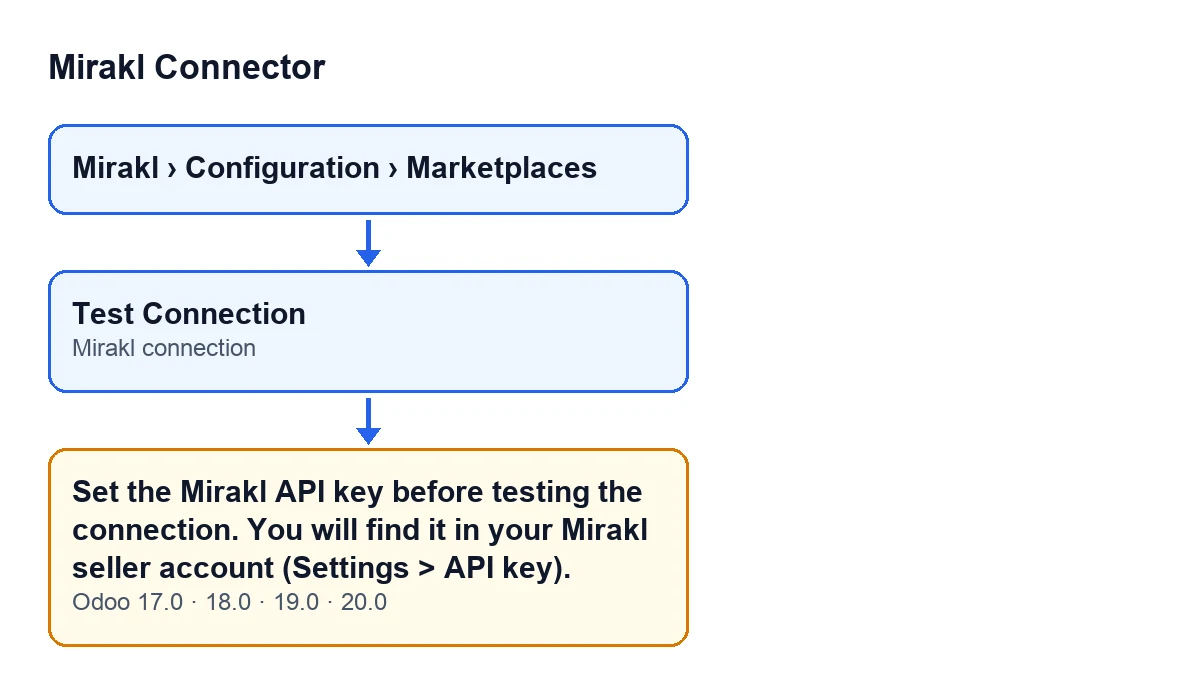
You see Set the Mirakl API key before testing the connection. You will find it in your Mirakl seller account (Settings > API key). It appears when you press Test Connection on the Mirakl Instances form, which you open from Mirakl › Configuration › Marketplaces. The button is always visible in Odoo 17, 18, 19 and 20.
What happens to the action when it appears?
It stops. It is an error that cuts short whatever you were about to do with the button: the connection test does not go any further.
What is the exact condition?
The module checks two things at once, and the message only appears if both are true. First, the Mirakl connection field must not be set to FlexigoTech Cloud, which means it is Direct (API key stored in Odoo). Second, the API key stored on that instance must be empty. Before checking whether it is empty, the code trims the spaces from both ends, so a key made only of spaces counts as empty. This is the condition in the Odoo 20 code.
Why does it not appear on a marketplace connected through FlexigoTech Cloud?
Because with that connection the check is not made in Odoo. According to the code, the key lives in the FlexigoTech Cloud relay rather than in Odoo, and it is the relay that says if the key is missing. The help text of the Mirakl connection field says that new marketplaces connect through FlexigoTech Cloud, and that the direct connection is kept only for marketplaces that already existed before this version, which keep working as they were bought. The field's default value in the code is FlexigoTech Cloud.
How do you check which connection your marketplace uses?
Open the marketplace form, go to the Connection tab and look at the Access group: Mirakl connection is there, read-only, so it cannot be changed from that screen. If it says Direct (API key stored in Odoo), that marketplace is one that can raise this message. If it says FlexigoTech Cloud, the condition is not met and the message does not appear on that instance.

How to fix it
What do you do to make it go away?
Log in to your Mirakl seller account and copy the key shown under Settings > API key, which is exactly where the message sends you. Keep it saved on the Odoo instance you are testing and press Test Connection again. The condition in the code is that this key is not empty: once that is no longer the case, the message does not come back.
What if you think you have already saved it?
There are two things to check. First, that you are on the form of the marketplace you are testing, because the check runs on that instance's key and not on another marketplace's. Second, that what you saved is not just spaces, since that counts as empty. With FlexigoTech Cloud in Mirakl connection, this message cannot come from that instance's key.
Does the message disappearing mean the key works?
No. This check only looks at whether something is written in the key, not whether it is correct. It is the first check of the configuration: if you pass it, the module then checks the Mirakl operator URLs. For the button from start to finish, see What the Test Connection button does.
Is there anything to do if my marketplace connects through FlexigoTech Cloud?
Not for this message: with that connection the module does not look at the key in Odoo, and it is the FlexigoTech Cloud relay that says if the key is missing. So if you do see it, first check on the Connection tab, in the Access group, that Mirakl connection says Direct (API key stored in Odoo).
Versions and help
Is it the same in Odoo 17, 18, 19 and 20?
The message is in the published code of all four branches, and the Test Connection button is always visible in each of them. The module is published on Odoo Apps for those four versions (Odoo Apps listing). The condition described above is the one in the Odoo 20 code.
Where is everything, at a glance?
The menu is Mirakl › Configuration › Marketplaces. The Test Connection button is on the Mirakl Instances form. The Mirakl connection field is on the Connection tab, in the Access group, read-only. If you cannot see the Mirakl part of the menu, you are missing the permission that part asks for.
How FlexigoTech can help
FlexigoTech implements Odoo 17, 18, 19 and 20 and builds connectors and custom integrations. For marketplaces that connect through FlexigoTech Cloud, the service stores the credentials encrypted, watches the synchronisation and emails you if it fails. If you are setting up the connector and would like us to go through the configuration with you, see the module page.
Keep reading
Checked in the connector's source code (version 20.0) and the linked sources
Sources
- Module source code: flexigobe_mirakl_connector 20.0 (aa05e537): models/mirakl_instance.py
- Module source code: flexigobe_mirakl_connector 20.0 (aa05e537): views/mirakl_instance_views.xml
- Module source code: flexigobe_mirakl_connector 20.0 (aa05e537): models/mirakl_fgt_cloud.py
- Module source code: flexigobe_mirakl_connector 20.0 (aa05e537): models/mirakl_ai.py
- apps.odoo.com/apps/modules/20.0/flexigobe_mirakl_connector
- flexigotech.com/precios.html
- flexigotech.com/en/services.html