

 Español
 Català
 Deutsch
 Français
 Português
 Italiano
 Nederlands
 Polski
Before you press it: where it is and what Odoo does without you
The normal route is automatic: the scheduled action Mirakl - Sync Orders runs every 10 minutes and is active when the module is installed. The button is the manual route, for when you want to start an import right now. What follows describes the code published for Odoo 20.0.
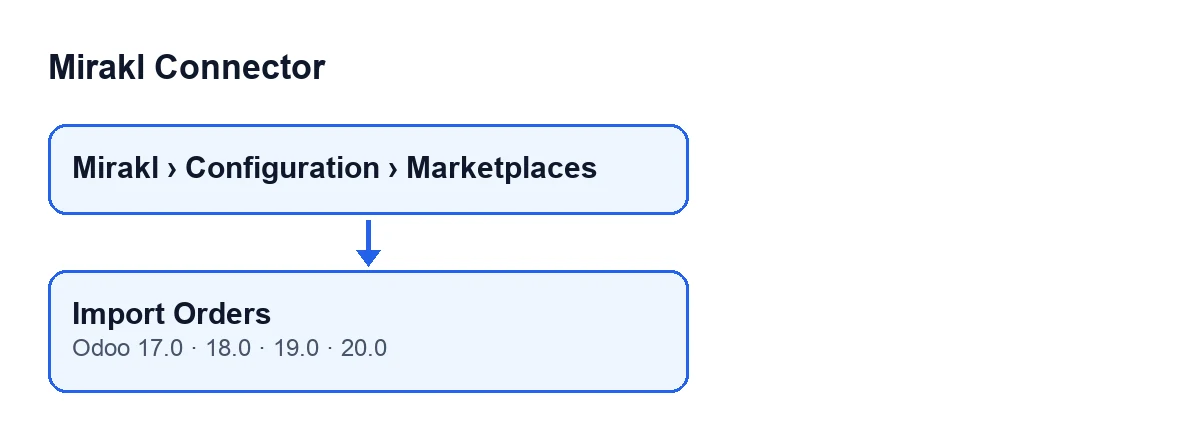
- Confirm your version: the module is published on Odoo Apps for Odoo 17, 18, 19 and 20, and the button is in all four.
- Open
Mirakl › Configuration › Marketplacesand go into the instance form (theMirakl Instancesscreen).
- Find the
Import Ordersbutton: it is always visible, in all four versions, whatever the state.
What the scheduled action goes through
On each run, the action deals with the active instances that have order sync switched on. An instance that goes through FlexigoTech Cloud and has no saved key is not called. If the instance has its own interval configured, the action waits for it to pass; with no interval, it imports on every run. After importing, it re-reads the orders already in Odoo that are not finished, if the instance has that option switched on.
There is another difference at the start: the button hands the import the initial sync days, while the scheduled action calls it without that value.
- Check
Initial Order Sync Dayson the form, in theOrders and Returnstab,Windowsgroup. In the code it is 30 by default and its help reads:Historical window used when there is no previous order sync. Manual import also uses this range.
- Look at the two checkboxes in the
Sync Policygroup, in the same tab. The help forAccept Pending On Importreads:Try to accept waiting orders right after each manual or scheduled order import.The help forAuto Accept Ordersreads:Automatically accept imported orders that require seller acceptance in Mirakl.Both are off by default in the code.
- If you have not yet checked the credentials, run the connection test first.

When you press it: what the button does, in order
The button works on the form you have open, that is, on a single instance. These are the main steps the code takes:
- It works out where to start reading from, passing in the initial sync days.
- It asks the marketplace for the orders, page by page.
- It tries to save each order received in Odoo. Those that are saved count as processed; if one fails, it leaves an error entry in the log and carries on with the next.
- If a page comes back empty and the response has a shape the connector does not recognise, it leaves an error entry in the log and does not advance the sync window.
- It stops reading when a page brings back fewer orders than the page size, or when it has read as many as the total the marketplace reports. If the page limit runs out, it leaves a warning entry in the log.
- It posts the result as a message on the form and shows it in a notification.
- Press
Import Ordersonce and wait for the notification.
- If
Accept Pending On Importis switched on, its help says an attempt is made to accept waiting orders right after each manual or scheduled import, so that includes after you press the button.
After you press it: what to check
- Read the notification titled
Mirakl. If any order was processed, it is a success notification and readsImport Orders completed: … orders processed., with the number where the ellipsis is.
- Look for that same text as a message on the instance form.
- If the count is zero, the notification is a warning and reads
Import Orders completed with 0 records. Check logs or increase Initial Order Sync Days.
- When you get that warning, do what it says: check the logs or increase
Initial Order Sync Days. The count only adds up orders that are saved in Odoo, so a zero can also happen when the orders received failed to save, and those failures are noted in the log.
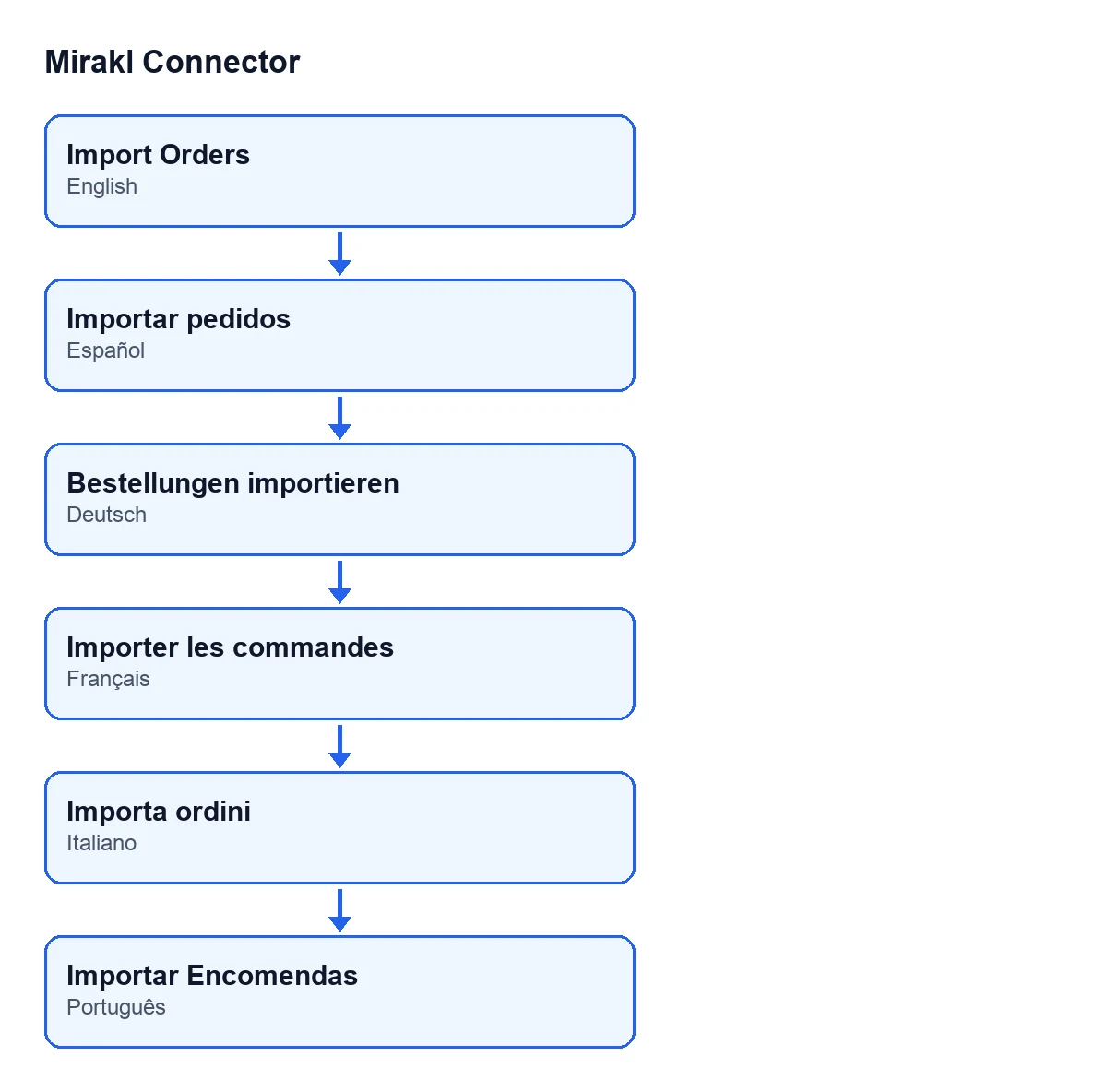
With Odoo in English the button is called Import Orders; in Spanish, Importar pedidos; in German, Bestellungen importieren; in French, Importer les commandes; in Italian, Importa ordini; in Portuguese, Importar Encomendas.
Cost and help from FlexigoTech
Mirakl Connector is a one-off payment per Odoo version and needs the FlexigoTech Cloud subscription: Connector plan, €49 a month or €490 a year excluding VAT, up to 3 marketplace accounts. The connection goes through FlexigoTech Cloud, which stores the credentials encrypted. You will find the details on the Odoo Apps listing and on the module page.
FlexigoTech implements Odoo 17, 18, 19 and 20 and builds custom connectors and integrations. If your import needs something the connector does not do, tell us.
Keep reading
Checked in the connector's source code (version 20.0) and the linked sources
Sources
- Module source code: flexigobe_mirakl_connector 20.0 (aa05e537): views/mirakl_instance_views.xml
- Module source code: flexigobe_mirakl_connector 20.0 (aa05e537): models/mirakl_instance.py
- Module source code: flexigobe_mirakl_connector 20.0 (aa05e537): models/mirakl_ai.py
- apps.odoo.com/apps/modules/20.0/flexigobe_mirakl_connector
- flexigotech.com/en/services.html
- flexigotech.com/precios.html