

 Español
 Català
 Deutsch
 Français
 Português
 Italiano
 Nederlands
 Polski
Where the button is and when it appears
The Search Category button is on the Mirakl Offers screen. You reach it from the menu Mirakl › Operations › Offers. The Mirakl part of the menu requires an Odoo user permission; if your user does not have it, you do not see that part. According to the view condition, the button is always visible, and it exists in every published branch: 17.0, 18.0, 19.0 and 20.0.
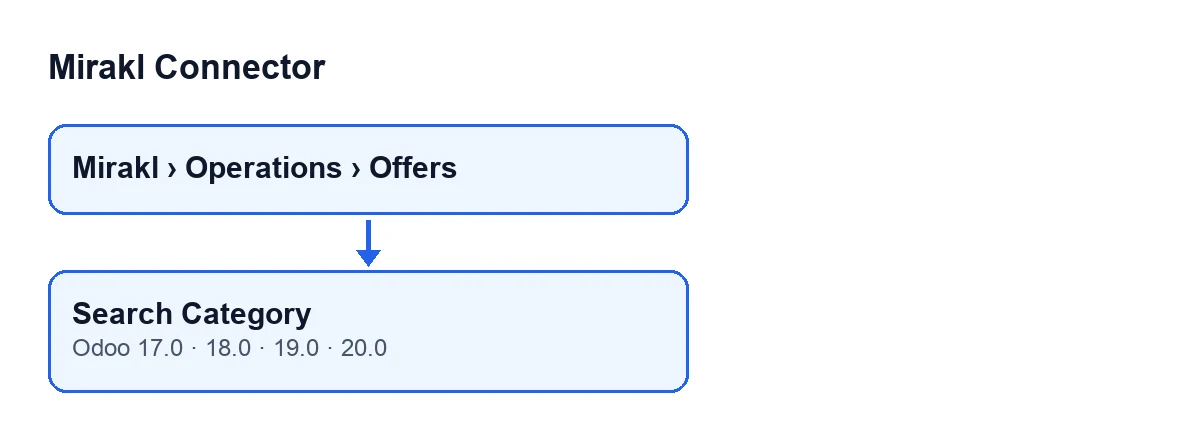
The label changes with your Odoo language. With Odoo in English it reads Search Category; the diagram below shows what it is called in other languages.
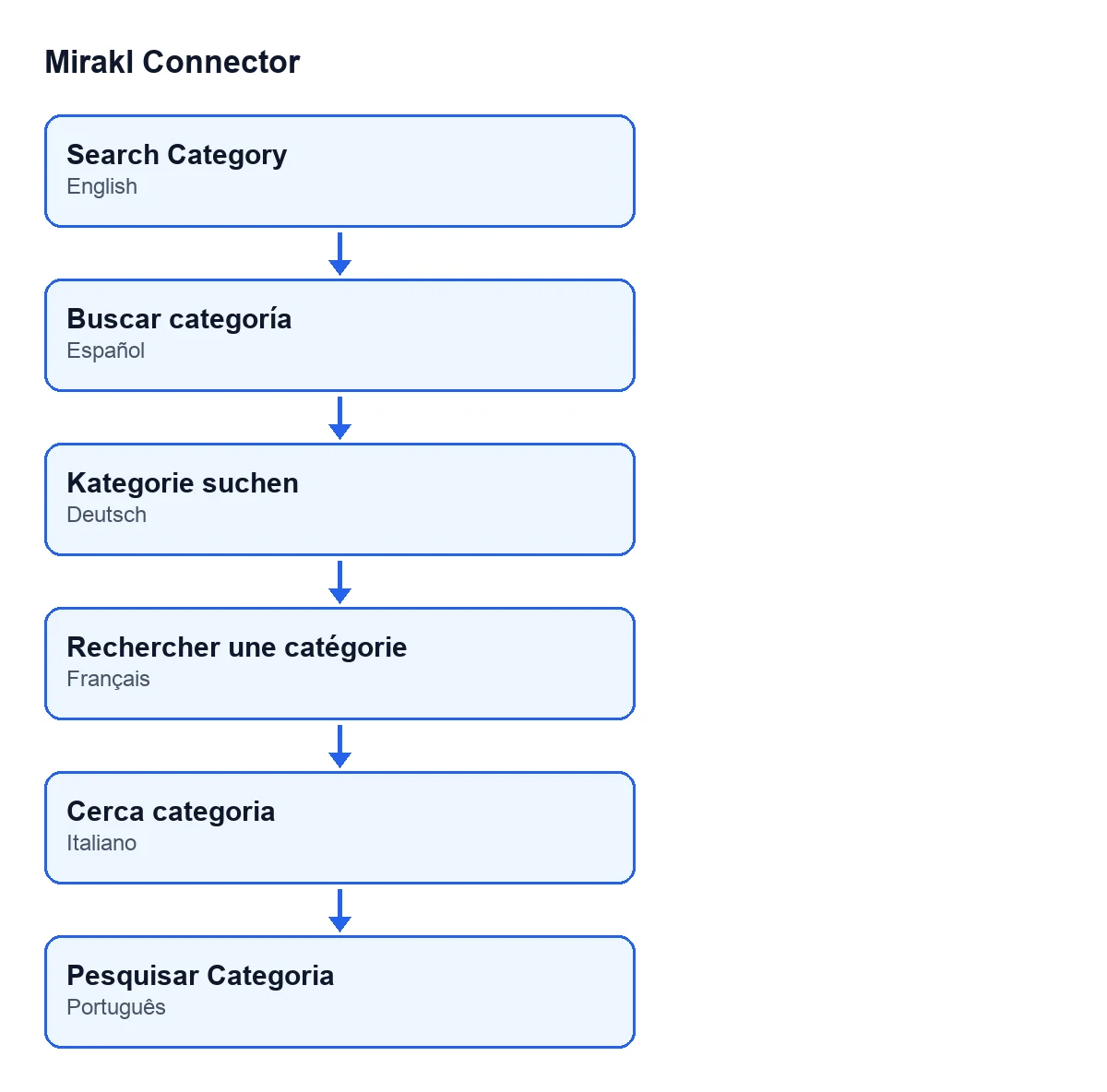
Buscar categoría in Spanish, Kategorie suchen in German, Rechercher une catégorie in French, Cerca categoria in Italian and Pesquisar Categoria in Portuguese.
Six ideas about the button worth clearing up
«The button only appears once the offer already has a category»
It does not. The view condition says the button is always visible, in 17.0, 18.0, 19.0 and 20.0. If you open an offer under Mirakl › Operations › Offers and cannot find it, first check that your user can see the Mirakl part of the menu.
«It opens as a separate screen and I lose the offer»
It does not. In the Odoo 20.0 code, the button opens a pop-up window titled Search Mirakl Category, containing a form. When it opens it, it hands the window two things: the offer you opened it from and an initial search text.
«The window opens empty and I have to type everything»
Not so. In Odoo 20.0, the initial search text is taken in a fixed order, and the first value that is not empty is used:
- the offer's category code, following the rules in the next point;
- if that code is empty, the offer's
Title, which you see on theOffertab of theMirakl Offersform; - if there is no title either, the name of the offer's
Product, a field you see on the form and in the list ofMirakl Offers.
You can check this by looking at the offer's Title and Product before you click.
«The code the search starts with is always the category selected on the offer»
That depends on how the offer is set up. To get the code, the Odoo 20.0 code looks in three places, in this order:
- If the offer is set to synchronise its category by mapping and a code with content comes out of that, the search starts from that code.
- If not, and the offer has a Mirakl category linked to it, it starts from that category's code.
- If not, it starts from the offer's own category code.
The first step is only tried if the offer synchronises its category by mapping. Whatever comes out of these steps is the code that reaches the window; if it is empty, the title and the product step in, as in the previous point.
«It works the same in every Odoo version»
The button is in 17.0, 18.0, 19.0 and 20.0, and in all four it is always visible. The order of the initial text you have just read is the one in the Odoo 20.0 code. If you work with 17, 18 or 19, click the button on a test offer and check what text the search starts with.
«I can run it on several offers at once»
The button is written to work on a single offer at a time: the one you have open when you click. That is the offer the window receives as its starting value.
Check it in your Odoo
- Open
Mirakl › Operations › Offersand go into an offer. - Look at its
Productand, on theOffertab, itsTitle. - Click
Search Category. - Check that a pop-up window titled
Search Mirakl Categoryopens. - Note the text the search starts with and compare it with the order above: category code, then title, then product name.
If you want the same kind of walk-through for other parts of the module, see what the «Cancel in Mirakl» button does or the scheduled task «Mirakl - Accept orders».
Subscription, versions and help
Mirakl Connector is published on Odoo Apps for 17.0, 18.0, 19.0 and 20.0; you can see it on the Odoo Apps listing or on the module page. It is a one-off purchase per version and needs a FlexigoTech Cloud subscription: the Connector plan costs €49 a month or €490 a year, excluding VAT, with up to 3 platform accounts.
FlexigoTech implements Odoo 17, 18, 19 and 20 and builds custom connectors and integrations. If you want to review how your offers and their categories look before connecting to Mirakl, get in touch.
Keep reading
Checked in the connector's source code (version 20.0) and the linked sources
Sources
- Module source code: flexigobe_mirakl_connector 20.0 (aa05e537): views/mirakl_product_binding_views.xml
- Module source code: flexigobe_mirakl_connector 20.0 (aa05e537): models/mirakl_product_binding.py
- apps.odoo.com/apps/modules/20.0/flexigobe_mirakl_connector
- flexigotech.com/precios.html
- flexigotech.com/en/services.html