

 Español
 Català
 Deutsch
 Français
 Português
 Italiano
 Nederlands
 Polski
What the action is and how often it runs
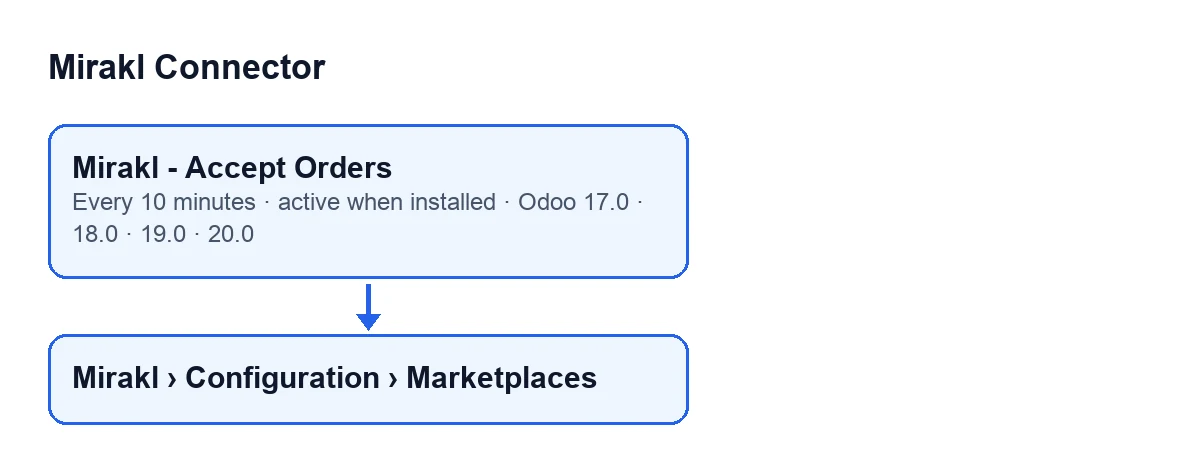
The Mirakl - Accept Orders scheduled action belongs to Mirakl Connector and exists in Odoo versions 17, 18, 19 and 20. It runs every ten minutes and is active when the module is installed. In Odoo 17 it is set to repeat without end. The detail of each pass below is that of Odoo 20.
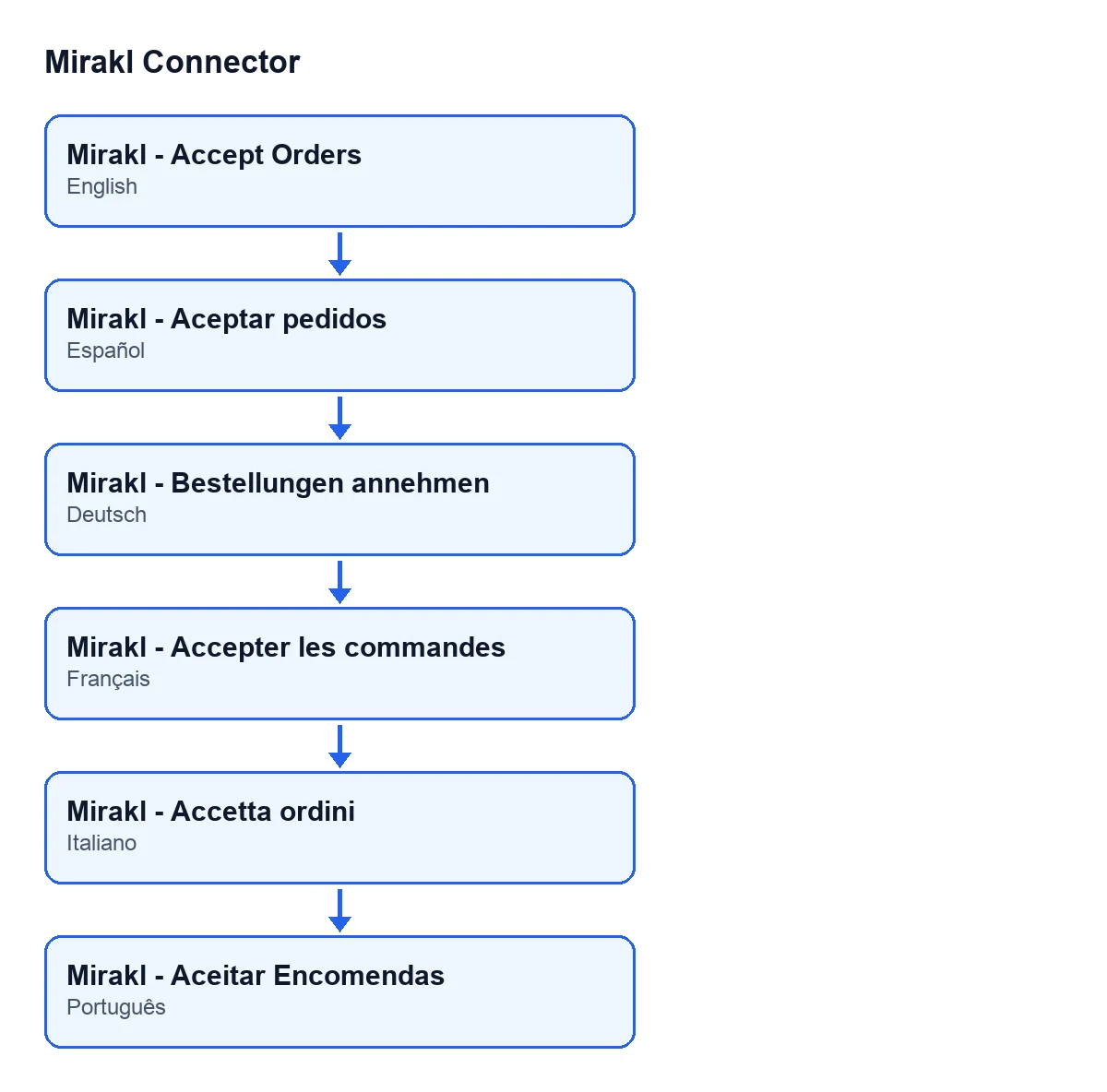
The second diagram shows how the action is named in other languages: with Odoo in Spanish, for instance, it is Mirakl - Aceptar pedidos.

One pass, moment by moment
In Odoo 20, each pass of the action works like this:
- When the module is installed The action is active and scheduled to run every ten minutes.
- As the pass starts It checks that whoever is running it is an administrator. If not, the pass stops with
Only an administrator can run this scheduled action.and does nothing else.
- First filter It looks for the Mirakl instances that are active and have automatic order acceptance switched on.
- Second filter From those, it keeps the marketplaces this pass may call: the direct ones first, then the ones that go through FlexigoTech Cloud. A FlexigoTech Cloud one without a saved key is not called, and if the stored permit does not include the service, none of the FlexigoTech Cloud ones is called. This check does not use the network.
- For each instance It looks for that instance's orders that require acceptance, whose acceptance state is pending or error and that are not held back from sales orders. It sorts them by order date, oldest first, and takes at most as many as the instance's limit allows.
- For each order It asks for the order to be accepted and counts how many are accepted and how many end up with the acceptance state in error.
- If there is a relay pause Nothing is marked or deleted. It is noted with a code, never with text, for the FlexigoTech Cloud health report, and the pass stops there: the instances still waiting are not processed. The next pass carries on.
- If any other error occurs It goes into the server log and an error row is created in the module's log, with the accept-order operation, the HTTP method and the acceptance URL of the instance, and the error text. That instance stops processing orders in this pass and the action moves on to the next one. If that row cannot even be written, the module leaves a warning in the server log and the pass continues with the others.
- When it finishes The pass ends and another is due ten minutes later.
Which orders are picked up, and in what order
The orders picked up are those of the instance that require acceptance and whose acceptance state is pending or error, so an order that failed in one pass is tried again in the next. Orders held back from sales orders are left out: the code explains that accepting them would commit you to shipping what Odoo will never ship.
The order is by order date, oldest first, and for equal dates by the order in which they were created. If there are more orders than the limit, the newest wait for the next pass.
The limit per instance
The Accept Retry Limit field appears on the Mirakl Instances form, in the Orders and Returns tab, Sync Policy group. The forms open from the Mirakl › Configuration › Marketplaces menu. Its default value in the code is 100.
The action passes that value as the cap on how many orders it looks for in each pass for that instance, and never takes fewer than one.
What to check if it does nothing
- The action is still active. It is active on installation and runs every ten minutes; if someone has deactivated it, there will be no passes.
- The instance meets both entry conditions. The action only looks at active instances with automatic order acceptance switched on. One that does not meet both is not touched.
- The FlexigoTech Cloud route. An instance that goes through FlexigoTech Cloud needs a saved key, and the stored permit must include the service. Without that, the pass does not call it.
- The orders. They must require acceptance, be pending or in error in their acceptance state and not be held back from sales orders.
- The limit. If there are many orders, check the value of
Accept Retry Limit: each pass takes at most that many per instance. - Who runs the action. If whoever runs it is not an administrator, the pass stops with
Only an administrator can run this scheduled action.
Cost and help
Mirakl Connector is published on Odoo Apps for Odoo 17, 18, 19 and 20. It is a one-off payment per version and needs the FlexigoTech Cloud subscription, Connector plan: €49 a month or €490 a year, excluding VAT. The price for each version is on the listing and you can buy it on the module page. Without a subscription, or with the service suspended, whatever the subscription provides stops; your data stays in your Odoo.
If you are implementing Odoo and want help connecting your Mirakl marketplaces, FlexigoTech implements Odoo 17, 18, 19 and 20 and builds custom connectors and integrations.
Keep reading
Checked in the connector's source code (version 17.0 and 20.0) and the linked sources
Sources
- Module source code: flexigobe_mirakl_connector 20.0 (aa05e537): data/ir_cron_data.xml
- Module source code: flexigobe_mirakl_connector 17.0 (e430de3e): data/ir_cron_data.xml
- Module source code: flexigobe_mirakl_connector 20.0 (aa05e537): models/mirakl_instance.py
- Module source code: flexigobe_mirakl_connector 20.0 (aa05e537): models/mirakl_ai.py
- apps.odoo.com/apps/modules/20.0/flexigobe_mirakl_connector
- flexigotech.com/precios.html
- flexigotech.com/en/services.html