

 Español
 Català
 Deutsch
 Français
 Português
 Italiano
 Nederlands
 Polski
Where the button is and when you see it
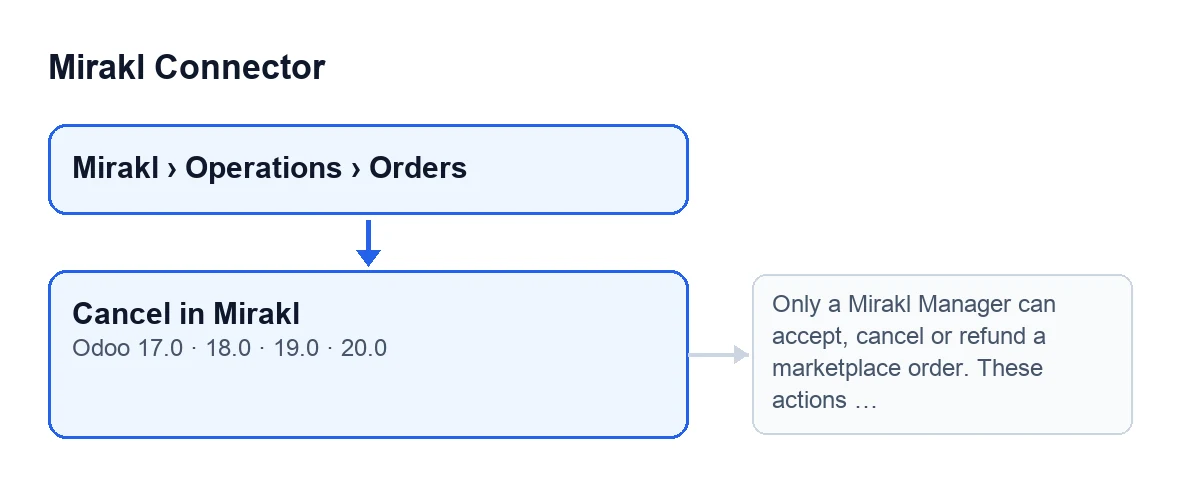
It sits on the Mirakl Orders screen, which you reach from the menu Mirakl › Operations › Orders. The button is called Cancel in Mirakl and it is present in all four published versions of the module: Odoo 17, 18, 19 and 20.
It is hidden when the State field of the order is the cancelled one. In any other case you see it, and an order with default values shows it. The condition is the same in Odoo 17, 18, 19 and 20.
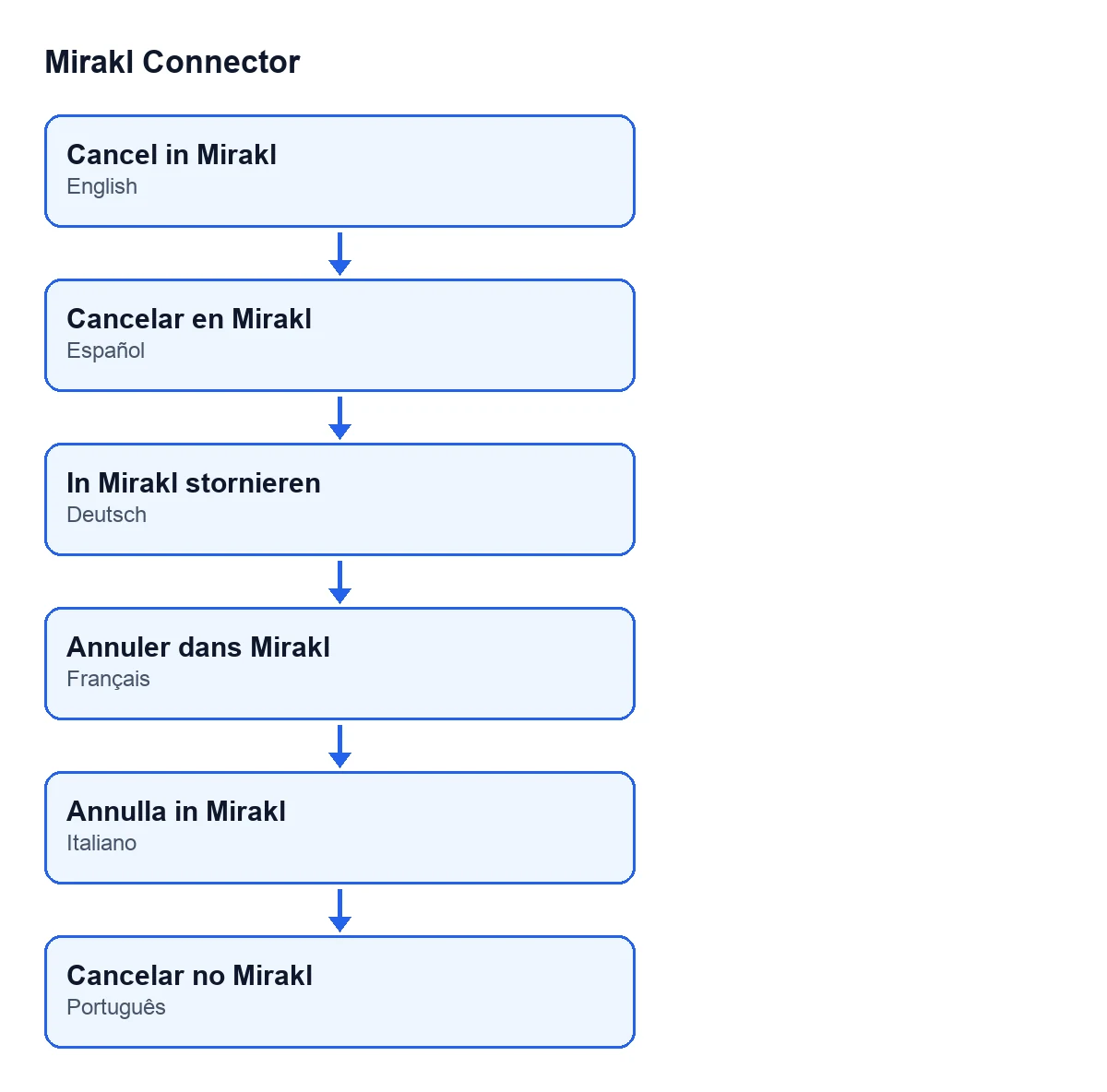
The button label depends on the language of your Odoo: in English it is Cancel in Mirakl; in Spanish, Cancelar en Mirakl; in German, In Mirakl stornieren; in French, Annuler dans Mirakl; in Italian, Annulla in Mirakl, and in Portuguese, Cancelar no Mirakl.

Step by step: what happens from opening the order
- Open the order from
Mirakl › Operations › Orders. On its form you see theInstance, which also appears in theMirakl Orderslist. It is the instance the button asks to carry out the cancellation. - Look at the
Cancellationgroup on the form. TheCancellation Reasonfield is there. The button passes whatever is written in that field as the reason for the cancellation. - Click
Cancel in Mirakl. You only see it while the order'sStateis not the cancelled one. - The first thing the module does is check your permission on the server, before touching anything. If your user is not a Mirakl Manager, the action stops here and nothing is changed (the message is below).
- If the permission is fine, the module asks the order's instance to cancel it in Mirakl, passing it the
Cancellation Reason. - If the request succeeds, the module updates the order: it marks the cancellation as done, records the time of the attempt and the cancellation date, clears the last error and stores the response received.
- If the request fails, the module sets the cancellation to error, with the time of the attempt and the error text, and raises that same error again. The action stops and you see the failure.
What changes and what to look at
When all goes well, what the button writes on the order is the cancellation information: its state, the dates, the cleared error and the response. The view condition, on the other hand, only looks at the State field. So check on the order that the cancellation has been recorded, rather than relying on the button having vanished.
The button acts on the order on the marketplace, not just in your Odoo. The permission message itself says so: these actions change the order on the marketplace and move real money.
The errors it can give and what to do
Permission: you are not a Mirakl Manager
When you click Cancel in Mirakl, the permission check can stop with this message:
Only a Mirakl Manager can accept, cancel or refund a marketplace order. These actions change the order on the marketplace and move real money.
What to do: ask whoever administers Odoo to add your user to the Mirakl Manager group, or have the cancellation done by someone who already belongs to it. The check runs on the server when you click, not only in the view.
The request to Mirakl fails
Any other failure of the cancellation request is raised again as it is: the text you see is the error's own. The module leaves the cancellation as error and stores the text of the last error. While the order's State is not the cancelled one, the button stays in view.
When FlexigoTech Cloud does not let the request through
If the request does not pass through FlexigoTech Cloud, the order is marked neither as cancelled nor as error, and the error is raised again. Mirakl Connector is a one-off payment per version and needs the FlexigoTech Cloud subscription, Connector plan: €49 a month or €490 a year excluding VAT (the Pro plan is €98 a month or €980 a year). The connection goes through that service, which stores the credentials encrypted and emails you if synchronisation fails. Without a subscription, or with the service suspended, what the subscription provides stops; your data stays in your Odoo.
What to check before using it for real
- That your user is a Mirakl Manager.
- That the order's
Instanceis the one you expect. - That
Cancellation Reasonholds what you want to send. - That the FlexigoTech Cloud subscription is active.
How FlexigoTech can help
FlexigoTech implements Odoo 17, 18, 19 and 20 and builds connectors and custom integrations. The module is published on Odoo Apps for those four versions: you can see the listing on Odoo Apps or the module page on flexigotech.com. If you are implementing Odoo and want to decide who should be a Mirakl Manager in your company, that is a short conversation.
One practical point for the rollout: with the subscription, the module for newer Odoo versions is included if you bought it on flexigotech.com; on the Odoo App Store, each Odoo version is bought there.
Quick questions
Can any user cancel?
The permission check runs when you click, on the server, and it requires being a Mirakl Manager. If you are not one, you see the message above and nothing is changed.
Does the button disappear after cancelling?
It is hidden only when State is the cancelled one. What the button records after a successful cancellation is the order's cancellation information.
Keep reading
Checked in the connector's source code (version 20.0) and the linked sources
Sources
- Module source code: flexigobe_mirakl_connector 20.0 (aa05e537): views/mirakl_order_views.xml
- Module source code: flexigobe_mirakl_connector 20.0 (aa05e537): models/mirakl_order.py
- apps.odoo.com/apps/modules/20.0/flexigobe_mirakl_connector
- flexigotech.com/en/services.html
- flexigotech.com/precios.html