

 Español
 Català
 Deutsch
 Français
 Português
 Italiano
 Nederlands
 Polski
Where these fields are
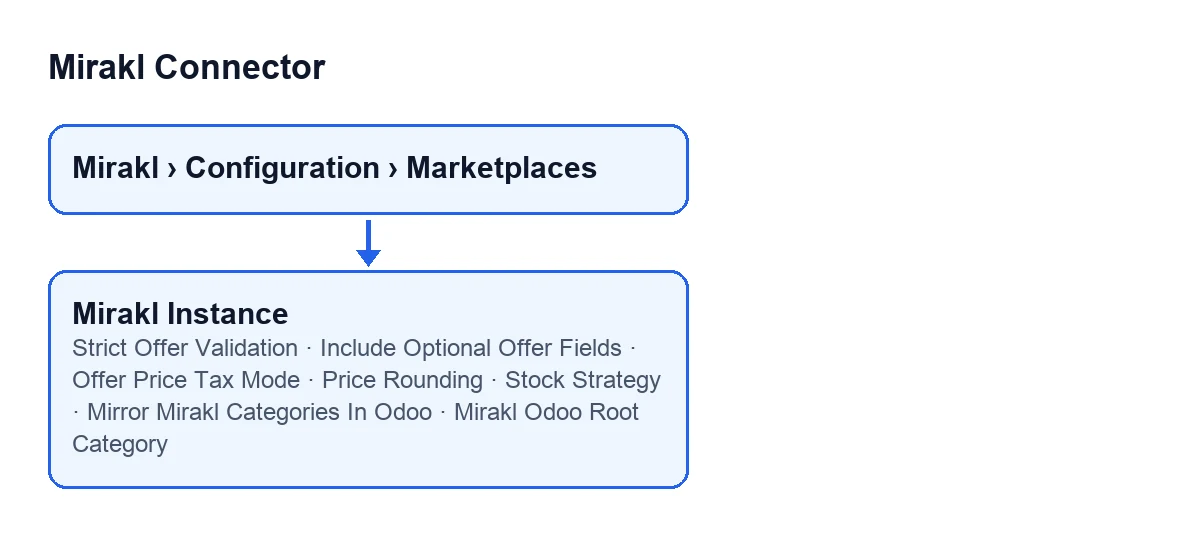
The form opens from the menu Mirakl › Configuration › Marketplaces. The fields in this glossary sit on the tabs Offer Rules, with the groups Offer Validation, Price Rules and Stock Rules, and Category Mapping, with the group Category Settings. What follows comes from the Odoo 20 code; the module is published on Odoo Apps for Odoo 17, 18, 19 and 20.

Offer validation
These checkboxes are in the Offer Validation group, on the Offer Rules tab. Both are unticked by default.
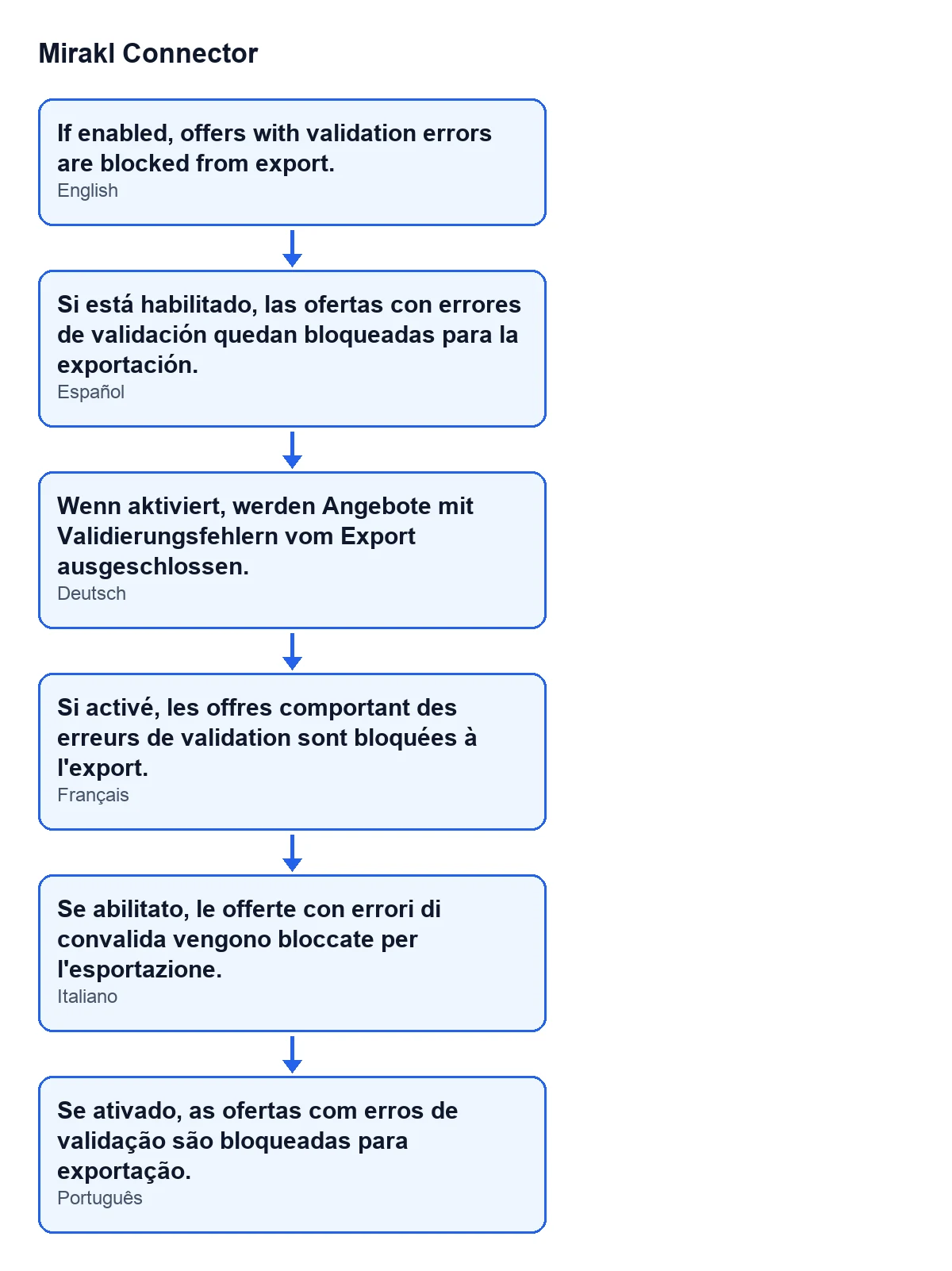
Strict Offer Validation- Checkbox. Its help says: «If enabled, offers with validation errors are blocked from export.» What to set: tick it if you would rather have an offer with validation errors blocked from export. With the default value, unticked, you are not asking for that block.
Include Optional Offer Fields- Checkbox. Its help says: «Include category, logistics, tax, and EAN optional fields in offer payload export.» What to set: tick it if you want those optional fields (category, logistics, tax and EAN) to travel in the offer export. Its default value is unticked.
The diagram below shows the help text of the first checkbox in Spanish, German, French, Italian and Portuguese.
Offer price
These fields are in the Price Rules group of the Offer Rules tab.
Offer Price Tax Mode- Selection field. Its help says it sets how the offer export price should be sent to Mirakl; its options are described next. The default value is
As Computed. As Computed- Option of the tax mode. According to the help, it sends the value returned by the pricing strategy. What to set: keep it if the price your pricing strategy returns is the one you want to send as it is.
Include Sales Taxes- Option of the tax mode. According to the help, it adds mapped customer taxes on top of the computed base price. What to set: choose it if you want the mapped customer taxes added to that base price.
Price Rounding- Numeric field. Its help says: «Round final price to this step. Set 0 to disable.» The default value is 0.01. What to set: the step you want the final price rounded to; if you do not want any rounding, enter 0.
Offer stock
This field is in the Stock Rules group of the Offer Rules tab. Its default value is Free to Use.
Stock Strategy- Selection field. Its help describes how each option is calculated and warns of a risk in
On HandandOn Hand by Warehouses, as you will see below. What to set: if you have no reason to change it, keep the default. Free to Use- Default option. According to the help, it is on hand minus what is reserved for other orders.
On Hand- According to the help, it also counts what is reserved for other orders, so that stock can be sold twice.
On Hand by Warehouses- According to the help, like the previous one, it also counts what is reserved for other orders, so that stock can be sold twice.
Forecast- According to the help, it is on hand plus incoming minus outgoing. What to set: choose it if you want expected receipts and deliveries to count, not just what is in stock now.
Mirakl categories in Odoo
These fields are in the Category Settings group of the Category Mapping tab.
Mirror Mirakl Categories In Odoo- Checkbox, unticked by default. Its help says: «If enabled, applying a category search can mirror the Mirakl path into Odoo categories and reassign the product.» What to set: tick it only if you want applying a category search to be able to mirror the Mirakl path into your Odoo categories. The help warns that it can also reassign the product, so think about your products before turning it on.
Mirakl Odoo Root Category- Field that points to an Odoo product category. With the default values it is not visible: it only appears once you tick the previous checkbox. Its help says it is the root Odoo category used to mirror Mirakl category paths for this instance when mirroring is enabled. What to set: the Odoo category you want as the root of those paths for this instance.
If you want help deciding
If you would rather review these settings with someone, FlexigoTech implements Odoo 17, 18, 19 and 20 and builds custom connectors and integrations. Mirakl Connector is a one-off purchase per version and needs a FlexigoTech Cloud subscription (Connector plan: €49 a month or €490 a year, excluding VAT). You can find it on the Odoo Apps page and on the module page. The connection goes through FlexigoTech Cloud, which stores the credentials encrypted and emails you if synchronisation fails.
Keep reading
Checked in the connector's source code (version 20.0) and the linked sources
Sources
- Module source code: flexigobe_mirakl_connector 20.0 (aa05e537): models/mirakl_instance.py
- Module source code: flexigobe_mirakl_connector 20.0 (aa05e537): models/mirakl_ai.py
- apps.odoo.com/apps/modules/20.0/flexigobe_mirakl_connector
- flexigotech.com/en/services.html
- flexigotech.com/precios.html