

 Español
 Català
 Deutsch
 Français
 Português
 Italiano
 Nederlands
 Polski
What the button does in one sentence
On the form of a refund in Shopify Connector for Odoo, Ignore changes the State field to Ignored and clears any error message the refund had stored. It only shows when the refund is in Draft or Failed. Below is a checklist to run through with the refund open, grouped by moment: before you click, when you click and afterwards.
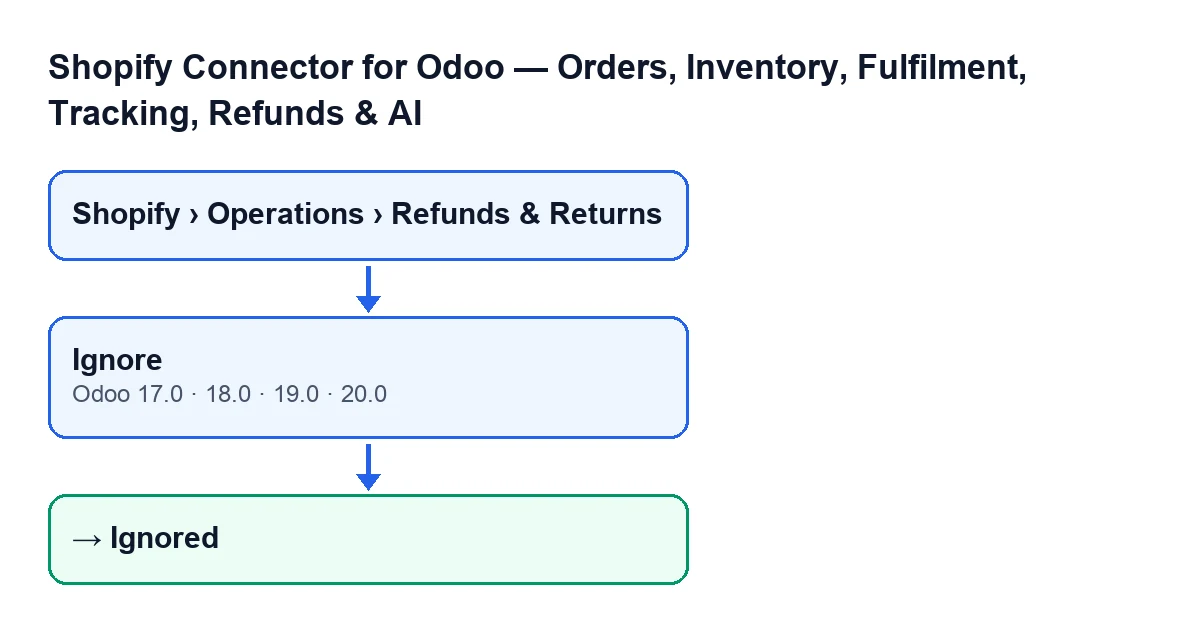
Ignore button (Odoo 17, 18, 19 and 20) and the Ignored state. The labels are in English, the original text in the code.
Before you click: find the refund and check its state
The button depends on the refund's state, so first find out which state it is in.
- Open the menu
Shopify › Operations › Refunds & Returns. The refund forms open from there; the screen is calledShopify Refunds.
- If a menu level is missing, check your permissions: the
Operationslevel asks for theViewerpermission and so does theShopifylevel. Without one of them, that level does not show.
- Look at the
Statefield. It appears on the form and also in theShopify Refundslist. Its values areDraft,Credit Note Created,IgnoredandFailed.
- Check that the refund is in
DraftorFailed. Those are the only two states in which the button is visible.
When you click: what it checks and what changes
The view condition and the method's code say the same thing: the button is for refunds in Draft or Failed.
- Find the
Ignorebutton on the refund form. The view hides it when the state is neitherDraftnorFailed. With the default values, a new refund is inDraft, so the button shows.
- Click
Ignore. In the code published for Odoo 20, the method keeps only the refunds that are inDraftorFailed, and for those it writes theIgnoredstate and empties the error message.
- Bear in mind that the method only touches those two values: the state and the error message. If it were run on a refund in another state, the code would leave that refund as it is.
- If the refund was in
Failed, any error message stored on it is cleared when it is marked as ignored. With a refund inDraft, the visible change is the state.
After you click: what to verify
- Look at the
Statefield again, on the form or in theShopify Refundslist: it should readIgnored.
- Check that the
Ignorebutton is gone. Once the state isIgnored, it is no longerDraftorFailed, and the view condition hides the button.
- Remember that the method writes the
Ignoredstate and nothing else on the refund, besides emptying the error message:Credit Note Createdis a different value of theStatefield.
If the button does not appear
- Refund in
Credit Note Created: the button is hidden, because that state is neitherDraftnorFailed.
- Refund in
Ignored: it is hidden too, for the same condition.
- Permissions: without the
Viewerpermission you do not see theOperationsandShopifymenu levels, so you cannot reach the screen.
- Version: the
Ignorebutton on theShopify Refundsscreen is in every published branch of the module (Odoo 17, 18, 19 and 20), with the same view condition in all four.
How the button reads in your Odoo's language
With Odoo in English, the button is called Ignore; with Odoo in Spanish, Ignorar. If you work in other languages, this diagram shows the published text of the button in each one.
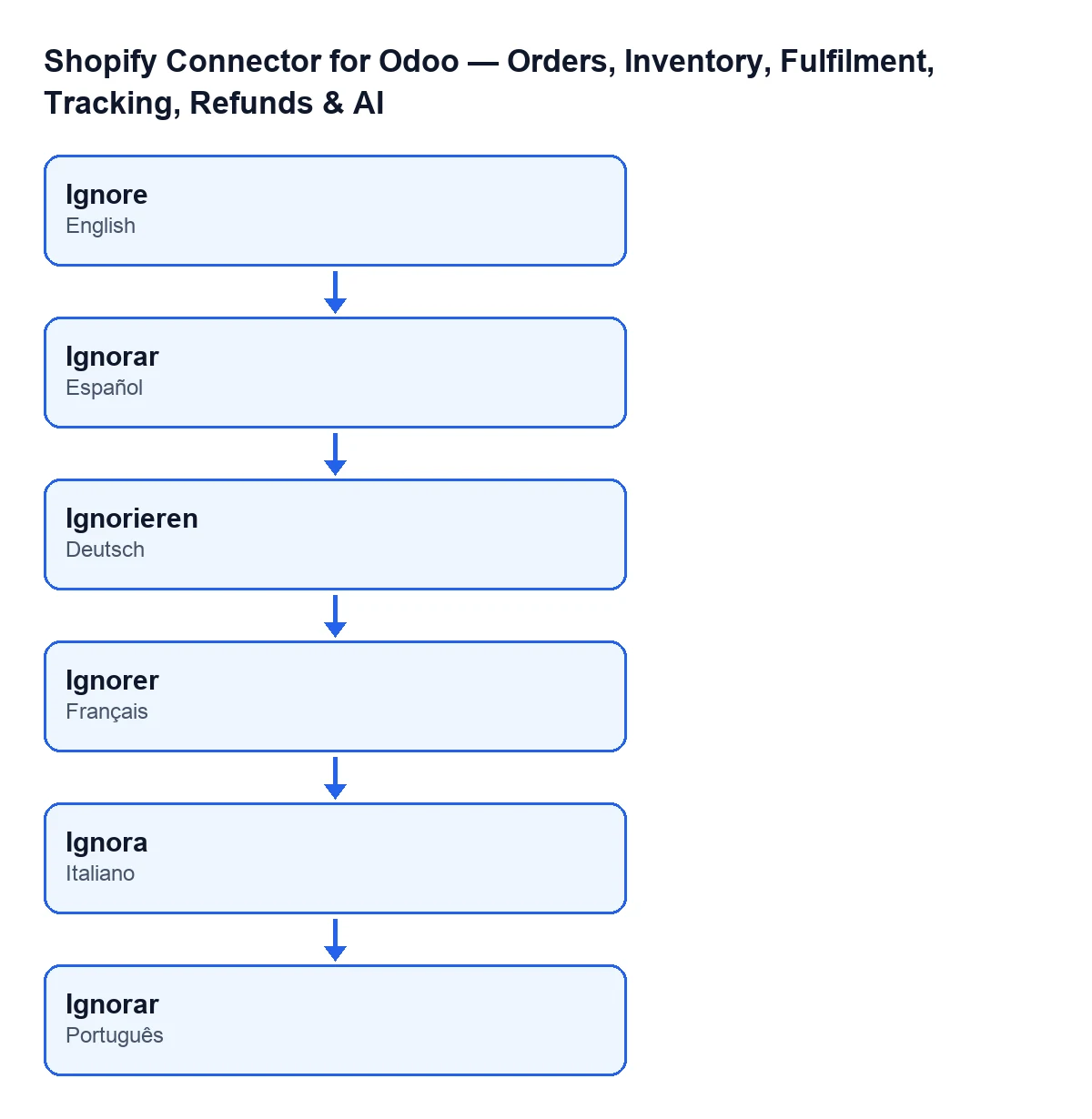
Ignorar in Spanish, Ignorieren in German, Ignorer in French, Ignora in Italian and Ignore in Portuguese.Where it fits among the connector's other buttons
This is one of several buttons the connector adds. If you would like another one in the same format, there is the one for Get stock.
What you need to have in place
The module is a one-off purchase per Odoo version and needs the FlexigoTech Cloud subscription, Connector plan: €49 a month or €490 a year, excluding VAT. The connection goes through FlexigoTech Cloud, which stores the credentials encrypted, monitors the synchronisation and emails you if it fails. You can see the module's page on Odoo Apps or on flexigotech.com. It is published for Odoo 17, 18, 19 and 20.
How FlexigoTech can help
If you are implementing Odoo and want to connect Shopify, FlexigoTech implements Odoo 17, 18, 19 and 20 and builds custom connectors and integrations. If you need the refund flow to behave differently, that can be looked at as custom development.
Keep reading
Checked in the connector's source code (version 20.0) and the linked sources
Sources
- Module source code: flexigobe_shopify_seller_connector 20.0 (d7e627b4): views/shopify_refund_views.xml
- Module source code: flexigobe_shopify_seller_connector 20.0 (d7e627b4): models/shopify_refund.py
- apps.odoo.com/apps/modules/20.0/flexigobe_shopify_seller_connector
- flexigotech.com/en/services.html
- flexigotech.com/precios.html