

 Español
 Català
 Deutsch
 Français
 Português
 Italiano
 Nederlands
 Polski
Before you press: where the button is
- Open
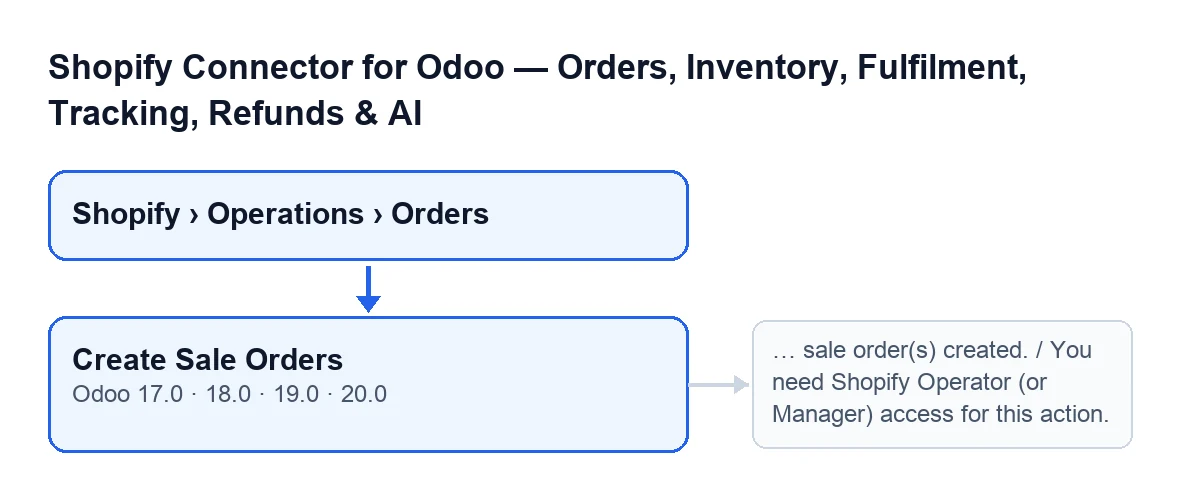
Shopify › Operations › Orders. TheShopifyandOperationsparts of the menu ask for theViewerpermission: without it, you do not see that part of the menu.
- Find the
Create Sale Ordersbutton on theFulfilment Funnelscreen. Its view condition is that it is always visible, and it is there in Odoo 17, 18, 19 and 20.
- Select the orders you want to process.
- With Odoo in English, the button is called
Create Sale Orders.
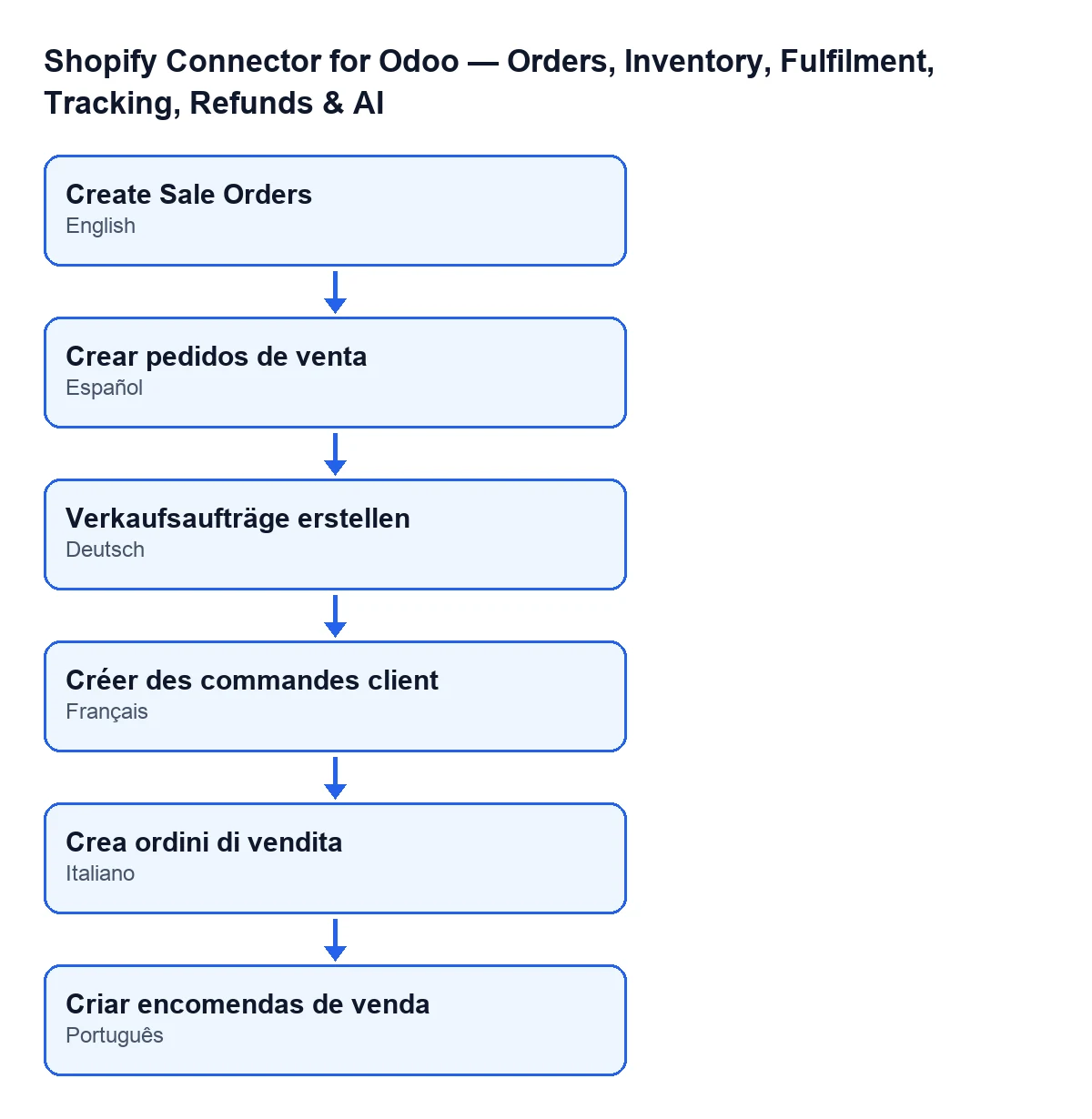
Create Sale Orders; in Spanish, Crear pedidos de venta; in German, Verkaufsaufträge erstellen; in French, Créer des commandes client; in Italian, Crea ordini di vendita; in Portuguese, Criar encomendas de venda.
When you press in Odoo 20.0: what the button checks, in order
What follows comes from the published code of Odoo 20.0.
- Access first. If your user does not have Shopify Operator (or Manager) access, the button stops with
You need Shopify Operator (or Manager) access for this action., before touching any order. Seeing the button is not enough.
- Then it goes through the selection. In Odoo 20.0, the button works on at most the first 200 orders of the selection.
- It skips every order that meets any of these conditions: it already has a sales order,
No Sales Order Becauseis filled in, it is in the cancelled state, or it has noRaw Payload.
- For the rest, it repeats the import from the
Raw Payloadstored on the order and from itsInstance. If that store is archived, the import does nothing with that order.
- Each order is isolated. If the import of one fails, what it did for that order is undone, the failure is logged as a warning in the Odoo log and the button carries on with the next one.
- It only counts orders that end up with a sales order. The code itself allows for the import holding the order back instead of creating it; in that case it does not add to the count.
After you press: what changes and what you see
- You will see a notification titled
Sale Orderswith the text… sale order(s) created., where the code puts the number of orders created. It is a success-type notification and it does not stay fixed on screen.
- Do not assume the number matches your selection: if every order is skipped, or their imports fail, the counter can stay at zero and the notification still appears.
- Do not expect the notification to list failures: the code only logs them in the Odoo log.
- Open an order's form and check that it now has its sales order. The stored content is in the
Technicaltab, in an unlabelled, read-only field that only administrators can see.
If an order still has no sales order
- Look at
No Sales Order Becauseon theFulfilment Funnelform or in its list (read-only). On the form the field is hidden if the order already has a sales order or if the field is empty, so with the default values you do not see it.
- Read the reason, using the labels of its values:
Its sales order was deleted in OdooAlready fulfilled or cancelled on Shopify when importedCreated before «Create Sales Orders From»Had no sales order when the connector was updated (deleted, or its creation failed)Its Shopify reference is on sales orders this store did not make (by hand, or in another store): none is linked blindly
- Remember that the bulk button does not touch held orders: the code skips them. According to the code, a held order only gets a sales order through the form's
Create Sale Orderbutton, which asks for confirmation (It is created as a quotation that the connector never confirms: check first that this order was not shipped already. Create it?): it creates the order as a quotation even though it has a hold reason, so check first that the order has not already been shipped.
- Read the field help before deciding anything:
Why the connector creates no sales order for this Shopify order, so it is not shipped twice. «Create Sale Order» creates it anyway, as a quotation.In other words, the hold reason is there so that the order is not shipped twice.
- If the order still has no sales order and no reason, look at its
Instance, which is shown on the form and in the list, read-only and filled in by the code, and check whether that store is still active: with an archived store, the import does nothing with the order.
What it costs and how FlexigoTech helps
The module is a one-off payment per Odoo version (17, 18, 19 and 20) and needs the FlexigoTech Cloud subscription, Connector plan: €49 a month or €490 a year, excluding VAT, with up to 3 accounts on the platform. The connection goes through FlexigoTech Cloud, which stores the credentials encrypted, monitors the synchronisation and emails you if it fails. Without a subscription, or with the service suspended, what the subscription provides stops, and your data stays in your Odoo.
If you are implementing Odoo and want to review permissions, stores and held orders before running the button in production, FlexigoTech implements Odoo 17, 18, 19 and 20 and builds custom connectors and integrations. You can find the module on its page and on the Odoo Apps listing.
Keep reading
Checked in the connector's source code (version 20.0) and the linked sources
Sources
- Module source code: flexigobe_shopify_seller_connector 20.0 (d7e627b4): views/shopify_order_views.xml
- Module source code: flexigobe_shopify_seller_connector 20.0 (d7e627b4): models/shopify_order.py
- apps.odoo.com/apps/modules/20.0/flexigobe_shopify_seller_connector
- flexigotech.com/precios.html
- flexigotech.com/en/services.html