

 Español
 Català
 Deutsch
 Français
 Português
 Italiano
 Nederlands
 Polski
Where the button is and when you see it
Where do I find the Create Carrier button?
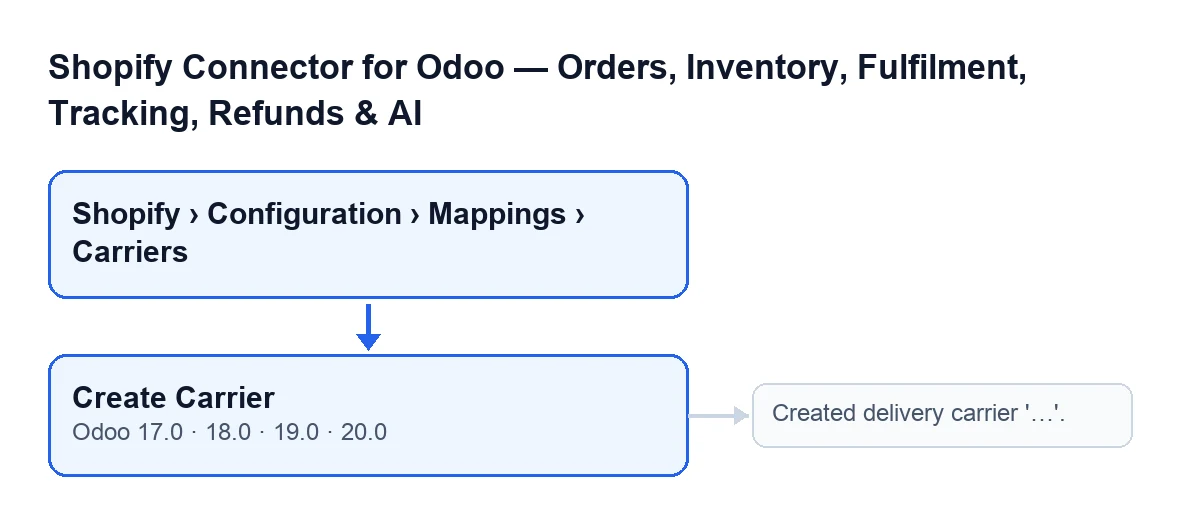
It is on the Shopify Carrier Mappings screen, which you open from the menu Shopify › Configuration › Mappings › Carriers. Each part of the menu asks for a permission: Shopify asks for Viewer and Configuration asks for Operator; if you lack one of them, you do not see that part. The button is in the published branches of the module, for Odoo 17, 18, 19 and 20.
Why can I not see the button?
Because the button is hidden when the Odoo Delivery Carrier field already holds a carrier. With the default values that field is empty and the button shows; the condition is the same in Odoo 17, 18, 19 and 20. You see the field on the mapping form, in the Odoo Carrier group, and also in the table on the form's Carrier Mappings tab. Its help text reads: «Odoo delivery carrier to assign when this Shopify carrier name is found on an order.»
Which data from the mapping does the button use?
First, the Shopify Carrier Name field, which is in the Mapping group of the form and also in the table on the Carrier Mappings tab. Its help text reads: «Exact carrier name as it appears in Shopify shipping lines (case-insensitive match).» Second, the company the mapping's Instance belongs to, a field you see in the Mapping group and in the list of mappings.

What it does when you press it
What does the button do, in order?
This is what the Odoo 20 code does when you press it on a mapping that has no carrier:
- It takes the
Shopify Carrier Name, without spaces at either end, and looks for an Odoo delivery carrier with that name, ignoring upper and lower case. Only one belonging to the instance's company, or a shared one, counts. - If it finds one, it uses it and goes straight to assigning it to the mapping.
- If none exists, it looks for a service-type product called
Shipping, again of that company or shared. - If there is no such product either, it creates a service-type product with that name, with selling and purchasing switched off.
- It creates the carrier with the Shopify name and that product.
- It writes the carrier into the mapping's
Odoo Delivery Carrierfield and shows a notice.
Does it duplicate a carrier that already exists?
Not if the existing one belongs to the instance's company or is shared and has the same name (capitalisation does not matter): the button reuses it and assigns it to the mapping. A carrier from another company that merely shares the name is not picked up: the code searches only among the instance company's carriers and the shared ones.
What do I see when it finishes?
A success notice titled Carrier Created with the message Created delivery carrier '…'., where the dots stand for the carrier's name. The Odoo Delivery Carrier field is also left holding that carrier, so, according to its condition, the button stops showing on that mapping.
How do I check the result afterwards?
Open the mapping form and look at the Odoo Carrier group: the Odoo Delivery Carrier field is there. You will see the same in the table on the Carrier Mappings tab. The name the button uses to search for and create the carrier is the one in the Shopify Carrier Name field.
Cases worth understanding
What if the mapping already has a carrier?
On screen you will not get to press the button, because it is hidden. The Odoo 20 code still covers the case: if the mapping already had a carrier, the method creates nothing and opens that carrier's form.
How does the button look with Odoo in another language?
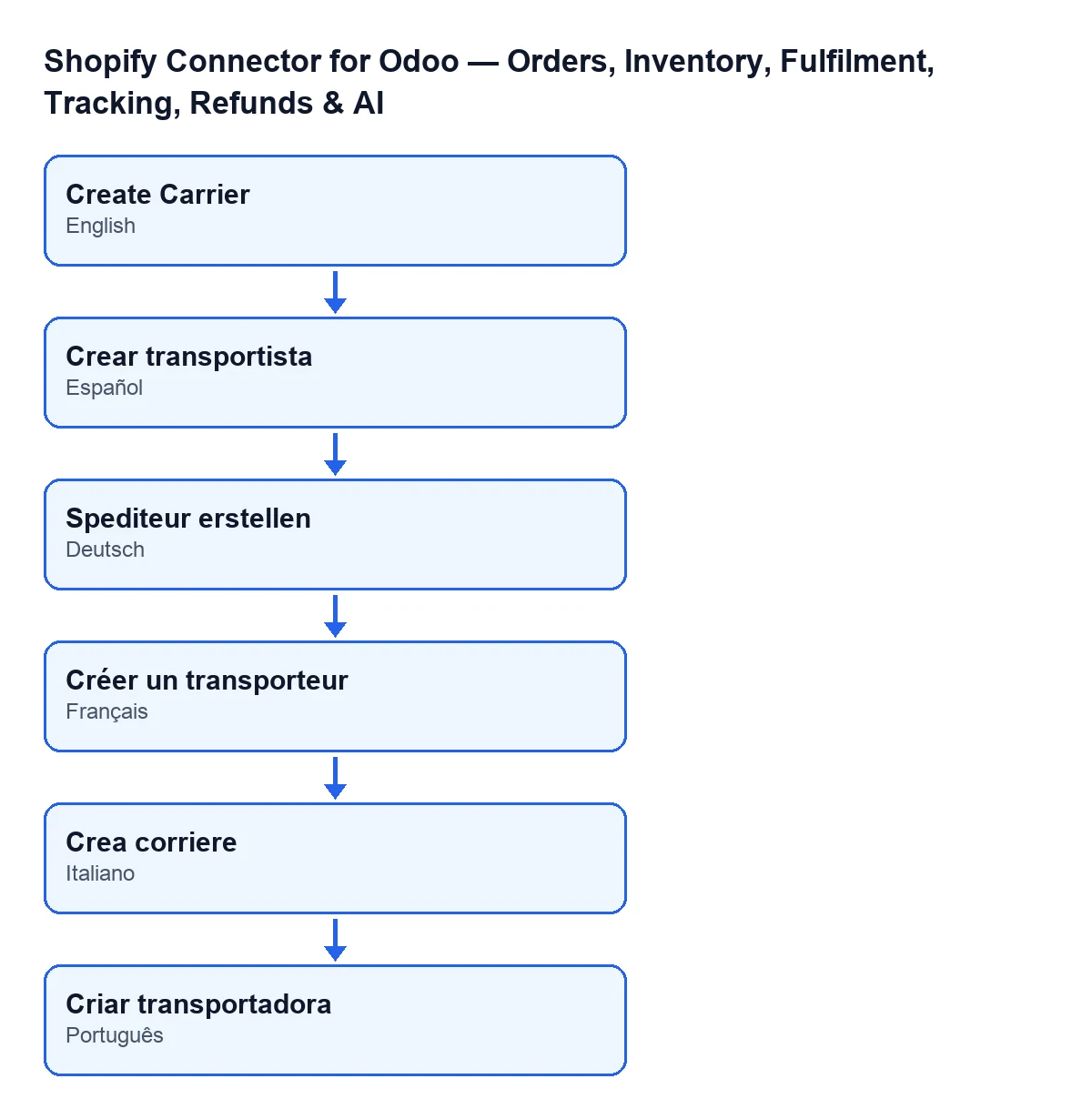
With Odoo in English it is called Create Carrier. The diagram below shows how the label reads depending on Odoo's language, taken from the module's published translations.
How FlexigoTech can help
If you are implementing Odoo and want Shopify's carriers properly linked to Odoo's, FlexigoTech implements Odoo 17, 18, 19 and 20 and builds connectors and custom integrations. The module is a one-off payment per version and needs a FlexigoTech Cloud subscription: the Connector plan costs €49/month or €490/year excluding VAT. You can see the module on its Odoo Apps page or on the module page on flexigotech.com; it is published for Odoo 17, 18, 19 and 20.
Keep reading
Checked in the connector's source code (version 20.0) and the linked sources
Sources
- Module source code: flexigobe_shopify_seller_connector 20.0 (d7e627b4): views/shopify_carrier_mapping_views.xml
- Module source code: flexigobe_shopify_seller_connector 20.0 (d7e627b4): models/shopify_carrier_mapping.py
- apps.odoo.com/apps/modules/20.0/flexigobe_shopify_seller_connector
- flexigotech.com/en/services.html
- flexigotech.com/precios.html