

 Español
 Català
 Deutsch
 Français
 Português
 Italiano
 Nederlands
 Polski
Where the button is and what it is called
Where is the button and when is it visible?
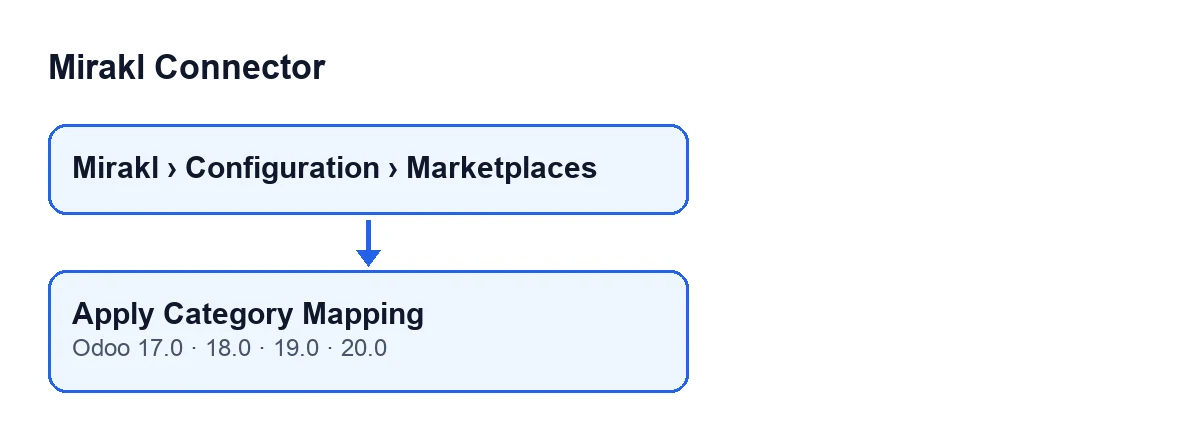
Open Mirakl › Configuration › Marketplaces and go into your instance form: the Apply Category Mapping button is on the Mirakl Instances screen. It does not depend on any state: it is always visible, and it exists in all four published versions, Odoo 17, 18, 19 and 20.
What is the button called when Odoo runs in another language?
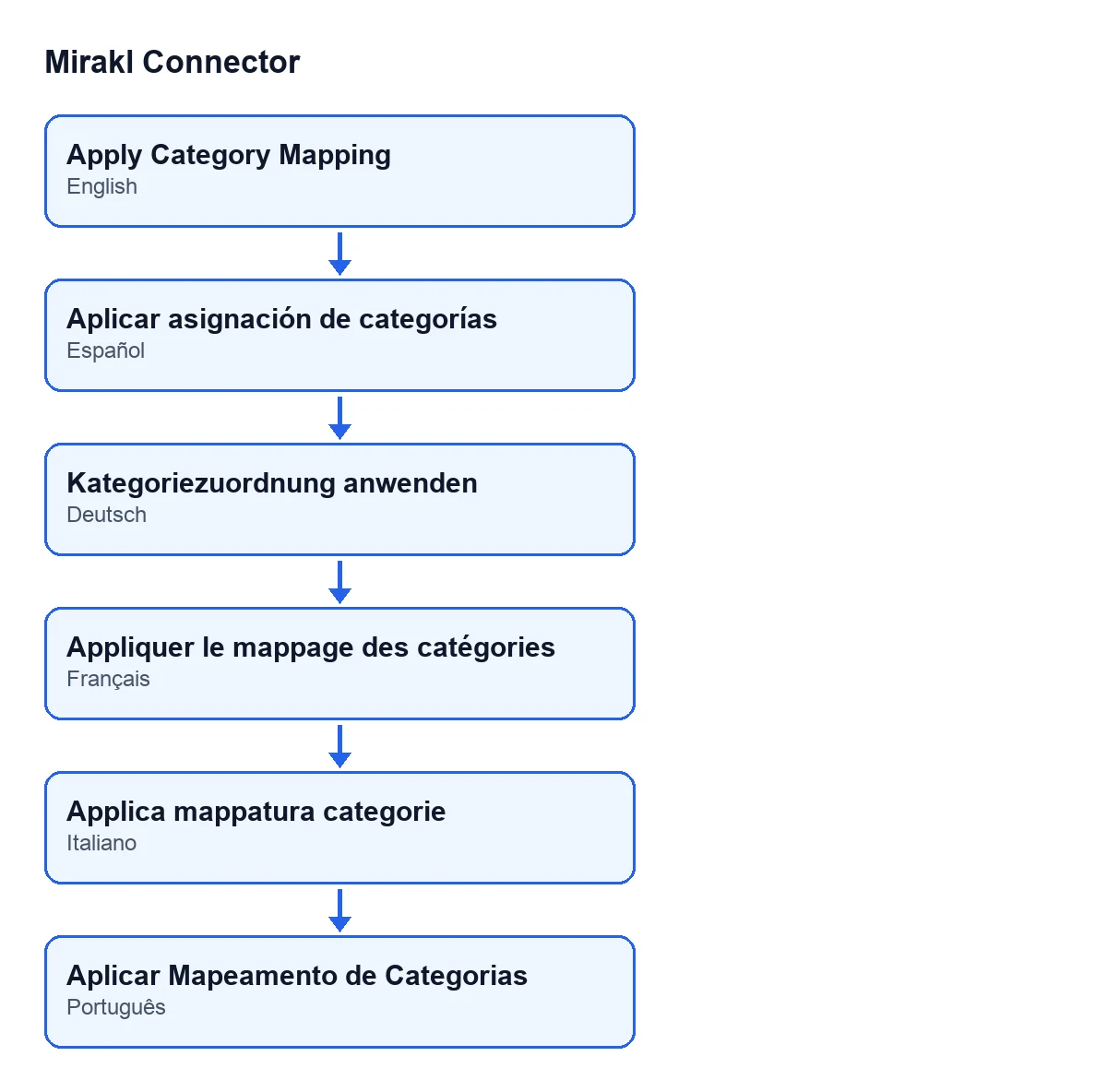
With Odoo in English it is Apply Category Mapping. The module's published translations show it as Apply Category Mapping in Spanish, Aplicar asignación de categorías in German, Appliquer le mappage des catégories in French, Applica mappatura categorie in Italian and Aplicar Mapeamento de Categorias in Portuguese.

What happens without pressing anything
Do I have to press it every time I change a category mapping?
No. The normal route is automatic: when you save a category mapping, the module runs the same synchronisation as the button. The same synchronisation is also reached when you create a new mapping. The button is there for reapplying the mapping by hand across the whole instance.
Which offers does saving a mapping touch?
On save, the module collects the instances and product categories the mapping had before the change and the ones it has after, and joins them. So if a mapping moves to another product category, both the old one and the new one are recalculated. Only offers of those instances are included, provided their product category is one of those or a subcategory of one, and their category is taken from the mapping.
What else does the module do when a mapping is saved?
Before saving, it fills in the Mirakl category details from the catalogue: its code, its label and its path. It starts from the category you picked, from the instance and code supplied or, if you edit a single record, from the category it already had. Details already supplied in that same save are not overwritten.
What the button does, step by step
What does the button do when you press it?
In Odoo 20, the button first acts on a single instance: the one on the open form. Then it looks for the offers of that instance whose category is taken from the mapping. Unlike saving a mapping, it does not limit by product category, so every offer meeting that condition is included. It applies the category mapping to those offers and counts how many it has updated. Finally, it posts a message with that number on the instance form and shows a success notification.
What will I see when it finishes?
A notification titled Mirakl with the text Category mapping applied to … offer(s)., where the code puts the number of offers updated. The notification does not stay pinned, the same text is saved as a message on the instance form, and the screen reloads when it ends.
How is it different from the automatic route?
In scope. When you save a mapping, the module only goes through the offers in the affected product categories. The button goes through every offer of the instance whose category is taken from the mapping, without touching any mapping. Use it when you want to reapply the mapping to the whole instance.
What should I check if the number in the notification is not what I expected?
The number is returned by the step that applies the mapping to the offers found, and the search only includes offers of the instance whose form you have open and whose category is taken from the mapping. An offer belonging to another instance is not included: open that other instance and press the button there. An offer whose category is not taken from the mapping is not included either.
What it needs and what it costs
What do I need to use it?
The module is a one-off payment per Odoo version and needs the FlexigoTech Cloud subscription: the Connector plan costs €49 a month or €490 a year, excluding VAT. The connection goes through FlexigoTech Cloud, which stores the credentials encrypted, monitors synchronisation and emails you if it fails. It is published on Odoo Apps for 17, 18, 19 and 20 (see the listing or the module page). With the subscription, the module for newer Odoo versions is included if you bought it on flexigotech.com; on the Odoo App Store, each version is bought there.
If you want another button of the connector explained the same way, there is Cancel on Mirakl. And if you are implementing Odoo, FlexigoTech implements Odoo 17, 18, 19 and 20 and builds custom connectors and integrations.
Keep reading
Checked in the connector's source code (version 20.0) and the linked sources
Sources
- Module source code: flexigobe_mirakl_connector 20.0 (aa05e537): views/mirakl_instance_views.xml
- Module source code: flexigobe_mirakl_connector 20.0 (aa05e537): models/mirakl_instance.py
- Module source code: flexigobe_mirakl_connector 20.0 (aa05e537): models/mirakl_category_map.py
- Module source code: flexigobe_mirakl_connector 20.0 (aa05e537): models/mirakl_ai.py
- apps.odoo.com/apps/modules/20.0/flexigobe_mirakl_connector
- flexigotech.com/en/services.html
- flexigotech.com/precios.html