

 Español
 Català
 Deutsch
 Français
 Português
 Italiano
 Nederlands
 Polski
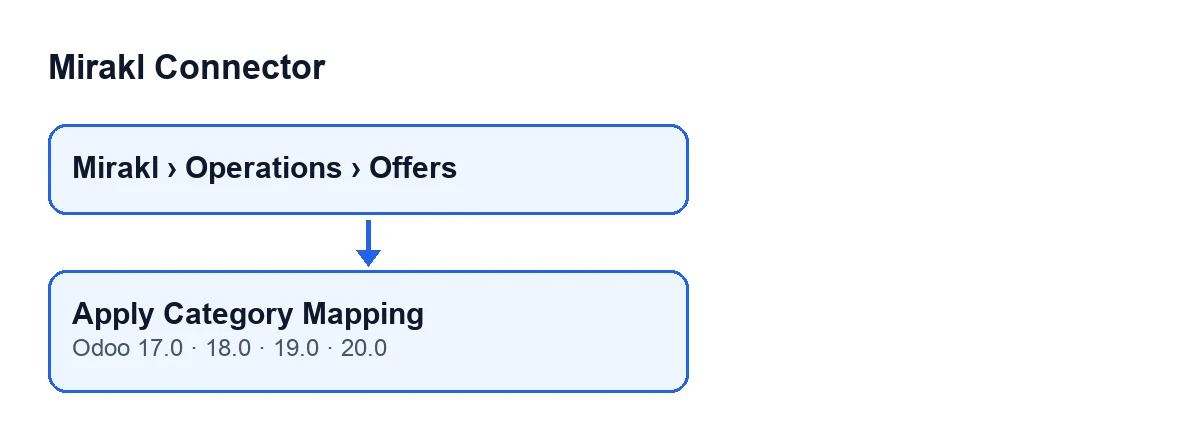
Where the button is and when you see it
It is on the Mirakl Offers screen, which opens from the menu Mirakl › Operations › Offers. The Mirakl part of the menu asks for the base.group_user permission; if you do not have it, you do not see that part.
According to its view condition, the Apply Category Mapping button is always visible, and it exists in Odoo 17, 18, 19 and 20. What follows describes the Odoo 20 code.

Step by step
- First check whether Odoo has already done it by itself. Odoo reaches the same synchronisation the button uses when a category mapping is created, when it is saved, when an offer is created and when you save an offer in which you change the instance, the product, the category sync mode or the Mirakl category. On those routes the offer's category code is also emptied if the mapping gives none. Only offers already in mapping mode are touched.
- Open
Mirakl › Operations › Offersand go into the offer you want to review. - Press
Apply Category Mappingwhen you want to apply the mapping by hand. As well as synchronising, the button leaves the offer in mapping mode. It works on a single offer. - Read the notice that appears with the title
Mirakl: it is either a success or a warning (explained below). It does not stay pinned on screen. - When it finishes, the form reloads by itself. Check the offer's category code and its Mirakl category.
What the button does inside, in order
- First it saves the mode. It sets the offer's category synchronisation to mapping mode. This happens before anything is checked: if the warning appears afterwards, the offer is already in that mode.
- Then it looks for a mapping. It checks whether the category mapping for that offer gives a code. If it does, the notice will be a success; if not, a warning.
- It works out the new code. That is the one the mapping gives. If the mapping gives none, the offer's category code ends up empty.
- It works out the Mirakl category. If the mapping points to a Mirakl category, it uses that one. If it only carries a code, it looks in the same instance for a Mirakl category with that code (the first it finds). If the mapping has neither a category nor a code, it leaves the Mirakl category the offer already had.
- It compares and writes. If the offer's code and category already match those values, it writes nothing. If not, it saves both.
- It notifies and reloads. It shows the notice and reloads the view.
The button's notices
When it finishes, the button shows a notice titled Mirakl, in one of two variants:
| Notice | Tone | When it appears | What to do |
|---|---|---|---|
Category mapping applied. | Success | The offer's mapping gives a category code | Check the offer's category code and Mirakl category |
No category mapping found for this product. | Warning | The mapping gives no code | Review the category mapping for that product; creating or saving it triggers the same synchronisation, and afterwards you can press the button again |
Cases worth understanding
- A warning does not mean nothing changed. The mode has already been saved and, since the mapping gives no code, the offer's category code is emptied. The Mirakl category the offer already had stays as it was.
- Success with an empty Mirakl category. If the mapping carries a code and that instance has no Mirakl category with that code, the code is saved and the Mirakl category ends up empty. The notice is a success because the only thing it measures is whether the mapping gives a code.
- Nothing to change. If the offer already matches the mapping, the button writes nothing to it; you still get the notice and the reload.
Aplicar asignación de categorías, German Kategoriezuordnung anwenden, French Appliquer le mappage des catégories, Italian Applica mappatura categorie and Portuguese Aplicar Mapeamento de Categorias.What it costs and how FlexigoTech helps
Mirakl Connector is a one-off payment per Odoo version (published for 17, 18, 19 and 20) and needs a FlexigoTech Cloud subscription, which the connection goes through: Connector plan, €49 a month or €490 a year, excluding VAT. The price for each version is on the Odoo Apps page, and you can see more about the module on its page at flexigotech.com.
If you are implementing Odoo and want your offers' categories assigned properly from the start, FlexigoTech implements Odoo 17, 18, 19 and 20 and builds connectors and bespoke integrations. To see another button of the module explained in the same detail, there is what the Cancel in Mirakl button does.
Keep reading
Checked in the connector's source code (version 20.0) and the linked sources
Sources
- Module source code: flexigobe_mirakl_connector 20.0 (aa05e537): views/mirakl_product_binding_views.xml
- Module source code: flexigobe_mirakl_connector 20.0 (aa05e537): models/mirakl_product_binding.py
- apps.odoo.com/apps/modules/20.0/flexigobe_mirakl_connector
- flexigotech.com/precios.html
- flexigotech.com/en/services.html