

 Español
 Català
 Deutsch
 Français
 Português
 Italiano
 Nederlands
 Polski
Before you open the wizard
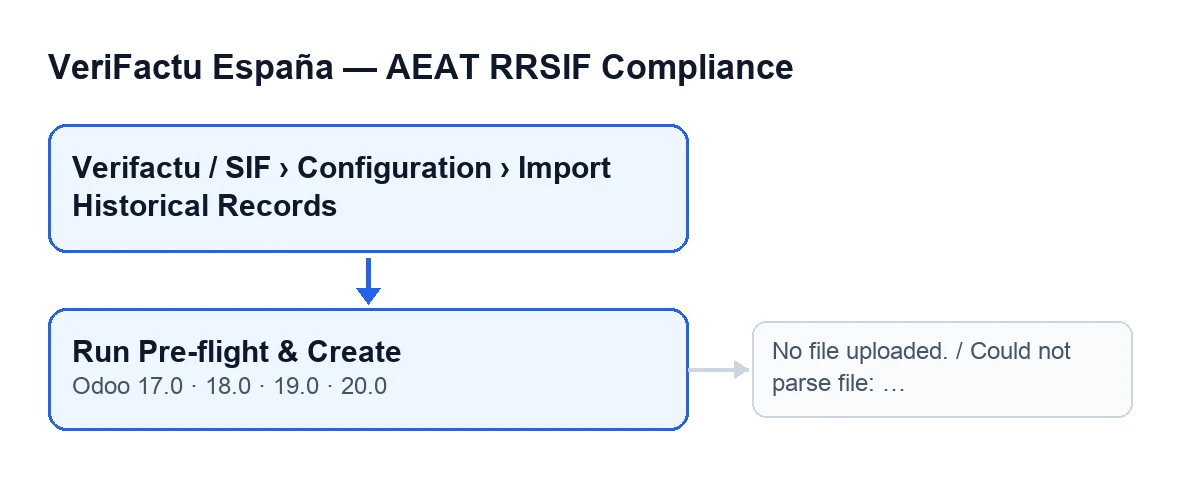
The button is in the Import Historical Records wizard, which opens from Verifactu / SIF › Configuration › Import Historical Records. Each part of the menu asks for its own permissions: Configuration asks for SIF Manager, and the Verifactu / SIF part is visible to Accountant, Asesoría Operator, Auditor (read-only), Privacy Officer and SIF Manager.
- Your user reaches the full menu entry; if one part is missing, you lack the permission for that part.
- You have the file with the historical records you want to check to hand.
- You know which version you run: the button exists on the 17, 18, 19 and 20 branches of Odoo.
- You are not waiting for a condition to be met: on those branches the button is always visible in the wizard.
When you fill in the wizard
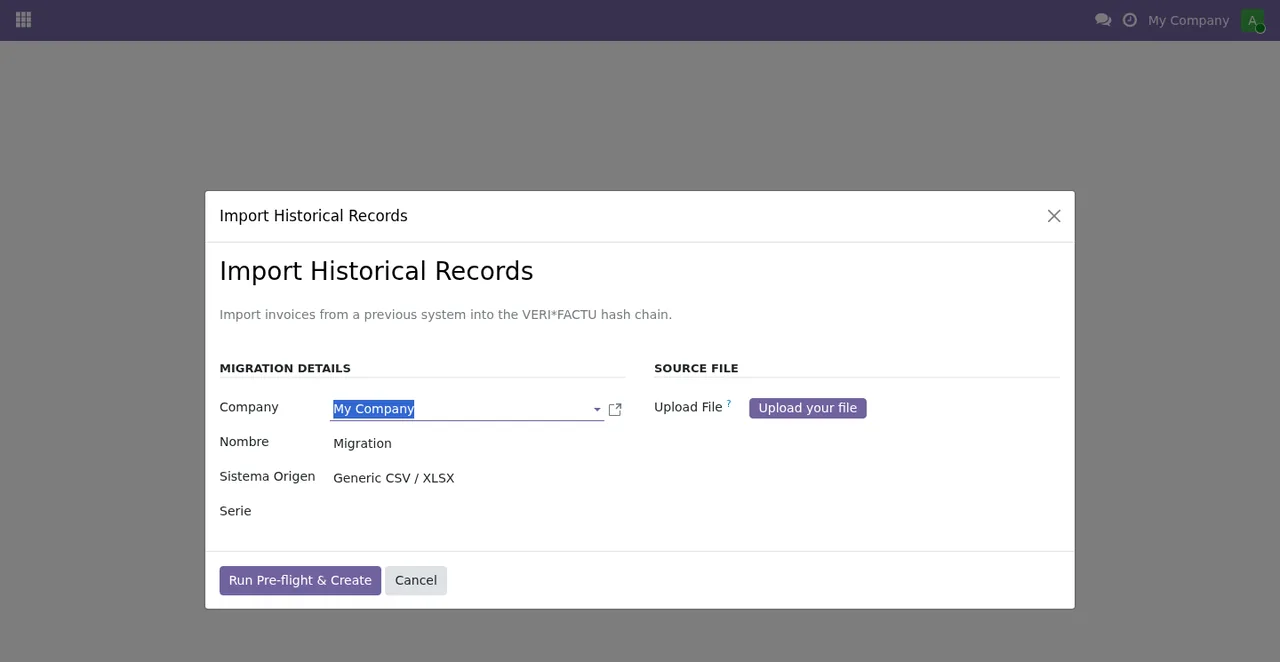
Import Historical Records wizard: migration details at the top, source file below and the buttons at the foot.The button copies whatever you enter here into the migration, so check each field before you press it.
Company, in theMigration Detailsgroup: it is filled in with the company you are working in. Change it if the migration belongs to another one.Nombre, in the same group: it comes with the valueMigration. Give it a name you will recognise later.Serie, in the same group: choose the series. The button passes it on to the migration it creates.Upload File, in theSource Filegroup: upload your file here. If this field has no content, the button stops (see the message below).
What the button does, in order
Every time you press it, the code does the same things in this order:
- It creates a new migration with the company, name, source system, series and file (with its file name) from the wizard. Because each press creates a migration, pressing again does not reuse the previous one.
- It runs the pre-flight check on that migration. The first thing is reading the file: if there is no content or the read fails, it stops.
- It goes through the rows it read and notes issues as it goes. If the row carries the counterparty identifier, it validates it (using the row's identification type, or as an NIF if the row has none) and notes an issue if it does not validate; that issue includes the row number, the invoice number and the identifier.
- In the same pass it notes an issue when a row has no invoice number, and another when a series number has already appeared in an earlier row (saying which row it appeared in before). It also notes any warnings that parsing left on the row.
- It saves the list of issues and the total number of records read on the migration, and moves the migration to its pre-flight state.
- It deletes any lines the migration already had and creates one line for each row read, with its original number, date and amount, in a pending state.
- It opens the form of the migration it has just created.
The issues noted do not stop the button: the migration is created and opened all the same. The messages in the next section do stop the action.
If the button stops
When the button stops with a message, the action is interrupted and nothing it was going to change is saved.
| Message | When it appears | What to do |
|---|---|---|
No file uploaded. | When you press the button and Upload File has no content | Upload the file in Upload File and press the button again |
Could not parse file: … | When you press the button and reading the file fails; the specific reason follows the colon | Fix the file according to that reason, upload it again and press the button again |
What to check afterwards
- The form of the newly created migration has opened, with the name you gave it in the wizard.
- Go through the issues noted: counterparty identifiers that do not validate, missing invoice numbers, repeated series numbers and parsing warnings. Each one says which row it refers to.
- Check that the total number of records it read is the one you expected.
- If you correct the file and run the button again from the wizard, it works with the new migration that gets created, not the previous one.
Where to go next
The app is published on Odoo Apps for 17, 18, 19 and 20 (listing). To see what the module adds to invoices, read what VeriFactu España adds to Odoo invoices; and for another button of the module explained in the same format, there is what the Generate Export button does.
FlexigoTech implements Odoo 17, 18, 19 and 20 and builds custom connectors and integrations. If your historical-records migration needs an adjustment the wizard does not cover, tell us about your case.
Keep reading
Checked in the module's source code (version 20.0) and the linked sources
Sources
- Module source code: flexigo_spain_verifactu 20.0 (1fdc980f): wizards/verifactu_migracion_wizard_views.xml
- Module source code: flexigo_spain_verifactu 20.0 (1fdc980f): wizards/verifactu_migracion_wizard.py
- Module source code: flexigo_spain_verifactu 20.0 (1fdc980f): models/verifactu_migracion.py
- apps.odoo.com/apps/modules/20.0/flexigo_spain_verifactu
- flexigotech.com/en/services.html