

 Español
 Català
 Deutsch
 Français
 Português
 Italiano
 Nederlands
 Polski
The module is published on Odoo Apps for 17.0, 18.0, 19.0 and 20.0.
What it adds to the invoice
The module extends the invoice of Odoo's standard invoicing app (Invoicing). It adds checkboxes you tick yourself and read-only fields that show once the invoice has its record. Here is the list, with where each one appears.
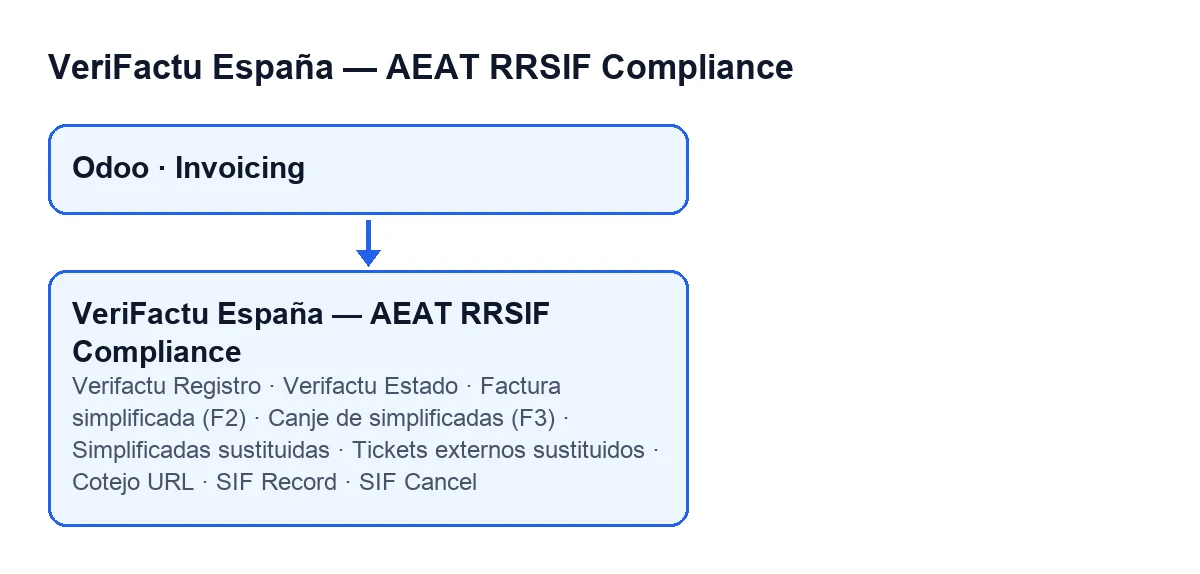
| Field | Where | When it shows |
|---|---|---|
Verifactu Registro | Form, group Verifactu / SIF, read-only | Only when the invoice already has a record |
Verifactu Estado | Form, group Verifactu / SIF, read-only | Only when the invoice already has a record |
Cotejo URL | Form, group Verifactu / SIF, read-only | Only when the invoice already has a record |
SIF Record | Form | Hidden when it is zero |
SIF Cancel | Form | Hidden when it is zero |
Factura simplificada (F2) | Form | Only on customer invoices; hidden when the exchange is ticked |
Canje de simplificadas (F3) | Form | Only on customer invoices; hidden when the simplified box is ticked |
Simplificadas sustituidas | Form | Only on customer invoices with the exchange ticked |
Tickets externos sustituidos | Form | Only on customer invoices with the exchange ticked |
You do not write Verifactu Registro yourself: the module fills it in when the invoice is posted. Verifactu Estado is calculated: if the invoice has a cancellation record it shows that record's status; otherwise it shows the status of the registration record; and it stays empty if there is neither. SIF Record and SIF Cancel are one when the matching record exists and zero when it does not.
Step by step: from the checkbox to the record
- Create the customer invoice as usual. If you need one of the two variants, tick
Factura simplificada (F2)orCanje de simplificadas (F3)on the form; each box hides when you tick the other. - For a simplified invoice, the field help reads:
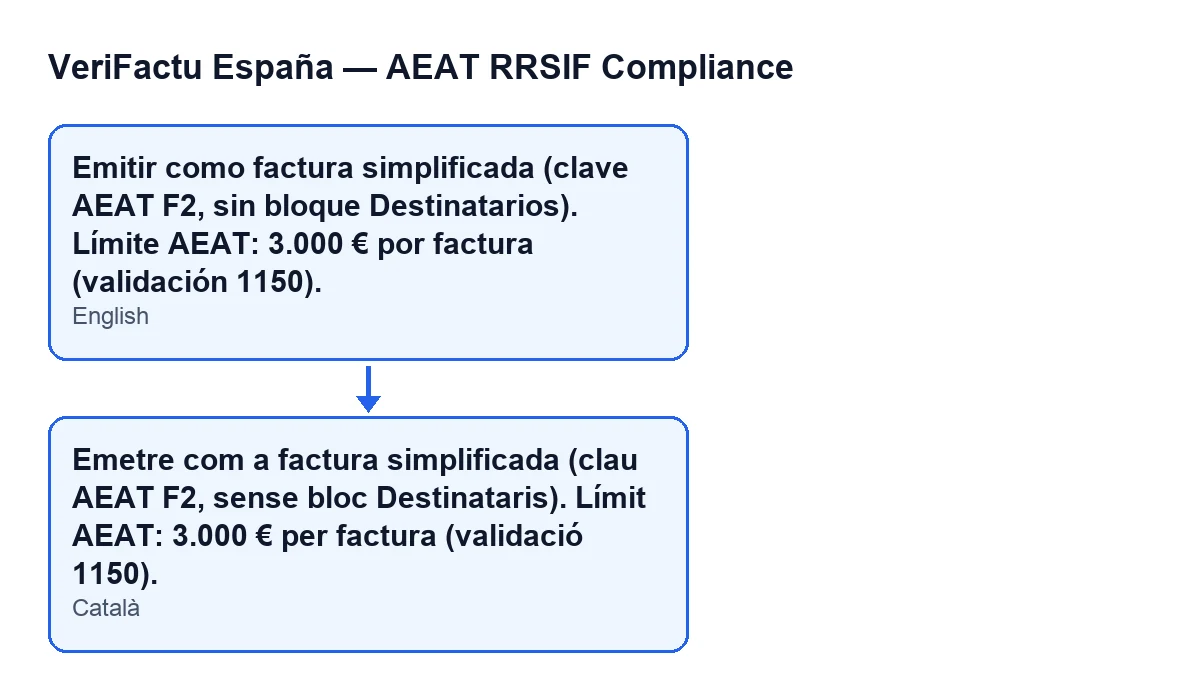
Emitir como factura simplificada (clave AEAT F2, sin bloque Destinatarios). Límite AEAT: 3.000 € por factura (validación 1150).In plain English: issue it as a simplified invoice, AEAT key F2, without the recipients block, with an AEAT limit of €3.000 per invoice. - For an exchange, ticking the box makes
Simplificadas sustituidasandTickets externos sustituidosappear. The help ofCanje de simplificadas (F3)reads:Factura emitida en sustitución de facturas simplificadas ya facturadas y declaradas (clave AEAT F3). No rectifica ni anula las simplificadas: sus importes no vuelven a computar (FAQ AEAT).That ofSimplificadas sustituidas:Facturas simplificadas (F2) o rectificativas de simplificadas (R5) que este canje sustituye.And that ofTickets externos sustituidos:Referencias de simplificadas emitidas fuera de Odoo, una por línea con el formato: NUMERO-SERIE | DD-MM-AAAA. - Post the invoice. The module acts right after Odoo posts it, and only on invoices that have actually ended up posted.
- Open the form and look for the group
Verifactu / SIF. If the invoice has a record, you will seeVerifactu Registro,Verifactu EstadoandCotejo URLthere. - Check
SIF RecordandSIF Cancel: the first shows there is a registration record, the second that there is a cancellation record. At zero they are hidden.
When the module acts and in what order
The module hooks into Odoo's posting: when Odoo posts invoices, it looks at each one that has ended up posted and, if it applies, creates its record. It does that part with system permissions. According to the code, the order is:
- First it checks whether it applies. The module only acts if the company has VeriFactu active with the VeriFactu scope and no foral regime. It also stops there if the document is neither a customer invoice nor a customer credit note.
- There is also a coexistence guard: if it trips, the module exits without doing anything.
- If the invoice is an exchange, the module runs the exchange validation before anything is chained.
- It then runs the NIF validation and the credit note validation, also before anything is added to the chain.
- Next it appends the registration record to the company's chain and writes it into
Verifactu Registro. - Finally it tries to generate the QR. If that fails, it only leaves a warning in the log: the record is already linked and is not undone.
If the group Verifactu / SIF does not appear
The group and its fields stay hidden while Verifactu Registro is empty, so their absence means the invoice has no record. Before creating the record, the module's code checks the following:
- The invoice has been posted and is no longer in draft.
- It is a customer invoice or a customer credit note.
- The company has VeriFactu active, with the VeriFactu scope and no foral regime.
- The coexistence guard does not trip.
After those, the module runs the exchange validation (if it is an exchange), the NIF validation and the credit note validation, and then appends the record.
How FlexigoTech can help
FlexigoTech implements Odoo 17, 18, 19 and 20 and builds custom connectors and integrations. If you are implementing Odoo and want to review how your customer invoices are issued before switching anything on, we can go through it with you.
Keep reading
Checked in the module's source code (version 20.0) and the linked sources
Sources
- Module source code: flexigo_spain_verifactu 20.0 (1fdc980f): models/account_move.py
- apps.odoo.com/apps/modules/20.0/flexigo_spain_verifactu
- flexigotech.com/en/services.html