

 Español
 Català
 Deutsch
 Français
 Português
 Italiano
 Nederlands
 Polski
What it covers, according to its README
Two-Factor Authentication & SSO for Odoo brings two things together in one module: two-factor policies and sign-in through an external identity provider. This is what its README lists:
- MFA policies by company, security group and identity provider, with a grace period. You set them in
Authentication → MFA Policies, where you choose the groups and the identity providers (leave the providers empty and the policy applies to every sign-in). - Second factor: Odoo's own TOTP (
auth_totp), also after a SAML or OIDC sign-in. - SAML 2.0 as a service provider, with
python3-samlandxmlsecon the server, and OpenID Connect. - Identity provider connections in
Authentication → IdP Connections: one per provider, and each appears as a button on the login page. - Just-in-time creation of users on their first SSO sign-in, with group mappings.
- SCIM 2.0 provisioning, with
/scim/v2/Users,/scim/v2/GroupsandServiceProviderConfig. - Authentication log of sign-ins, set-ups and SCIM and SSO events.
- Emergency bypass code for an administrator who is locked out: one-time, with an expiry, and recorded.
- MFA coverage report per company.
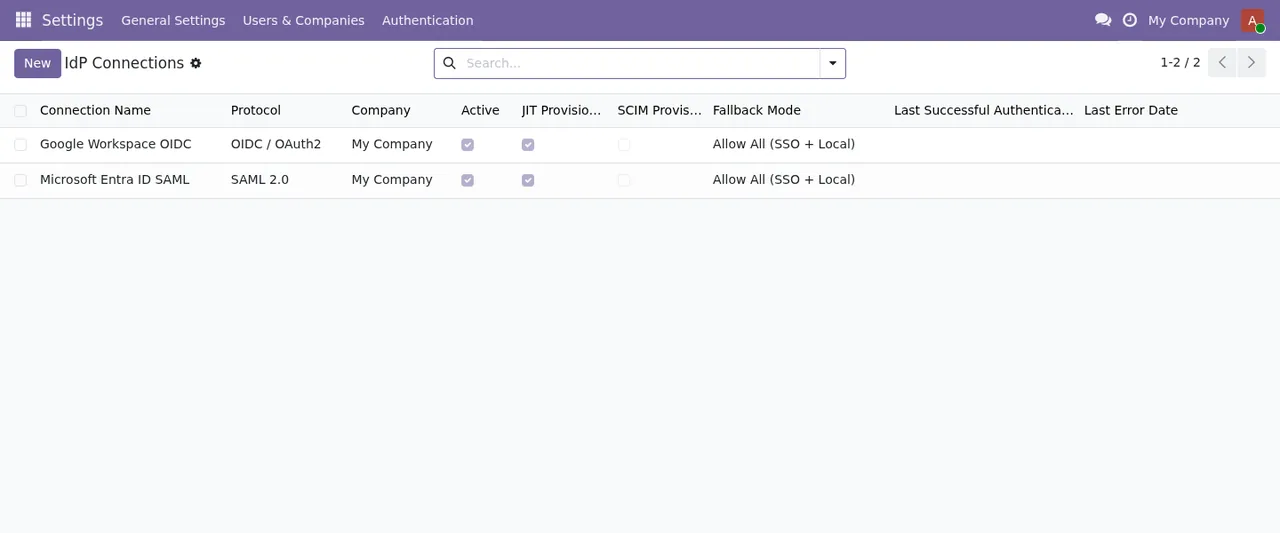
What weighs most in the decision if you work on FlexigoTech Cloud: according to the listing, there single sign-on (SAML or OpenID Connect) and SCIM provisioning with your identity provider require a FlexigoTech Cloud subscription.
What the README itself says it does not do
Read this part carefully before you buy, because it marks how far the module goes:
- The module's own lists of TOTP devices and FIDO2 credentials are not used to sign in.
- The active sessions list records SSO sign-ins, but ending a session there does not sign that session out.
- There is no SCIM rate limit per IP address.
- The interface refuses edits and deletions in the authentication log, but the log is not tamper-proof against an administrator using the API.
- A connection's
SSO Onlyfallback mode hides the password form on the login page. The README then spells out what this mode does not refuse: read it before treating it as a block. - Per-company visibility of the log follows record rules that do not cover every group yet.
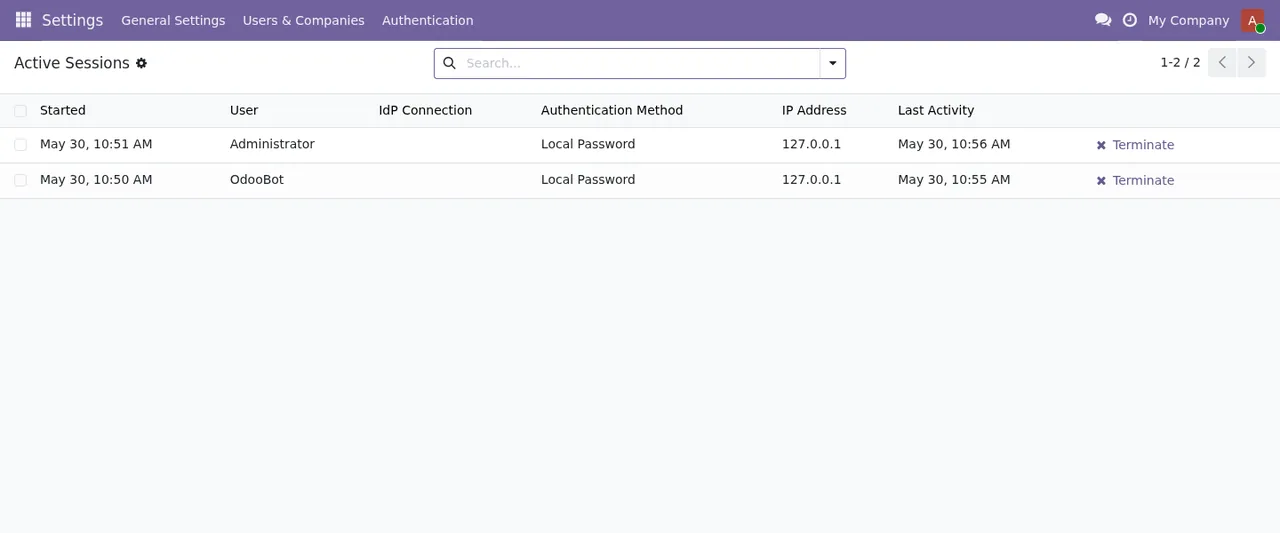
You can see the Terminate button in this list. Keep in mind what the README warns: ending a session there does not sign it out. If cutting someone's access straight away is one of your requirements, factor that in before you decide.
If this is your situation, here is what suits you
Match your situation against what the documentation says. If you recognise yourself in the rows that fit, the module works for you; if what you need sits in the others, decide knowing that limit.
| Your situation | What the documentation says | What suits you |
|---|---|---|
| You want to enforce two-factor with different rules by company or group | MFA policies by company, security group and provider, with a grace period | It fits; you set it up in Authentication → MFA Policies |
| Your team signs in with a SAML 2.0 or OpenID Connect provider | One connection per provider, shown as a button on the login page | It fits; according to the listing, on FlexigoTech Cloud single sign-on requires a FlexigoTech Cloud subscription |
| You manage users from your identity provider | Just-in-time creation with group mappings and SCIM 2.0 | It fits (on FlexigoTech Cloud, SCIM requires a subscription); note SCIM has no rate limit per IP |
| You want to sign in with the FIDO2 credentials the module lists | Those lists are not used to sign in | Those lists do not cover it |
| You need to cut a user's session off immediately | Ending a session in the list does not sign it out | That is not what the active sessions list does |
| You need a log nobody can alter | The interface will not edit or delete it, but it is not tamper-proof against an administrator using the API | Use it as a log, not as tamper-proof evidence |
| You want nobody to sign in with a password | SSO Only hides the password form | Read the README note on what it does not refuse |
| You run several companies with separate teams | Per-company log visibility does not cover every group yet | Check which groups you use before granting access to the log |
| You worry about an administrator being locked out | One-time emergency bypass code, with an expiry, recorded | It fits |
What to have ready before installing
- A published Odoo version: 17, 18, 19 or 20.
- Being able to follow the installation the README describes: put the module in your addons path and restart Odoo, then go to
Apps, search *Two-Factor Authentication & SSO* and clickInstall. - For SAML,
python3-samlandxmlsecon the server. - If you are going to use SSO or SCIM on FlexigoTech Cloud, the FlexigoTech Cloud subscription.
- Your account with the identity provider: according to the listing, you contract and pay third-party costs yourself (your account on each platform, Odoo and your hosting).
- A decision on which groups and providers go into each policy, so you can fill in
Authentication → MFA Policies. - A test database: the listing includes the service on the staging and test copies of your database.
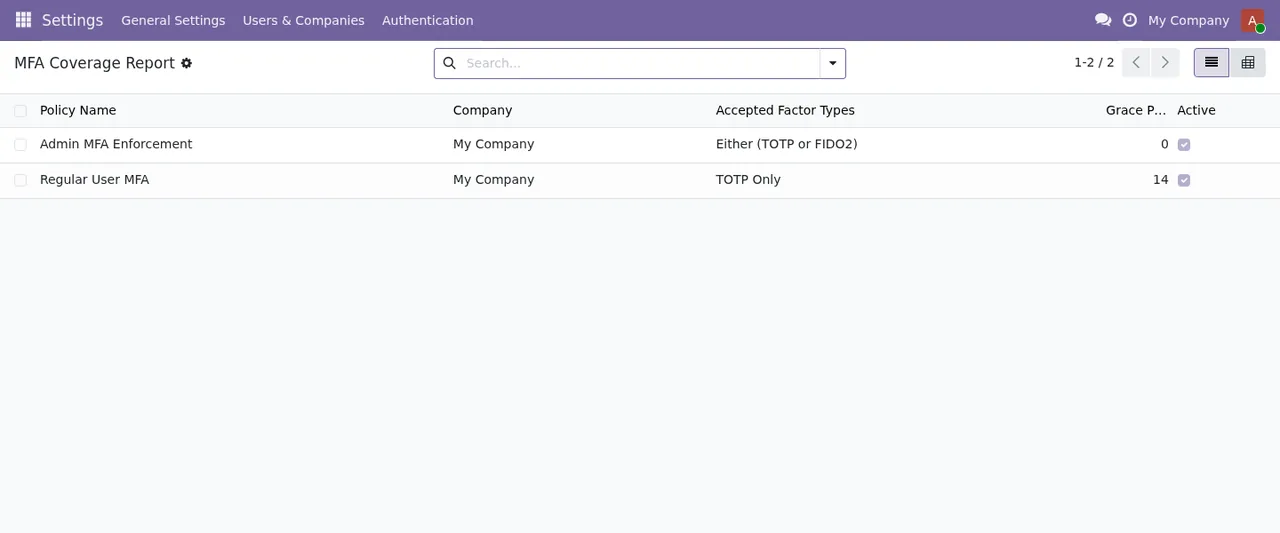
This report shows, for each policy, the company, the accepted factor types, the grace period and whether it is active. Knowing beforehand which groups and providers go into each policy lets you fill them in in one go on your test database.
Odoo versions and what you pay
The module is published on Odoo Apps for 17.0, 18.0, 19.0 and 20.0, and costs €9 excluding VAT, a one-off payment per Odoo version, for 17, 18, 19 and 20. According to its manifest, some features use a paid external service, the FlexigoTech Cloud subscription (local service: €29/month or €290/year excluding VAT; Pro: €58/month or €580/year).
If you buy it on flexigotech.com, the subscription includes the module for new Odoo versions; on the Odoo App Store, each Odoo version is bought there. We do not take care of migrating your database to a new Odoo version. Without a subscription, or with the service suspended, what the subscription provides stops and your data stays in your Odoo.
The service listing includes, among other points, module updates, support with a first response within 1 working day and monitoring of the module's health in your database, with alerts.
How FlexigoTech helps
FlexigoTech implements Odoo 17, 18, 19 and 20 and builds custom connectors and integrations, so we can go through the table above with your case before you buy. If you have already decided, setting up the module covers which settings to fill in and what to check in the first week, and the error messages and warnings explains what each text means. Purchase and subscription are on the module page, and each version's listing is on Odoo Apps.
Keep reading
Checked in the module's source code (version 20.0) and the linked sources
Sources
- Module source code: flexigo_2fa_sso_saml_oidc_modern_bundle_for_odoo_commun paquete-BO/20.0 (249f0717): README.rst
- Module source code: flexigo_2fa_sso_saml_oidc_modern_bundle_for_odoo_commun paquete-BO/20.0 (249f0717): static/description/index.html
- apps.odoo.com/apps/modules/20.0/flexigo_2fa_sso_saml_oidc_modern_bundle_for_odoo_commun
- apps.odoo.com/apps/modules/17.0/flexigo_2fa_sso_saml_oidc_modern_bundle_for_odoo_commun
- apps.odoo.com/apps/modules/18.0/flexigo_2fa_sso_saml_oidc_modern_bundle_for_odoo_commun
- apps.odoo.com/apps/modules/19.0/flexigo_2fa_sso_saml_oidc_modern_bundle_for_odoo_commun
- flexigotech.com/en/services.html
- flexigotech.com/precios.html