

 Español
 Català
 Deutsch
 Français
 Português
 Italiano
 Nederlands
 Polski
The details your identity provider asks for
Which fields do you fill in on an OIDC configuration?
The OIDC configuration is linked to a connection through the IdP Connection field. The first item is Issuer URL, which the field help describes as the OIDC issuer URL, with the example https://login.microsoftonline.com/<tenant>/v2.0. Next come Client ID and Client Secret (encrypted), the OAuth2 client secret. The record continues with Authorization Endpoint, Token Endpoint, JWKS URI and End Session Endpoint. In Scopes you enter the list of OIDC scopes to request, separated by spaces. According to each field's help, Client Secret (encrypted), Refresh Token (encrypted) and Access Token (encrypted) are stored encrypted at rest. Next to the current access token sits Access Token Expiry, and the same configuration has Discovery Document Last Fetched. When you review the connection, look at those two dates.
What if your provider uses SAML?
The SAML configuration also has its own IdP Connection field. On the provider side you fill in IdP Entity ID (the SAML Entity ID of the identity provider) and IdP SSO URL (the HTTP-Redirect binding URL for the AuthnRequest). IdP SLO URL is the Single Logout Service URL; the field help marks it as optional unless Single Logout is enabled. Into IdP Signing Certificate (PEM) you paste the X.509 PEM certificate the module uses to verify SAML responses from the provider. IdP Encryption Certificate (PEM) is optional and is for encrypted SAML assertions. IdP Metadata URL is the URL used to periodically fetch and cache the provider's SAML metadata; the last metadata XML fetched successfully is kept in Cached Metadata XML. The configuration also holds SP Entity ID, SP ACS URL and the NameID Format drop-down.
What each user receives from the provider
How do you send a provider attribute to an Odoo user field?
With the Claim Mappings lines on the OIDC configuration. Each line has IdP Attribute / Claim Name, with the attribute or claim name at the provider, and Odoo User Field, a drop-down with the Odoo user field it goes to. The lines also carry the SAML Configuration and OIDC Configuration fields, plus a Sequence: lower sequences are applied first. Number the lines according to which one you want applied first.
How do you assign Odoo groups based on the provider?
With the Group Mappings lines. Each line links an IdP Group Value to an Odoo Group and carries the Mapping Mode drop-down. As with claims, each line has its SAML Configuration and OIDC Configuration fields. Choose the Mapping Mode in the form itself when you create each line. If a warning appears while you test sign-in, the module's error messages and warnings lists the literal texts and what to do about each one.
What to check in the first week
Where can you see all the connections at a glance?
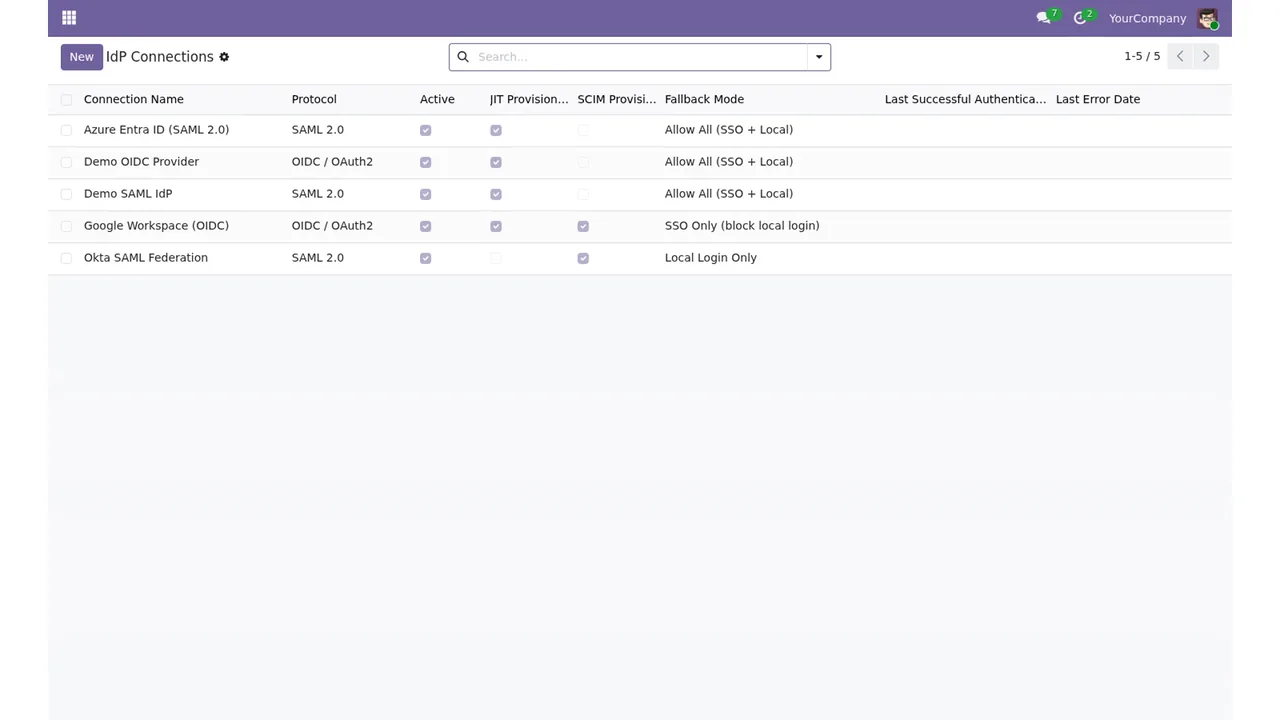
In the IdP Connections list. Each row shows a connection with its protocol (SAML or OIDC), whether it is active, JIT and SCIM provisioning and the fallback mode. At the top you have the button to create a new one and the search bar. Go through it to confirm that the active connections are the ones you mean to use.
How do you check who has signed in and through which connection?
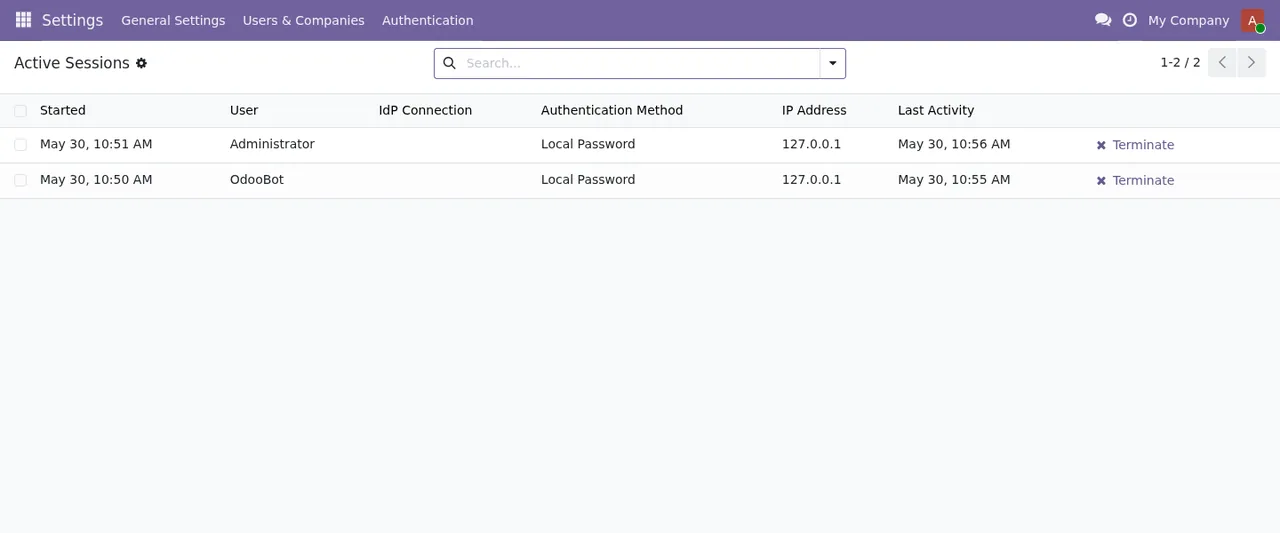
In Settings there is the list of active sessions. Each row shows the start, user, IdP connection, authentication method, IP and last activity, with the Terminate button. In the first few days, compare each session's IdP connection and authentication method with what you expect for that user.
Where do you review the MFA policies?
In the MFA Coverage Report, in Settings. It lists the MFA policies with their company, accepted factor types, grace period and active status. Check that each policy is active and has the grace period you decided on. This walk-through shows the three screens worth opening in the first week:
What is the Rotate SP Certificate wizard?
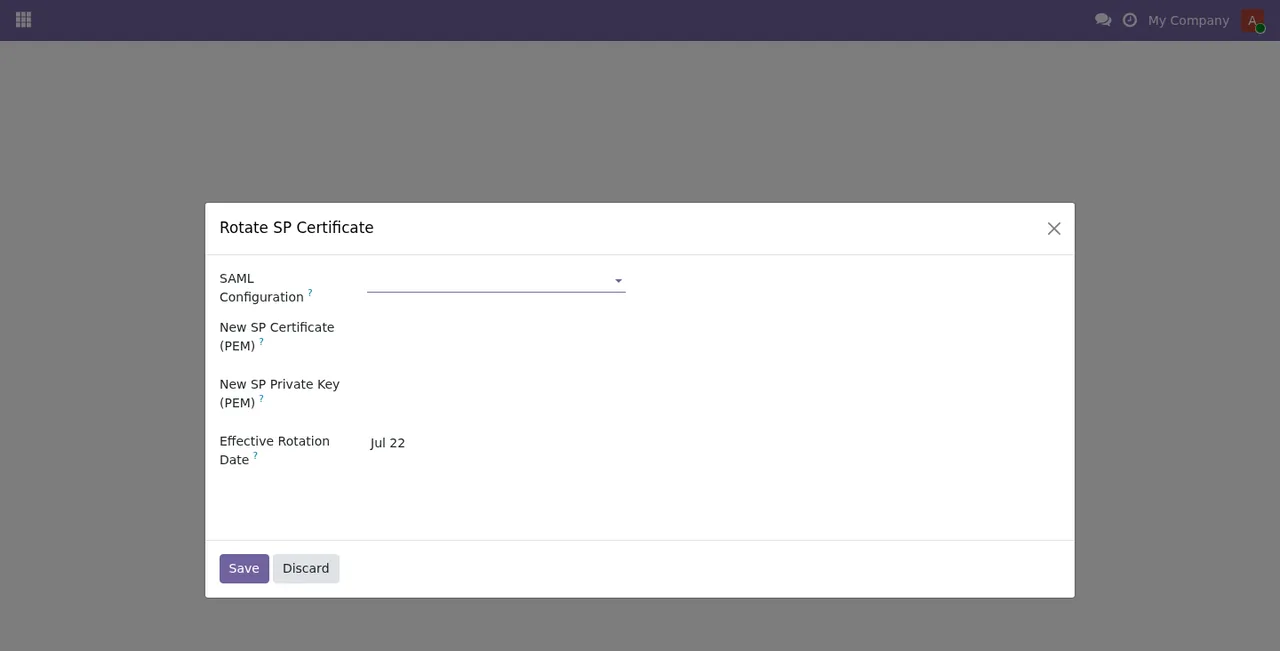
It is a dialog with the fields SAML Configuration (a drop-down), New SP Certificate (PEM), New SP Private Key (PEM) and Effective Rotation Date, plus the Save and Discard buttons. If you work with SAML, know where it is: in it you pick the SAML configuration, paste the new SP certificate and private key in PEM and set the effective rotation date.
What do you pay for the module and for the service?
On Odoo Apps the module costs €9 excluding VAT, a one-off payment per version, for Odoo 17, 18, 19 and 20, and in all four versions the manifest says: «Some features use a paid external service: FlexigoTech Cloud subscription (from 29 EUR/month, VAT excl.)». That service is optional and the local plan costs €29/month or €290/year excluding VAT (Pro: €58/month or €580/year); without a subscription, or with the service suspended, whatever the subscription provides stops and your data stays in your Odoo. With the subscription, the module for new Odoo versions is included if you bought it on flexigotech.com; on the Odoo App Store, each version is bought there.
How FlexigoTech can help
If you'd rather not handle the set-up alone, FlexigoTech implements Odoo 17, 18, 19 and 20 and builds bespoke connectors and integrations. If you want to understand first what the module adds under the bonnet, read how Two-Factor Authentication & SSO for Odoo works. The module page has the purchase options and the service details.
Keep reading
Checked in the module's source code (version 20.0) and the linked sources
Sources
- Module source code: flexigo_2fa_sso_saml_oidc_modern_bundle_for_odoo_commun paquete-BO/20.0 (249f0717): models/auth_idp_attribute_mapping.py
- Module source code: flexigo_2fa_sso_saml_oidc_modern_bundle_for_odoo_commun paquete-BO/20.0 (249f0717): models/auth_idp_group_mapping.py
- Module source code: flexigo_2fa_sso_saml_oidc_modern_bundle_for_odoo_commun paquete-BO/20.0 (249f0717): models/auth_oidc_config.py
- Module source code: flexigo_2fa_sso_saml_oidc_modern_bundle_for_odoo_commun paquete-BO/20.0 (249f0717): models/auth_saml_config.py
- apps.odoo.com/apps/modules/20.0/flexigo_2fa_sso_saml_oidc_modern_bundle_for_odoo_commun
- apps.odoo.com/apps/modules/17.0/flexigo_2fa_sso_saml_oidc_modern_bundle_for_odoo_commun
- apps.odoo.com/apps/modules/18.0/flexigo_2fa_sso_saml_oidc_modern_bundle_for_odoo_commun
- apps.odoo.com/apps/modules/19.0/flexigo_2fa_sso_saml_oidc_modern_bundle_for_odoo_commun
- flexigotech.com/en/services.html
- flexigotech.com/precios.html