

 Español
 Català
 Deutsch
 Français
 Português
 Italiano
 Nederlands
 Polski
When the message appears and what the code checks
The message appears when you click the Export to Shopify button in the module's product export view. The full text is Product '…' already has a Shopify binding on '…'. Use Push to Shopify to update it. The first gap is the product name and the second is the Shopify shop's domain.
The condition is a single one. The first thing the action does is look in Odoo for a Shopify binding that matches the shop of the export and that product. If it finds any, it raises the message and stops. The condition does not ask Shopify anything: it only looks at whether that binding exists in Odoo. Because this check comes before anything else, when the message appears the product is not built, nothing is sent to Shopify, and no binding is created or modified.
The message is in the published code for Odoo 17, 18, 19 and 20. The check described here is the one in the Odoo 20 code. The Export to Shopify button is always visible in that view, in all four versions.
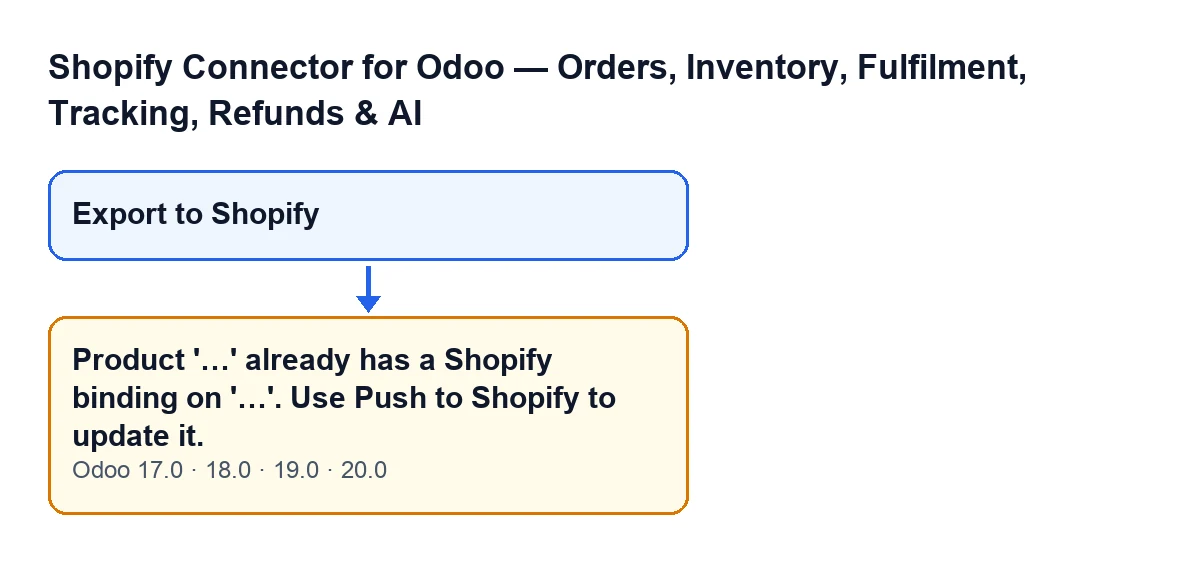

Checklist before you click Export to Shopify
- Check which shop and which product you are about to export. The search uses exactly those two things, and the message gives you back the product name and the shop domain so you can compare them with what you meant to do.
- Confirm that what you want is to create the product in the shop. That is what an export that finishes correctly does: at the end it shows the
Exported to Shopifynotification, which stays fixed on screen.
- Bear in mind that if the product already has a binding with that shop in Odoo, for example from an earlier export, the export will stop with this message.
- Remember that the button is always visible: no condition in the view hides it, so the check happens when you click, not before.
Checklist when the message appears
- Read both gaps. The first is the product and the second is the shop domain. Compare them with the product and shop you meant to export.
- Understand what it means: Odoo already has a binding between that product and that shop, which is why the export does not go ahead.
- Do not repeat the export. While that binding exists the condition is met again and the message will come back.
- The message itself points to
Push to Shopifyfor updating the product. That is the instruction the text gives; the export itself is for creating the product in the shop.
- Check that nothing was saved by that click. The message stops the action before the product is prepared and sent, so nothing the action was about to change is saved.
The message text changes with the language of your Odoo. The diagram below shows it in Spanish, German, French, Italian and Portuguese.
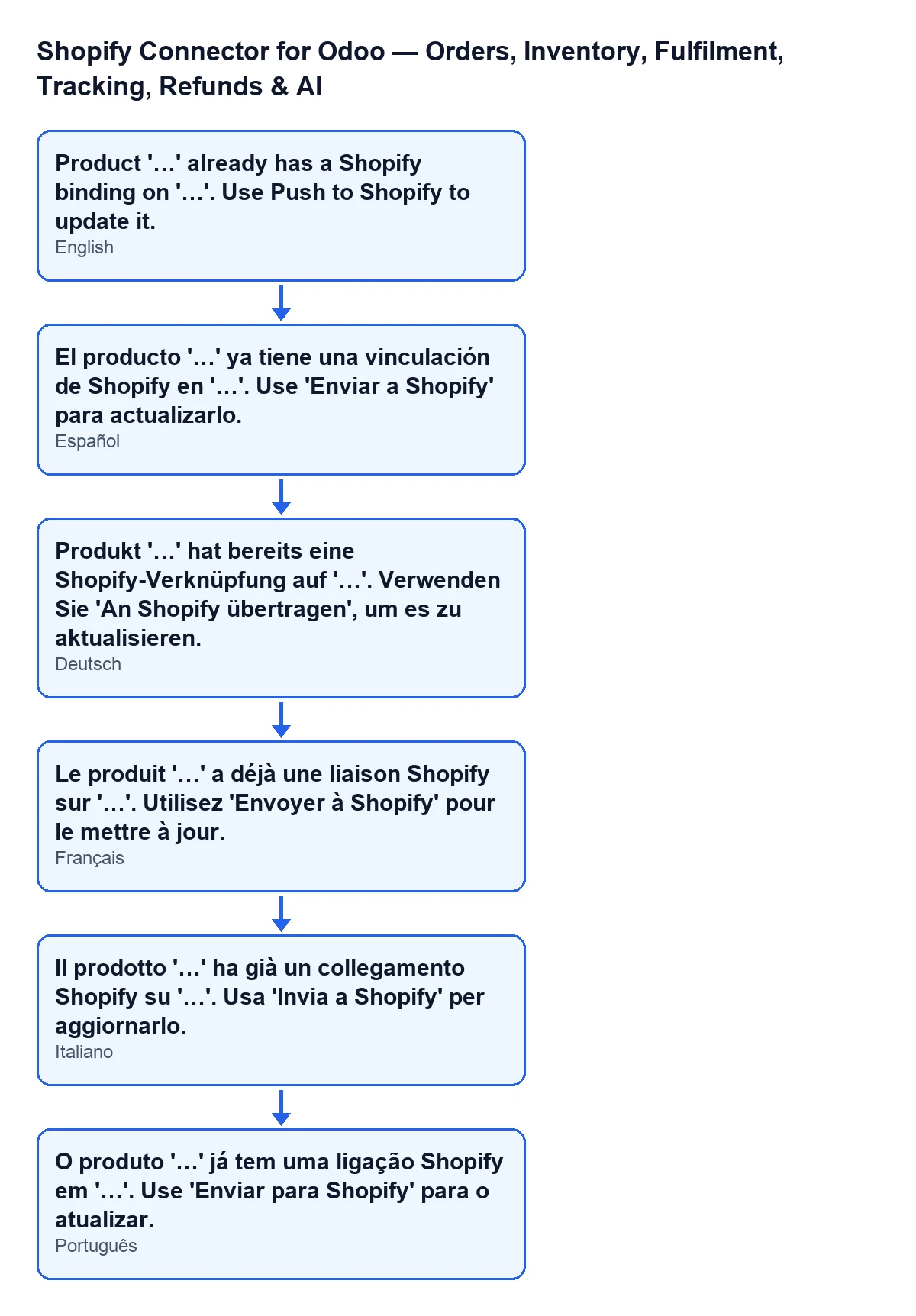
Checklist: what an export that does finish leaves behind
The message is easier to understand once you know what a correct export stores. When the action passes the check, it prepares the product from the Odoo data (the name, the tags and, if they are filled in, the vendor, the product type and the sales description, plus the variants with their price), sends it to Shopify and waits for the reply. With the reply it does the following, variant by variant:
- Creates one binding for each variant that Shopify returns and that the module manages to match with an Odoo variant, first by internal reference and, if there is no match, by position.
- Stores on that Odoo variant the identifiers Shopify gave it and the date of the last sync.
- Records on the product the Shopify status and the date of the last push.
- Shows the
Exported to Shopifynotification, which stays on screen until you close it.
On a second export of the same product to the same shop, the search finds those bindings and the message appears. That is the logic: the export creates the product in the shop and leaves the bindings behind, and the message reminds you of that when you try to repeat it.
Checklist for the first week with the connector
- Before exporting a product, be clear about whether you have already exported it to that shop.
- After an export, wait to see the
Exported to Shopifynotification before clicking anything else.
- If you get the message and did not expect it, compare the product and the domain it names with what you meant to export.
- If you work with several shops, remember that the check looks at the shop of the export: a binding with another shop does not trigger the message.
How FlexigoTech can help
If you are implementing Odoo and want a clear product flow between Odoo and Shopify, FlexigoTech implements Odoo 17, 18, 19 and 20 and builds connectors and custom integrations. You can see the module on its page at flexigotech.com or on the Odoo Apps listing.
Keep reading
Checked in the connector's source code (version 20.0) and the linked sources
Sources
- Module source code: flexigobe_shopify_seller_connector 20.0 (d7e627b4): wizard/shopify_export_product_wizard.py
- Module source code: flexigobe_shopify_seller_connector 20.0 (d7e627b4): wizard/shopify_export_product_wizard_views.xml
- flexigotech.com/en/services.html