

 Español
 Català
 Deutsch
 Français
 Português
 Italiano
 Nederlands
 Polski
Where the form is
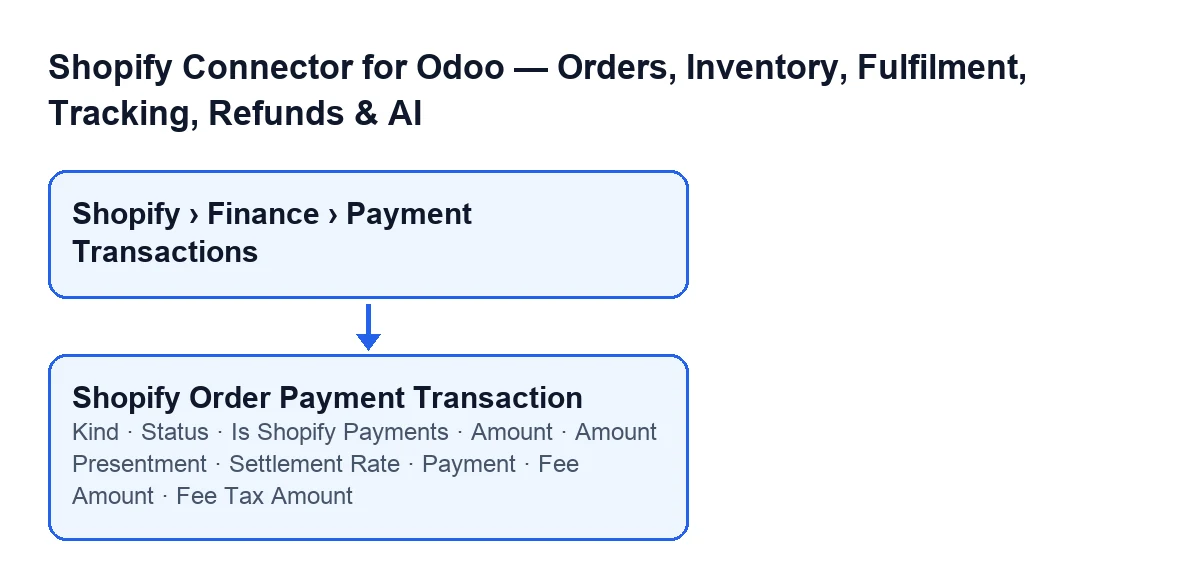
Payment transaction forms open from the menu Shopify › Finance › Payment Transactions. The module is published on Odoo Apps for Odoo 17, 18, 19 and 20.

What the module needs
The module is a one-off purchase per Odoo version and needs a FlexigoTech Cloud subscription (Connector plan): €49 a month or €490 a year, excluding VAT (the Pro plan costs €98 a month or €980 a year, excluding VAT). The connection goes through FlexigoTech Cloud, which stores the credentials encrypted, monitors synchronisation and emails you if it fails. Without a subscription, or with the service suspended, whatever the subscription provides stops; your data stays in your Odoo.
Before you open the form
- Check that your user has the
Viewerpermission: both theShopifyand theFinanceparts of the menu ask for it, and if you lack it on one, that part is not shown.
Viewer.- Open
Shopify › Finance › Payment Transactionsand look at the list before the form: it also showsKind,Status,Is Shopify Payments,Amount,Payment,Fee AmountandFee Tax Amount. The fieldsAmount PresentmentandSettlement Rateappear on the form, in theAmounts & Feesgroup.
Fields at a glance and where they appear
| Field | Where it appears | What its help says |
|---|---|---|
Kind | Form (Transaction group) and list | SALE / CAPTURE / AUTHORIZATION / REFUND / VOID / CHANGE. |
Status | Form (Transaction group) and list | SUCCESS / PENDING / FAILURE / ERROR / AWAITING_RESPONSE. |
Is Shopify Payments | Form (Transaction group) and list | Only Shopify Payments exposes fees + payouts in the API. |
Payment | Form (Transaction group) and list | The Shopify paymentId, a cross-reference to balance transactions and payouts |
Amount | Form (Amounts & Fees group) and list | Amount in the shop currency. |
Amount Presentment | Form (Amounts & Fees group) | Amount in the customer (presentment) currency. |
Settlement Rate | Form (Amounts & Fees group) | Rate applied to settle into the payout currency. |
Fee Amount | Form (Amounts & Fees group) and list | Total processing fee (Shopify Payments only). |
Fee Tax Amount | Form (Amounts & Fees group) and list | VAT charged on the processing fee, where applicable. |
The Transaction group: what to look at
Kind: the help lists the valuesSALE,CAPTURE,AUTHORIZATION,REFUND,VOIDandCHANGE. Before reading an amount, look at this field to see which of those values the row corresponds to.
Status: the help listsSUCCESS,PENDING,FAILURE,ERRORandAWAITING_RESPONSE. Compare each row's value with that list, and read the value before interpreting the amount on that row.
Is Shopify Payments: according to its help, only Shopify Payments exposes fees and payouts in the API. Check it before looking for fees on a row.
Payment: its help describes it as the Shopify paymentId, a cross-reference to balance transactions and payouts. It is on the form and in the list.
The Amounts & Fees group: what to look at
Amount: this is the amount in the shop currency, according to its help. It appears on the form and in the list.
Amount Presentment: this is the amount in the customer (presentment) currency. Open it on the form and put it next toAmountto see both amounts for the same row.
Settlement Rate: the help says it is the rate applied to settle into the payout currency. Its help describes it separately fromAmount Presentment, so review each one on its own.
Fee Amount: this is the total processing fee, and the help makes clear it applies to Shopify Payments only.
Fee Tax Amount: this is the VAT charged on the processing fee, where applicable, according to its help. Review it together withFee Amount.
Cross-check before you finish
- Whenever you look at
Fee AmountorFee Tax Amounton a row, go back toIs Shopify Payments: the help for that field says that only Shopify Payments exposes fees and payouts in the API.
- Note down the
Paymentvalue for any rows you need to check outside Odoo.
- For each row you review, keep
KindandStatusin view together, with the values their help texts list.
How FlexigoTech can help
FlexigoTech implements Odoo 17, 18, 19 and 20 and builds connectors and custom integrations. If you would like to go through which payment fields you need to see in your Odoo, you can write to us from the module page or look at the Odoo Apps listing.
Keep reading
Checked in the connector's source code (version 20.0) and the linked sources
Sources
- Module source code: flexigobe_shopify_seller_connector 20.0 (d7e627b4): models/shopify_order_transaction.py
- apps.odoo.com/apps/modules/20.0/flexigobe_shopify_seller_connector
- flexigotech.com/precios.html
- flexigotech.com/en/services.html