

 Español
 Català
 Deutsch
 Français
 Português
 Italiano
 Nederlands
 Polski
The button exists in Odoo 17, 18, 19 and 20, and its view condition says it is always shown.
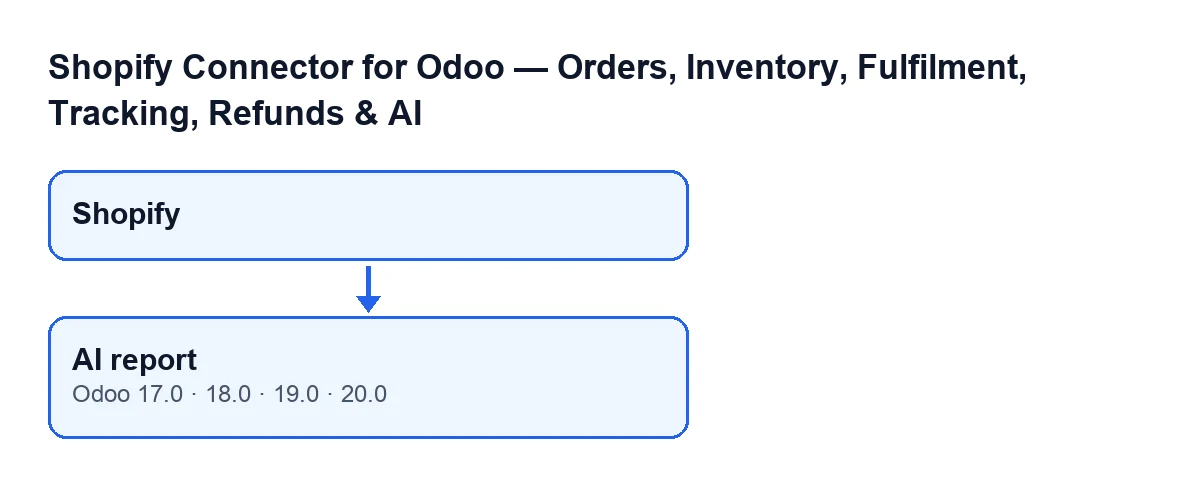
The normal route: the weekly report generates itself
The scheduled action Shopify AI Weekly Digest runs every week and is active when the module is installed. It goes through the active Shopify instances (by default, up to one hundred per run) and generates each one's report with the same logic the button uses. The action's code requires it to be run by a system administrator. If one instance fails, it writes a warning to the technical log, rolls back what is pending and moves on to the next.
The button is for asking for a report now, without waiting for that action. And it is the button, not the scheduled action, that fills in the summary you see on the dashboard.

Before you press it
- Your user has the
Viewerpermission: without it you do not see theShopifymenu, which is where the dashboard records are opened from. - Open the
Dashboardrecord from theShopifymenu and look at theInstancefield: the report is generated for that instance, not another. - Bear in mind that if AI is disabled in Settings, the code generates no text: it only records the report with that status and the note
AI is disabled in Settings. - Bear in mind that the module is a one-off purchase per version and needs the FlexigoTech Cloud subscription (Connector plan). Without a subscription, or with the service suspended, whatever the subscription provides stops.
- If you cannot see the button, check that you are on the
Dashboardrecord: the view puts no condition on it and it is always shown.
What the code does when you press AI report
In this order:
- First it generates a report for the instance on the record. If AI is disabled in Settings, it creates a report record with that status and the note
AI is disabled in Settings., and goes no further. - If AI is enabled, it builds a sheet of the store's data. Before using it, it checks whether the monthly AI cost cap has been reached: if so, it creates the record with a cap-reached status, the note
The monthly AI cost cap has been reached.and that data saved, and does not call the AI. - If the cap has not been reached, it sends that data to the AI with the instruction to answer only from it, not to invent figures or references, and to say there is not enough data when it is missing. It asks for a short summary and a list of restocking or sales recommendations.
- It saves the result with the provider, the model, the tokens and the cost. If the response is successful, it saves the summary, the recommendations and the report text. If not, it saves whatever status the call returned together with an error note.
- Finally, the button looks for a weekly report for that instance in a successful state. If it finds one and it has text, it copies it into the dashboard.
After pressing: what to check
- Open the
AI Summarytab of theDashboardrecord. The field has no label: you only see its content. - Do not try to type there: it is read-only and the button fills it in.
- If the content looks the same as before, do not assume it is new. The button copies a successful report for that instance, and it may be an earlier one if the one you just requested did not succeed.
- If nothing appears, check which of the cases below is yours.
When the summary does not change
The button only writes to the dashboard when it finds a successful report with text. These are the cases the code distinguishes when generating:
- AI disabled in Settings: the report is recorded with a disabled status and the note
AI is disabled in Settings. - Monthly cost cap reached: the report is recorded with a cap-reached status and the note
The monthly AI cost cap has been reached.; the AI is not called. - The call to the AI does not return a successful result: the report is recorded with the status the call returned and an error note. That report is not copied to the dashboard.
Versions and cost
The module is published on Odoo Apps for Odoo 17, 18, 19 and 20; each version's price is the one on its listing. The Connector plan subscription costs €49 a month or €490 a year excluding VAT (the Pro plan, €98 a month or €980 a year), with up to 3 platform accounts (Pro: 10). The connection goes through FlexigoTech Cloud, which stores the credentials encrypted. If you bought on flexigotech.com, the module for newer Odoo versions is included with the subscription; on the Odoo App Store, each Odoo version is bought there. More detail on the module page.
How FlexigoTech can help
FlexigoTech implements Odoo 17, 18, 19 and 20 and builds custom connectors and integrations. If you want the AI report to fit the way you work with Shopify, you can contact FlexigoTech from the module page.
Keep reading
Checked in the connector's source code (version 20.0) and the linked sources
Sources
- Module source code: flexigobe_shopify_seller_connector 20.0 (d7e627b4): views/shopify_kpi_dashboard_views.xml
- Module source code: flexigobe_shopify_seller_connector 20.0 (d7e627b4): models/shopify_kpi_dashboard.py
- Module source code: flexigobe_shopify_seller_connector 20.0 (d7e627b4): models/shopify_ai_insight.py
- apps.odoo.com/apps/modules/20.0/flexigobe_shopify_seller_connector
- flexigotech.com/en/services.html
- flexigotech.com/precios.html