

 Español
 Català
 Deutsch
 Français
 Português
 Italiano
 Nederlands
 Polski
The case: the document changed state with the assistant open
Example Illustrative case: the company and its figures are made up to explain the flow.
Taller Aurora is an invented company that uses Scrive Connector. Someone on its sales team wants to give a customer more time to sign. She finds the document in Signature Documents, with its State at Pending. In the prolong assistant she enters the days. In the meantime, the document moves to Signed. When she presses Apply, Odoo stops and shows the message: Only pending or timed-out documents can be prolonged.
She goes back to Scrive › Signature Documents, finds the document and looks at the State field: it says Signed. That value is neither of the two the code accepts, so the action stops and nothing the prolongation was going to change is saved. There is nothing broken to repair: a document that is already signed does not qualify for a prolongation.
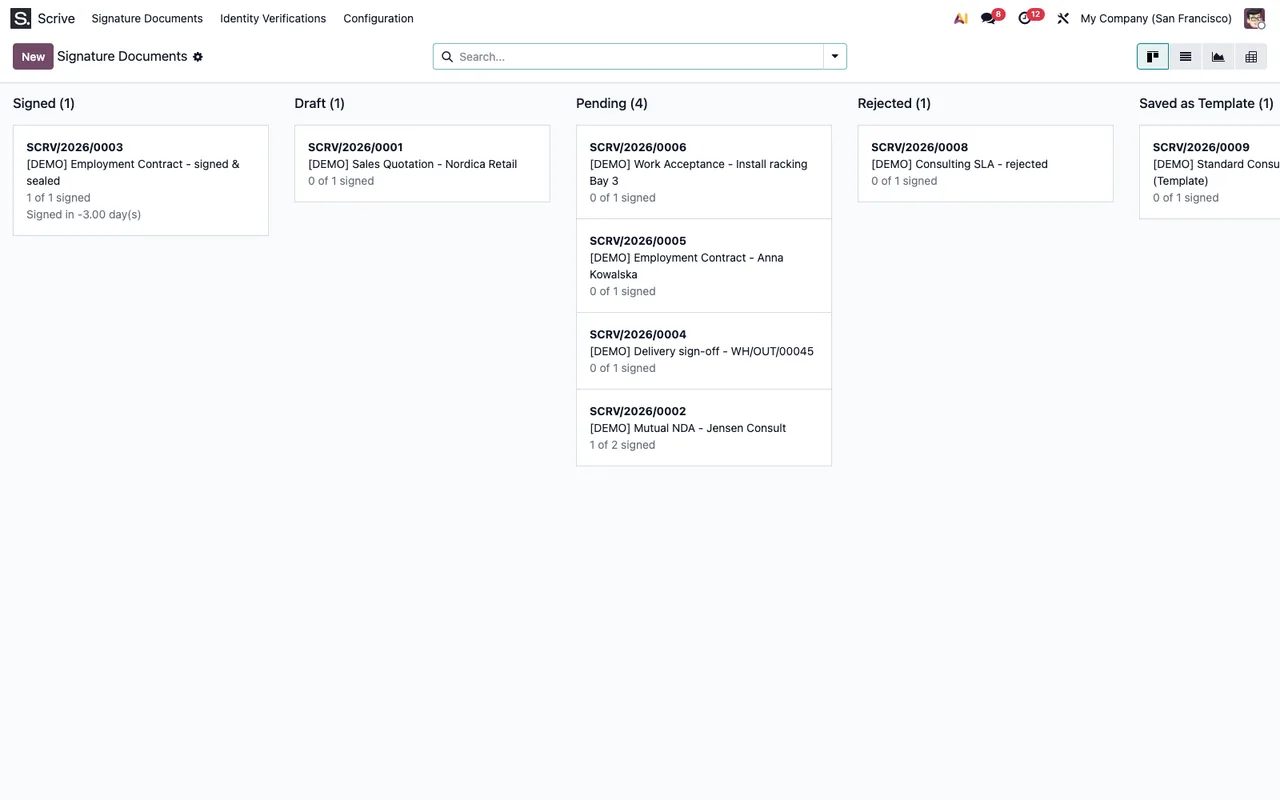
Scrive › Signature Documents, with demo data (cards titled [DEMO])What the case shows: the Apply button in the assistant is always visible, so seeing it does not guarantee that the document will pass the check. It is when you press it that the code looks at the document's state, and that check is what raises the message.

Exactly when it appears
You reach the message by pressing Apply in the prolong assistant. That button is always visible, in Odoo 17, 18, 19 and 20. When you press it, the assistant moves on to the routine that prolongs the document, and the first thing that routine does is look at the state.
The condition, in words: the document's State is neither Pending nor Timed Out. With any other value, the code raises the error and the action stops. Because the warning fires before anything is asked of Scrive, what the prolongation was going to change is not saved.
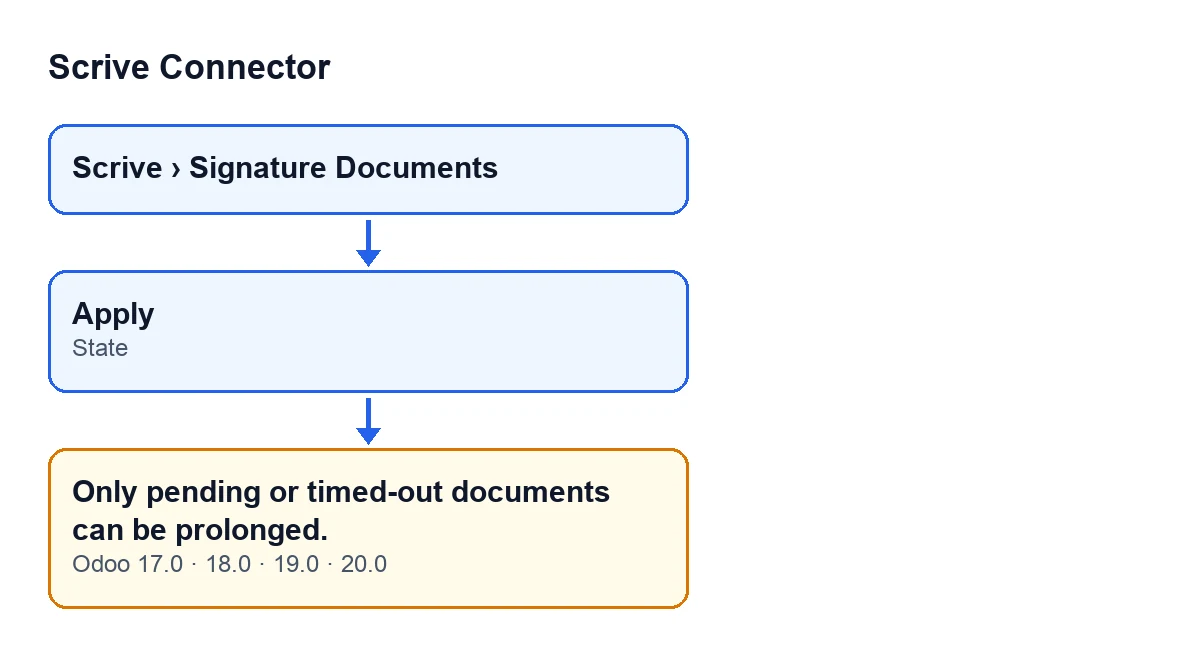
The message is in the published code for Odoo 17, 18, 19 and 20.
Which states pass and which do not
The State field shows on the form of Signature Documents and also in its list. These are its values and what the check does with each one:
State | Passes the check? |
|---|---|
Draft | No |
Preparation | No |
Awaiting Start | No |
Pending | Yes |
Signed | No |
Canceled | No |
Timed Out | Yes |
Rejected | No |
Error | No |
Saved as Template | No |
Only two rows say yes. Note Awaiting Start: it sounds close to Pending, but it is a different value and the code does not accept it.
What to do, step by step
- Open the menu
Scrive › Signature Documents. If you cannot see theScrivebranch, you are missing theUserpermission. - Find the document and look at its current
State, on the form or in the list. - If it says
PendingorTimed Out, the document meets the condition: in the prolong assistant enter the days and pressApply. - If it shows any other value from the table, the message is correct: that document cannot be prolonged from that state, and nothing has been modified.
If you want to see how a document is sent to Scrive, there is the article on the Send button.
What happens when the check is passed
With the document in Pending or Timed Out, the routine carries on. In order:
- It asks Scrive to prolong the document by the given number of days.
- It updates the form with the data Scrive returns in its reply.
- It records a message on the document reading
Signing period prolonged by … day(s)., where the dots stand for the days of the prolongation.
Questions that come up
Is anything sent to Scrive when the error appears?
No. In the code, the state check comes before the call to Scrive. If the error fires, the call is never made.
Do I lose anything when I see the message?
No. The error stops the action and nothing the prolongation was going to change is saved. The document stays as it was.
Where can I see a document's state?
The State field is on the form of Signature Documents and also in its list, under the menu Scrive › Signature Documents.
Does it affect only one Odoo version?
The message exists in all four published versions: 17, 18, 19 and 20.
How FlexigoTech can help
If you are implementing Odoo and want to review the signing flow from end to end, FlexigoTech implements Odoo 17, 18, 19 and 20 and builds custom connectors and integrations. Scrive Connector is a one-off purchase per Odoo version and needs a FlexigoTech Cloud subscription (Connector plan: €49 a month or €490 a year, excluding VAT). The connection goes through FlexigoTech Cloud, which stores the credentials encrypted and watches the synchronisation. You will find the module page and its listing on Odoo Apps.
Keep reading
Checked in the connector's source code (version 20.0) and the linked sources
Sources
- Module source code: flexigobe_scrive_connector 20.0 (21b3b940): models/scrive_document.py
- Module source code: flexigobe_scrive_connector 20.0 (21b3b940): wizard/scrive_send_wizard_views.xml
- apps.odoo.com/apps/modules/20.0/flexigobe_scrive_connector
- flexigotech.com/precios.html
- flexigotech.com/en/services.html
- Module source code: flexigobe_scrive_connector 20.0 (21b3b940): __manifest__.py
- Module source code: flexigobe_scrive_connector 20.0 (21b3b940): wizard/scrive_send_wizard.py