

 Español
 Català
 Deutsch
 Français
 Português
 Italiano
 Nederlands
 Polski
Where it is and when you see it
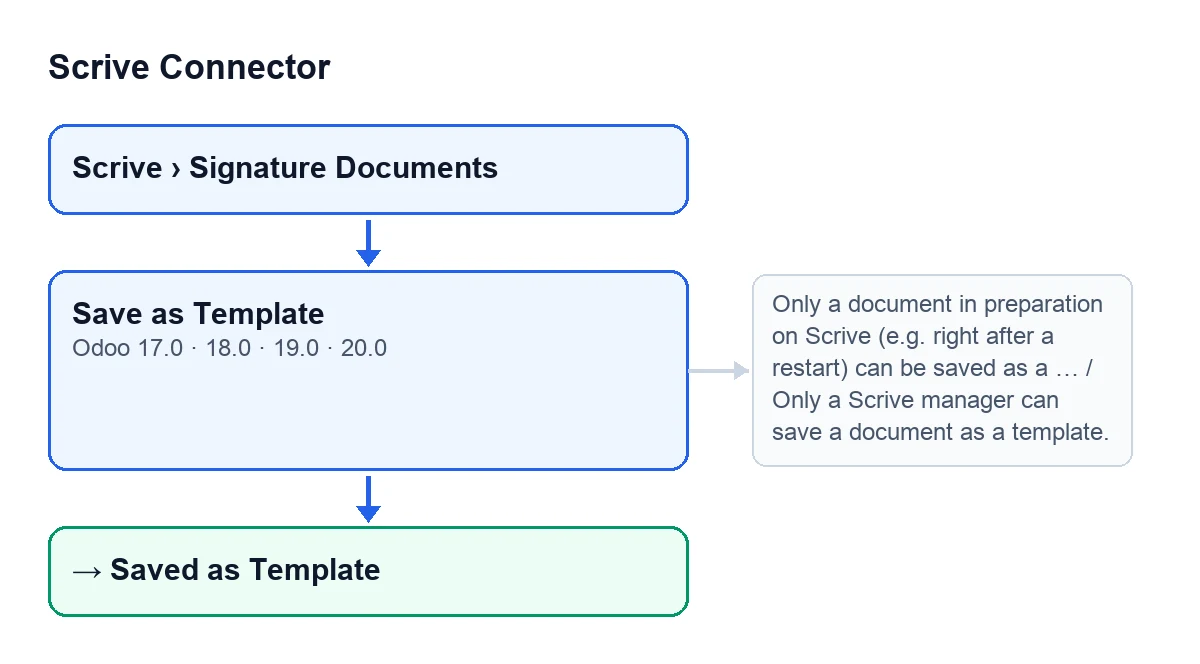
The Save as Template button sits on the form of the signature documents, which you open from the Scrive › Signature Documents menu; the Scrive part of the menu asks for the User permission. It exists in Odoo 17, 18, 19 and 20, and its view condition is the same in all four: it is hidden when the State field is not Preparation. A new document starts in Draft, so with the default values the button is not visible.

Before you press it
- Open the form from
Scrive › Signature Documentsand look at theStatefield: the button only appears inPreparation.
- Check that the form shows
Scrive Document ID. It is a read-only field: you do not write it, the module's code fills it in (for example, through theImport from Scrive Archivebutton). If the document has no such identifier, the button stops with the messageOnly a document in preparation on Scrive (e.g. right after a restart) can be saved as a template.
- Note the document's
Account, visible on the form and in the list. It is the Scrive account whose templates get refreshed at the end.
- Make sure the person pressing it is a Scrive manager: the method checks this itself, even when the button is already visible.
- Be clear that there is no way back. Odoo asks for confirmation with this text:
Save this document as a reusable Scrive template? This cannot be undone, and the document can no longer be sent for signature.
What it does when you press it, in order
This is the order in the Odoo 20 code.
- First it looks at whether the document has a Scrive identifier and whether it is in
Preparation. If one is missing or the other is not met, it stops.
- Then it checks that your user is a Scrive manager. If not, it stops.
- Next it asks Scrive to mark that document as a template. If Scrive returns an error, it stops with the notice
Scrive error: ….
- Only then does it write the
Saved as Templatestate. Before writing it, Odoo checks that you have the right to modify that document, just as a normal save would.
- After that it refreshes the account's templates in Odoo: it creates or updates the ones Scrive returns as templates and deactivates those that no longer appear in Scrive. These templates are cached locally for the send wizard.
- Finally it leaves a note on the document and shows you the success notice.
What you will see afterwards
- A notice titled
Saved as templatewith the messageThis document is now available as a Scrive template.
- The
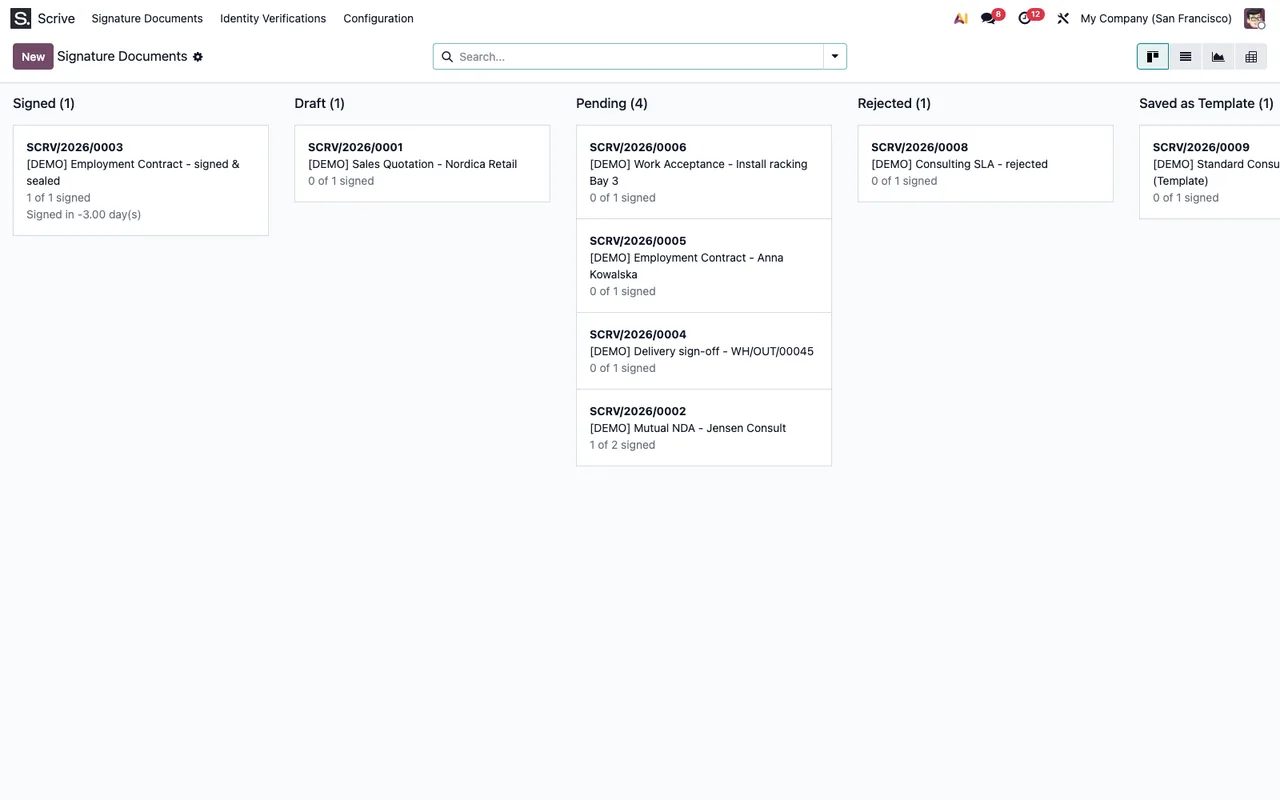
Statefield set toSaved as Template. Since the button only shows inPreparation, it disappears from that form.
- A note on the document recording that it was saved as a reusable template, that this cannot be undone and that it can no longer be sent for signature.
- The signature documents list, where the
Statefield shows that value.
If something fails
These messages come up when you press the button.
Only a document in preparation on Scrive (e.g. right after a restart) can be saved as a template.It appears if the document has noScrive Document IDor itsStateis notPreparation. Check both on the form.
Only a Scrive manager can save a document as a template.It appears if your user is not a Scrive manager. Ask a manager to do it.
Scrive error: …It appears when the request to Scrive to mark the document as a template fails. The detail of the error follows the colon; read it and fix what it points to before pressing again.
Could not fetch Scrive templates: …It appears when refreshing the account's templates. This message appears after Scrive has already been asked to mark the document as a template, and that change cannot be undone. The detail of the error follows the colon.
Before you think about another send
A document saved as a template can no longer be sent for signature: the confirmation says so itself.
Cost and help
Scrive Connector is a one-off payment per Odoo version (17, 18, 19 and 20) and needs the FlexigoTech Cloud subscription, Connector plan: €49/month or €490/year, excluding VAT. You can see the module on its Odoo Apps listing or on the flexigotech.com page. If you are implementing Odoo and want to tie signing into your workflows, FlexigoTech implements Odoo 17, 18, 19 and 20 and builds custom connectors and integrations.
Keep reading
Checked in the connector's source code (version 20.0) and the linked sources
Sources
- Module source code: flexigobe_scrive_connector 20.0 (442af8bf): views/scrive_document_views.xml
- Module source code: flexigobe_scrive_connector 20.0 (442af8bf): models/scrive_document.py
- Module source code: flexigobe_scrive_connector 20.0 (442af8bf): models/scrive_account.py
- apps.odoo.com/apps/modules/20.0/flexigobe_scrive_connector
- flexigotech.com/precios.html
- flexigotech.com/en/services.html