

 Español
 Català
 Deutsch
 Français
 Português
 Italiano
 Nederlands
 Polski
When the message appears
It appears when you send a document and a party meets two conditions at once: its Role is Approves and it has at least one line under Custom Fields. With the role's default value in the code, Signs, this check is not met.
The text you see is: Party '…' only approves the document, so Scrive does not let it carry custom fields. Remove them, or make this party a signing party. The party's name replaces the dots.
The Role is on the form, in the Parties tab, in the Parties table. Its values are Signs, Approves and Views. Custom Fields is on the party's form. Its help text speaks of extra checkbox, radio-group or custom-text fields for the signatory, beyond the built-in identity fields, and adds that they are ignored when sending from a template.
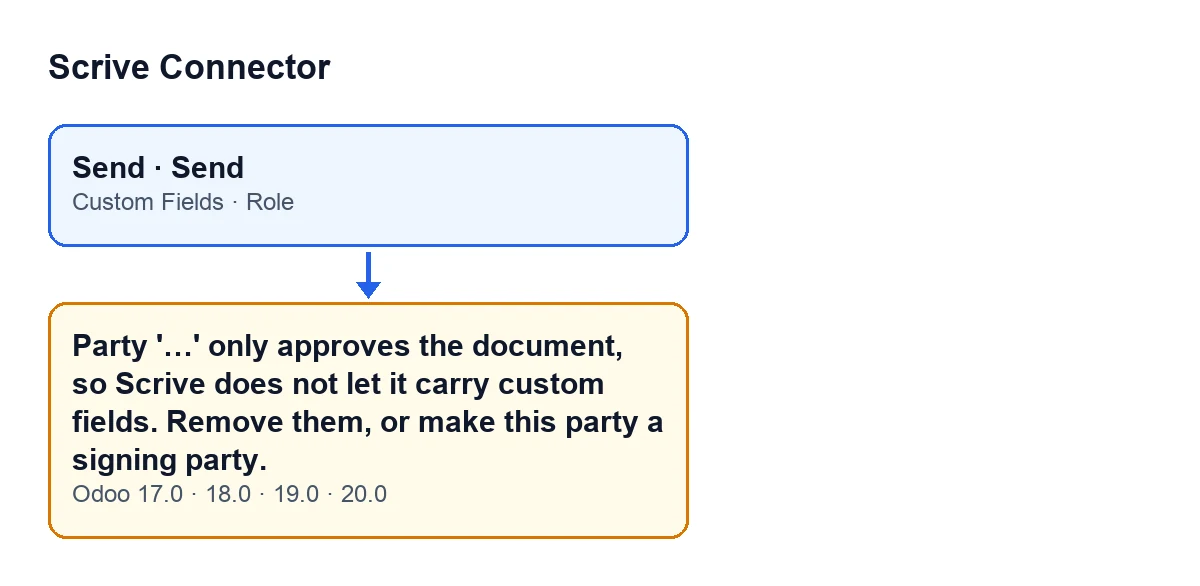

When the module runs the check
The message can appear when you press Send on the document view. That button appears under different conditions. One is hidden when the State is neither draft nor error, and with the default values it is visible. The other only appears when the document is in preparation, and with the default values it is not visible. Both reach the same party validation.
The validation goes through the parties one by one. For each one it first checks other details (for example the name, the email or the mobile number) and only then reaches this role rule. If something fails earlier, you will see that other message instead. The send stops at the first failure, which is why another message may appear after you fix this one.
The check belongs to the module itself. The code presents it as mirroring a Scrive rule: a party that only approves cannot carry custom fields.
An illustrative case: the director who approves and fills in
Example Illustrative case: the company and its figures are made up to explain the flow.
Aceros Lumbreras, an invented company, prepares a document with two parties: the customer, with the role Signs, and the finance director, with the role Approves. Someone added a checkbox to the director under Custom Fields so that he confirms he has read some terms. When they press Send, the action stops and the message appears with the director's name where the dots are.
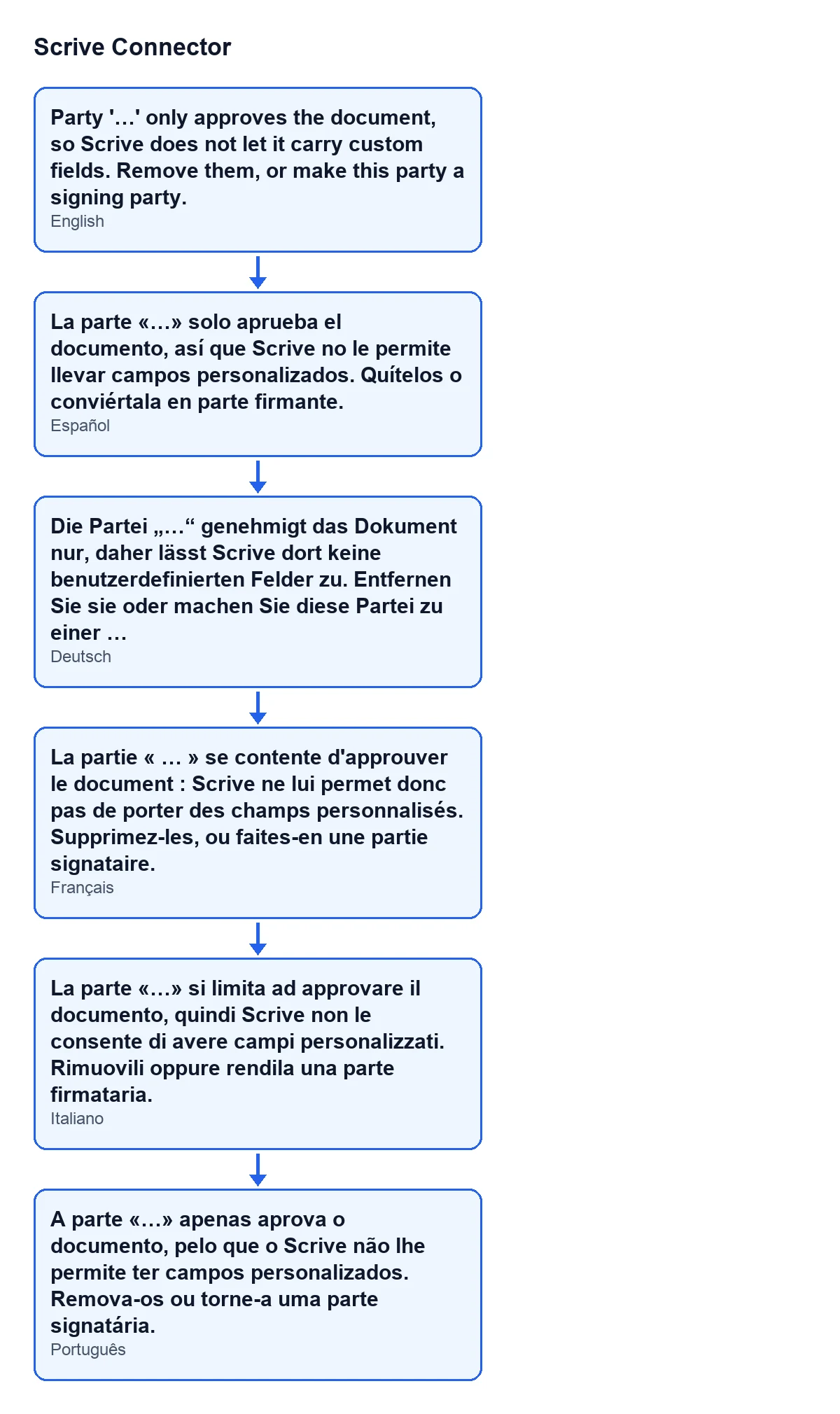
The same message exists in other languages. The diagram below shows the text in Spanish, German, French, Italian and Portuguese.
Here is what the person fixing it does, in order:
- Read the name in the message and find that party in the
Partiestab of the form. - Check its
Role: it isApproves. - Open its form and look at
Custom Fields: there is at least one line. - Decide what that party needs: only to give its approval, or to fill in the checkbox.
- If it only approves, delete every line under
Custom Fields. If it must fill in the checkbox, change itsRoletoSigns. - Press
Sendagain, which is visible when theStateis draft or error.
How to resolve it, depending on what you need
- The party only approves: leave the role as
Approvesand emptyCustom Fields. The condition needs lines to be present, so with an empty list the message does not come back. - The party must fill in fields: change the
RoletoSigns. The message itself suggests it: make this party a signing party.
Removing a single field is not enough if there are several: the condition holds while at least one line remains.
What to check afterwards
- That the table in the
Partiestab shows theRoleyou wanted for each party. - That, if you left someone as
Approves, their form keeps no lines underCustom Fields. - That, if the send stops again, the message names a different detail or a different party. The validation checks more things for each party and stops at the first that fails.
The check is in the published code for Odoo 17, 18, 19 and 20, and the module is published on Odoo Apps for those four versions. Here are the Odoo Apps listing and the module page.
How FlexigoTech can help
If you are implementing Odoo and want to decide which parties sign, approve or only receive the document before sending, FlexigoTech implements Odoo 17, 18, 19 and 20 and builds custom connectors and integrations.
Keep reading
Checked in the connector's source code (version 20.0) and the linked sources
Sources
- Module source code: flexigobe_scrive_connector 20.0 (442af8bf): models/scrive_party.py
- Module source code: flexigobe_scrive_connector 20.0 (442af8bf): views/scrive_document_views.xml
- apps.odoo.com/apps/modules/20.0/flexigobe_scrive_connector
- flexigotech.com/en/services.html