

 Español
 Català
 Deutsch
 Français
 Português
 Italiano
 Nederlands
 Polski
Where it appears and what triggers it
The message appears when you press the Send button on a signature document. You open documents from the menu Scrive › Signature Documents; the Scrive menu level requires the User permission. The full text is The auto-remind day must fall before the document expires. It is an error that stops the action: the send does not go ahead.
Two fields on the Signature Documents form are involved: Auto-remind After (days) and Days To Sign. The module compares them at the moment of sending. The message is in the published code of every branch: Odoo 17, 18, 19 and 20.
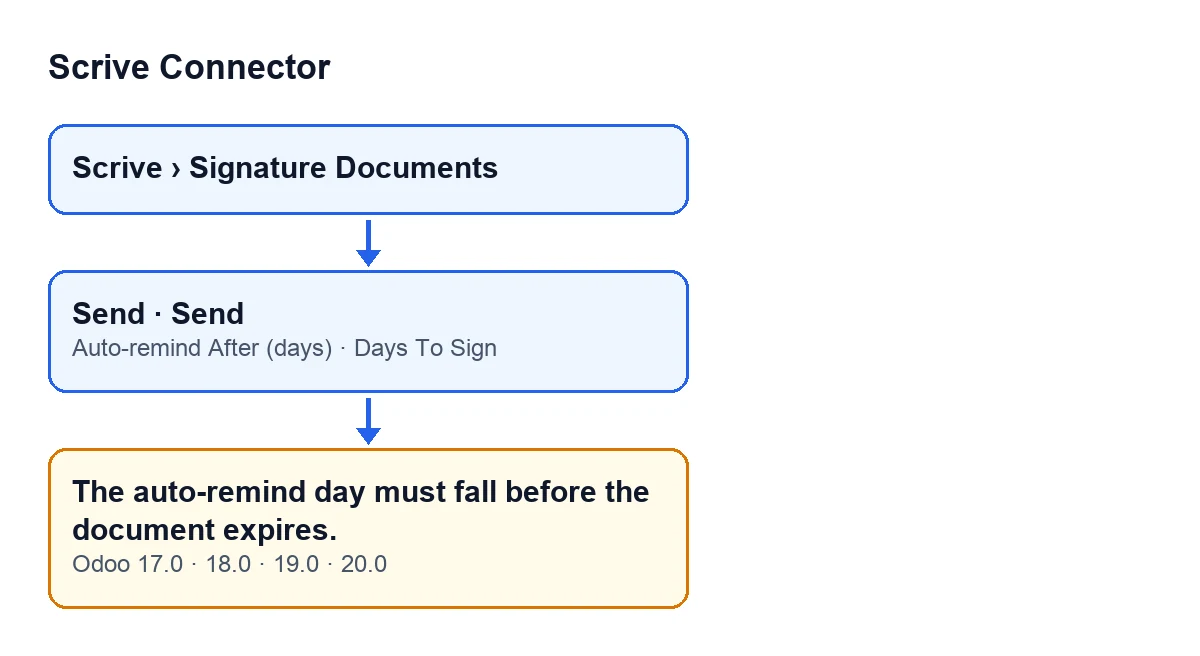
Send button, the two fields that are compared and the message, in Odoo 17, 18, 19 and 20.
What nobody tells you about this message
It compares two fields, not one
The help text of Auto-remind After (days) reads: Automatically remind unsigned parties after this many days. 0 disables it. The help of Days To Sign reads: Expiry in days (1-365). The «auto-remind day» and the «expiry» in the message are those two fields, and both are on the document form. If the reminder falls on the expiry day, or after it, the module stops the send.
Zero is not an error: it switches the reminder off
The condition is only evaluated when Auto-remind After (days) holds a non-zero value. With zero, the default in the code, the reminder is disabled and this check cannot fire. The code defaults are zero for the reminder and 90 for Days To Sign, so a new document where you leave both fields alone does not give this message.
Equal to the expiry fails too
The comparison is strict: the reminder must be greater than zero and lower than Days To Sign. If you type the same number in both fields, the message still appears. The highest value that passes is one day less than the days to sign. A negative value also gives the message, even though it is lower than the expiry.
Value of Auto-remind After (days) | Result |
|---|---|
| Zero | Reminder disabled, this check does not apply |
| Negative | The message appears |
Greater than zero and lower than Days To Sign | Passes this check |
Equal to or greater than Days To Sign | The message appears |
Days To Sign is checked first
The module checks Days To Sign before the reminder. If that field is empty or outside the range 1 to 365, the send stops earlier with a different message, and the reminder comparison is never reached. In that case, fix Days To Sign first and press Send again.
Two different «Send» buttons trigger it
Two routes reach the same check:
- The
Sendbutton on the document form. It is hidden whenStateis neither draft nor error; with the default values it is visible, because a new document is in draft. This is the same in Odoo 17, 18, 19 and 20. - The
Sendbutton in the send dialog. It is always visible, again in Odoo 17, 18, 19 and 20.
Whichever you press, the message is the same and comes from the same condition.
The same click goes through more checks
Before sending, the module reviews other things on the document and its parties in a single press. If you fix the reminder and a different message appears, that is another check of the send, not a problem with what you just corrected.
How to fix it
You open the document from the list under Scrive › Signature Documents, shown here in kanban view.
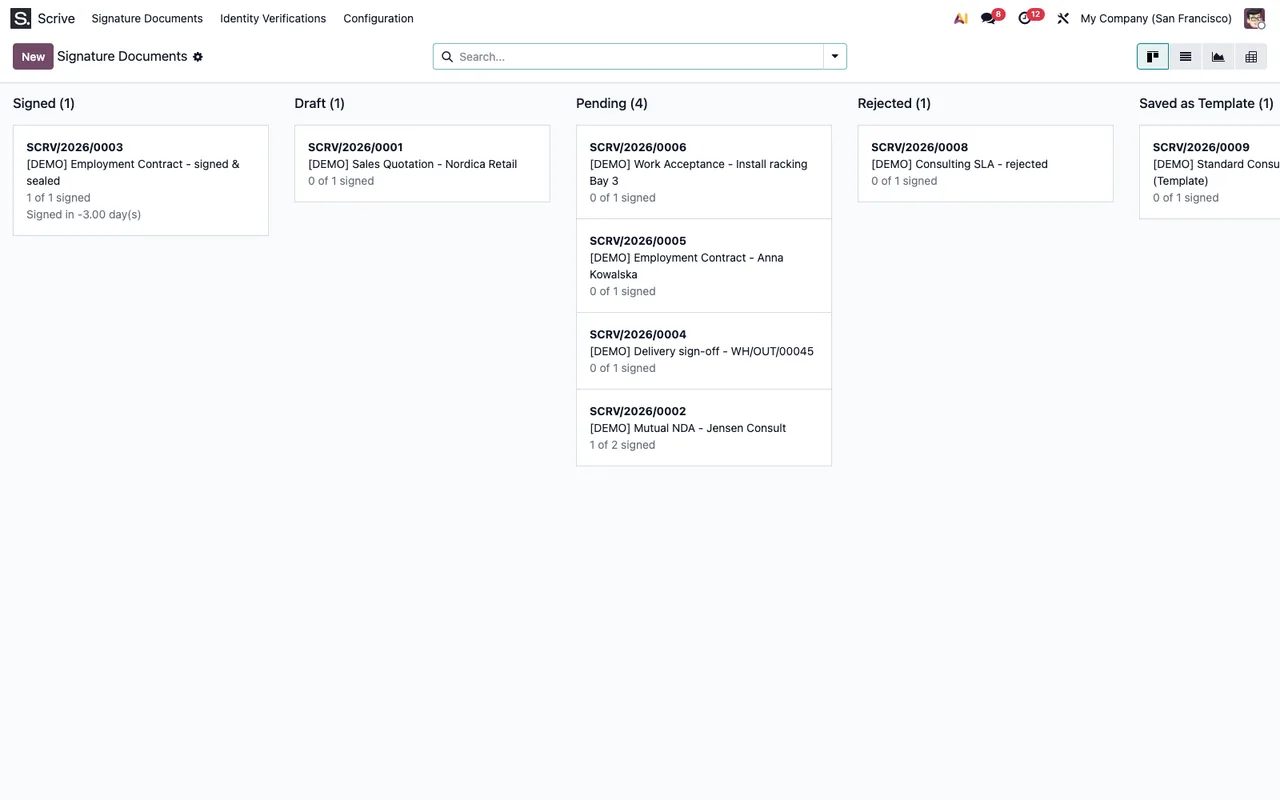
- Open the document from
Scrive › Signature Documents. - Look at
Days To Sign: it is the expiry in days. - In
Auto-remind After (days)enter a value greater than zero and lower than that number, or zero if you do not want an automatic reminder. - Press
Sendagain.
If the Send button on the form is missing, check the State field: the button is hidden when the document is neither in draft nor in error.
How FlexigoTech can help
Scrive Connector is published on Odoo Apps for Odoo 17, 18, 19 and 20; here are the Odoo Apps listing and the module page. FlexigoTech implements Odoo 17, 18, 19 and 20 and builds custom connectors and integrations, in case you need to adapt the signing flow to your company.
Keep reading
Checked in the connector's source code (version 20.0) and the linked sources
Sources
- Module source code: flexigobe_scrive_connector 20.0 (442af8bf): models/scrive_document.py
- Module source code: flexigobe_scrive_connector 20.0 (442af8bf): views/scrive_document_views.xml
- Module source code: flexigobe_scrive_connector 20.0 (442af8bf): wizard/scrive_send_wizard_views.xml
- apps.odoo.com/apps/modules/20.0/flexigobe_scrive_connector
- flexigotech.com/en/services.html