

 Español
 Català
 Deutsch
 Français
 Português
 Italiano
 Nederlands
 Polski
When the message appears and what it means
When exactly does this message appear?
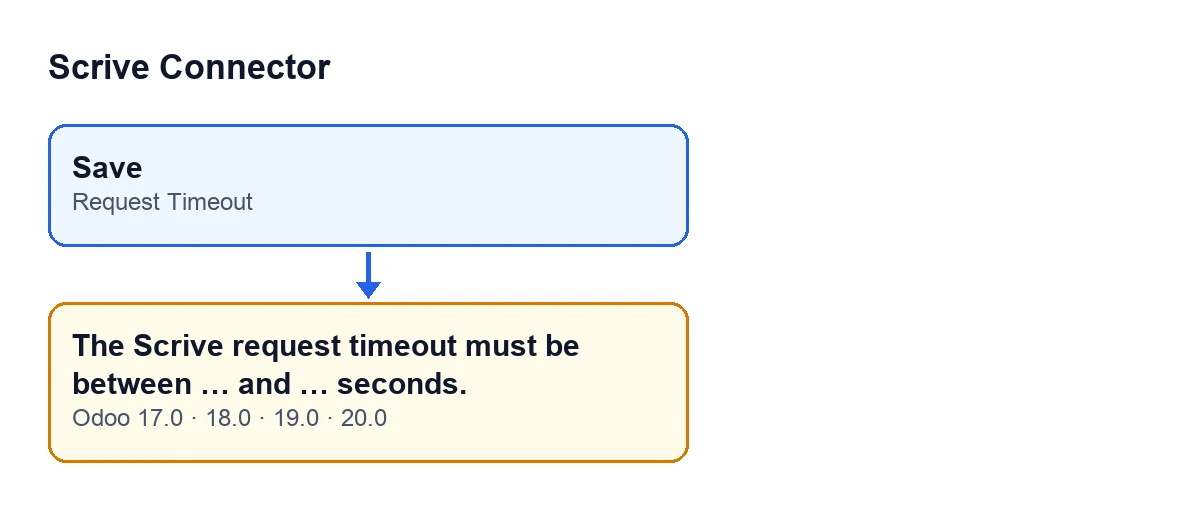
It appears when you save Settings and the number typed in Request Timeout is not between the minimum and the maximum allowed, both included. The Odoo 20.0 code goes through the settings being saved and, if the value is below the minimum or above the maximum, it raises the message and the action stops.
What are the two «…» in the message?
They are the gaps where the module writes the minimum and the maximum allowed. The field's help sums up the range as 1-300. A value inside that range passes the check; one outside it does not.
Is it a reply from Scrive saying something has failed?
No. It is a check the module makes in Odoo when you save Settings, and it only looks at the number you typed in the field. If the number is inside the range, it does not trigger; if it is outside, it does.
Is anything saved when the error appears?
No. The check is made on saving and, if it fails, that Settings screen is not saved. Whatever you had changed on it stays unsaved until you correct the value.
Does it appear in every Odoo version?
The message is in the module's published code for Odoo 17, 18, 19 and 20. The module is published on Odoo Apps for those same versions.
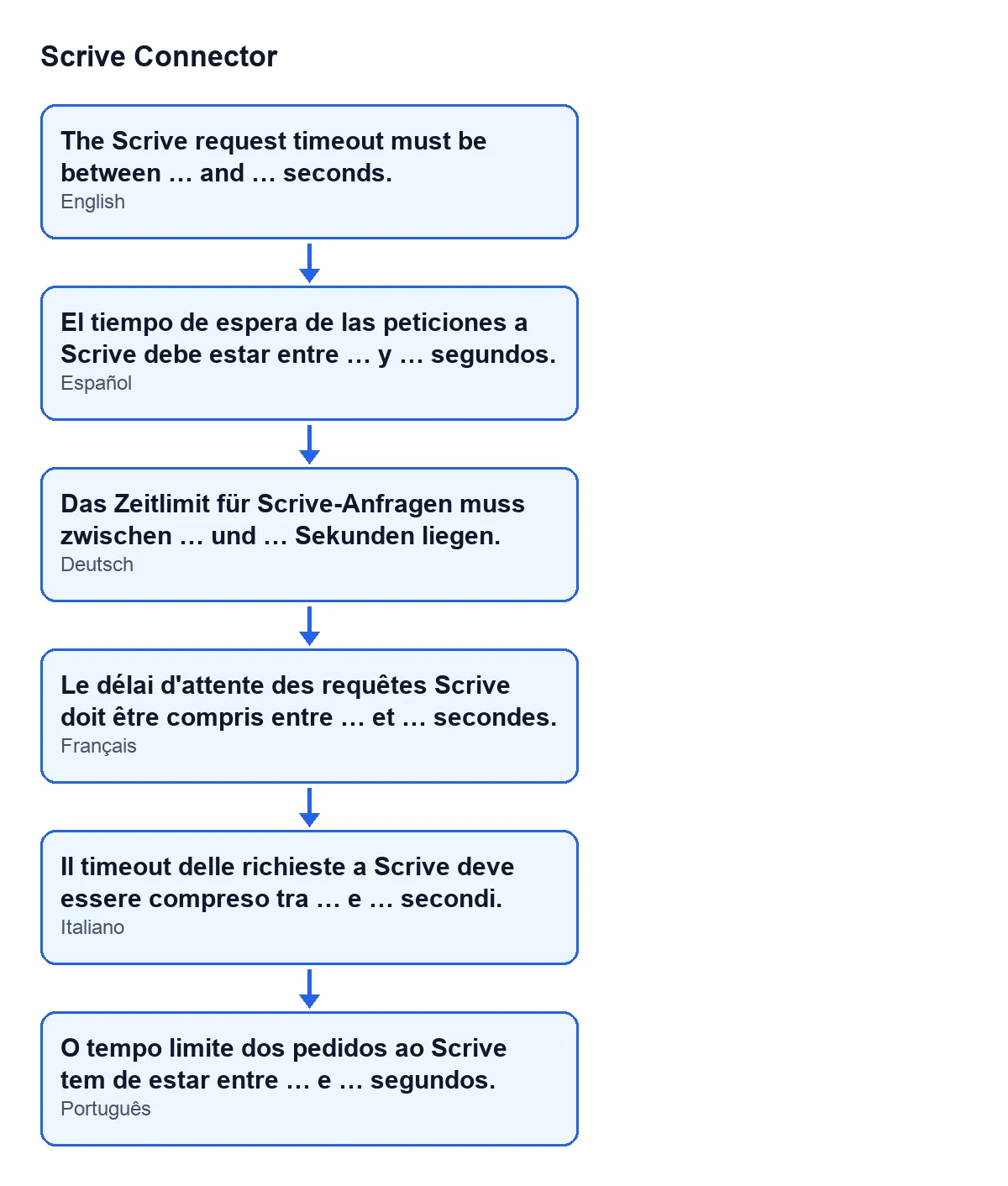
El tiempo de espera de las peticiones a Scrive debe estar entre … y … segundos.; the diagram also shows the German, French, Italian and Portuguese versions.
Where the field is and what it controls
Where is the field that triggers the error?
In Settings, in the Scrive section, inside the Scrive e-Signature block, labelled Request Timeout. It is a system-wide parameter, not one belonging to each record.
I cannot see the field in Settings, why?
Only users with the Scrive management permission that the module provides can see it. If you cannot see it, ask an administrator to change it for you or to give you that permission.
What does this timeout control?
According to the setting's own text, it is the number of seconds before the direct call to Scrive's login, the one that fetches the personal access credentials, is aborted. Every other call goes through FlexigoTech Cloud, with its own timeout.
Does changing this value affect the other calls to Scrive?
The field refers to the direct call to Scrive's login, the one that fetches the personal access credentials. According to its help, every other call goes through FlexigoTech Cloud, with its own timeout, so this setting is not the one governing them.
How to fix it
What do I do when the message appears?
Open Settings, go to the Scrive e-Signature block, type in Request Timeout a number of seconds inside the range given in the field's help (1-300) and save again. With a value inside the range, the check does not trigger.
What happens if I type a value below 1 or above 300?
It falls outside the range the field's help sums up, so the message appears on saving and the Settings are not saved. Change it to a value inside the range and save again.
What value does the field start with?
The default value in the code is 30, which falls inside the range the help sums up. If the message appears, the value typed is below the minimum or above the maximum.
What should I check afterwards?
Save the Settings and check that the message no longer appears. If they save without warnings, the value has passed the check.
Are there other module messages explained like this?
Other messages from the module: see the article.
What the module costs and how we can help
Scrive Connector is a one-off purchase per Odoo version (published on Odoo Apps for 17, 18, 19 and 20) and needs a FlexigoTech Cloud subscription, Connector plan: €49 a month or €490 a year, excluding VAT, with up to 3 accounts on the platform (the Pro plan is €98 a month or €980 a year and allows 10). The connection goes through FlexigoTech Cloud, which stores the credentials encrypted, watches the synchronisation and emails you if it fails.
If you are implementing Odoo and want to connect Scrive, FlexigoTech implements Odoo 17, 18, 19 and 20 and builds custom connectors and integrations. You can see the module on its Odoo Apps page or on the module page.
Keep reading
Checked in the connector's source code (version 20.0) and the linked sources
Sources
- Module source code: flexigobe_scrive_connector 20.0 (21b3b940): models/res_config_settings.py
- apps.odoo.com/apps/modules/20.0/flexigobe_scrive_connector
- flexigotech.com/en/services.html
- flexigotech.com/precios.html
- Module source code: flexigobe_scrive_connector 20.0 (21b3b940): wizard/scrive_send_wizard.py