

 Español
 Català
 Deutsch
 Français
 Português
 Italiano
 Nederlands
 Polski
Where the button is and when you see it
Verifications open from the menu Scrive › Configuration › eID Hub Verifications. The Configuration section asks for the Manager permission and the Scrive section asks for User: if you lack one, you do not see that section. The Cancel Verification button is on the Identity Verifications screen, in Odoo 17, 18, 19 and 20.
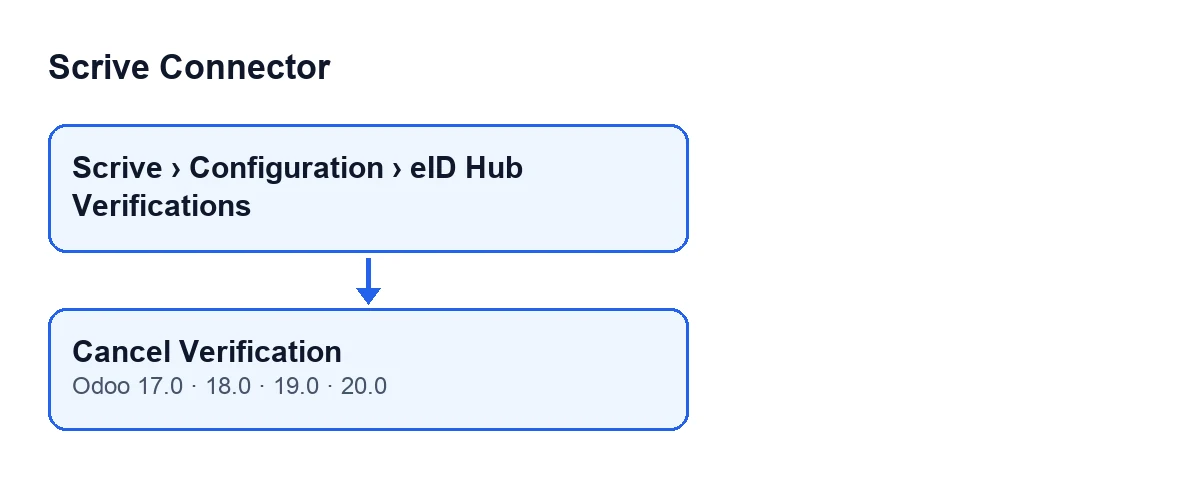
The button is hidden when the Status field is neither New nor Started. With the default values it is visible, because the initial status is New. Status appears on the form and in the list of Identity Verifications; its other values are Failed and Complete.

Wrong ideas about the button
Myth: "Abandoned verifications have to be cancelled by hand"
Reality: the button is the manual route. Odoo also closes them by itself, with the scheduled task Scrive eID Hub: poll verifications in progress, which runs every 10 minutes and is active as soon as the module is installed. According to the Odoo 20.0 code, it does this, in order:
- It queries Scrive again for each verification in
NeworStarted, oldest first and up to a limit per run. Only verifications from accounts without the stop switch turned on and with their credential saved in FlexigoTech Cloud are included. - It cancels and closes those that have been in progress for too long, using the same closing as the button but with a different reason:
The identity verification was not completed in time; it was cancelled automatically.
If there is no FlexigoTech Cloud service, the task calls nothing and closes nothing, and the verifications wait until it returns. If FlexigoTech Cloud pauses a call part-way through a run, the task stops there without marking anything. Without a subscription, or with the service suspended, whatever the subscription provides stops; your data stays in your Odoo.
Myth: "The button appears on any verification"
Reality: it only shows while the verification is New or Started. As soon as it becomes Failed or Complete, the button disappears, so you cannot use it to cancel a verification that has already finished.
Myth: "Pressing it cancels immediately"
Reality: first, Odoo asks for confirmation with this text: Cancel this identity verification at Scrive? The person will have to start again. Once you accept, the first thing the module does is check that your user has write permission on those verifications. Only then does it go through the selected verifications and close each one.
With Odoo in Spanish the button is called Cancelar verificación; this diagram shows its label in other languages.
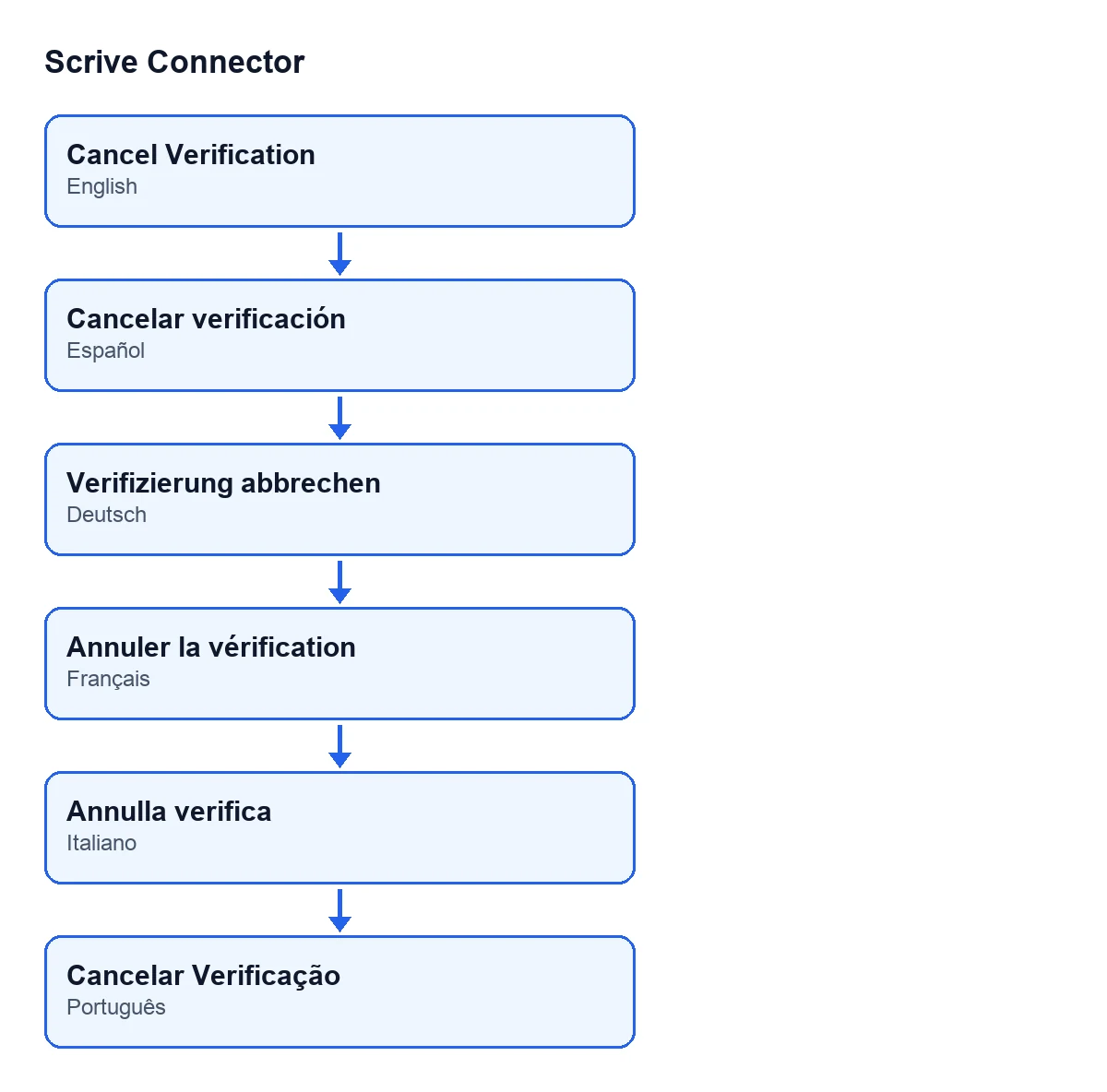
Cancelar verificación; in German, Verifizierung abbrechen; in French, Annuler la vérification; in Italian, Annulla verifica; in Portuguese, Cancelar Verificação.Myth: "If Scrive does not answer, the verification is left half-done"
Reality: it depends on why it does not answer. According to the Odoo 20.0 code, the module only tries to cancel at Scrive if certain conditions are met; among them, that the verification already has its transaction identifier and that the account does not have its stop switch turned on. If they are not met, it skips that step and closes the verification in Odoo.
If the cancellation at Scrive returns a Scrive API error or a configuration error, the module records it in the server log and closes the verification in Odoo anyway. The exception is a pause from FlexigoTech Cloud: then the verification is neither cancelled at Scrive nor closed in Odoo, the action stops and nothing is marked.
Myth: "After cancelling, the person can pick up where they left off"
Reality: the confirmation itself warns that they will have to start again. When it closes the verification, the module changes Status to Failed, clears that verification's access address and records as the reason Cancelled in Odoo by …, with the name of the user who pressed the button. Because it ends up in Failed, the button no longer shows.
If Odoo later queries Scrive again about that verification (through the return page or the webhook), the reason Odoo recorded when it closed it is kept.
What to keep in mind
Use the button when you want to cancel, by hand, a verification that is New or Started; the scheduled task deals with those that have been in progress for too long. After cancelling, check on the form that Status shows Failed.
How FlexigoTech helps
FlexigoTech implements Odoo 17, 18, 19 and 20 and builds custom connectors and integrations. Scrive Connector is published for those four versions: it is a one-off payment per version and needs the FlexigoTech Cloud subscription, Connector plan, which costs €49/month or €490/year excluding VAT. The price for each version is on its Odoo Apps listing and on the module page. For the button that sends a document for signature, see What the Send button in Scrive Connector does.
Keep reading
Checked in the connector's source code (version 20.0) and the linked sources
Sources
- Module source code: flexigobe_scrive_connector 20.0 (21b3b940): views/scrive_eid_transaction_views.xml
- Module source code: flexigobe_scrive_connector 20.0 (21b3b940): models/scrive_eid_transaction.py
- apps.odoo.com/apps/modules/20.0/flexigobe_scrive_connector
- flexigotech.com/en/services.html
- flexigotech.com/precios.html
- Module source code: flexigobe_scrive_connector 20.0 (21b3b940): wizard/scrive_send_wizard.py