

 Español
 Català
 Deutsch
 Français
 Português
 Italiano
 Nederlands
 Polski
When the button appears and where it is
Where is the Cancel Request button?
It is on the Signature Documents screen, which you open from the menu Scrive › Signature Documents. The Scrive part of the menu asks for the User permission: without it, you do not see that part. The button is in Odoo 17, 18, 19 and 20, and in all four it is hidden when the State is not Pending.
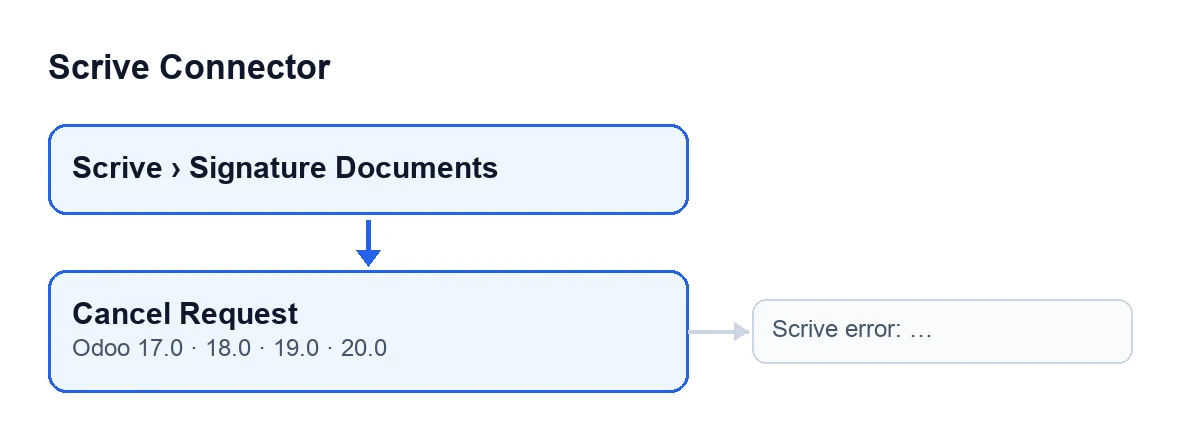
Cancel Request button, with the message that can stop it.Why can I not see the button on my document?
Because the button is hidden when the State field is not Pending. A new document, with the default values, is in Draft, so it does not show there. State is visible on the form and in the list of Signature Documents, and its values are Draft, Preparation, Awaiting Start, Pending, Signed, Canceled, Timed Out, Rejected, Error and Saved as Template. The button appears only in Pending; in Awaiting Start, for example, it does not.
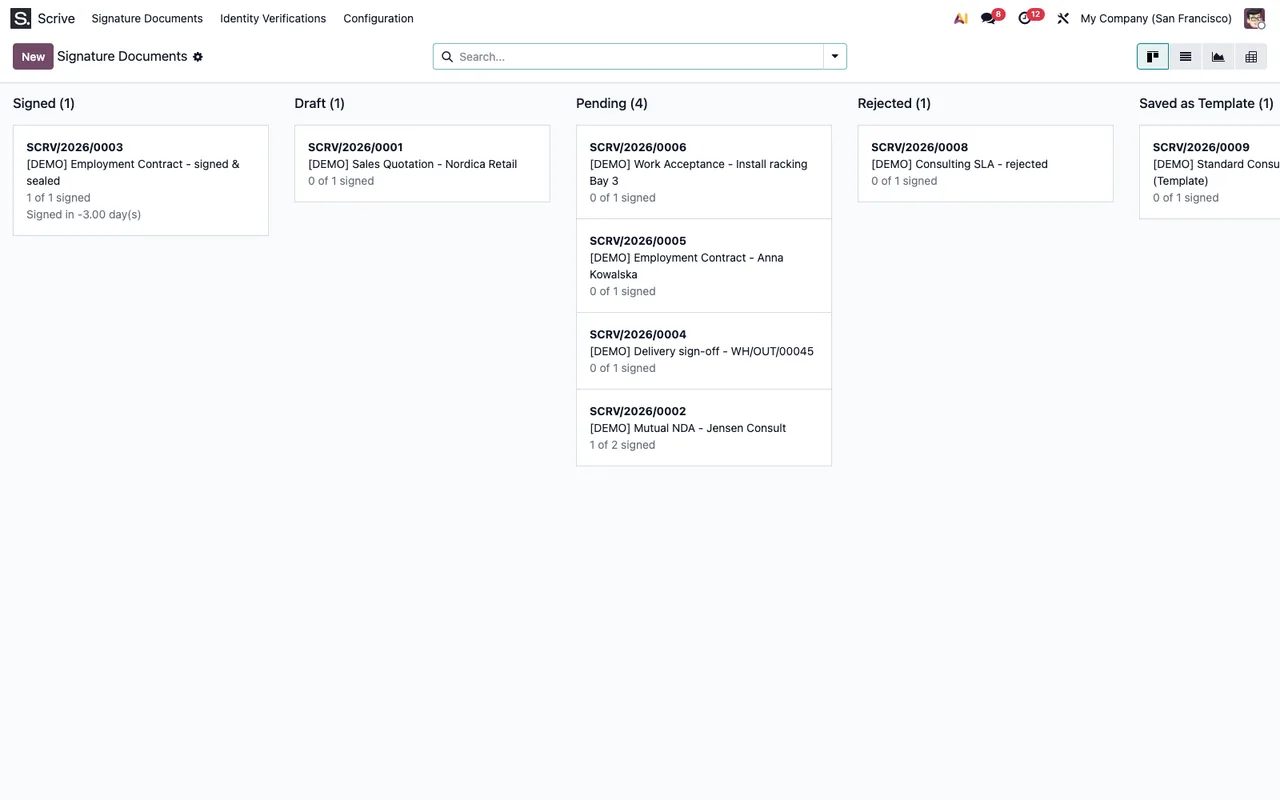
Signature Documents with demo data: columns Signed, Draft, Pending, Rejected and Saved as Template (the last one is cut off).
What happens when you press it
What does Odoo ask before cancelling?
A confirmation window appears with this text: Cancel this signature request? Parties will no longer be able to sign.. If you confirm, the process in the next answer follows.
What does the module do once I confirm, and in what order?
In Odoo 20, the module goes through the documents one by one and, for each, does this: first it checks again that the document is still Pending; then it asks Scrive to cancel it, using the document's account (the Account field, visible on the form and in the list) and its Scrive Document ID (visible on the form and read-only); it updates the document with what Scrive replies; and finally it leaves the note Signature request canceled. on it. The note comes last: if anything fails before that, it is not posted.
What changes on the document?
The module writes what Scrive returns: among other data, the expiry date, the automatic reminder date and the title (if the reply carries one). The State field only changes if the state Scrive returns differs from the current one and the module allows that change. After cancelling, look at State: Canceled is one of its values. The note is also left on the document.
Errors and checks
Which error can appear when I press Cancel Request, and what do I do next?
Scrive error: … can appear. It shows as a warning window when the call to Scrive launched by the button fails, and it stops the action: because the note is posted at the end, after a warning it is not posted. The dots stand for a value the code fills in. Afterwards, check the document's State field before repeating anything: the button is only visible while the document is still Pending, so if the state has changed you will no longer see it. In any other state the button is hidden and, on top of that, the method checks the state before calling Scrive: if it is not Pending, it stops and does not go on with the cancellation.
What do I check on the form after cancelling?
Three things: the State field, which should show Canceled if Scrive returns that state and the module allows the change; the note Signature request canceled. on the document; and that the Cancel Request button no longer appears, because the Pending condition is no longer met.
What does it cost?
The module is a one-off payment per version and needs the FlexigoTech Cloud subscription, Connector plan: €49/month or €490/year excluding VAT. Each version's price is on its Odoo Apps listing; on the Odoo App Store each version is bought there, and with the subscription the module for newer Odoo versions is included if you bought it on flexigotech.com (module page).
If you need help with Scrive in Odoo
FlexigoTech implements Odoo 17, 18, 19 and 20 and builds custom connectors and integrations. And if you want to review how Scrive signatures fit into your sales, purchasing or invoicing flow, get in touch.
Keep reading
Checked in the connector's source code (version 20.0) and the linked sources
Sources
- Module source code: flexigobe_scrive_connector 20.0 (442af8bf): views/scrive_document_views.xml
- Module source code: flexigobe_scrive_connector 20.0 (442af8bf): models/scrive_document.py
- apps.odoo.com/apps/modules/20.0/flexigobe_scrive_connector
- flexigotech.com/precios.html
- flexigotech.com/en/services.html