

 Español
 Català
 Deutsch
 Français
 Português
 Italiano
 Nederlands
 Polski
What it means and when it appears
What does the message say and what does it mean?
You see This picking is not linked to a Shopify order. It is an error that stops the action: the module has not been able to determine which Shopify order the picking belongs to, so it goes no further with the fulfilment.
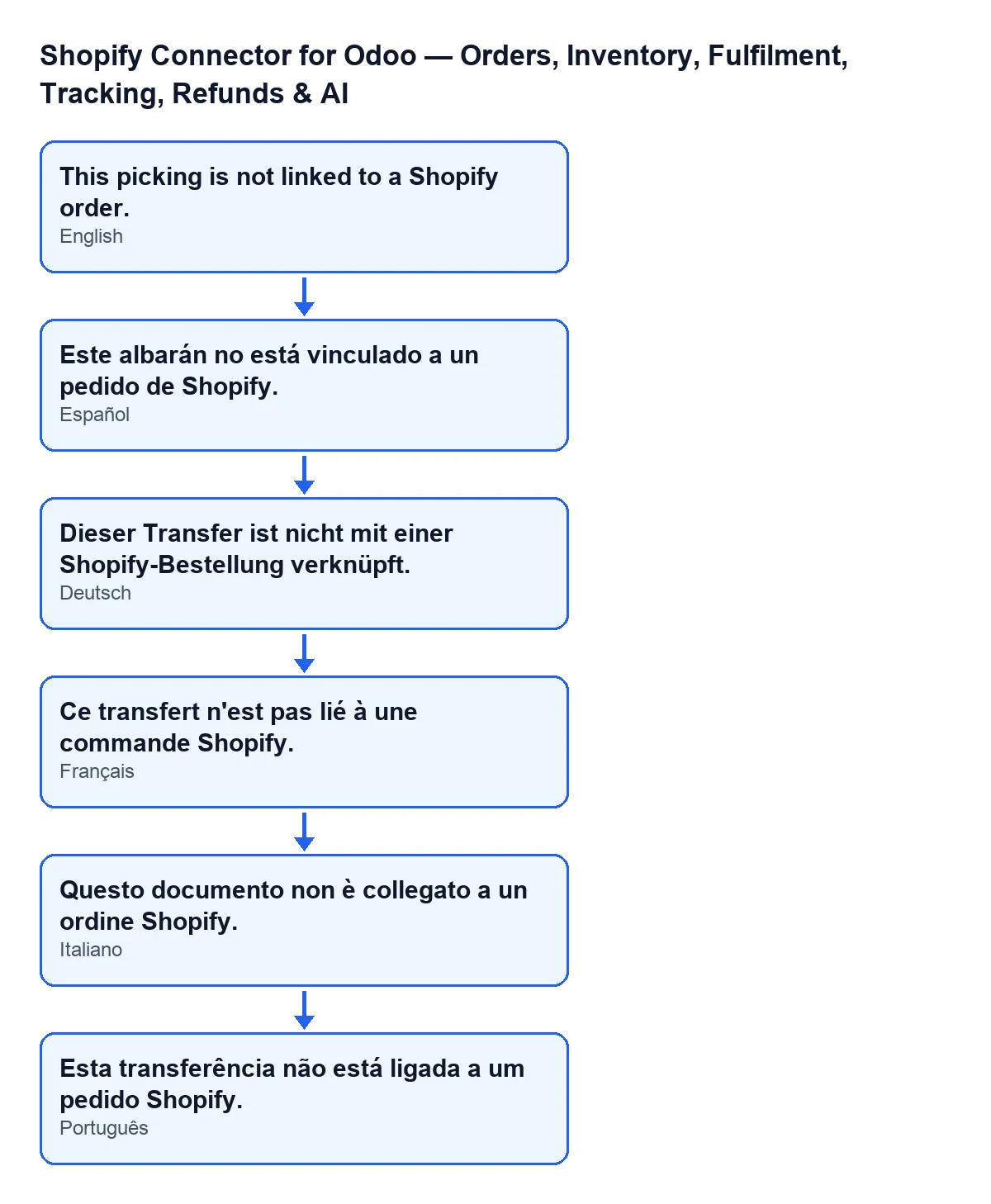
Este albarán no está vinculado a un pedido de Shopify.; in German, Dieser Transfer ist nicht mit einer Shopify-Bestellung verknüpft.; in French, Ce transfert n'est pas lié à une commande Shopify.; in Italian, Questo documento non è collegato a un ordine Shopify.; in Portuguese, Esta transferência não está ligada a um pedido Shopify.What is the exact condition in the code?
When preparing the fulfilment of the picking, the module starts from the sales order of the picking and its Shopify order reference, and from that it obtains the identifier of the order in Shopify. If that identifier is empty, it raises the message; it only carries on if it has one. A picking with no sales order has no reference to start from.
Which button leads to it?
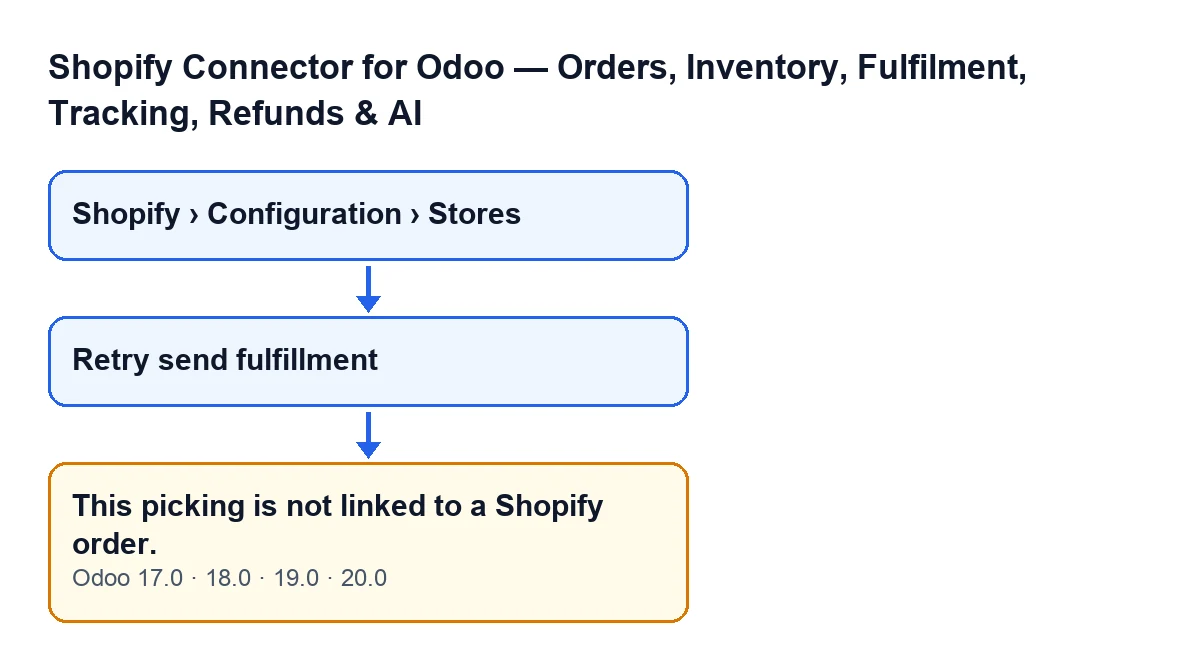
Retry send fulfillment, on the picking: the button reaches the part of the module that prepares the fulfilment, and that is where the condition is checked. The button is visible when the picking is in the Done state, the Is Shopify Order field (which does not appear in any view) is set, and the Shopify Fulfillment Error field has a value. If any of those conditions fails, the button is hidden.
Does it appear in every version?
The message is in the published code of the 17.0, 18.0, 19.0 and 20.0 branches of Odoo. The visibility condition of the button is also the same in those four versions.

What happens when it appears
What happens to the action when the error appears?
It is an error that stops the action: the module does not carry on with the fulfilment. When preparing the fulfilment, this check comes before the module looks at the delivered quantities on the picking and before it queries the order in Shopify. If the picking passes, the module moves on to those quantities and that query; if not, it stops there.
Is it a problem with the connection to Shopify?
According to the code, that is not what this message checks: the condition is evaluated before the module queries the order in Shopify. What it looks at is the sales order of the picking and its Shopify order reference.
Why can I see the button and still get the message?
They are two different conditions. The button's decides whether you see it: it looks at the state of the picking and at the Is Shopify Order and Shopify Fulfillment Error fields. The message's is checked when you press the button: it looks at the sales order of the picking and its Shopify order reference. A visible button does not guarantee that the picking has that reference.
How to resolve it
What do I do to make it stop appearing?
Follow what the code does: the fulfilment starts from the sales order of the picking and its Shopify reference. First check that you have opened the right picking, the one for the sales order of the Shopify order you want to fulfil, and press the button from there. If the picking hangs from no sales order, the module has nowhere to get the Shopify order from. If the picking is the right one and the message persists, the sales order does not provide a Shopify order reference from which the module can obtain the identifier; in that case it is worth reviewing with whoever set up the integration.
If you run into another message when creating the sales order from Shopify, there is an explanation of the warning about missing Shopify data to create the sales order.
Where are the store records?
They open from Shopify › Configuration › Stores. Each part of the menu asks for a permission: Configuration asks for Operator and Shopify asks for Viewer. If you lack one, you do not see that part.
What you need to use the connector
The module is a one-off payment per Odoo version and needs the FlexigoTech Cloud subscription, on its Connector plan: €49 a month or €490 a year, excluding VAT, for up to 3 accounts of the platform. It is published on Odoo Apps for Odoo 17, 18, 19 and 20. You will find more on the Odoo Apps listing and on the module page.
If you need a hand
FlexigoTech implements Odoo 17, 18, 19 and 20 and builds connectors and custom integrations. If the message keeps appearing with the right picking, we can review with you how the Shopify order reaches your Odoo.
For another button in the module, here is what the Pull Stock button does, step by step.
Keep reading
Checked in the connector's source code (version 20.0) and the linked sources
Sources
- Module source code: flexigobe_shopify_seller_connector 20.0 (d7e627b4): models/shopify_instance.py
- Module source code: flexigobe_shopify_seller_connector 20.0 (d7e627b4): models/stock_picking.py
- Module source code: flexigobe_shopify_seller_connector 20.0 (d7e627b4): views/stock_picking_views.xml
- Module source code: flexigobe_shopify_seller_connector 20.0 (d7e627b4): models/fgt_cloud.py
- apps.odoo.com/apps/modules/20.0/flexigobe_shopify_seller_connector
- flexigotech.com/precios.html
- flexigotech.com/en/services.html