

 Español
 Català
 Deutsch
 Français
 Português
 Italiano
 Nederlands
 Polski
Where the button is and when you see it
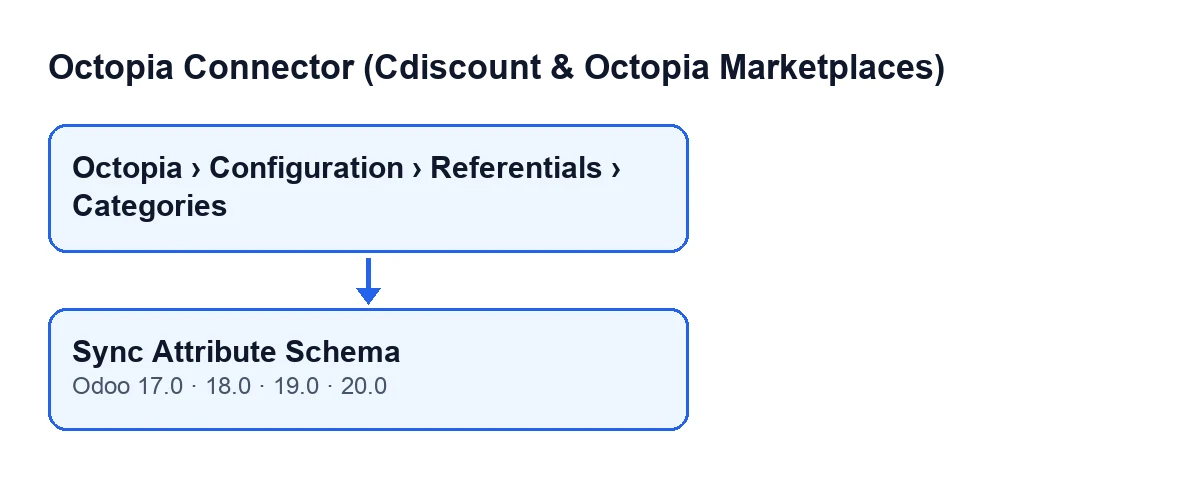
The Sync Attribute Schema button is on the form of a category in Octopia Connector. The form opens from the menu Octopia › Configuration › Referentials › Categories. Each part of the menu asks for a permission: Configuration asks for Octopia Manager and Octopia asks for Octopia User. If you lack either one, you do not see that part.
The view puts no condition on the button: it is always visible, in Odoo 17, 18, 19 and 20.
The label changes with the language of your Odoo, as the second diagram shows.
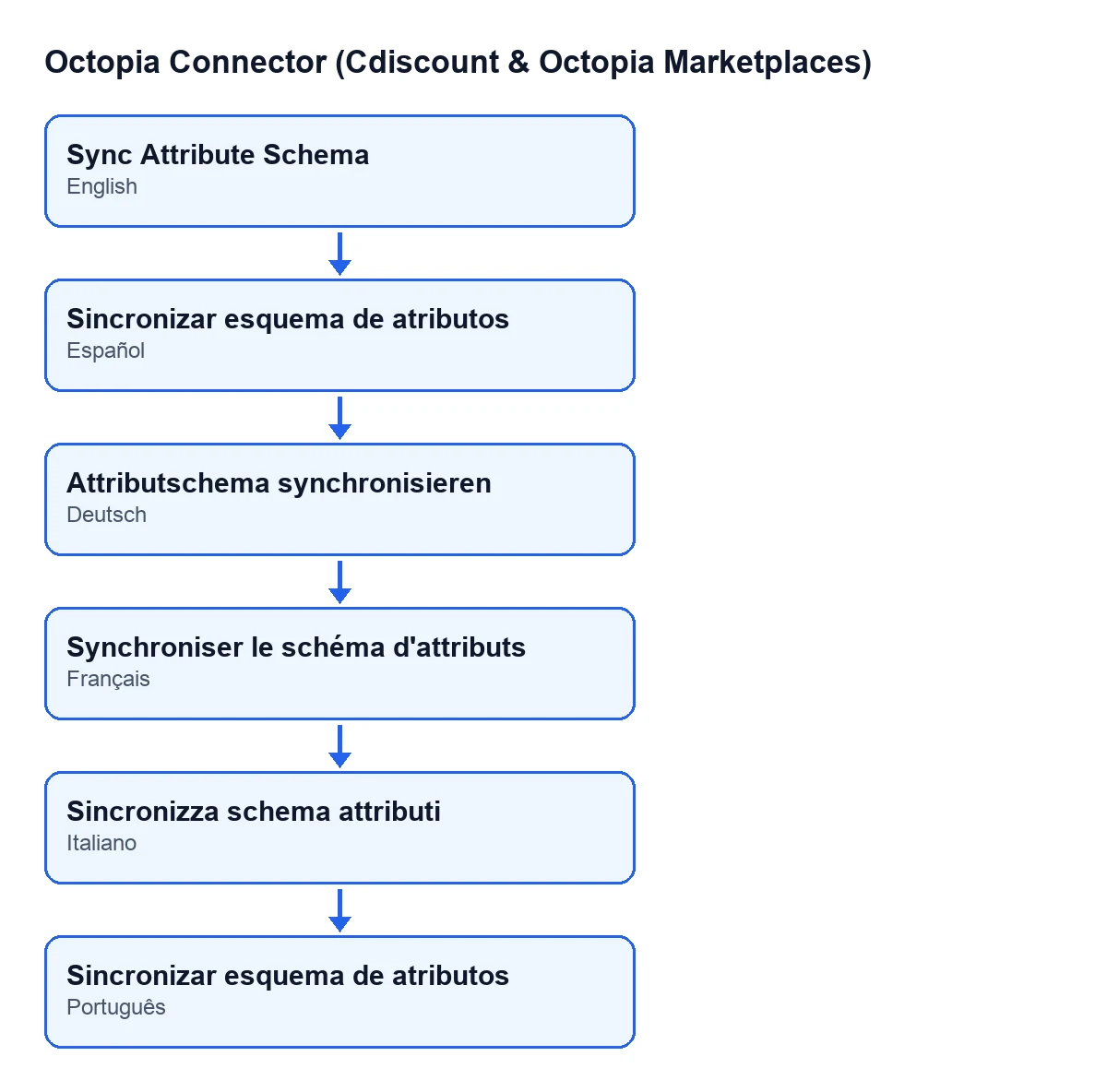
Sincronizar esquema de atributos; German, Attributschema synchronisieren; French, Synchroniser le schéma d'attributs; Italian, Sincronizza schema attributi; Portuguese, Sync Attribute Schema.
What it does when you press it, in order
What follows comes from the Odoo 20 code and applies to the category on the form:
- It takes the
Accountof the category and asks Octopia for the properties of that category, using itsReference. - It reads the reply. If the reply is a list, it uses that list. If it is an object holding a list of items or of properties, it uses the first one that has content. Any other shape is treated as an empty list.
- It deletes every line in the
Attribute Schematab. - It creates one new line for each element in the reply that has the shape of a record; the others are skipped.
- It writes the current date and time into
Properties Synced Atand finishes.
The request to Octopia comes before the deletion: the schema is asked for first, and the tab is emptied afterwards.
Wrong ideas about the button
«It only appears when the category has no schema yet»
The view sets no condition: the button is always visible on the Categories screen, in all four published versions. It does not depend on the tab being empty or on any state of the category. To reach the form you do need the menu permissions described above.
«Syncing adds the new properties to the existing ones»
It replaces rather than adds. The code deletes every line in the Attribute Schema tab and then creates the ones in the reply. After pressing, the tab holds what Octopia returned at that moment and nothing else.
«The schema is stored exactly as it arrives»
Each element becomes a line with the property reference, its label, its necessity, its unit, whether it is ranged, its choices and its order. The code applies some fallback values:
- If the property has no reference, an empty text is stored.
- If it has no necessity, it is stored as optional.
- If it has no order, zero is stored.
- The choices are stored one per line, in a single text.
- Elements that do not have the shape of a record are skipped without creating anything.
«If Octopia returns nothing, the schema stays as it was»
It is the other way round. The deletion happens after the reply is received and before the lines are created. If the reply has no elements (because it is empty or has a shape the code does not recognise), the tab ends up with no lines and the date in Properties Synced At is updated all the same.
That is why it is worth checking the result after pressing:
- Open the
Attribute Schematab and check that it has lines. - Look at the category
Reference. Its help says: «2-char (level 1), 4-char (level 2) or 6-char (level 3, the only level valid for product submission) capital alphanumeric reference.» - Check that the category
Accountis the one you expect, because it is the one used to make the request.
«I cannot tell when it was last synced»
Properties Synced At is on the category form, read-only. You do not fill it in: the code writes it when the sync finishes. According to the module, that field is reached from the button and also from the scheduled task Octopia: refresh referentials (categories, brands, carriers, typologies), which runs every seven days and is active on installation. The button is therefore the way to launch it by hand whenever you want.
What the module needs and how we help
The module is published on Odoo Apps for Odoo 17, 18, 19 and 20. The connection to the platform goes through FlexigoTech Cloud: it stores the credentials encrypted, watches the synchronisation and sends an email if it fails. The Connector plan costs €49 a month or €490 a year, excluding VAT, and covers up to three platform accounts. Without a subscription, or with the service suspended, what the subscription provides stops; your data stays in your Odoo.
If you are implementing Odoo and need to connect a marketplace or adapt an integration to the way you work, FlexigoTech implements Odoo 17, 18, 19 and 20 and builds connectors and custom integrations. If another button of the module interests you, there are the ones for Importar and Enviar a Octopia.
Keep reading
Checked in the connector's source code (version 20.0) and the linked sources
Sources
- Module source code: flexigobe_octopia_connector 20.0 (4848da6a): views/octopia_referential_views.xml
- Module source code: flexigobe_octopia_connector 20.0 (4848da6a): models/octopia_referential.py
- apps.odoo.com/apps/modules/20.0/flexigobe_octopia_connector
- flexigotech.com/precios.html
- flexigotech.com/en/services.html