

 Español
 Català
 Deutsch
 Français
 Português
 Italiano
 Nederlands
 Polski
Where the button is and when you see it
The records open from the menu Octopia › Finance › Commission Invoices. The Octopia segment of the menu requires the Octopia User permission; without it you do not see that segment. The form shows Account, Invoice ID, Lines and Vendor Bill.
The button is on the Commission Invoices screen in the published branches of the module (Odoo 17, 18, 19 and 20). It is hidden once Vendor Bill has a value; with default values that field is empty and the button shows. Vendor Bill is read-only: you do not write it yourself, the button fills it (or the daily task and the Pull Finance button).
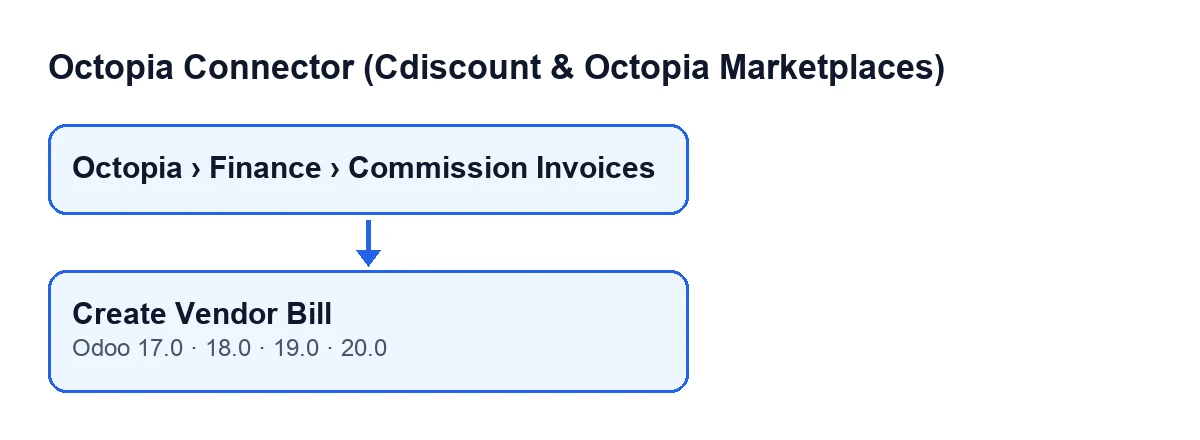
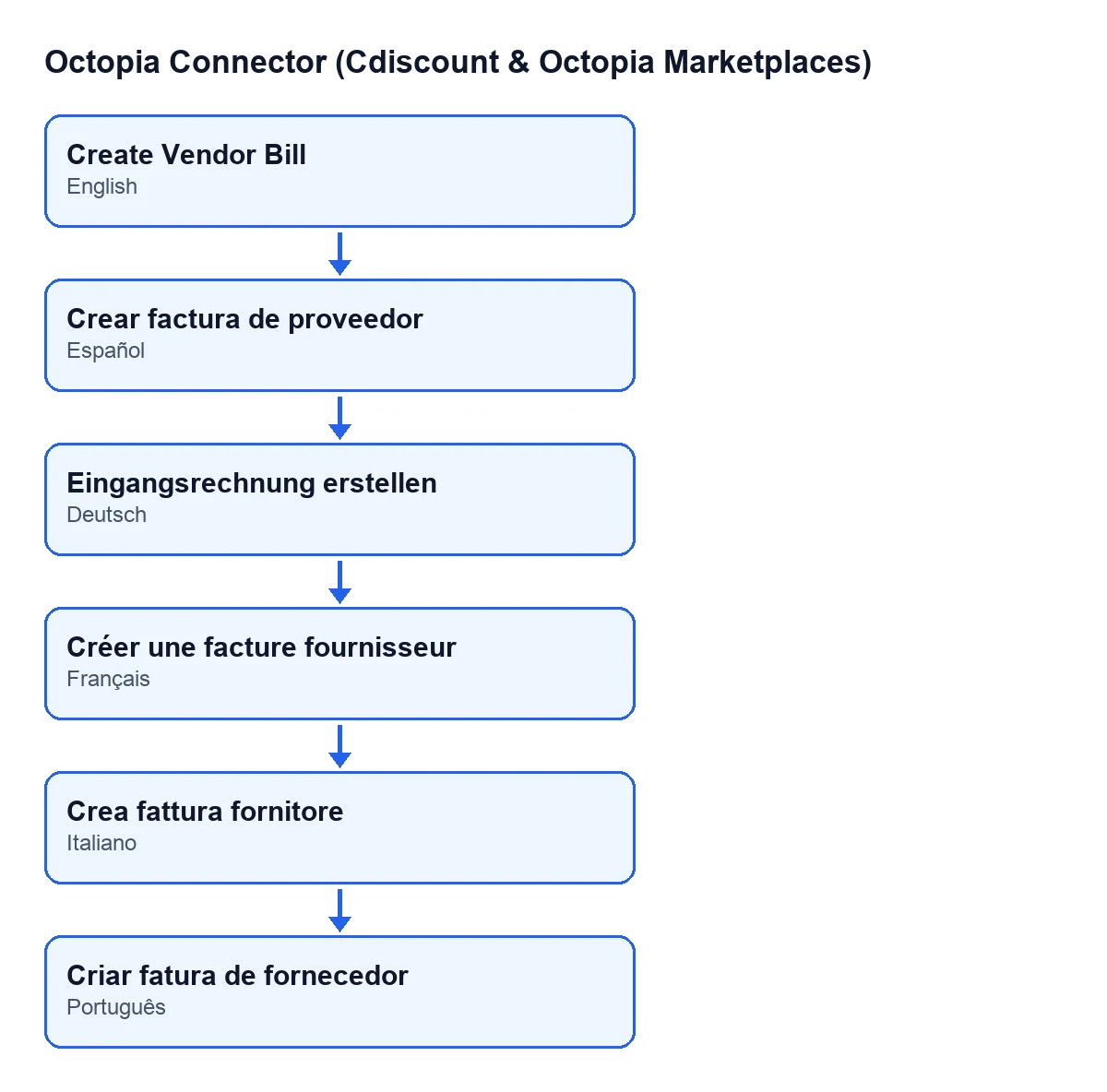
With Odoo in English the button reads Create Vendor Bill; the second diagram shows how it is labelled in other languages.

A worked case from start to finish
Example Illustrative case: the company and its figures are made up to explain the flow.
Picture an invented shop, Hogar Norte, with a connected Octopia account and a commission invoice that already appears under Commission Invoices. This is what happens when they press the button (following the Odoo 20 code):
- They open the record. They see the
Account, theInvoice ID, and an emptyVendor Bill, so theCreate Vendor Billbutton is on view. - They press it. If the record already had a vendor bill, the method would leave it as it is and move on to the next one.
- If
Linesis empty, the method first downloads the lines from Octopia: it deletes any existing ones, requests them page by page while Octopia points to a further page, and notes when they were downloaded. IfLinesalready held lines, it uses them as they are and does not request them again. - It looks for the account's commission vendor. If the account has none yet, it creates a company contact named
Octopia Marketplace (account name), flagged as a vendor and not tied to any company, and stores it on the account. Later invoices from the same account use that same contact. - It adds up the net amounts of all the lines. If the sum is zero or positive, it will create a vendor bill; if it is negative, a vendor refund.
- It creates the bill with one line for each Octopia line (details in the table below).
- It links the new bill in
Vendor Bill. With that field filled, the button disappears from the record.
What the bill it creates contains
| Bill data | Where it comes from |
|---|---|
| Vendor | The account's commission vendor (created if missing) |
| Type | Vendor bill if the net total is zero or positive; vendor refund if it is negative |
| Company | The company of the commission invoice |
| Reference | Octopia commission invoice …, with the Invoice ID in place of the dots |
| Description of each line | The line type, the operation type and the order reference, one after another (anything missing is left blank) |
| Quantity | That of the Octopia line; if it is empty or zero, one |
| Unit price | The line's net amount divided by its quantity |
Signs are preserved. Restitution or credit lines arrive negative and reduce the bill. When the total is negative and a refund is created, the module flips the sign of each line's unit price.
The normal route: the daily task
The button is not the main route. The scheduled task Octopia: pull finance (operations, payouts, invoices, DAC7) runs once a day and is active on installation. It goes through the connected accounts and, for each one, reads operations and payments. It then creates a commission invoice record for every new invoice ID it sees in the operations and, for each new record, downloads the lines and the PDF. If the account is set up to create the vendor bill automatically, it calls the same action as the button. Finally, it reads the DAC7 reports.
That tells you when you need the button: the task only goes through the records it has itself created in that run. A record that already existed and has no vendor bill, for instance because automatic creation was not set up when it was downloaded, is not part of that pass. That is the record the button is for.
Where it can stop
Some points where the process can halt:
- With the daily task and FlexigoTech Cloud. If the account connects through FlexigoTech Cloud and the credentials are not saved there, or there is no service, the task skips that account. If the FlexigoTech Cloud relay stops it midway, only the code is reported to FlexigoTech Cloud, nothing is marked and the next run carries on.
- With any other failure in the task. The error is written to the server log and the task moves on to the next account. For the affected account, the steps left in that pass (the other invoices and the DAC7 reports) are not run.
- With the button. Creating the bill comes after downloading the lines, so a record without lines depends first on that download. With the lines already loaded, the button works with what is in
Lines.
To check the result, open the record and look at Vendor Bill: if it has a value, the bill is linked.
What to take from the case
- Before pressing, check whether
Vendor Billalready has a value: if it does, there is no button. - The button and the daily task share the same action, so they produce the same bill.
- The sign of the net total decides whether the result is a vendor bill or a vendor refund.
- Review
Linesbefore pressing: if lines already exist, they are not downloaded again.
How FlexigoTech can help
If you are implementing Odoo and want to decide how these commission invoices fit into your accounting, FlexigoTech implements Odoo 17, 18, 19 and 20 and builds connectors and custom integrations. The module is published for those four versions and needs the FlexigoTech Cloud subscription (Connector plan, €49 a month or €490 a year excluding VAT, for up to 3 marketplace accounts). The connection goes through FlexigoTech Cloud, which stores the credentials encrypted and emails you if synchronisation fails.
Keep reading
Checked in the connector's source code (version 20.0) and the linked sources
Sources
- Module source code: flexigobe_octopia_connector 20.0 (4848da6a): views/octopia_finance_views.xml
- Module source code: flexigobe_octopia_connector 20.0 (4848da6a): models/octopia_finance.py
- apps.odoo.com/apps/modules/20.0/flexigobe_octopia_connector
- flexigotech.com/en/services.html
- flexigotech.com/precios.html