

 Español
 Català
 Deutsch
 Français
 Português
 Italiano
 Nederlands
 Polski
Where the button is and when you see it
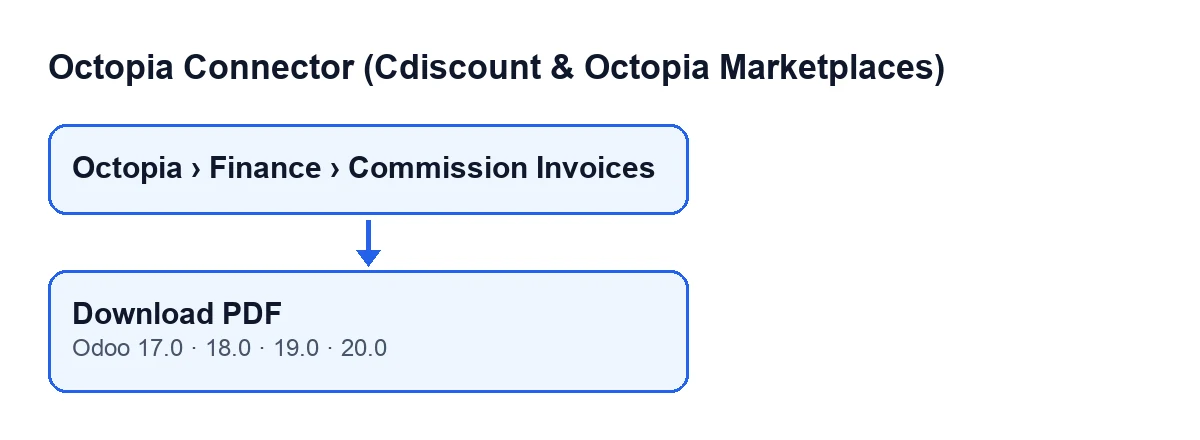
Octopia commission invoices open from the menu Octopia › Finance › Commission Invoices. The Octopia level of the menu requires the Octopia User permission: if you do not have it, you do not see that part of the menu.
The Download PDF button sits on the Commission Invoices screen. The view condition is that it is always visible, and it exists in Odoo branches 17, 18, 19 and 20. The second diagram shows how the label changes with the language of your Odoo (in Spanish it reads Descargar PDF).
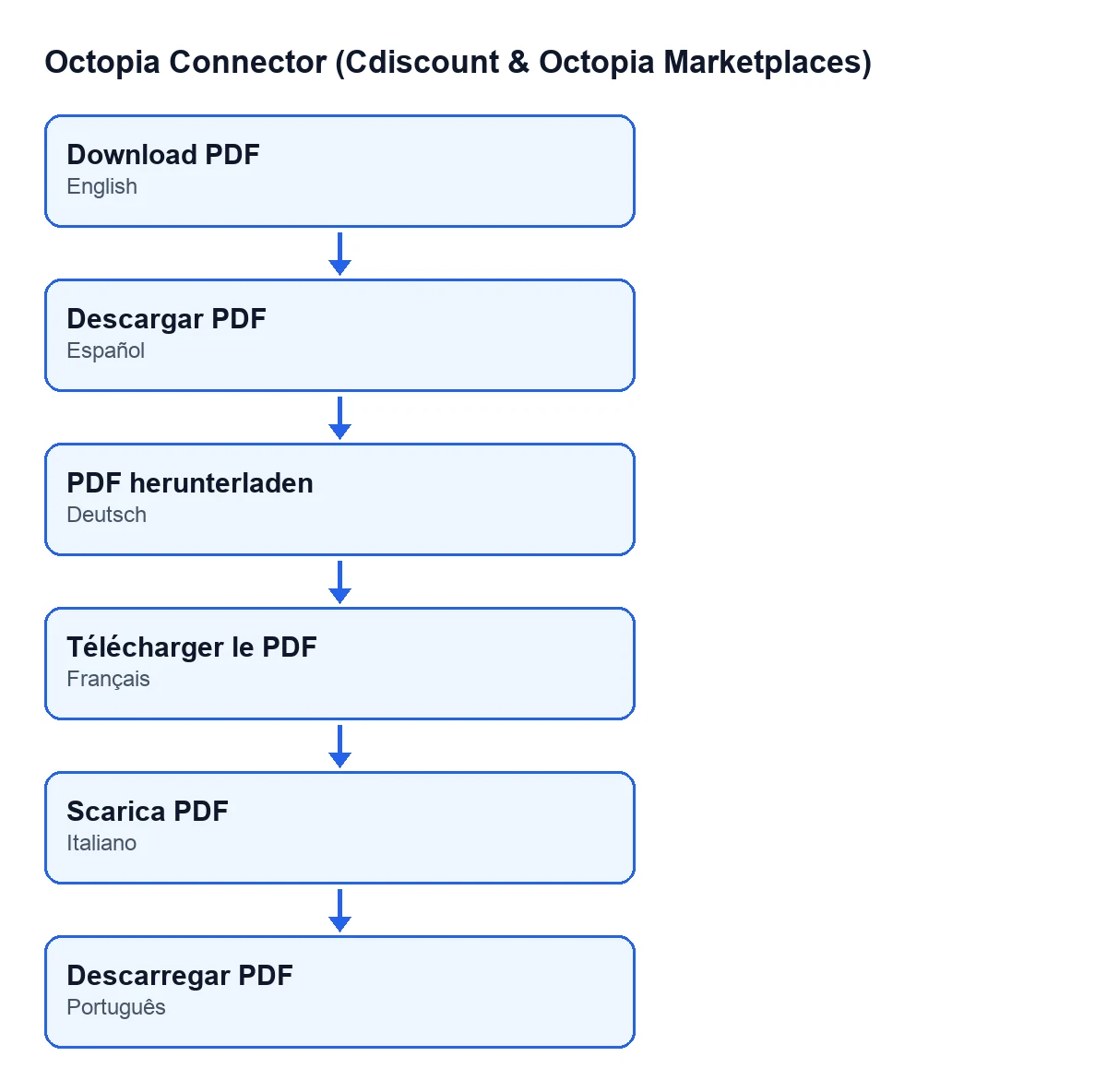
Descargar PDF, in German PDF herunterladen, in French Télécharger le PDF, in Italian Scarica PDF and in Portuguese Descarregar PDF.
What the button does, in order
It helps to know the sequence before you press it, because it tells you what to check afterwards.
- It goes through the invoices it acts on, one by one.
- For each invoice it uses the Octopia account in the
Accountfield on the form. - It requests the invoice document using the value of the
Invoice IDfield, also on the form. - If what comes back is not a file or is empty, it moves on to the next invoice: no attachment is created for that one and the
Pdf Attachmentfield stays as it was. - If the content is valid, it creates a PDF attachment linked to that commission invoice, named
octopia-invoice-followed by the invoice ID and.pdf. - It writes that attachment into the
Pdf Attachmentfield of the invoice.
Every time a valid document arrives, a new attachment is created and the field points to it.
Checklist before you press it
- Log in with a user who has the
Octopia Userpermission, otherwise you will not see theOctopiapart of the menu.
- Open the invoice from
Octopia › Finance › Commission Invoicesand look at theAccountandInvoice IDfields on the form. The button works from those two values: the account says which Octopia account to use and the ID is what the document is requested with.
- Look at the
Pdf Attachmentfield on the form. It is read-only: the module writes it, not you. If it already holds an attachment, bear in mind that a new valid document will create another attachment and the field will point to the latest one.
- Check that your FlexigoTech Cloud subscription is active: without a subscription, or with the service suspended, whatever the subscription provides stops, and your data stays in your Odoo.
Checklist just after you press it
- Go back to the invoice form and check that
Pdf Attachmentis no longer empty.
- Open the attachment and check that its name is
octopia-invoice-followed by the invoice ID of that commission invoice and.pdf.
- If the button acted on more than one invoice, review each one: when an invoice does not return a valid file, the code skips it and carries on with the rest, leaving its
Pdf Attachmentuntouched.
If the attachment does not appear
According to the button's code, when what comes back is not a file or is empty, it moves to the next invoice and creates no attachment. So if no valid file arrives, the sign you can check on the form is an empty or unchanged Pdf Attachment field.
- Check that the invoice's
Accountis the one you expect and that theInvoice IDis correct.
- Check the subscription, as in the first list.
- Press
Download PDFagain: it is always visible, so you can repeat the request for that invoice.
- If it is still empty, note the account, the invoice ID and the time, and get in touch with us with those details.
Other routes that reach the same point
The Pdf Attachment field is filled by the same method from several places: the Download PDF button, the Fetch PDFs (ZIP) button, the Pull Finance button and the scheduled task Octopia: pull finance (operations, payouts, invoices, DAC7), which runs once a day and is active when the module is installed. So if you open an invoice and the attachment is already there, it may have come from any of them.
Other buttons of the module explained in the same format: Create vendor bill and Import.
Cost and how FlexigoTech can help
The module is a one-off purchase per Odoo version (17, 18, 19 and 20; the amount for each version is on its listing) and needs the FlexigoTech Cloud subscription, Connector plan: €49 a month or €490 a year, excluding VAT, up to 3 platform accounts. The connection goes through FlexigoTech Cloud, which stores the credentials encrypted, watches the synchronisation and emails you if it fails.
If you are implementing Odoo and want Octopia connected to your commission invoices, FlexigoTech implements Odoo 17, 18, 19 and 20 and builds custom connectors and integrations.
Keep reading
Checked in the connector's source code (version 20.0) and the linked sources
Sources
- Module source code: flexigobe_octopia_connector 20.0 (4848da6a): views/octopia_finance_views.xml
- Module source code: flexigobe_octopia_connector 20.0 (4848da6a): models/octopia_finance.py
- apps.odoo.com/apps/modules/20.0/flexigobe_octopia_connector
- flexigotech.com/en/services.html
- flexigotech.com/precios.html