

 Español
 Català
 Deutsch
 Français
 Português
 Italiano
 Nederlands
 Polski
When exactly it appears
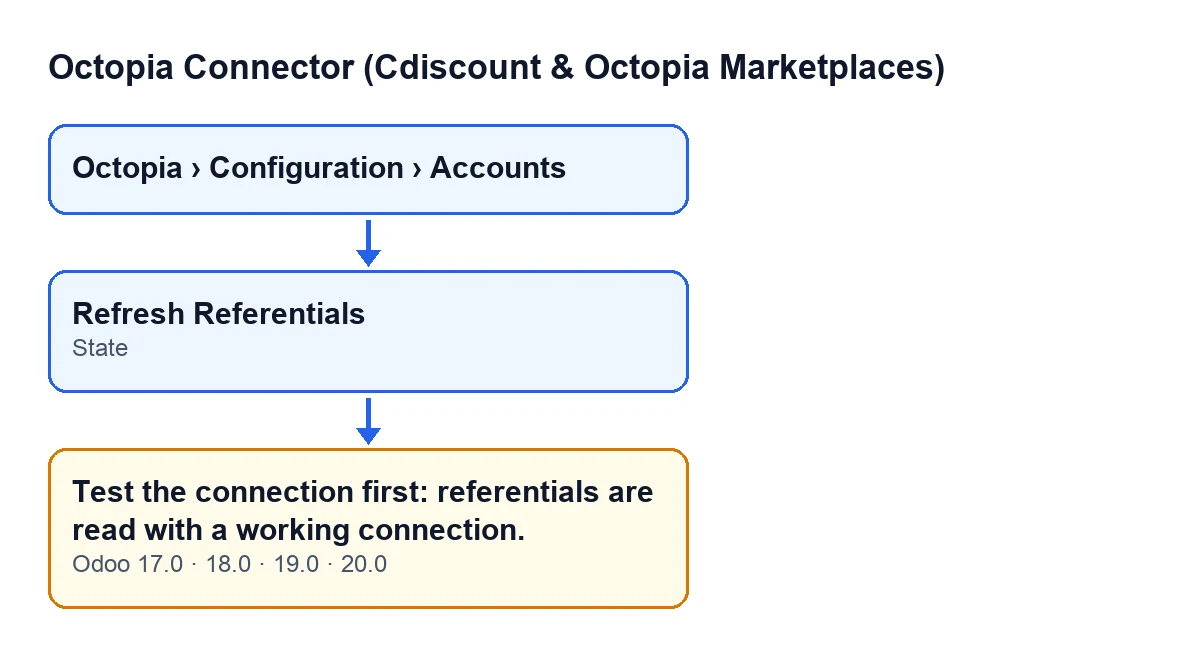
The message Test the connection first: referentials are read with a working connection. appears when you press the Refresh Referentials button on an Octopia account. That button is always visible, in Odoo 17, 18, 19 and 20: it does not disappear depending on the account's state, so the check happens when you press it.
The condition is this: before doing anything, the module looks at the State field of the accounts the action runs on. If any of them has a state other than Connected, it raises the message and the action stops, without saving anything it was about to change. The message is in the code published for Odoo 17, 18, 19 and 20.

What it means
The message does not report a failed refresh: the refresh has not even started. It says the account is not in the Connected state, and that referentials are read with a working connection.
The State field has three values: Draft, Connected and Authentication Error. The default value in the code is Draft. You do not write it yourself: the Test Connection button fills it in. You can see it on the Octopia Accounts form and also in the list, where it is read-only. So if you get the message, the account is in Draft or Authentication Error.
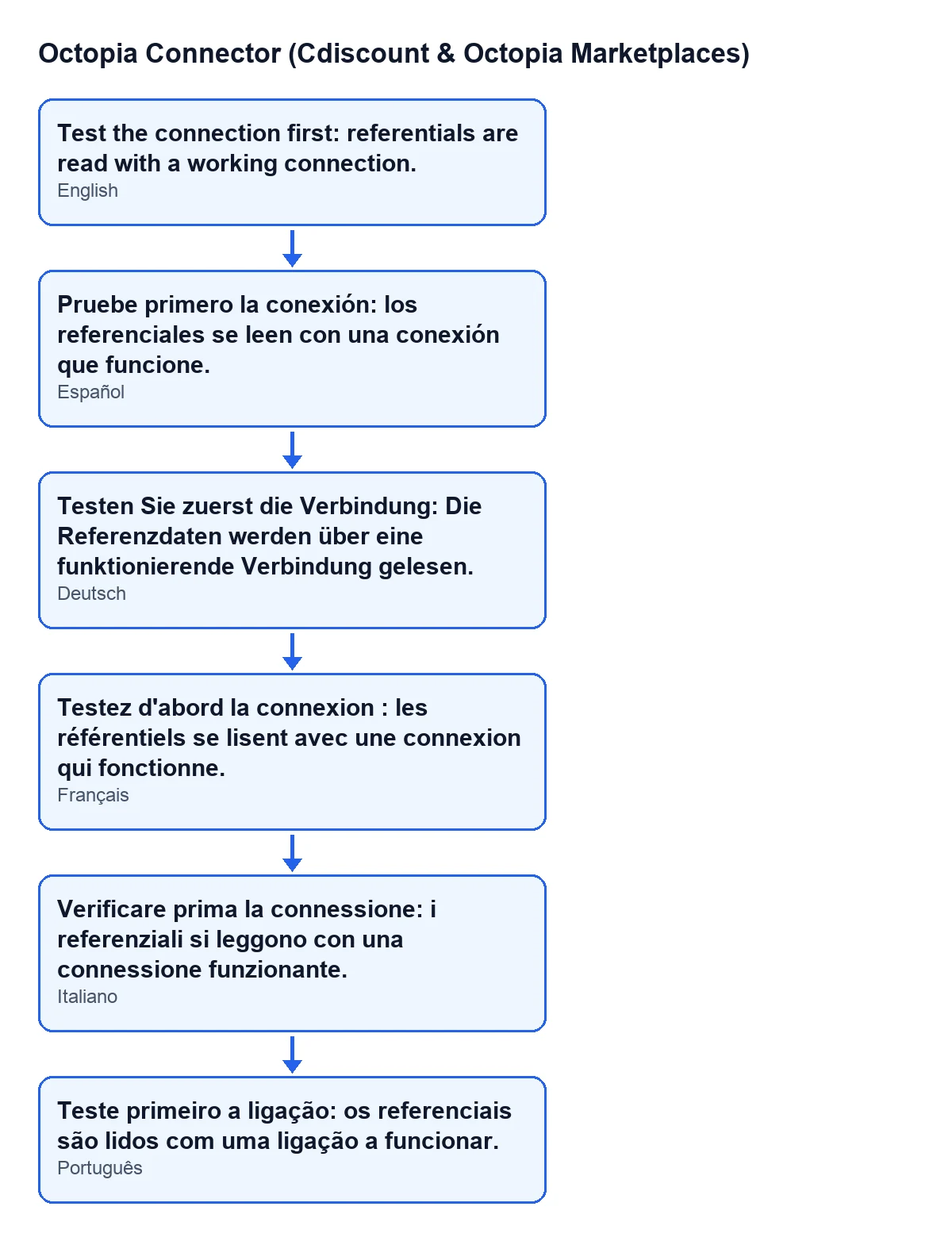
With Odoo in Spanish, the message is Pruebe primero la conexión: los referenciales se leen con una conexión que funcione.; in German, Testen Sie zuerst die Verbindung: Die Referenzdaten werden über eine funktionierende Verbindung gelesen.; in French, Testez d'abord la connexion : les référentiels se lisent avec une connexion qui fonctionne.; in Italian, Verificare prima la connessione: i referenziali si leggono con una connessione funzionante.; in Portuguese, Teste primeiro a ligação: os referenciais são lidos com uma ligação a funcionar.
How to fix it, step by step
- Open the menu
Octopia › Configuration › Accounts. If a part of the menu is missing, you lack a permission:AccountsrequiresOctopia Admin,ConfigurationrequiresOctopia ManagerandOctopiarequiresOctopia User. - Find the account you pressed
Refresh Referentialson and look at itsState, on the form or in theOctopia Accountslist. - If it does not say
Connected, pressTest Connection. That is the button that fills in theStatefield; you do not write it yourself. - Look at
Stateagain. For the refresh to go ahead it has to sayConnected. If it is stillDraftorAuthentication Error,Refresh Referentialswill keep giving the same message. - Press
Refresh Referentials. You will no longer get the error: a notice titledReferentialsappears with the textThe refresh is running in the background. The Sync Log shows the result. - Check the Sync Log for the outcome of the refresh: the notice itself points you to it.
What the button does once the account is connected
Once the check is passed, the method does three things, in this order: it records on the account the request to refresh the referentials, it triggers the scheduled task that refreshes them, and it shows you the notice from step five.
Why in the background: according to the code itself, the brand catalogue alone has about 112,000 entries, too many for a web request, and a request that gets killed rolls back everything it had done. That is why the button does not wait for the result: it launches the refresh and you read the outcome afterwards in the Sync Log.
If the account was not connected, none of this happens: the request is not recorded and the task is not triggered. That is why, after fixing the state, you have to press Refresh Referentials again.
What to check if it keeps appearing
- That you are looking at the same account you press the button from: the condition is evaluated on the accounts of that action.
- That
StatesaysConnectedright before you pressRefresh Referentials, not only after you tested the connection at some earlier point. - That your user can reach the
Octopia › Configuration › Accountsmenu with the permissions above.
Price and help
Octopia Connector (Cdiscount & Octopia Marketplaces) is published for Odoo 17, 18, 19 and 20 as a one-off purchase per version (the price of each is on its listing) and needs the FlexigoTech Cloud subscription, Connector plan: €49 a month or €490 a year, excluding VAT. The connection goes through FlexigoTech Cloud, which stores the credentials encrypted, watches the synchronisation and emails you if it fails.
If you are implementing Odoo with Octopia, FlexigoTech implements Odoo 17, 18, 19 and 20 and builds custom connectors and integrations. For other buttons in the module, see the guide to Import and the one on Send to Octopia.
Keep reading
Checked in the connector's source code (version 20.0) and the linked sources
Sources
- Module source code: flexigobe_octopia_connector 20.0 (4848da6a): models/octopia_seller_extras.py
- Module source code: flexigobe_octopia_connector 20.0 (4848da6a): views/octopia_completeness_views.xml
- Module source code: flexigobe_octopia_connector 20.0 (4848da6a): models/octopia_account.py
- apps.odoo.com/apps/modules/20.0/flexigobe_octopia_connector
- flexigotech.com/precios.html
- flexigotech.com/en/services.html