

 Español
 Català
 Deutsch
 Français
 Português
 Italiano
 Nederlands
 Polski
Where the button is and when you see it
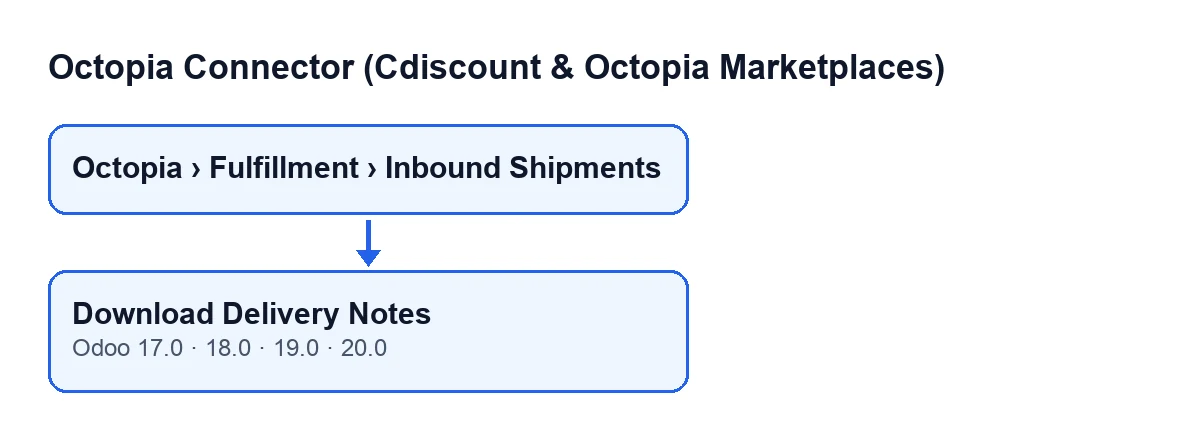
Where do I find the button?
Open the menu Octopia › Fulfillment › Inbound Shipments. The Download Delivery Notes button is on the Inbound Shipments screen. The Octopia part of the menu asks for the Octopia User permission: without it, you do not see that part.
When does the button appear?
It always shows on that screen, with no view condition, and it is there in Odoo 17, 18, 19 and 20.

What happens when you press it
What exactly does it do, and in what order?
The button goes through the inbound shipments it acts on, one by one. For each one it takes the account in the Account field and creates the client for that account. It then asks that client for the shipment's delivery notes, passing it the value of the Inbound ID field. Finally, if it has received content, it saves it as an attachment.
What does it check before saving anything?
It checks one thing only: that what came back is raw content and is not empty. If it is not, the button skips that shipment and moves on to the next one: it creates no attachment and leaves the delivery note field alone.
What changes in Odoo when it works?
A PDF attachment is created, named octopia-inbound-…-delivery-notes.pdf, where the ellipsis is the inbound ID. The attachment is linked to that shipment and placed in the Delivery Note Attachment field. That field is on the Inbound Shipments form, is read-only, and is filled in by the button, not by you.
What if I press it again?
Each time content comes back, the button creates a new attachment with that name, and the Delivery Note Attachment field then points to the new one. If nothing comes back on that press, the field stays as it was.
If you cannot see the delivery note
What do I do if the attachment does not appear?
When what comes back is empty or is not content, the button finishes without creating an attachment and without changing anything. You will notice because Delivery Note Attachment is the same as before you pressed. Before treating it as a failure, look at the Account and Inbound ID fields on the form, or in the Inbound Shipments list: they are the two pieces of data the button uses to ask for the delivery notes, and both show on the form and in the list. Correct them if needed, press Download Delivery Notes again and check whether Delivery Note Attachment has been filled in.
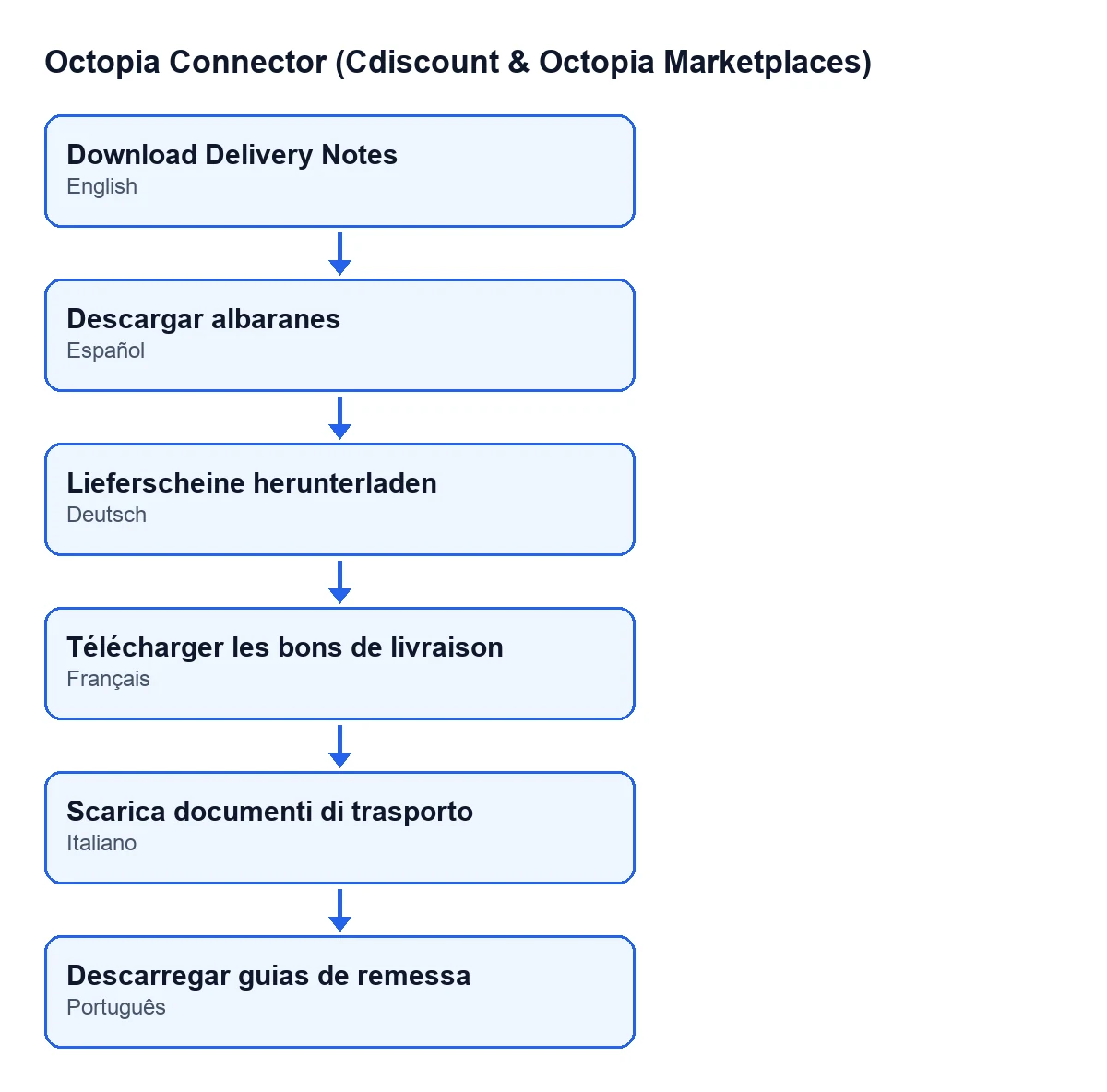
What is the button called in my language?
It depends on the language of your Odoo: with Odoo in English it is Download Delivery Notes, and the module ships translations for other languages, as the diagram shows.
What you need to use it and where to get help
What do I have to buy to have the module?
Octopia Connector is bought once per Odoo version and is published for 17, 18, 19 and 20 (see the Odoo Apps listing). It also needs the FlexigoTech Cloud subscription, Connector plan: €49 a month or €490 a year, excluding VAT. The connection goes through FlexigoTech Cloud, which stores the credentials encrypted, monitors synchronisation and emails you if it fails.
If you are implementing Odoo and want to connect Cdiscount or Octopia to your shipments, FlexigoTech implements Odoo 17, 18, 19 and 20 and builds custom connectors and integrations. To see how another button in the module is explained, there are Importar and Enviar a Octopia.
Keep reading
Checked in the connector's source code (version 20.0) and the linked sources
Sources
- Module source code: flexigobe_octopia_connector 20.0 (4848da6a): views/octopia_fulfillment_views.xml
- Module source code: flexigobe_octopia_connector 20.0 (4848da6a): models/octopia_fulfillment.py
- apps.odoo.com/apps/modules/20.0/flexigobe_octopia_connector
- flexigotech.com/precios.html
- flexigotech.com/en/services.html