

 Español
 Català
 Deutsch
 Français
 Português
 Italiano
 Nederlands
 Polski
Where the button is and when it shows
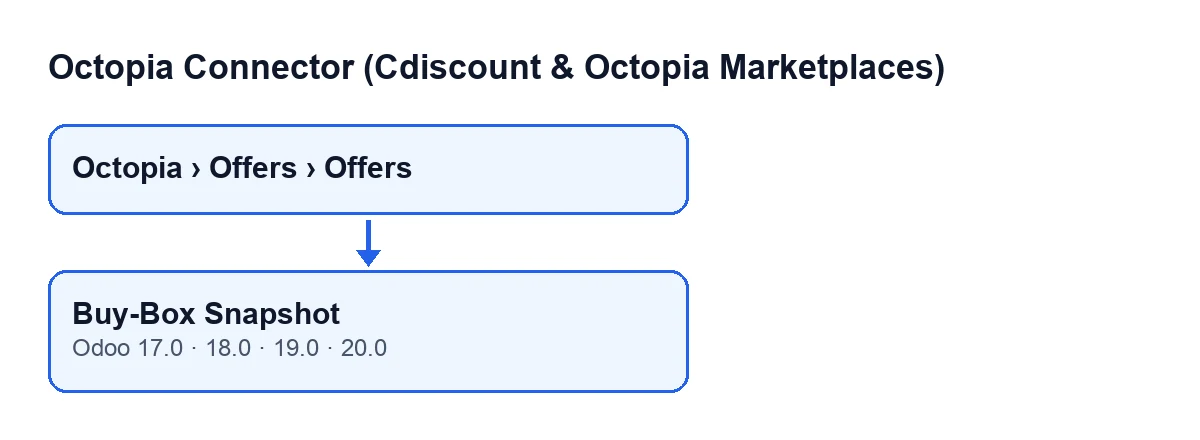
Offer forms open from the menu Octopia › Offers › Offers. The Octopia part of the menu asks for the Octopia User permission: without it, you do not see that part of the menu. The Buy-Box Snapshot button is on the Offers screen. Its view condition says it always shows, and it is there in all four versions with a published module: Odoo 17, 18, 19 and 20.
Two fields on the offer explain what the button does: Account and Octopia Product. Both are in the Listing group of the Offers form and also in the offers list.
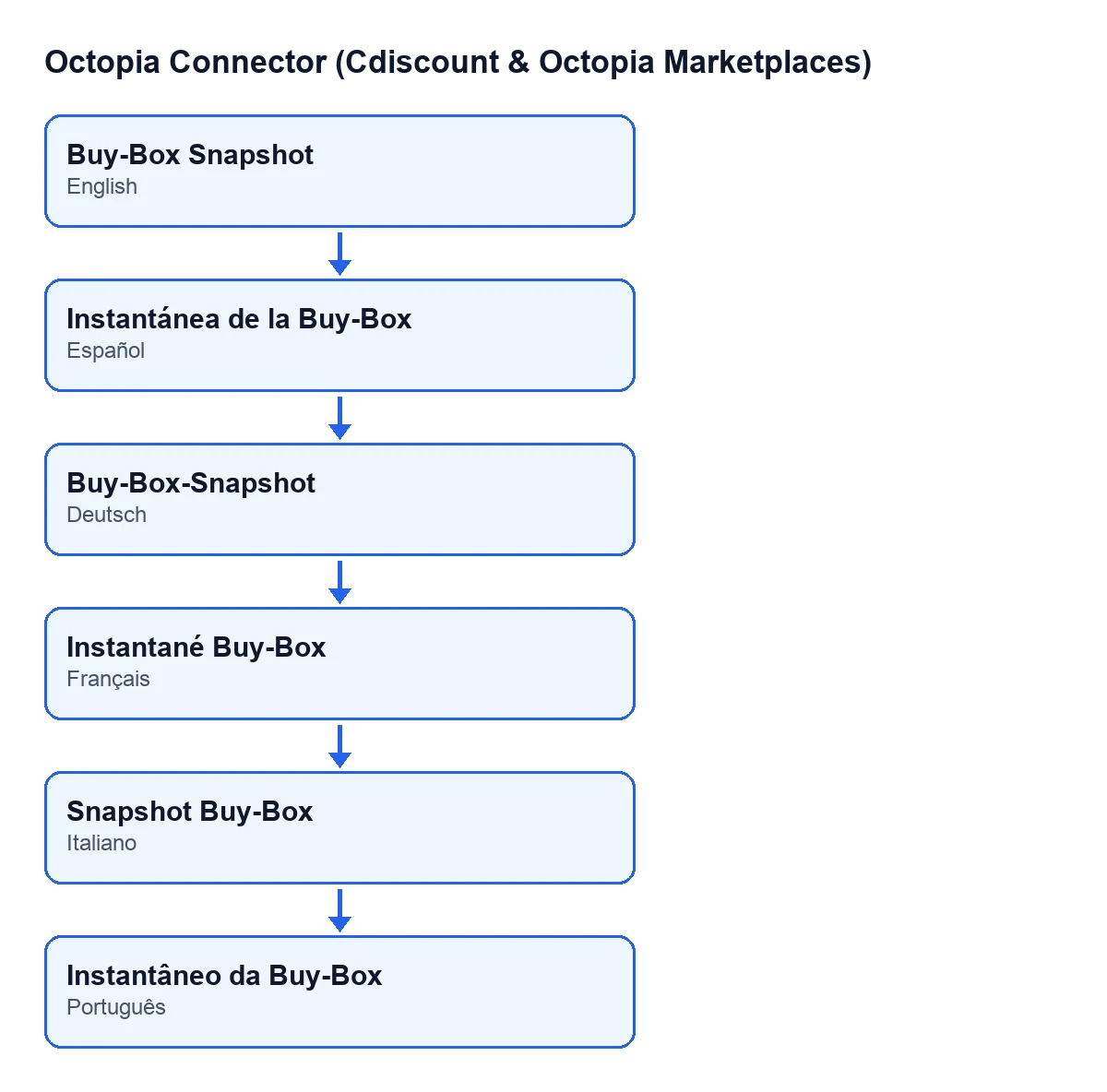
Instantánea de la Buy-Box; in German, Buy-Box-Snapshot; in French, Instantané Buy-Box; in Italian, Snapshot Buy-Box; in Portuguese, Instantâneo da Buy-Box (made with code, not an Odoo screenshot).
What it does when you press it, in order
The order comes from the Odoo 20 code. The button goes through each offer it runs on and, for each one, does three things in a row:
- It prepares the connection to Octopia from the account of the offer (the
Accountfield). - It asks Octopia for the competing offers for the GTIN of the Octopia product linked in the
Octopia Productfield of the offer. - It writes on the offer the text of the response (or leaves it empty if nothing comes back) and the date and time of the query.
The code comment describes this query as deprecated and permission-gated on the platform side, and says the module keeps it as an optional Buy-Box monitor for accounts that still have that permission.
What it needs before you press it
For the button to have something to query, the offer needs two things in the Listing group: the Account the request goes through and the Octopia Product whose GTIN is sent. If either is not the one you want, correct it before pressing, because the button works with whatever the offer holds at that moment.
The connection to Octopia also goes through FlexigoTech Cloud, which stores the credentials encrypted, watches the synchronisation and emails you if it fails. The module needs the FlexigoTech Cloud subscription: the Connector plan costs €49 a month or €490 a year, excluding VAT, with up to 3 accounts on the platform. Without a subscription, or with the service suspended, whatever the subscription provides stops; your data stays in your Odoo.
Misconceptions about the button
Myth: «The button only shows in certain states or with a box ticked»
The view condition limits nothing: in Odoo 17, 18, 19 and 20 the Buy-Box Snapshot button always shows on the Offers screen. The only thing that filters is the menu, because the Octopia part asks for the Octopia User permission. If you cannot find the screen, check that permission first rather than a state of the offer.
Myth: «It works on any Octopia account»
The code comment says the competing-offers query is deprecated and permission-gated on the platform, and that the module keeps it for accounts that still have that permission. So the button being visible does not guarantee that your account can use it.
Myth: «It searches by the name or reference of my product»
It searches by the GTIN of the Octopia product that is linked in the Octopia Product field of the offer. If the result is not what you expected, check that the offer has the right account and the right Octopia product in the Listing group.
Myth: «Pressing it updates the data of my offer in Odoo»
What the button writes on the Odoo offer is only the text of the response and the date and time of the query. The code writes no other field of the offer.
Myth: «It saves the full response and a complete history»
The response is saved as indented JSON text and cut to 8000 characters, so a long response is trimmed. If Octopia returns nothing, that text is left empty and the date and time of the query are still updated. Each press writes those two values again on the offer.
Myth: «It is a button with many functions»
This button only queries the competing offers for the product of one offer. To do that it prepares the connection, makes the query and writes the result, and that is where it ends.
How to use it, step by step
- Open the offer from
Octopia › Offers › Offers. - In the
Listinggroup, check thatAccountandOctopia Productare the ones you want to query. - Press
Buy-Box Snapshot. - If you press it again, the query is repeated and the previous response and date and time are replaced by the new ones.
The module is published on Odoo Apps for Odoo 17, 18, 19 and 20.
How FlexigoTech can help
FlexigoTech implements Odoo 17, 18, 19 and 20 and builds connectors and custom integrations. If you need to decide how to keep an eye on your Octopia offers from Odoo, or to adapt the connector to the way you work, get in touch and we will look at your case.
Keep reading
Checked in the connector's source code (version 20.0) and the linked sources
Sources
- Module source code: flexigobe_octopia_connector 20.0 (059287e4): views/octopia_completeness_views.xml
- Module source code: flexigobe_octopia_connector 20.0 (059287e4): models/octopia_offer.py
- apps.odoo.com/apps/modules/20.0/flexigobe_octopia_connector
- flexigotech.com/precios.html
- flexigotech.com/en/services.html