

 Español
 Català
 Deutsch
 Français
 Português
 Italiano
 Nederlands
 Polski
Before you press it: where it is and what you need
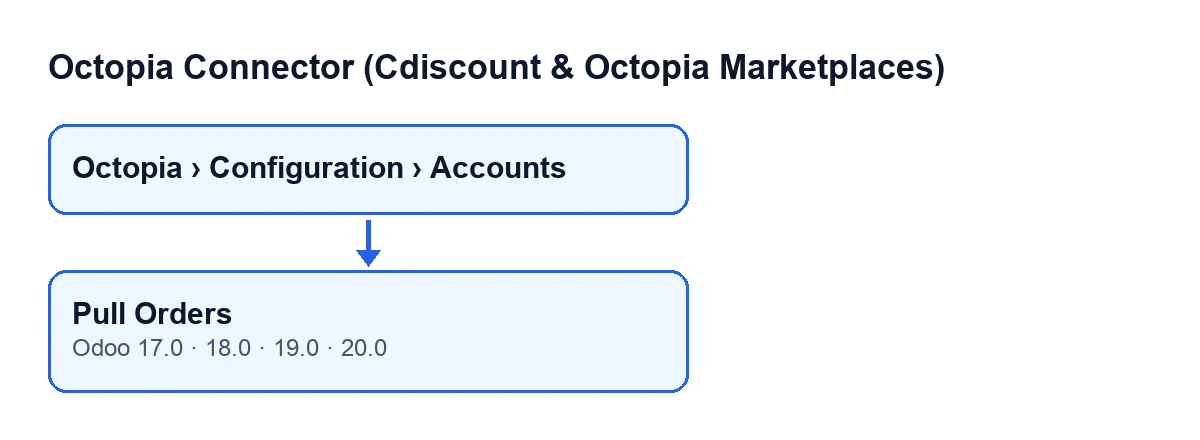
- Go to
Octopia › Configuration › Accounts. Each part of the menu asks for a permission:Octopia UserforOctopia,Octopia ManagerforConfigurationandOctopia AdminforAccounts. If you lack one, you do not see that part.
- Find the
Pull Ordersbutton on theOctopia Accountsscreen. It has no visibility condition: it always shows, in every published branch, Odoo 17, 18, 19 and 20.
- Check the subscription. The module is a one-off purchase per Odoo version (17, 18, 19 and 20; the price of each one is on its listing) and it needs a FlexigoTech Cloud subscription, Connector plan: €49/month or €490/year excluding VAT, up to 3 accounts (the Pro plan is €98/month or €980/year, up to 10 accounts). Without a subscription, or with the service suspended, whatever the subscription provides stops; your data stays in your Odoo.
- Remember that the button is the manual route. The normal route is the scheduled task
Octopia: pull orders, which runs every 10 minutes and is active from installation.

What the button does when you press it, in order
- Bear in mind that the button goes through the accounts it acts on and, for each one, starts the order download. Then it finishes. There is no more logic in the button's code: all the work is in the download.
- Bear in mind that each account starts with its own time allowance. It is checked after every order: if it runs out, the download stops at that point and the orders still to be read are not processed in that pass.
- Bear in mind how it chooses the date range. If the account already has a last order sync mark, it asks for the orders updated since that mark minus an overlap margin, up to the present moment. If it has none (first download), it asks only for orders created in the last few days set by the module; older history is not requested with this button but through a separate wizard.
- Bear in mind that orders are requested from the Octopia API in pages of 100, sorted by update date from oldest to newest.
- Bear in mind that each order is imported in isolation. If one fails, the failure is counted, noted in the server log and the download carries on with the next one.
- Bear in mind that, after importing each order, the module applies its automation as a separate step. If that automation fails, the data of the already imported order is kept. The code mentions auto-accept as one API call per order, which is why it checks the time order by order.
- Bear in mind how the mark moves. According to the code, it advances to the most recent update date actually seen, never to the current time, and it is designed not to move past an order that has failed.
Pull Orders.What the scheduled task does besides the button
- Note that the scheduled task only goes through accounts that are connected, in order of creation, and shares a single time allowance across all of them.
- Note that the task skips an account if it goes through FlexigoTech Cloud and has no saved credentials or no service. If the pause comes from the service, the task reports its code to FlexigoTech Cloud and moves on to the next account.
- Note that, after the accounts, the task handles the history requested on the accounts that have it set, with whatever time is left, and triggers itself again while it makes progress. The button starts the incremental download, with no history.
After you press it: what to review
- Open the imported orders and check that the ones you expected are in Odoo.
- If one is missing, look at the server log: every import failure and every automation failure is noted with the Octopia order identifier.
- If the download stopped because of the time allowance, repeat it or wait for the next pass of the scheduled task, which repeats every 10 minutes.
- Keep Cdiscount's deadlines to hand. According to the Cdiscount Marketplace CGMAD (25/08/2025, p. 47), orders must be accepted within 48 working hours, with an acceptance rate of 97.5 % or higher, and if the seller does not respond within 2 days the order is cancelled automatically.
If something fails
- A specific order does not appear: search the server log for its identifier, next to the import failure note.
- The order is there but automation was not applied: the log notes it as an automation failure and the order data is kept.
- You cannot see the button: check your menu permissions, because each part of
Octopia › Configuration › Accountsasks for its own.
- Nothing downloads for an account that goes through FlexigoTech Cloud: check the subscription and the saved credentials, because the scheduled task skips that account if they are missing.
How FlexigoTech can help
If you are implementing Odoo and want to review how Cdiscount orders come in, FlexigoTech implements Odoo 17, 18, 19 and 20 and builds custom connectors and integrations. For other downloads in the same module, see Pull conversations and Pull invoice imports.
Keep reading
What the Pull Invoice Imports button in Octopia Connector doesWhat the Pull Invoice Imports button in Octopia Connector does in Odoo: where it is, what it reads, what it saves and how odd data is handled.What the Pull Discussions button in Octopia Connector doesWhat the Pull Discussions button in Octopia Connector does in Odoo: when it appears, what it checks, what changes and how it can fail.What the «Retrieve Uploaded Invoices» button in Octopia Connector doesWhat the Retrieve Uploaded Invoices button in Octopia Connector does in Odoo: when it shows, what it asks Octopia and what it leaves on the order.
Checked in the connector's source code (version 20.0) and the linked sources
Sources
- Module source code: flexigobe_octopia_connector 20.0 (059287e4): views/octopia_completeness_views.xml
- Module source code: flexigobe_octopia_connector 20.0 (059287e4): models/octopia_seller_extras.py
- Module source code: flexigobe_octopia_connector 20.0 (059287e4): models/octopia_order.py
- Module source code: flexigobe_octopia_connector 20.0 (059287e4): models/octopia_account.py
- apps.odoo.com/apps/modules/20.0/flexigobe_octopia_connector
- marketplace.cdiscount.com/wp-content/uploads/2025/08/2025.08.25-CGMAD-FR.pdf
- flexigotech.com/en/services.html
- flexigotech.com/precios.html