

 Español
 Català
 Deutsch
 Français
 Português
 Italiano
 Nederlands
 Polski
A case to follow from start to finish
Example Illustrative case: the company and its figures are made up to explain the flow.
Picture "Casa Ficticia", an invented shop that sells on Cdiscount and already has its Octopia account set up in Odoo. The person in charge of customer service wants to see the pending conversations in Odoo without waiting for the scheduled task. The CGMAD of Cdiscount Marketplace (p. 49) set replying to messages within 48 working hours, so they open the account and press Pull Discussions. What follows is what happens inside, in the order the Odoo 20.0 code does it.

Where the button is and when it appears
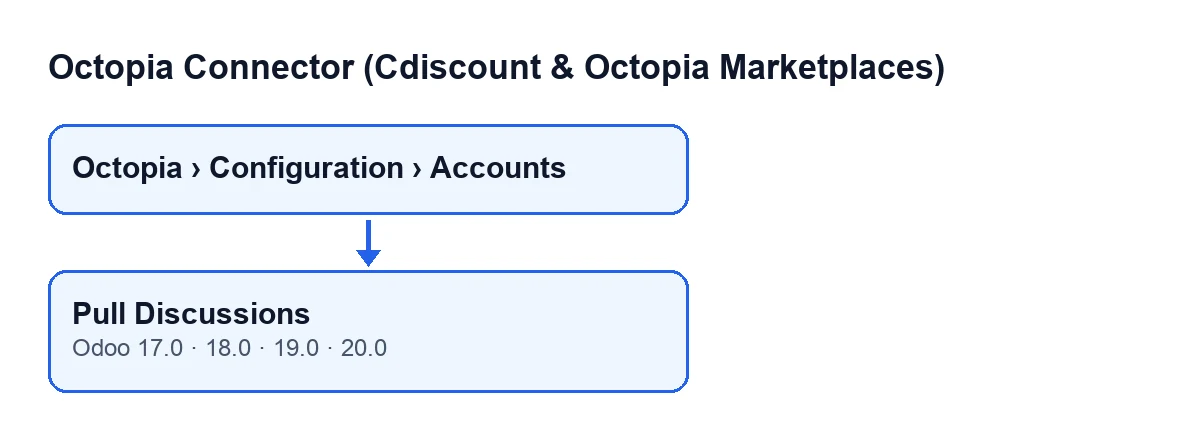
Accounts open from the menu Octopia › Configuration › Accounts. Each level asks for a permission, and if you do not have it you do not see that level: Octopia asks for Octopia User, Configuration asks for Octopia Manager and Accounts asks for Octopia Admin.
The button is on the Octopia Accounts screen and its view has no condition: in Odoo 17, 18, 19 and 20 it is always visible. It is present in every published branch of the module. The behaviour described here comes from the Odoo 20.0 code.
What it does when you press it, step by step
In Casa Ficticia's case, pressing the button does this, in this order:
- The button goes through the accounts it acts on and, for each one, starts the pull of the conversation queue. When it finishes it simply returns a successful result.
- It asks Octopia for the conversations whose processing status is
ToTreat, in pages. - From each page it takes the items received; each valid item is processed and added to the count of imported ones.
- Once every page has been read, it stores the current date and time in the sync control for discussions on that account.
- It leaves an entry in the sync log, of type discussions and with a successful result, holding the number of conversations imported.
The pull brings the ToTreat queue: the code asks for no other conversation status.
What Odoo does on its own, without pressing anything
The button is not the normal route. The scheduled task Octopia: pull discussions (ToTreat queue) does the same pull every 15 minutes and is active as soon as the module is installed. The button is there for when you want the queue right now.
There are differences between the task and the button, according to the Odoo 20.0 code:
- The task only serves accounts in the connected state; the button goes straight to the pull for the account.
- The task skips an account if it goes through FlexigoTech Cloud and its credentials are not saved there, or if there is no service according to the stored permit. An account with a direct connection is never skipped for this reason.
- If the pause comes from the FlexigoTech Cloud relay, the task marks nothing, reports only the pause code to the service's health status and moves on to the next account; the next run carries on.
- If anything else fails on an account, the task writes it to the server log and carries on with the others.
What can go wrong when you press the button
The button does not catch errors. If something fails during the pull, it never gets to record the sync date or the successful-result entry, which come at the end of the process. And if the button acts on several accounts, those after the one that fails are not processed.
The scheduled task works the other way round: a failure on one account does not cut off the work on the others, because each account is handled separately and the error goes to the server log.
How the button looks in each language
With Odoo in Spanish, the button is called Descargar conversaciones. The module ships the text translated into other languages:
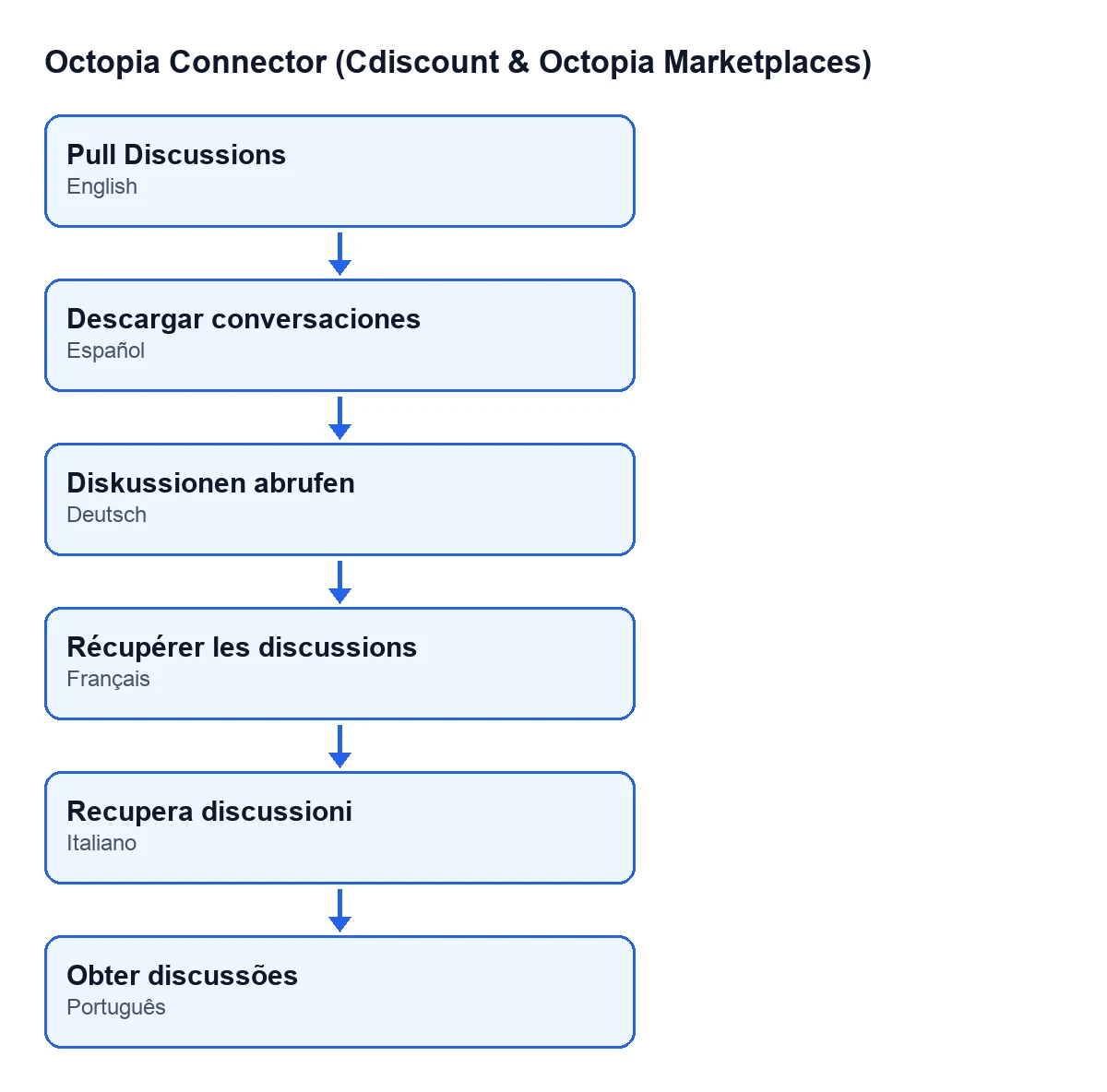
Descargar conversaciones in Spanish, Diskussionen abrufen in German, Récupérer les discussions in French, Recupera discussioni in Italian and Obter discussões in Portuguese.What to take from the case
- With the task active and the account connected, the queue is already pulled every 15 minutes; the button is for getting ahead of it.
- After a successful pull, an entry is left in the sync log, of type discussions, with the number of conversations imported.
- If the pull fails when you press the button, that successful-result entry is not written.
- If you use the module with the connection through FlexigoTech Cloud, the task depends on the credentials being saved there and on there being service. It is a one-off purchase per version that needs the FlexigoTech Cloud subscription (Connector plan: €49 a month or €490 a year, excluding VAT). Without a subscription, or with the service suspended, whatever the subscription provides stops, and the data stays in your Odoo.
The orders button is covered in Pull Orders, and the one for uploaded invoices in Retrieve uploaded invoices.
How FlexigoTech can help
If you are implementing Odoo and want Cdiscount customer service inside the same system, FlexigoTech implements Odoo 17, 18, 19 and 20 and builds connectors and custom integrations. Get in touch and we can look at your case.
Keep reading
Checked in the connector's source code (version 20.0) and the linked sources
Sources
- Module source code: flexigobe_octopia_connector 20.0 (059287e4): views/octopia_completeness_views.xml
- Module source code: flexigobe_octopia_connector 20.0 (059287e4): models/octopia_seller_extras.py
- Module source code: flexigobe_octopia_connector 20.0 (059287e4): models/octopia_discussion.py
- Module source code: flexigobe_octopia_connector 20.0 (059287e4): models/octopia_account.py
- marketplace.cdiscount.com/wp-content/uploads/2025/08/2025.08.25-CGMAD-FR.pdf
- flexigotech.com/precios.html
- flexigotech.com/en/services.html