

 Español
 Català
 Deutsch
 Français
 Português
 Italiano
 Nederlands
 Polski
The Auto Fill Catalog Data button of Mirakl Connector exists in Odoo 17, 18, 19 and 20. What it does, in Odoo 20, is as follows.
Before you press it: where it is and when it shows
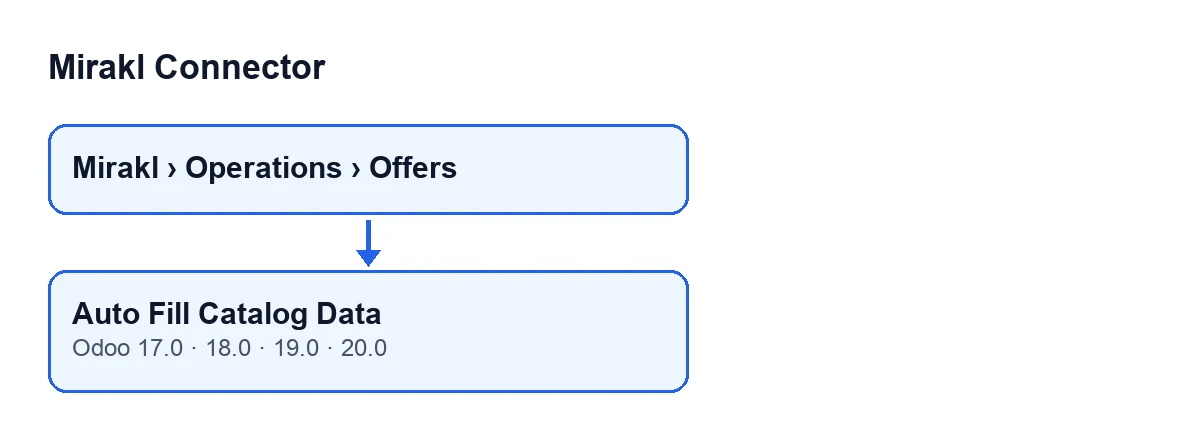
First, find the button and be clear about what it works on.
- Open the menu
Mirakl › Operations › Offersand go into an offer: the button is on theMirakl Offersscreen. - Do not wait for it to appear: the view puts no condition on it and it is always visible, in all four versions.
- Remember that it acts on one offer at a time, the one you have open.
- With Odoo in English the button is called
Auto Fill Catalog Data; with Odoo in another language the label changes, as the second diagram shows.
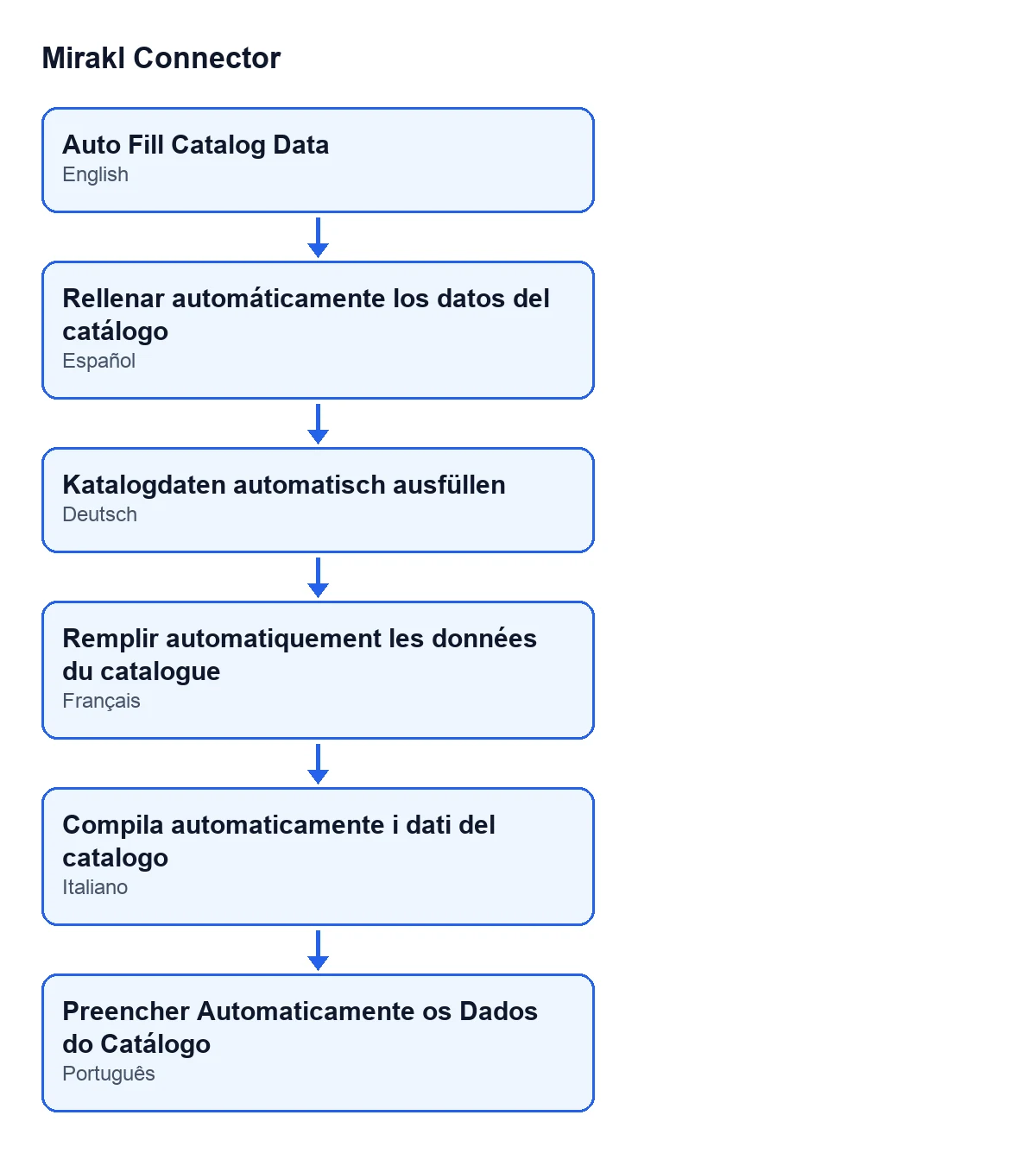
Rellenar automáticamente los datos del catálogo, in German Katalogdaten automatisch ausfüllen, in French Remplir automatiquement les données du catalogue, in Italian Compila automaticamente i dati del catalogo and in Portuguese Preencher Automaticamente os Dados do Catálogo.
What it checks and what it changes, step by step
The button deals with three areas, one after another, and at the end saves whatever it has gathered.
The brand
- Bear in mind that if the offer's catalog brand already has text, the button leaves it alone.
- If it is empty, the button looks for a value on the product: first on the variant, then on its template. On each one it looks first at brand fields that are a relation, then at text fields for brand or manufacturer, if your Odoo has them. It keeps the first text it finds.
- If the product gives no brand, it uses the company name of the offer's Mirakl connection or, if the offer has no connection, that of the active company. If your products carry no brand, check afterwards that this name is the one you want to send.
The media URLs
- If the media URLs already have content, the button leaves them as they are.
- If they are empty, it suggests one address for each product that has an image (the variant first, then the template), without repeating any, and saves them one per line.
- If neither the variant nor the template has an image, nothing is written for this area.
The catalog attributes
- Start from the fact that the button first reads the content of the catalog attributes. If it is empty, it carries on. If it is JSON that reads as an object or a list, it carries on too.
- If the content is not valid JSON (or is a value of another type), the button skips this area and does not modify it.
- When it can carry on, it merges the suggestions with your own values that are not empty, and yours take precedence over the suggestions. If the result has anything in it, it saves it as indented JSON, with sorted keys and non-ASCII characters (accents, for example) escaped.
- Note that this area is rewritten even if attributes were already there: unlike the brand and the media URLs, it is not checked for emptiness first.
Saving
- If there is any new value, the button writes everything to the offer in one go; if there is none, it writes nothing.
After you press it: read the notice
The button finishes with a notice titled Mirakl, which does not stay fixed on screen, and reloads the form.
- If you see a success notice, the text is
Auto-filled: ….The dots stand for the list of what was written, separated by commas and in this order:brand,media urls,catalog attributes. Only the areas that were saved appear. - If you see a warning notice, the text is
No new catalog values were auto-filled.and it means nothing was written in any of the three areas at once: the brand already had text (or none was found, not even the company name), the media URLs already had content (or there is no image), and in the attributes there was nothing to save or the JSON was not valid. It is enough for one of the three to be saved for the notice to be a success. - If
catalog attributesappears in the notice, that does not mean they were empty before: this area is saved whenever the result of the merge has content. - If you expected attributes and they are not in the notice, the JSON may not be valid (the button skips it with no further notice) or there may be nothing to merge.
The same check in the automatic export
The reading of the attributes JSON that the button does is not exclusive to it: the catalog export uses it too. That export is reached without pressing anything from the scheduled task Mirakl - Export Catalog, which runs every 30 minutes and is active when the module is installed.
- Expect that, in that export, an offer whose attributes content cannot be read as JSON is left unexported.
- Keep in mind the setting
Auto Check Catalog Import Status, which is on by default: with it, after sending an import that returns an identifier, the export asks for its status.
Cost and help
Mirakl Connector is a one-off payment per Odoo version and is published on Odoo Apps for 17, 18, 19 and 20 (listing, module page). It also needs the FlexigoTech Cloud subscription, Connector plan: €49 a month or €490 a year, excluding VAT. FlexigoTech implements Odoo 17, 18, 19 and 20 and builds custom connectors and integrations, in case you need the catalogue to be built from your products under other rules.
Keep reading
Checked in the connector's source code (version 20.0) and the linked sources
Sources
- Module source code: flexigobe_mirakl_connector 20.0 (aa05e537): views/mirakl_product_binding_views.xml
- Module source code: flexigobe_mirakl_connector 20.0 (aa05e537): models/mirakl_product_binding.py
- Module source code: flexigobe_mirakl_connector 20.0 (aa05e537): models/mirakl_catalog_import_mixin.py
- apps.odoo.com/apps/modules/20.0/flexigobe_mirakl_connector
- flexigotech.com/precios.html
- flexigotech.com/en/services.html