

 Español
 Català
 Deutsch
 Français
 Português
 Italiano
 Nederlands
 Polski
Before connecting: gather your credentials
The module defines a field for each HubSpot and Pipedrive connection detail. Before you open the settings in Odoo, have the values ready for each one. The list below gives the visible field label and, in brackets, its technical name.
If you are connecting HubSpot
HubSpot Client ID(crm_sync_hs_client_id)
HubSpot App ID(crm_sync_hs_app_id)
HubSpot Client Secret(crm_sync_hs_client_secret)
HubSpot Redirect URI(crm_sync_hs_redirect_uri)
HubSpot private app token(crm_sync_fgt_hs_token)
If you are connecting Pipedrive
Pipedrive Client ID(crm_sync_pd_client_id)
Pipedrive Client Secret(crm_sync_pd_client_secret)
Pipedrive Redirect URI(crm_sync_pd_redirect_uri)
Pipedrive Webhook Username(crm_sync_pd_webhook_user)
Pipedrive Webhook Password(crm_sync_pd_webhook_password)
Pipedrive API token(crm_sync_fgt_pd_token)
All of these are text (Char) fields. If you only work with one of the two CRMs, prepare just that block.
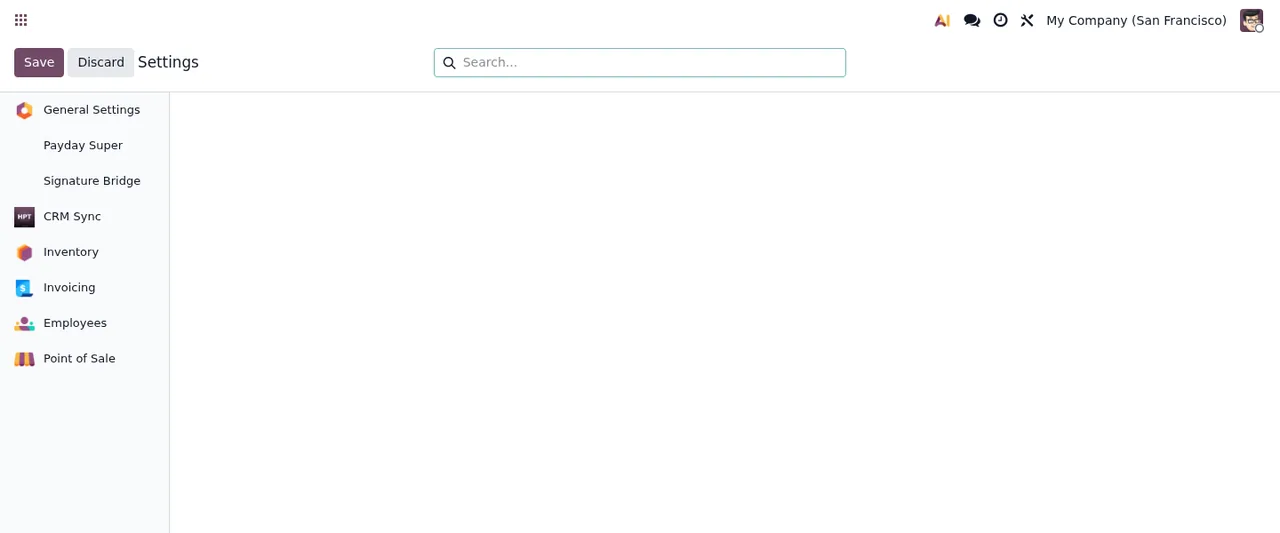
When connecting: direction, notifications and webhooks
Once the credentials are in, these fields are left to review:
- Pick a value in
HubSpot Direction(crm_sync_hs_direction). It is a selection field: check the options your Odoo offers before saving.
- Do the same with
Pipedrive Direction(crm_sync_pd_direction).
- Fill in
Sync Notification User(crm_sync_notify_user_id), a Many2one field.
- Decide whether to tick
Auto-register webhooks(crm_sync_auto_register_webhooks), which is a yes or no checkbox.
- After saving the tokens, look at what
HubSpot token saved in FlexigoTech Cloud on(crm_sync_fgt_hs_saved_at) andPipedrive token saved in FlexigoTech Cloud on(crm_sync_fgt_pd_saved_at) show.
These are some of the module screens you will be using:
Pending and the data transfer notice- In the
Import CRM Datadialog, check what theServicefield shows and answer the question about importing all contacts and companies withImport Now,SkiporCancel.
- In
Cross-Border Transfer Disclosure, read the text the module shows about transferring data to the US under the GDPR. TheI acknowledge and continuecheckbox appears unticked and the buttons areAcknowledge & ContinueandCancel.
The states you will see on each record
The module defines two status fields with different values. It helps to recognise them before records start coming in.
The state field accepts these values:
pending=Pending
processing=Processing
done=Done
error=Error
skipped=Skipped
The status field accepts these others:
success=Success
error=Error
skipped=Skipped
forced=Forced
acknowledged=Acknowledged
deleted=Deleted
In the animated sequence above, the Sync Queue list filtered by Pending shows Pipedrive and HubSpot records of type Inbound Webhook and Outbound Push, with their priority, external ID, the Pending state and the next attempt. If you want to see the menus and tasks behind it, we cover that in how the module works under the hood.
The first week: what to check
- Open
Sync Queueand filter byPendingto see those records with their priority, external ID and next attempt.
- Look for records in
ErrorandSkipped, in bothstateandstatus.
- See whether any records show
Forced,AcknowledgedorDeletedinstatus.
- Go to the
CRM Syncdashboard and review theSync HealthandThroughputsections, along with the count of conflicts and errors it shows.
- In the
Resolve Conflictsdialog, theConflictssection has aResolutiondrop-down; choose the value you want and clickApplyorCancel.
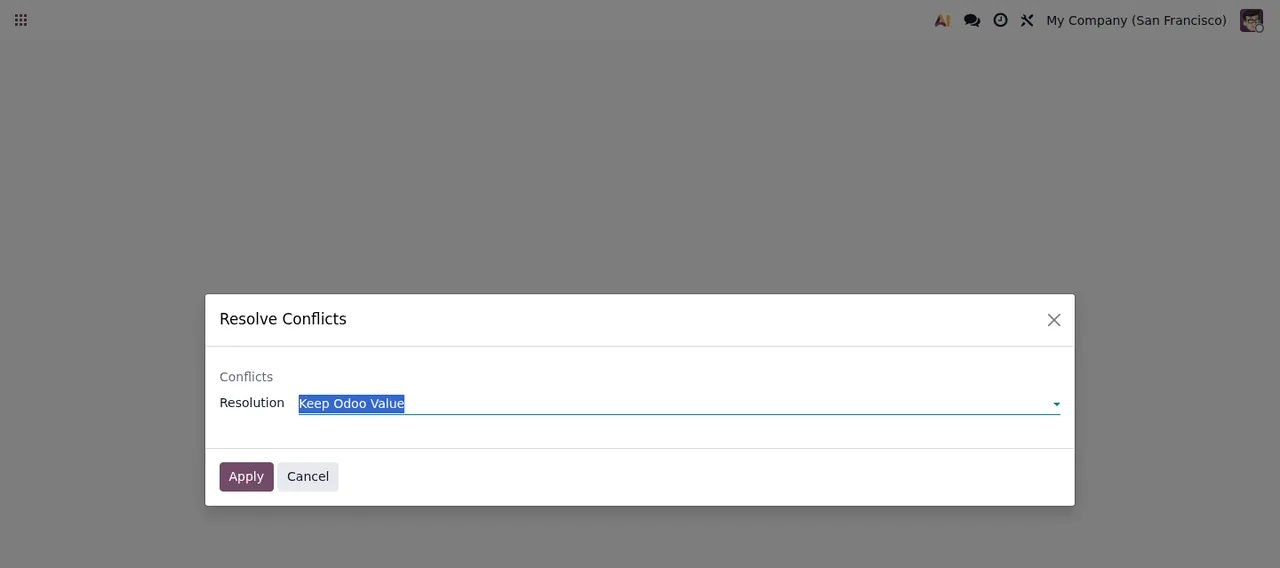
Resolve Conflicts dialog with Keep Odoo Value selected; the background is empty, with no records- Check your inbox: FlexigoTech Cloud monitors the sync and sends an email if it fails.
- If you open the
Bulk Unlink CRM Recordswizard, look at the selected service and theLinked Partnerscount, and read the notice about external ids before clickingUnlink All.
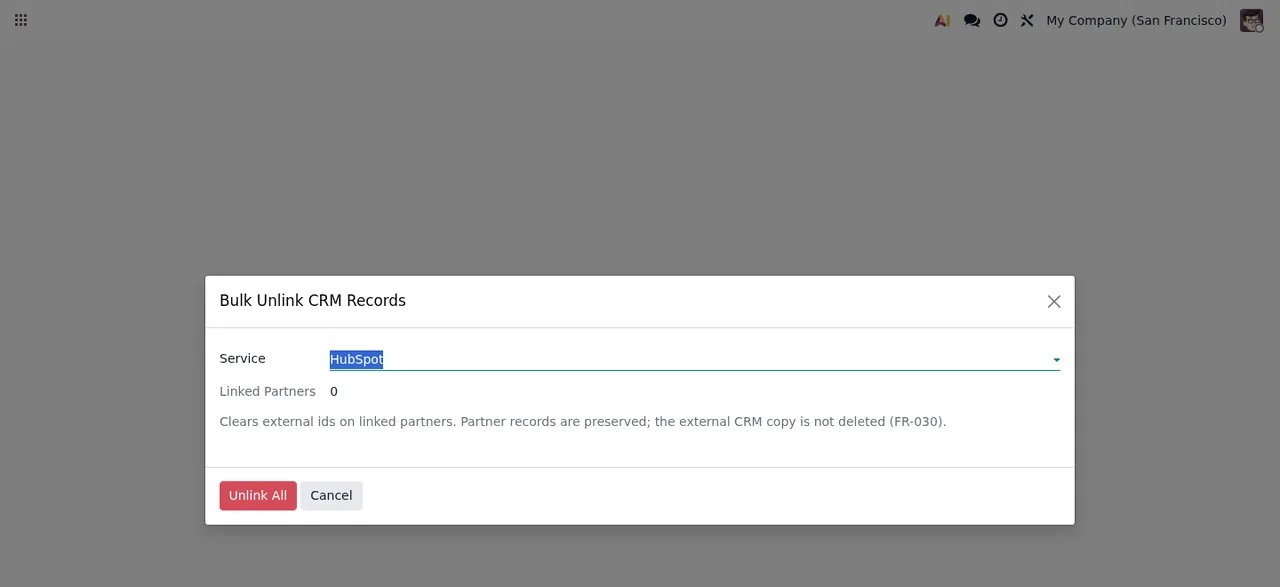
Bulk Unlink CRM Records with the HubSpot service, with no linked records yet (Linked Partners at 0)If a message pops up that you do not understand, the literal texts and what to do about each one are in the module's errors and warnings.
What FlexigoTech Cloud does and what happens if you stop it
The connection goes through FlexigoTech Cloud: it stores the credentials encrypted, monitors the sync and emails you if it fails. If the platform changes its API, the module and the service are adapted.
The app costs €9 excluding VAT on Odoo Apps, a one-off payment per version, for Odoo 17, 18, 19 and 20. The Connector plan costs €49/month or €490/year excluding VAT, with up to 3 platform accounts (Pro: €98/month or €980/year excluding VAT, up to 10).
Without a subscription, or with the service suspended, whatever the subscription provides stops, but your data stays in your Odoo.
With the subscription, the module for new Odoo versions is included if you bought it on flexigotech.com. If you bought it on the Odoo App Store, each Odoo version is purchased there.
How FlexigoTech can help
FlexigoTech implements Odoo 17, 18, 19 and 20 and builds bespoke connectors and integrations. If you would like us to set up the connection with you, or you need something the module does not cover, you will find the details on the connector page and the Odoo Apps listing.
Keep reading
Checked in the connector's source code (version 20.0) and the linked sources
Sources
- Module source code: flexigo_hubspot_pipedrive_two_way_crm_sync_lite 20.0 (c091502a): models/res_config_settings.py
- Module source code: flexigo_hubspot_pipedrive_two_way_crm_sync_lite 20.0 (c091502a): models/crm_sync_audit_log.py
- Module source code: flexigo_hubspot_pipedrive_two_way_crm_sync_lite 20.0 (c091502a): models/crm_sync_queue_item.py
- apps.odoo.com/apps/modules/20.0/flexigo_hubspot_pipedrive_two_way_crm_sync_lite
- apps.odoo.com/apps/modules/17.0/flexigo_hubspot_pipedrive_two_way_crm_sync_lite
- apps.odoo.com/apps/modules/18.0/flexigo_hubspot_pipedrive_two_way_crm_sync_lite
- apps.odoo.com/apps/modules/19.0/flexigo_hubspot_pipedrive_two_way_crm_sync_lite
- flexigotech.com/en/services.html
- flexigotech.com/precios.html