

 Español
 Català
 Deutsch
 Français
 Português
 Italiano
 Nederlands
 Polski
The PSA menu at a glance
The module hangs everything off a root PSA menu. It has two direct entries, PSA › Rate Cards and PSA › Retainer Contracts, and four groups: PSA › Projects, PSA › Billing, PSA › Dashboards and PSA › Configuration.
The glossary below walks through each entry with its path exactly as the module shows it, so you can spot it on screen straight away. When the same term turns up in a scheduled action, we point it out, as it helps you recognise it elsewhere.
Rates and contracts
Rate Cards- A direct menu entry at
PSA › Rate Cards, outside the projects and billing groups.
Retainer Contracts- A direct entry at
PSA › Retainer Contracts. The word retainer reappears in the name of the scheduled actionPSA: Generate retainer invoices.
Projects and tracking
All Projects- Inside the
Projectsgroup, atPSA › Projects › All Projects.
Portfolio View- In the same group, at
PSA › Projects › Portfolio View.
Milestones Roll-up- At
PSA › Projects › Milestones Roll-up. The term milestone also appears in the actionPSA: Check milestone delays.
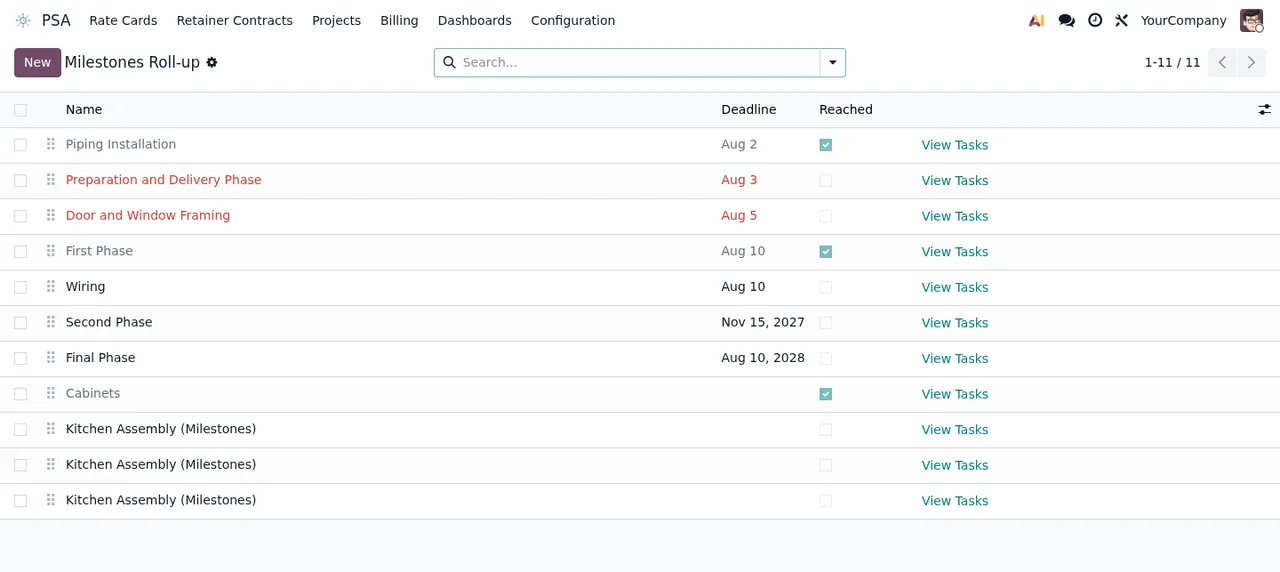
Milestones Roll-up list: some milestones show in red and others are marked as reached.Billing
Billing Queue- At
PSA › Billing › Billing Queue. Its name matches that of the actionPSA: Cleanup expired billing queue locks.
NTE Caps- At
PSA › Billing › NTE Caps, within the billing group.
Change Orders- At
PSA › Billing › Change Orders, alongside the other two.
Dashboards
Utilization- Under
PSA › Dashboards, atPSA › Dashboards › Utilization. The animated walkthrough below shows it as a list.
Revenue Forecast- At
PSA › Dashboards › Revenue Forecast. The actionPSA: Refresh revenue forecastcarries the same term.
Utilization list, with columns for date, employee, project, hours, rate, billable amount, WIP status and client approval.Configuration
Non-Billable Categories- At
PSA › Configuration › Non-Billable Categories.
Settings- At
PSA › Configuration › Settings.
DSAR Requests- Also under configuration, at
PSA › Configuration › DSAR Requests.
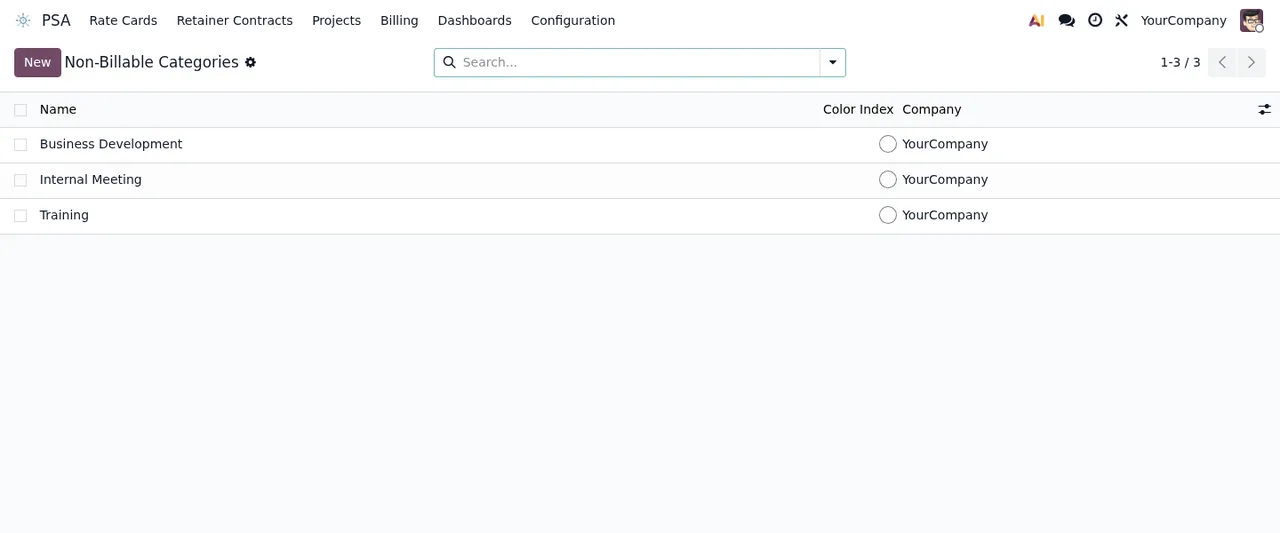
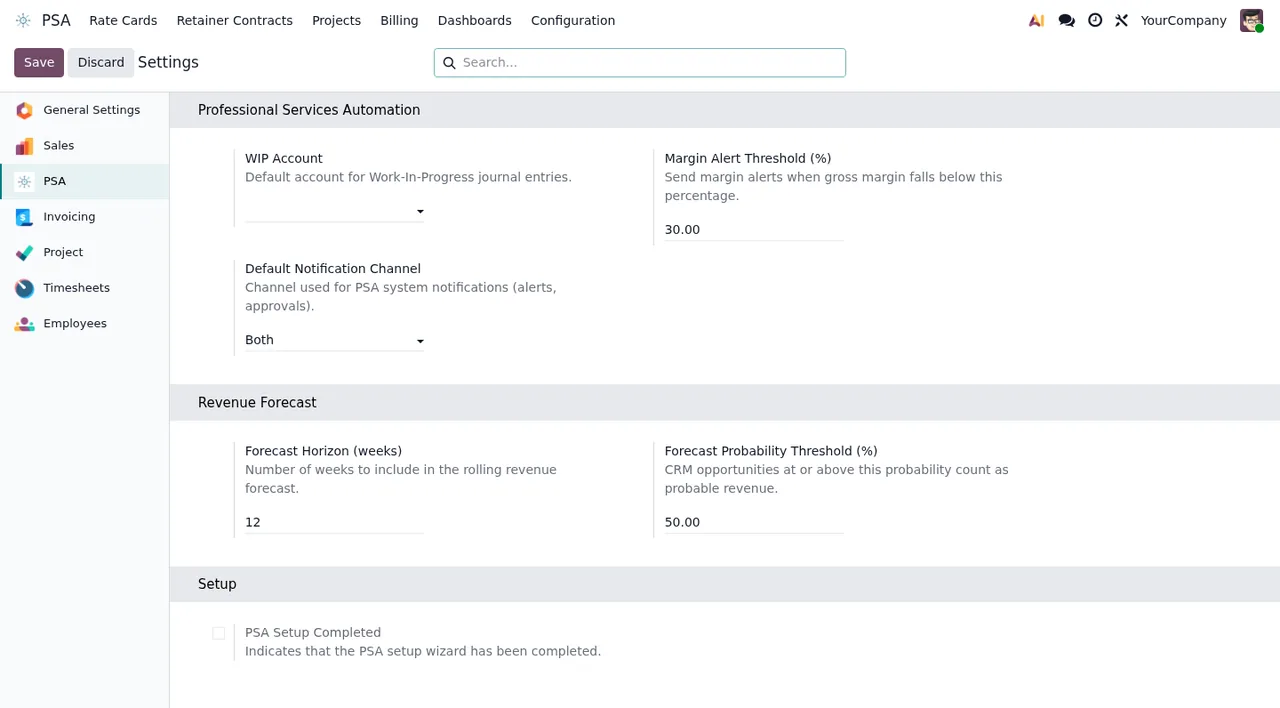
WIP Account still empty, the notification channel set to Both and the setup checkbox unticked.The scheduled actions that run on their own
Alongside the menus, the module leaves six scheduled actions, all active. By frequency:
PSA: Generate retainer invoices: daily.PSA: Check milestone delays: daily.PSA: Check project margin alerts: daily.PSA: Refresh revenue forecast: daily.PSA: Compute WIP values: hourly.PSA: Cleanup expired billing queue locks: every 6 hours.
The names tell you what each one works on: retainer invoices, milestone delays, project margin alerts, the revenue forecast, WIP values and expired locks on the billing queue. If you plan to change a frequency or switch one off, do it first on a copy of your database and check the outcome there.
The actions share terms with the menus: retainer with Retainer Contracts, milestone with Milestones Roll-up, revenue forecast with Revenue Forecast and billing queue with Billing Queue. It is a naming overlap that helps you find your way, not a documented dependency.
What you see of a record on its screens
What the screenshots show: in Milestones Roll-up each milestone has a deadline, a reached checkbox and a link to view its tasks, and some show in red. The Utilization list has a WIP status column and a client approval column, next to hours, rate and billable amount.
If what you are after is which fields to fill in and what to check in the first few days, see setting up PSA.
External service, price and versions
The Odoo Apps listing warns before you buy: Before you buy: some features of this app use a paid external service. It is a module with a local FlexigoTech Cloud service: part of it runs in your Odoo and part depends on that service.
The module costs €9 per Odoo version, one-off and excluding VAT, for 17, 18 and 19 (listings checked on 03-11-2026); the local service costs €29/month or €290/year excluding VAT, and the Pro plan €58/month or €580/year excluding VAT.
Without a subscription, or with the service suspended, whatever the subscription provides stops, and your data stays in your Odoo. With the subscription, the module for new Odoo versions is included if you bought it on flexigotech.com; if you buy it from the Odoo Apps listing, each Odoo version is bought there.
Where FlexigoTech fits in
FlexigoTech implements Odoo and builds bespoke connectors and integrations. If you are still weighing up whether this module suits you and which version to install it on, start with whether PSA fits your business; if you already have it and want to connect it with other parts of your Odoo or with outside systems, that is what we do in an implementation.
Keep reading
Checked in the module's source code (version 19.0) and the linked sources
Sources
- Module source code: flexigo_psa_premium 19.0 (9670343f): views/menus.xml
- Module source code: flexigo_psa_premium 19.0 (9670343f): data/psa_cron_data.xml
- Module source code: flexigo_psa_premium 19.0 (9670343f): static/description/index.html
- apps.odoo.com/apps/modules/19.0/flexigo_psa_premium
- apps.odoo.com/apps/modules/17.0/flexigo_psa_premium
- apps.odoo.com/apps/modules/18.0/flexigo_psa_premium
- flexigotech.com/en/services.html
- flexigotech.com/precios.html