

 Español
 Català
 Deutsch
 Français
 Português
 Italiano
 Nederlands
 Polski
Before you open the settings
The module is published on Odoo Apps for Odoo 17.0, 18.0 and 19.0, and each version's listing shows €9, a one-off payment per Odoo version, excluding VAT. The FlexigoTech Cloud local service costs €29/month or €290/year excluding VAT (Pro: €58/month or €580/year); without a subscription, or with the service suspended, whatever the subscription provides stops and your data stays in your Odoo.
If you buy it on the Odoo App Store, each Odoo version is bought there. If you buy it from the module page on flexigotech.com, the subscription includes the module for new Odoo versions. The public listing is on Odoo Apps.
Before touching anything, have three decisions ready: which ledger account you will use for work in progress, below what gross margin project managers should be alerted, and how many weeks you want in the revenue forecast. These are values you will fill in under the settings.
Setting it up step by step
This is the order we suggest: first the general PSA settings, then each project.
- Default WIP account. Fill in
WIP Account(psa_wip_account_id). According to its help text, it is the default account for work-in-progress journal entries.
- Margin alert threshold. In
Margin Alert Threshold (%)you enter the percentage: according to its help text, project managers are notified when gross margin falls below it.
- Notification channel.
Default Notification Channelis a selection field. Pick the option you want alerts to arrive through.
- Forecast horizon.
Forecast Horizon (weeks)is the number of weeks included in the rolling revenue forecast.
- Probability threshold.
Forecast Probability Threshold (%)sets the probability at or above which CRM opportunities are counted.
- Default non-billable category. The
Default Non-Billable Categoryfield holds the name of the default non-billable time category.
- Finish the wizard.
PSA Setup Completedis set automatically by the setup wizard. When you finish, check that it is ticked.
- Project billing details. On each project you choose
PSA Billing Type(a selection) and fill inContracted Value. If the project runs on a retainer, set it inRetainer Contract; if it has caps, add them underNTE Caps.
- Project WIP account, only if needed. The project has its own
WIP Account, which according to its help text overrides the company-level WIP account for that project. Leave it empty if the general one works for you.
- Client approval. If you tick
Client Approval Required, timesheet lines on that project require client approval through the portal.
- Project dashboard. Tick
PSA Cockpit Enabledto show the PSA Cockpit dashboard for that project.
WIP Account empty and the setup checkbox unticked, and the Utilization list with hours, rate, billable amount, WIP status and client approval.There is also a Margin Alert Threshold (%) field (margin_alert_threshold_pct) with the help text «Send margin alert when gross margin falls below this percentage», and another WIP Account whose help text says it is the account used to post work-in-progress journal entries. If you come across both while configuring, check the value is the one you want in each place.
Project figures and where each one comes from
Once configured, each project shows a set of amounts and signals. It helps to know what each one measures before drawing conclusions:
Invoiced to Date: sum of posted invoices linked to the project.
WIP Value: value of billable timesheets not yet invoiced.
Cost to Date: total employee cost accumulated on the project.
Gross Margin (%): calculated as(Invoiced to Date − Cost to Date) / Invoiced to Date * 100.
Margin Trend: computed by a scheduled task (cron), it is the change in margin against the prior period.
Margin Alert Sent Period: key of the last period for which a margin alert was sent.
NTE Overrun Risk: a checkbox whose help text begins «True when any NTE cap».
Billing Days Outstanding: average days between the timesheet date and the invoice date.
Because gross margin is calculated on what has been invoiced, read Gross Margin (%) together with Invoiced to Date and Cost to Date, not on its own. If you want to see how these pieces fit together internally, see how PSA works inside Odoo.
What to check in the first week
Once the first timesheets are in, go through these points:
- Setup closed.
PSA Setup Completedticked in the settings.
- WIP account. The settings
WIP Accounthas an account chosen, and projects with their own account use the right one.
- Rates. Review the Rate Cards list. If you find a demo record like the one in the screenshot, decide whether to replace it with your own rates.
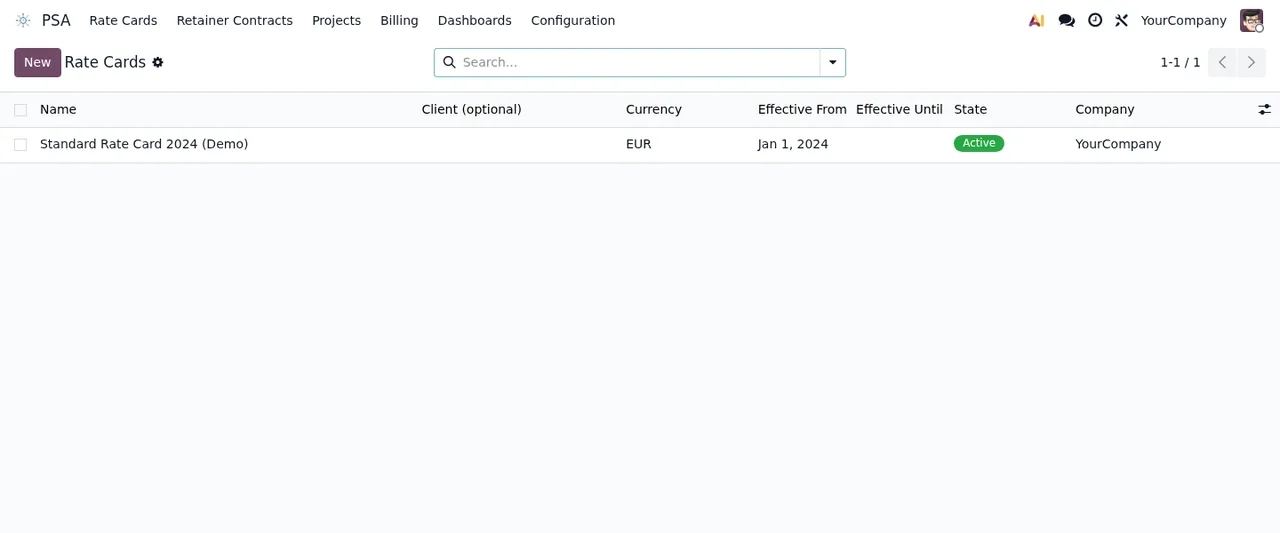
PSA › Rate Cards with demo data: a single record, valid from January 2024, for the company YourCompany.- Client approval. On projects with
Client Approval Required, check the client approval column in the Utilization list and make sure the client knows they need to approve the lines in the portal.
- Margin and billing days. Compare
Gross Margin (%)with the threshold you set and look atBilling Days Outstandingon each project.
- Change orders and DSAR requests. Find both screens even if you have no records yet, so you know where they are.
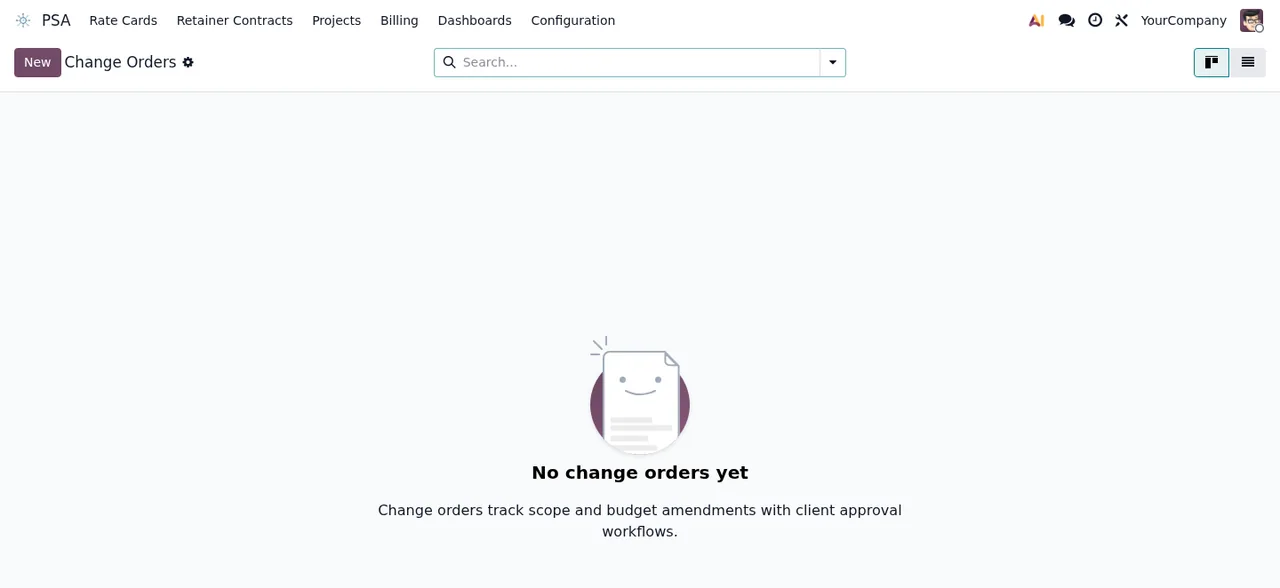
PSA › Change Orders, still with no records: the message «No change orders yet» is shown.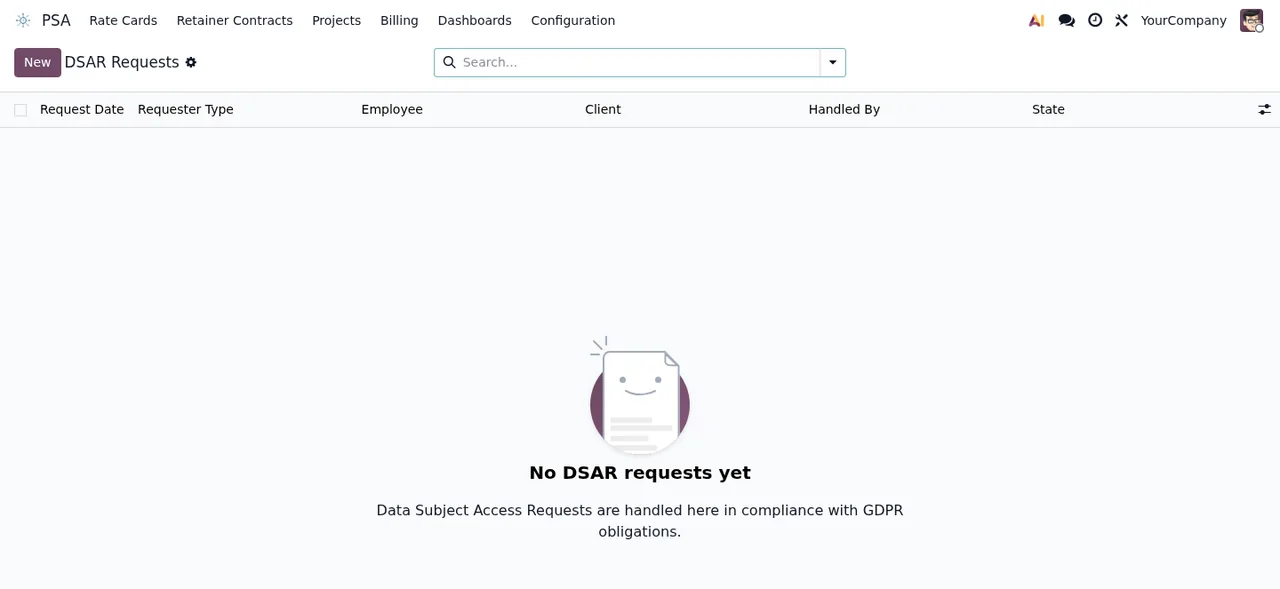
PSA › DSAR Requests, with no records yet and the message «No DSAR requests yet».If any warning or error comes up during these days, the literal texts and what to do about each one are in the PSA error messages.
How FlexigoTech can help
FlexigoTech implements Odoo 17, 18, 19 and 20 and builds bespoke connectors and integrations. If you would like us to go through the PSA settings, the WIP account or your project setup with you before you start invoicing, get in touch from the module page.
Keep reading
Checked in the module's source code (version 19.0) and the linked sources
Sources
- Module source code: flexigo_psa_premium 19.0 (9670343f): models/project_project_ext.py
- Module source code: flexigo_psa_premium 19.0 (9670343f): models/psa_setup_wizard.py
- Module source code: flexigo_psa_premium 19.0 (9670343f): models/res_config_settings_ext.py
- apps.odoo.com/apps/modules/19.0/flexigo_psa_premium
- apps.odoo.com/apps/modules/17.0/flexigo_psa_premium
- apps.odoo.com/apps/modules/18.0/flexigo_psa_premium
- flexigotech.com/en/services.html
- flexigotech.com/precios.html