

 Español
 Català
 Deutsch
 Français
 Português
 Italiano
 Nederlands
 Polski
Before installing: version and licence
This list follows the order you would use in a real implementation. If you are still weighing up whether the module suits you, start with what it covers and what you need before installing it.
- Check your Odoo version: the module is published on Odoo Apps for 17.0, 18.0, 19.0 and 20.0.
- Be clear on cost: €9 per Odoo version, one-off payment, excluding VAT, for 17, 18, 19 and 20. It is a module with a FlexigoTech Cloud local service, which costs €29/month or €290/year excluding VAT (Pro: €58/month or €580/year).
- Decide where to buy if you plan to upgrade: with the subscription, the module for new Odoo versions is included if you bought it on flexigotech.com; on the Odoo App Store, each Odoo version is bought there. See the Odoo Apps listing and the module page.
- Bear in mind that without a subscription, or with the service suspended, whatever the subscription provides stops; your data stays in your Odoo.
Controller settings: who you are and who gets alerts
These are the module's fields that identify the company and the DPO and set up the alerts.
Company and DPO details
Company: the company these details belong to.
DPO Partner Record: the DPO's contact record.
DPO / Responsible Contact Name,DPO EmailandDPO Phone: contact name, email and phone.
Formal DPO Designated: the tick box showing whether a DPO has been formally designated.
AEPD DPO Registry Reference (Spain): the AEPD registry reference, a field its label reserves for Spain.
Primary Supervisory Authority: the main supervisory authority.
Alerts and warning days
Breach Alert Recipients: who receives breach alerts. It accepts several.
DSAR Overdue Alert Recipients: who receives alerts for overdue DSARs. It also accepts several.
Retention Advance Warning (days): how many days in advance the retention warning comes, as a whole number.
DSAR Reminder Days Before Deadline: the number of days before the deadline for the DSAR reminder.
Control tick boxes
Art. 30(5) SME Exception Note Acknowledged: the tick box with that label about the SME exception note.
Encryption Key Configured: the tick box showing whether the encryption key is configured.
Before moving on, look at what these tick boxes show in your database and talk it through with your DPO or adviser.
First records: legal bases and processing activities
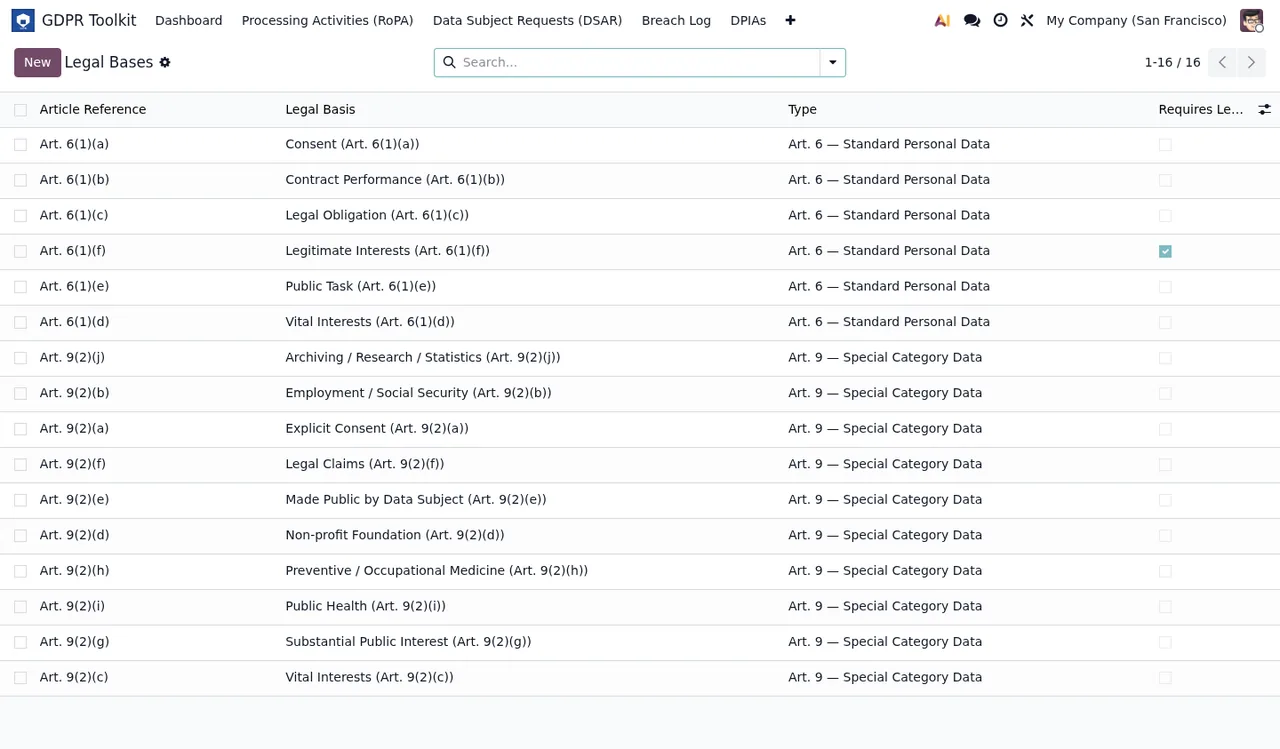
- Open
GDPR Toolkit › Legal Basesand go through the list: each basis has an article reference, legal basis, type and a requirement tick box.
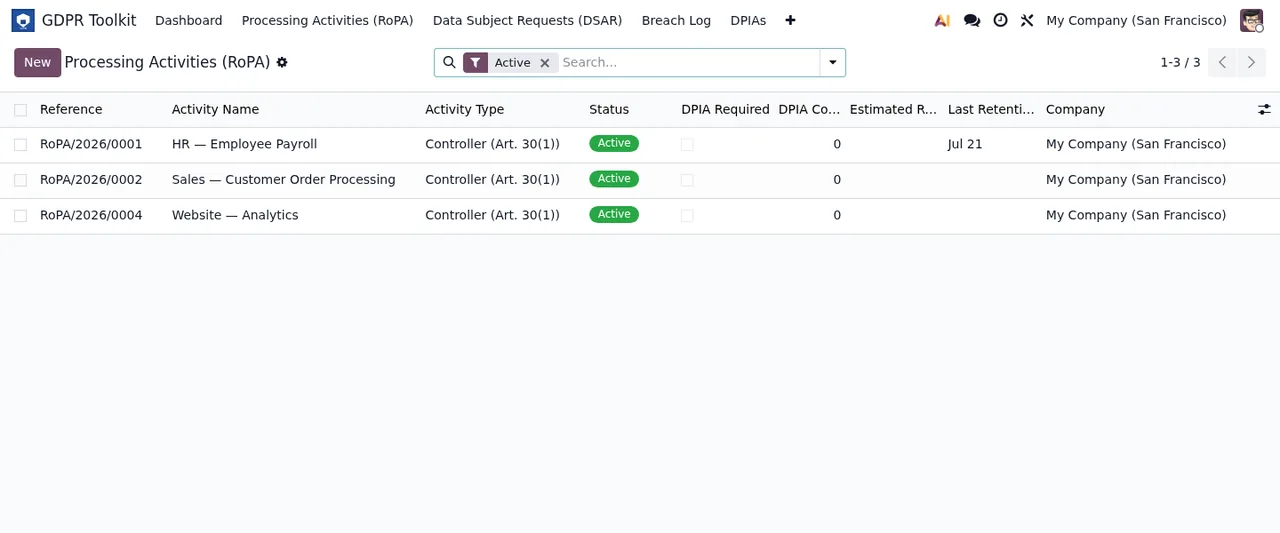
- Add your activities under
GDPR Toolkit › Processing Activities (RoPA).
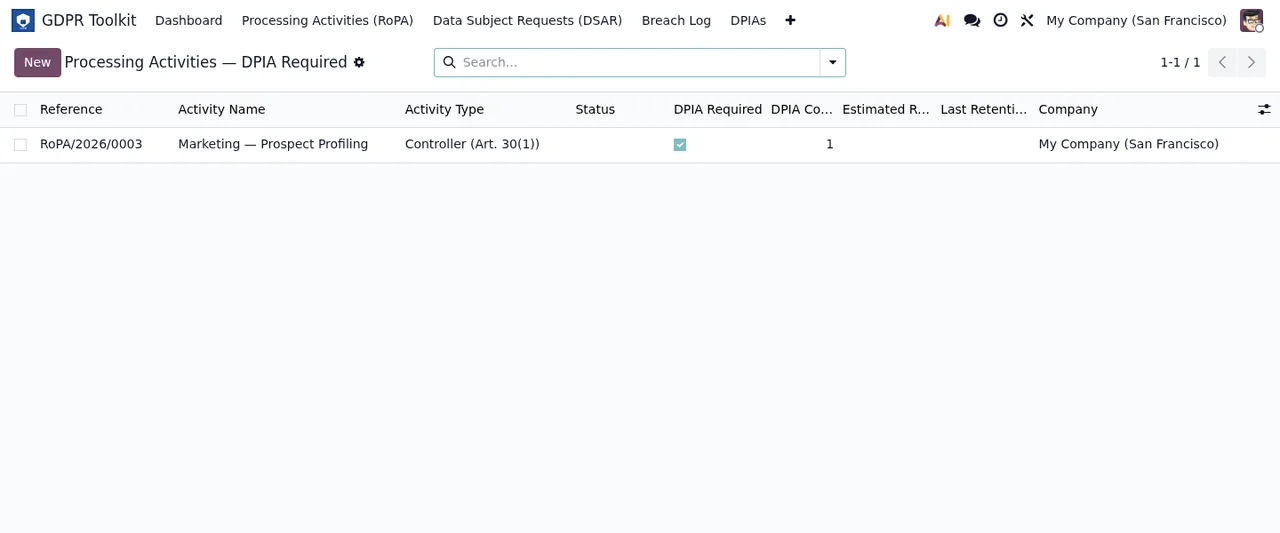
- Check the activities view filtered by DPIA required, to see which activities have that box ticked.
The states each record goes through
The module defines several state flows. Go through them with whoever will use it before the first real case arrives. If you want to see how menus and records fit together, we cover it in how GDPR Compliance Suite works.
Draft, Active and Archived
One of the flows goes through Draft, Active and Archived. In the activities list shown in the screenshots, the records are in Active.
From New to Closed
Another flow runs through New, Under Assessment, DPA Notified, Data Subjects Notified and Closed. The breach register shows rows in New and in Under Assessment.
Flow with DPO review
Another flow goes through Draft and Submitted for DPO Review and ends in Approved or Rejected.
Flow that starts at Received
This flow moves through Received, In Review, Identity Verified and Response Drafted, and has four different closing states, with the technical codes closed_completed, closed_refused, closed_extended and closed_partial_erasure.
Two-step flows
There are two short flows with the codes draft and done: one goes from Configure to Export Ready and the other from Configure to Ready.
- Explain to each user which states they will handle in their work.
- Agree which closing state is used in each case of the flow that starts at
Received.
Your first week: what to check
- In the activities list with the Active filter, check the reference, name, type, state, DPIA required, retention and company of each record.
- In the breach register, check dates, DPA notification deadline and state on each row.
- In the active incidents list, look at the risk level and state of each breach.
- In the DPIA list, find the ones still in draft and review their residual risk and approval columns.
- In the review records, check that each one has
Processing Activity,Company,Review Date,ReviewerandAction Taken, and useExtension Justification,New Retention End DateandNoteswhere needed.
- Check for portal users with
Portal Abuse Flag(gdpr_portal_flagged): according to its description, it is set when a portal user exceeds the sustained-abuse threshold.
- Go back to the settings and confirm that
Breach Alert RecipientsandDSAR Overdue Alert Recipientspoint to the right people.
If a message you do not understand appears during these days, see the module's messages explained one by one.
How FlexigoTech can help
At FlexigoTech we implement Odoo 17, 18, 19 and 20 and build bespoke connectors and integrations. If you would like us to set up these fields with your team or connect the module to other systems, get in touch through the module page.
Keep reading
Checked in the module's source code (version 20.0) and the linked sources
Sources
- Module source code: flexigo_gdpr_toolkit 20.0 (bd76c09c): models/gdpr_config.py
- Module source code: flexigo_gdpr_toolkit 20.0 (bd76c09c): models/gdpr_retention.py
- Module source code: flexigo_gdpr_toolkit 20.0 (bd76c09c): models/gdpr_breach.py
- Module source code: flexigo_gdpr_toolkit 20.0 (bd76c09c): models/gdpr_dpia.py
- Module source code: flexigo_gdpr_toolkit 20.0 (bd76c09c): models/gdpr_dsar.py
- Module source code: flexigo_gdpr_toolkit 20.0 (bd76c09c): models/gdpr_processing_activity.py
- Module source code: flexigo_gdpr_toolkit 20.0 (bd76c09c): wizard/gdpr_portability_export_wizard.py
- Module source code: flexigo_gdpr_toolkit 20.0 (bd76c09c): wizard/gdpr_ropa_export_wizard.py
- apps.odoo.com/apps/modules/20.0/flexigo_gdpr_toolkit
- apps.odoo.com/apps/modules/17.0/flexigo_gdpr_toolkit
- apps.odoo.com/apps/modules/18.0/flexigo_gdpr_toolkit
- apps.odoo.com/apps/modules/19.0/flexigo_gdpr_toolkit
- flexigotech.com/en/services.html
- flexigotech.com/precios.html